Computer Keeps Crashing When Playing Games - How to Fix?
Today's games are typically high-octane and require high-power capacity in the RAM, graphics, etc., making defects in the CPU or GPU noticeable, either as a cause or result of this condition. This can cause a computer to keep crashing when playing games, and the various fixes for this condition will be explored in this post.
Why My PC Crashes While Gaming
Certain issues are commonly noticed when people experience sudden PC crashes. The main causes of such a situation include overheating, outdated drivers, corrupted system files, and malware infections, among others. Identifying the root cause is crucial before proceeding with the fixing processes.
- Consistent overheating PC as you continue gaming non-stop.
- Unavailability of good device drivers.
- I've overclocked the device multiple times and to a high extent, which may have caused it to overheat and potentially shorten its lifespan.
- Faulty hardware condition.
- The active antivirus software blocks the games since it sees them as a threat.
- Existing viruses in the system cause the computer to crash.
- Failure in the power supply unit PSU.
- There are missing or corrupted system files.
- Multiple browser tabs are open.
- Outdated OS condition.
If you're experiencing the computer restarts when playing games error, don't worry, it's a common issue that can be resolved. You can refer to this article for a solution.
Solutions to PC Keeps Crashing When Playing Games
To avoid computer crashes while gaming, users can utilize various solutions. These include closing unnecessary programs, adjusting graphics settings, updating drivers and software, running a virus scan, checking for overheating, and ensuring sufficient RAM and storage space. By implementing these measures, users can help prevent crashes and ensure a smoother gaming experience.
- Way 1. Install the Latest Drivers
- Way 2. Disable Background Programs
- Way 3. Disable Onboard Sound Device
- Way 4. Run System File Checker
- Way 5. Check your Hardware
- Way 6. Cool Computer Overheating
- Way 7. Scan for Malware or Viruses
- Way 8. Run a Memory Check
Way 1. Install the Latest Drivers
The computer often crashes while playing games due to outdated or detected video drivers, which can be resolved by upgrading the video driver function on a Windows device.
Step 1: To view the graphics drivers, go to the Start menu and open Device Manager. From there, select the "Display Adapters" option.
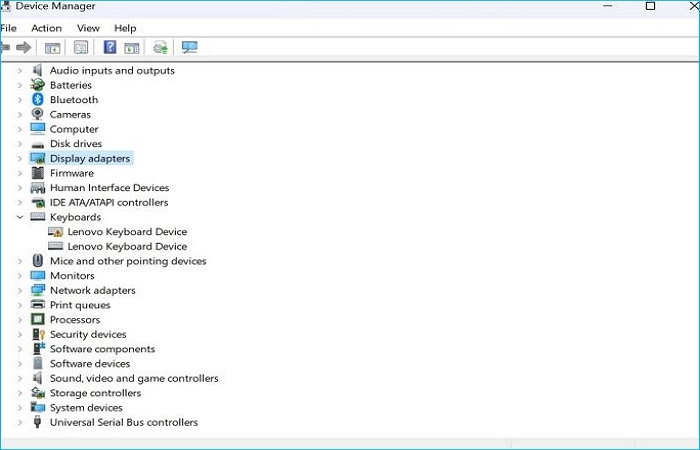
Step 2: Right-click on top of it and choose Update Driver.
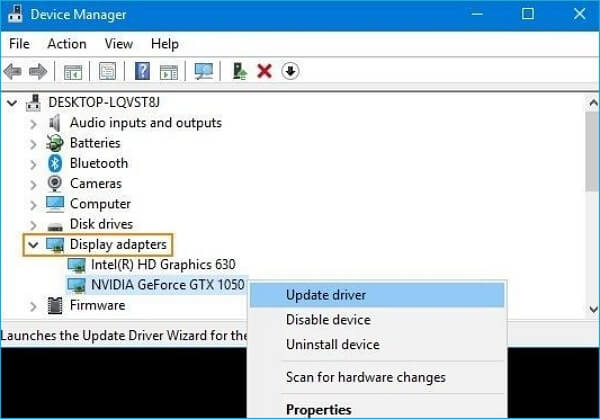
Step 3: Follow the other given instructions to complete the latest driver installation process.
Way 2. Disable Background Programs
Computer crashes often occur due to software conflicts within the system that may not be compatible with the new game software.
Other applications running in the background can cause system crashes, especially when playing games. This includes too many open tabs on web browsers and startup apps running in the background. It would be helpful to switch them off to get normal system functionality.
Step 1: To access Task Manager, right-click on the top of the Taskbar and select Task Manager, or use the keyboard shortcut Ctrl + Shift + Esc.
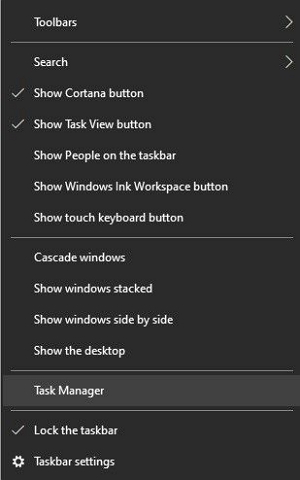
Step 2: To optimize startup programs, hover your cursor over the Startup tab in the Task Manager, which will display a list of all programs set to start automatically. Then, disable the programs that consume high memory and those that are no longer needed or used. This will help reduce unnecessary startup processes and free up system resources.

Way 3. Disable Onboard Sound Device
When your computer crashes while playing games, it might be due to a conflict between the Windows 10 sound driver and other system components, such as the GPU. This can cause system instability and crashes.
To resolve the issue, you need to disable the onboard sound device.
Step 1: In the Search box, type "Device Manager" and open it.
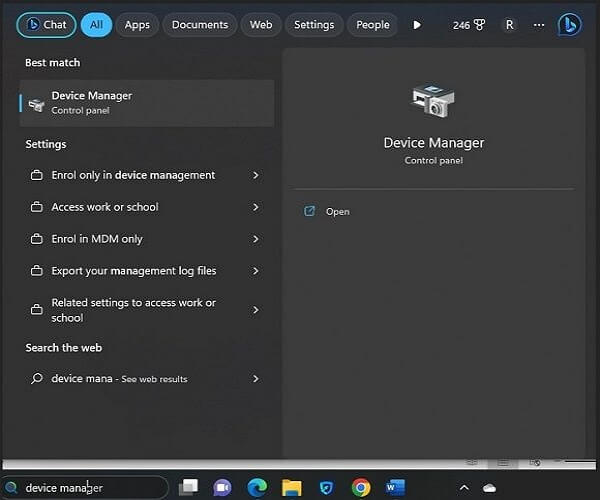
Step 2: To disable the onboard sound device, go to the "Sound, video, and game controllers" section, double-click on it, right-click on the onboard sound device, and select "Disable Device".
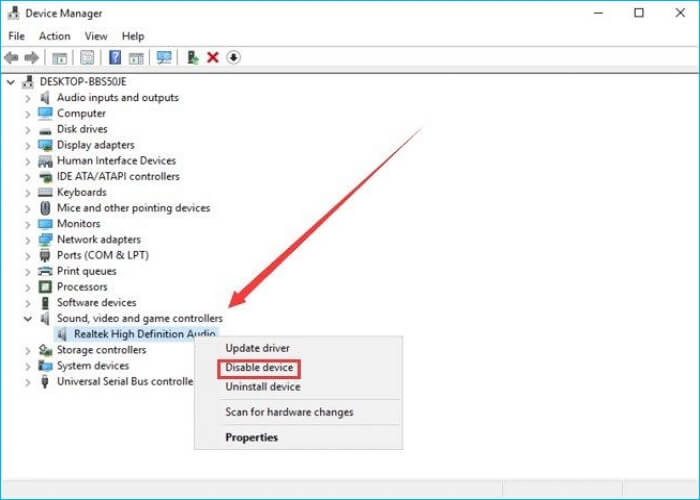
Step 3: Finally, reboot the PC.
Way 4. Run System File Checker
If corrupted or missing system files are present, it can cause a computer crash. To fix this, run the System File Checker (SFC) or SFC scanner to detect and repair the underlying error, ensuring a smooth game experience.
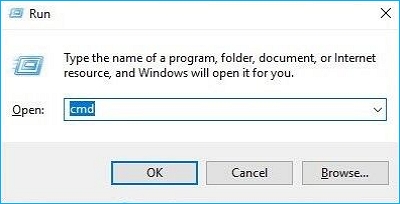
Step 1: To access the Command Prompt as an administrator, press Win + R to open the Run dialog box, type "cmd" in the text box, and then press Ctrl + Shift + Enter to run the Command Prompt with elevated privileges.
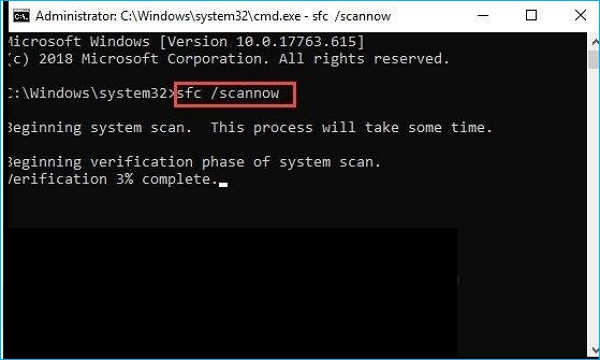
Step 2: In the Command Prompt window, type sfc/scannow and press Enter to run the System File Checker (SFC) tool, which will scan and replace corrupted system files.
Step 3: To resolve the error, you can try running the built-in disk cleanup and defragmenter tools, as well as a third-party disk cleanup tool, to remove unnecessary files and reorganize data on the disk. You should also check for and install any available Windows updates and run a full system scan using an anti-virus program to detect and remove any malware. If the issue persists, you can try running the System File Checker (SFC) tool to scan and replace corrupted system files, or the DISM tool to scan and repair corrupted system components.
Way 5. Check your Hardware
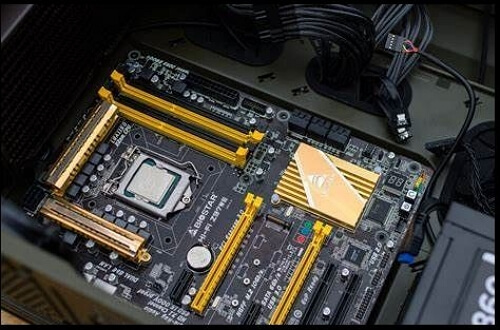
The game may not work smoothly due to hardware damage, not just software issues. Check if components like the motherboard are properly connected according to the manufacturer's guidelines. If they're old or damaged, consider replacing them.
Way 6. Cool Computer Overheating
Overheating in the CPU or motherboard, and poor heat dissipation, can lead to system crashes.
Good ventilation is necessary when running a system, as the CPU, power supply, and monitor generate high heat to function properly. If not addressed, overheating can reduce the monitor's lifespan and cause image or color distortion.
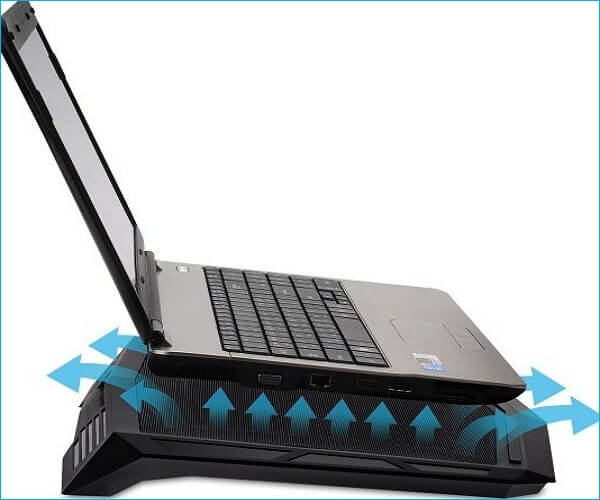
To resolve the issue, open one case side panel to improve heat dissipation. Laptop users can also consider investing in a cooling pad or fan to help keep the system cool.
Way 7. Scan for Malware or Viruses
When a computer keeps crashing while playing games, it may be caused by background antivirus apps or game software that brings viruses or malware into the system.
It's crucial to scan for viruses and malware using a reliable virus threat protection scanner, such as Windows Defender, to ensure your system's safety.
Step 1: To access Windows Defender, go to the Taskbar, find Windows Defender, and select the "Virus & Threat Protection" option underneath it.
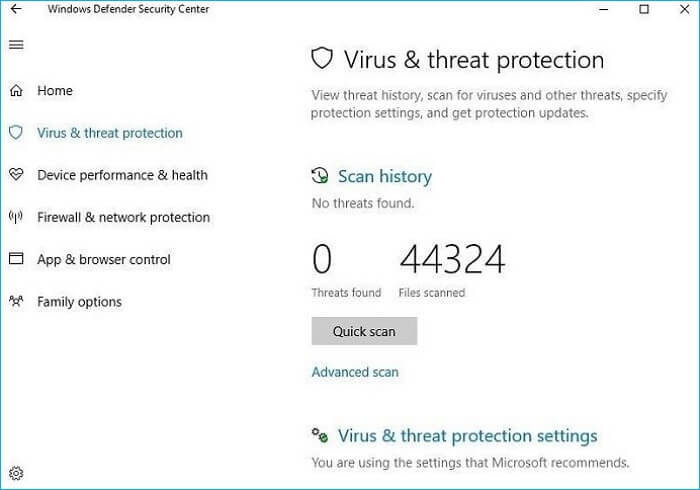
Step 2: To focus on the offline scan option, tap on Advanced Scan and select it as your priority.
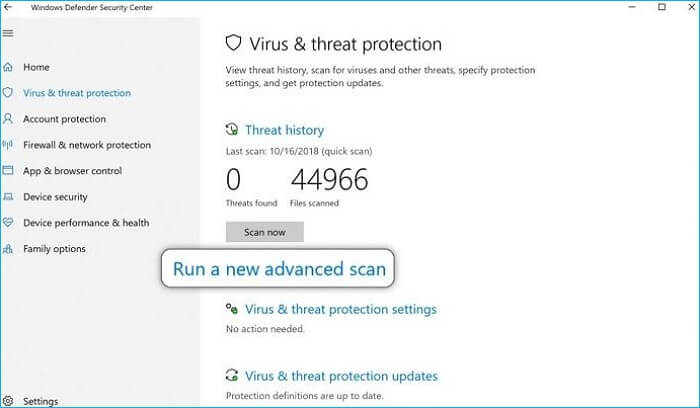
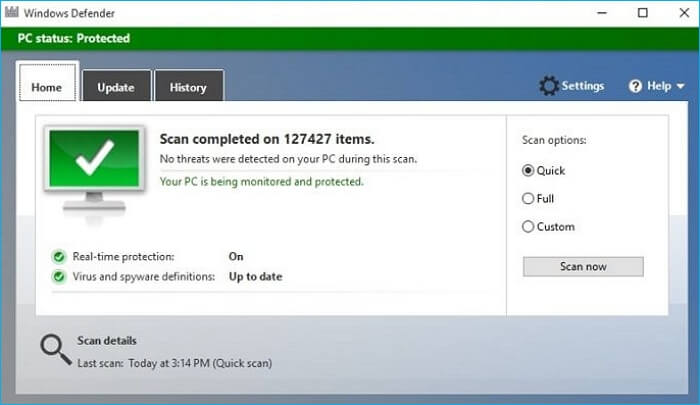
Step 3: Press the Scan Now button to begin the scanning process.
Way 8. Run a Memory Check
A bad condition of the memory card inside the system may result in system failures. To check, you can perform the following steps. (Please provide the steps to be included in the rewritten text)
Step 1: The user needs to tap on the Windows key and the R key simultaneously to open the Run dialog box.
Step 2: Type in the term "mdsched.exe" and hit Enter.
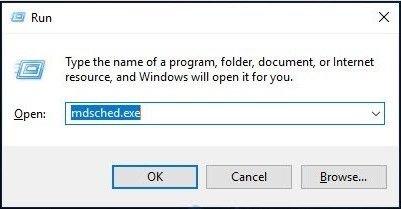
Step 3: Select the "Restart now" button that shows the current checking progress. If you prefer to check for errors later, you can choose that option instead.
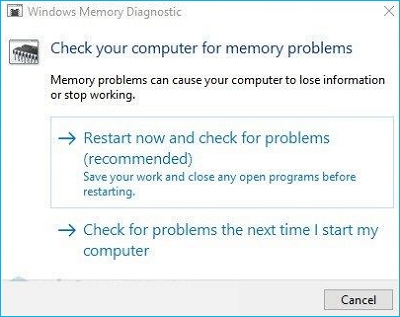
Step 4: After the device restart, you will see information about the checking progress and the total passes to run over the internal memory card, and check if the scan shows any existing errors.
Bonus Tip: How to Backup your Computer for Data Security
If you're facing software-related issues, functional problems can be a concern, and any wrong step can result in full data loss. In such a situation, giving Qiling Disk Master a chance might be helpful.
Qiling Disk Master Pro is a robust software that specializes in backup and recovery functions, allowing users to automatically back up files, systems, disks, and partitions, and securely save data into cloud storage, with options to create an image of an SD card and select among differential, incremental, and full backups.
So, if you want high-This software offers top-notch quality system backup support, making it an ideal choice to opt for as soon as possible!
Highlighted features:
- A backup is a copy of data that is stored separately from the original, providing a safety net in case of data loss or system failure. There are different types of backups, including system backups which capture the operating system and installed software, file backups which preserve individual files and folders, disk/partition backups which save the entire contents of a hard drive or partition, and cloud backups which store data online for remote access and recovery.
- You can set the frequency of the backup process.
- Advanced modes like differential and incremental backups.
- To install Windows 10 on a hard drive for another computer, you'll need to back up your current Windows 10 installation, including your files, programs, and settings. Then, you'll need to create a bootable USB drive or CD/DVD with the Windows 10 installation media.
- In the event of a disaster, having a bootable backup of your data can be a lifesaver. This involves creating a duplicate of your system and data on an external drive or cloud storage, which can be booted up on a separate machine or virtual environment, allowing you to access and recover your data even if your primary system is down.
To create a system backup of your computer, you can follow these steps. First, ensure that your computer is connected to a stable power source and that any external devices, such as USB drives, are properly plugged in.
Step 1. On the main page, click "Select backup contents".

Step 2. Among the four available categories, click System backup.

Step 3. Qiling Disk Master will automatically select your system partition, requiring only the selection of a backup destination.

Step 4. You can save the backup file to either your local drive or a NAS (Network-Attached Storage) device, providing you with flexibility in choosing where to store your backup.

Step 5. After completing the backup process, you can check the backup status, recover, open, or delete the backup by right-clicking the backup task on the left.

Final Thoughts
The computer keeps crashing when playing games due to multiple factors clashing against the gaming process, such as underlying viruses, errors in power supplies, and other system issues. To resolve this problem, it's essential to study the condition of your system and take the necessary steps to fix the issue.
Beforehand, use top software like Qiling Disk Master Pro to keep a safe data backup, avoiding problems later due to sudden PC crashes and consequent data loss.
FAQs on Computer Keeps Crashing When Playing Games
1. Why does my game keep crashing on Windows 10?
Windows 10 system crashes may be caused by various factors, including faulty game software, outdated operating system, or background-running antivirus software, leading to system instability and crashes.
2. Can RAM cause games to crash?
Installing high-speed DDR RAM into an unseated module or with a CPU overclocking issue can lead to game crashes. This is because the RAM is not properly seated or is being pushed beyond its capabilities, causing system instability and crashes. Ensuring the RAM is properly seated and the CPU is not overclocked can help resolve this issue.
3. Is it bad if your PC keeps crashing?
Multiple system crashes can indicate the presence of defective software or a severe condition of the PC, potentially leading to a full shutdown.
4. Why do my games keep crashing?
Here are some common reasons why your game keeps crashing:
- PC is overclocked
- PC cannot meet the system requirements of games
- Incorrect game settings
- Outdated graphics card driver
- The game is running in the wrong mode
- Outdated Windows operating system
- Slow internet connection
- Too many opened browser tabs
- The antivirus is crashing games
If the crash happens only in Roblox, use the Roblox-specific crash guide to separate app, graphics-driver, and storage causes.
Related Articles
- External Hard Drive Lifespan: How to Prolong It [5 Ways]
- What Is SSD SMART Status, Everything You're Concerned About
- Top 2 Ways | How to Create Bootable USB from ISO Windows 10
- Task Manager Not Opening or Responding in Windows
- 9 Ways to Fix "The Remote Computer Requires Network Level Authentication"
Are you seeing the error 'The remote computer requires network level authentication'? This is an easy to solve error. Keep reading this article as we discuss different methods that you can use to resolve this issue. - Fix There Are No Free MBR Slots on the Disk [2023 Best Solution]
If you see 'No free MBR slots on the disk', following our above solutions should fix them. But if you do it with the command prompt, you will lose all your files on the disk. So that's the only drawback. - LiveKernelEvent 141 in Windows 11: Causes and Fixes (2026)
- Fix CLOCK_WATCHDOG_TIMEOUT BSOD (0x00000101) in Windows 11
- Fix VIDEO_SCHEDULER_INTERNAL_ERROR 0x119 in Windows 11
- Fix THREAD_STUCK_IN_DEVICE_DRIVER (0xEA) in Windows 11
Products
Articles & Tutorials
- Data Recovery
- Data Backup
- File Recovery
- File Backup
- System Backup and Restore
- Disk and Partition Clone
- Technical articles
- Mobile articles
- Disk Master Help
- Windows Data Recovery Tutorials
- Windows Secure Delete Tutorials
- Windows Partition Management Tutorials
- Windows File Backup and Restore Tutorials
- Windows System Backup and Restore Tutorials
- Windows Disk Backup and Restore Tutorials
- Windows Clone Tutorials