Top 2 Ways | How to Create Bootable USB from ISO Windows 10
Why Do You Create Windows 10 Bootable USB from ISO
Windows 10 has gained widespread popularity due to its reliability, user-friendly interface, and enhanced safety features. If you've reserved a copy, you might want to consider a clean installation using a Windows ISO instead of upgrading from your current OS. This can be a good option for those who want a fresh start with their computer.
You may create a Windows bootable USB from an ISO for many reasons, such as installing Windows on a new computer, reinstalling Windows on an existing computer, or creating a backup of your current Windows installation.
- Perform Windows 10 clean installation. To make a bootable USB of Windows 10 from ISO, you can use a tool like Rufus or the Media Creation Tool provided by Microsoft. This will allow you to create a bootable USB drive that can be used to install Windows 10 on a computer.
- Have a portable Windows 10 environment. You can create a Windows 10 To Go drive from an ISO file, which enables you to have a familiar Windows 10 environment.
When something goes wrong with the operating system, you can choose to reinstall Windows, and also use a Windows repair disc or USB drive to boot a non-working computer and perform a repair.
Installing Windows 10 and obtaining a genuine Windows key is essential for a complete and authentic user experience. *Install Windows 10 and get a genuine Windows key for a full user experience. GET IT SOON👇👇
2 Ways to Create Windows 10 Bootable USB from ISO
Creating a Windows 10 bootable USB from ISO on Windows 10 can be done in two easy ways. One method involves using a third-party software, such as Rufus, which provides a user-friendly interface to create a bootable USB drive from an ISO file. Alternatively, you can use the built-in tool in Windows 10, such as the Media Creation Tool, to create a bootable USB drive from an ISO file, which is also relatively straightforward to use. Both methods are simple and effective, making it easy to create a bootable USB drive from an ISO file on Windows 10.
| Workable Solutions | Step-by-step Troubleshooting |
|---|---|
| Way 1. Use Windows 10 Media Creation Tool | Microsoft has a utility called Media Creation Tool, which allows users to create a bootable USB drive or DVD to install Windows 10. This tool can be used to upgrade or clean install Windows 10 on a PC, and it also supports creating a USB drive or DVD that can be used to install Windows 10 on multiple PCs. The Media Creation Tool can be downloaded from Microsoft's website, and it is available for both 32-bit and 64-bit systems. The tool allows users to choose the language, edition, and architecture of the Windows 10 installation, and it also allows users to create a USB drive or DVD that can be used to install Windows 10 on a PC that does not have a working internet connection.Full steps |
| To install Ubuntu, you can download the ISO file for the desired version and burn it to a USB drive. First, go to the Ubuntu website and select the version you want to install. Click on the "Download" button to get the ISO file. | If you're having trouble creating a Windows 10 installation media, you can try using the Windows 10 Media Creation Tool. Alternatively, you can also try using other methods to create a bootable USB drive or DVD, but the Media Creation Tool is often the most reliable and straightforward option.Full steps |
🔥Read More: How to Burn ISO to External Hard Drive Windows 10
Way 1. Use Windows 10 Media Creation Tool
To download a Windows 10 ISO file and create a bootable USB, use Microsoft's Media Creation Tool, which allows you to download the ISO and create a bootable USB to install Windows 10.
Step 1. Go to the Windows 10 download page, click on "Download Now" to download and install the tool.
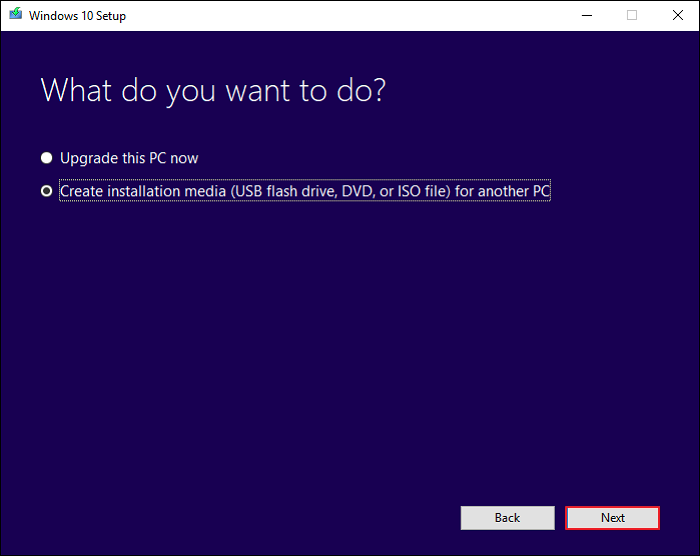
Step 2. Launch the tool, select the "Create installation media (USB flash drive, DVD, or ISO file) for another PC" option, and click Next.
If the Media Creation tool is not working, you can click on this link to get more information.
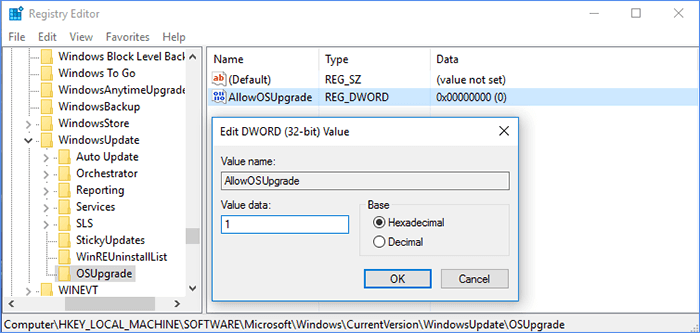
Easily Solved: Windows 10 Media Creation Tool Not Working
If the Windows 10 media creation tool isn't working, it can be difficult, especially when you're in the middle of installing Windows 10. Fortunately, this article offers six potential fixes to resolve the issue, as well as a convenient alternative to get you back on track.
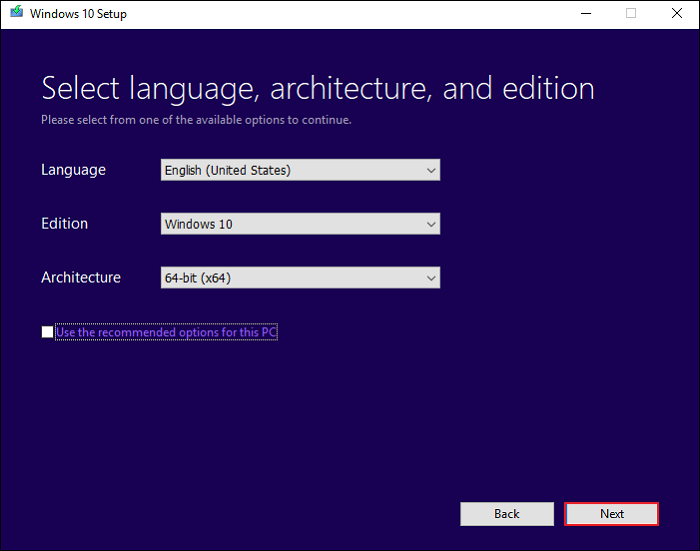
Step 3. To select the Windows edition and architecture, follow these steps: Select the language you want to install. Uncheck the options and click "Use the recommendation for this PC". This will allow you to respecify the Windows edition and architecture. Then, click Next.
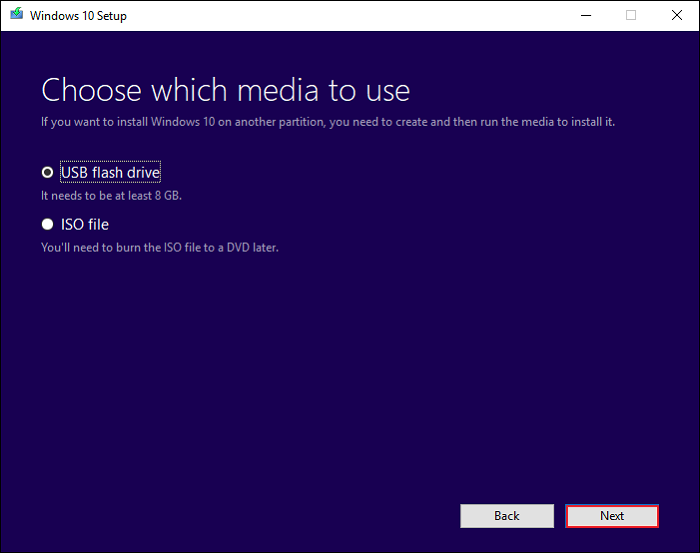
Step 4. On the next page, you will see two options: USB flash drive and ISO file. To make a bootable USB from an ISO, simply select the USB flash drive option and proceed, ensuring your USB drive has at least 8 GB capacity.
Step 5. Select a USB drive and click Next.
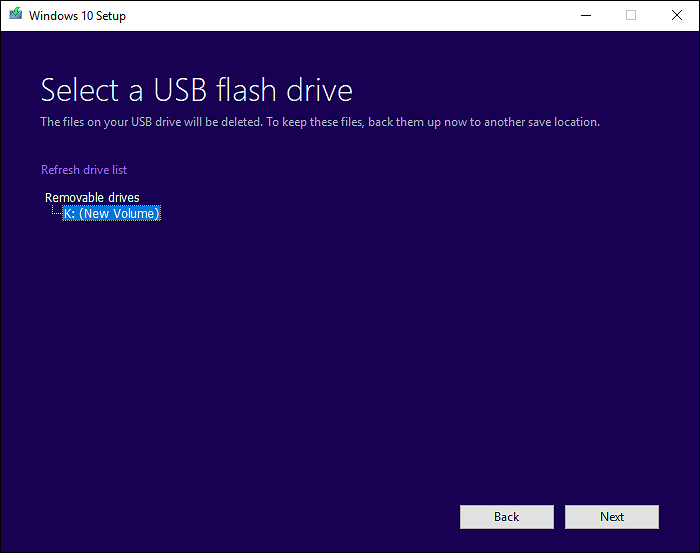
Step 6. The tool will begin downloading Windows 10/11 to the chosen USB drive.
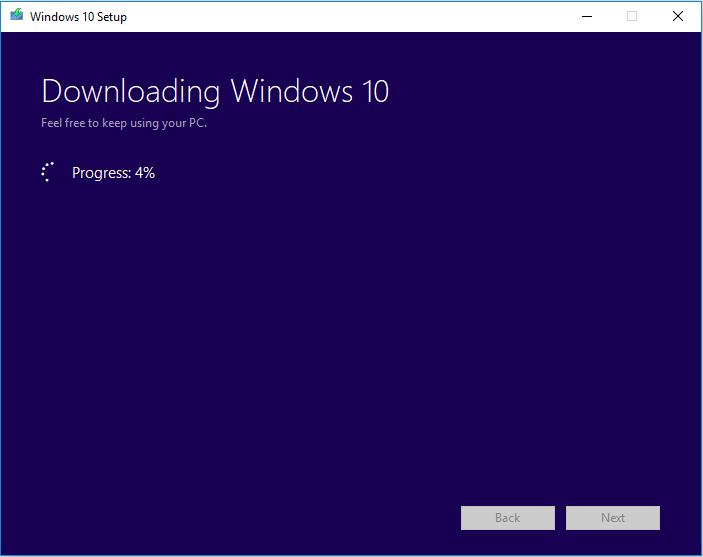
Step 7. Once the download is complete, it will begin creating the Windows 10/11 media.
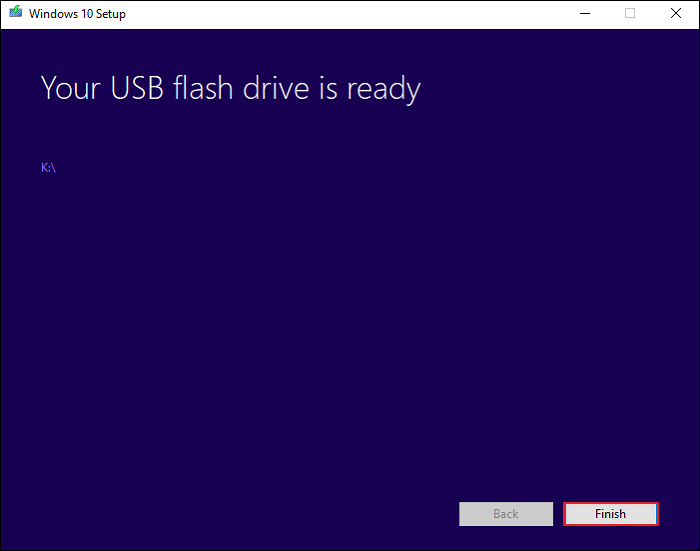
Step 8. Once the process is complete, the message "Your USB flash drive is ready" will appear, prompting you to click "Finish". At this point, the USB drive is ready to be used to boot your computer and install Windows 10/11.
Install Windows 10 and get a genuine Windows key for a full user experience.
Way 2. Download the ISO File and Burn it to a USB Drive
You can create a bootable Windows 10/11 USB drive using two methods. The first method involves using the Windows 10 Media Creation Tool. Alternatively, you can download a Windows 10/11 ISO file and use USB bootable software like Rufus to burn it to your drive. This second method involves two parts.
Part 1. Download ISO File
To download and install Windows 11, you can use the Windows Media Creation Tool. This tool allows you to create a bootable USB drive or ISO file to install Windows 11. Simply select the ISO file option, save it to a PC location, and follow the on-screen instructions to complete the installation process.
Part 2. Burn Windows ISO File to USB Drive
You can use software like Rufus to create a bootable USB from an ISO file. Rufus is a popular and user-friendly tool that can create a Windows bootable USB flash drive and a Windows To Go USB drive, making it compatible with many operating systems and completely free.
Step 1. Download and install Rufus from its official site.
Step 2. First, plug a USB drive into your PC, and make sure to back up any existing data on it to other safe locations.
Step 3. To create a bootable USB flash device using Rufus, set the following options: select the USB drive as the target device, choose the correct device type (e.g.
- From the Device drop-down option, select the USB flash drive.
- Click SELECT to choose the downloaded ISO file.
- To create a Windows bootable USB from ISO, keep other options to their default values, then click the START button. This will initiate the process of creating a bootable USB drive from the ISO file.
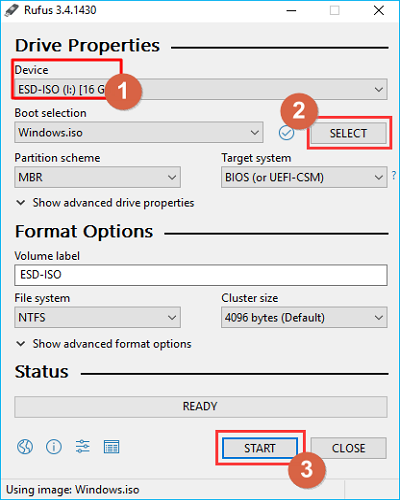
Step 4. When the Status displays ready (in green), click CLOSE to exit the tool.
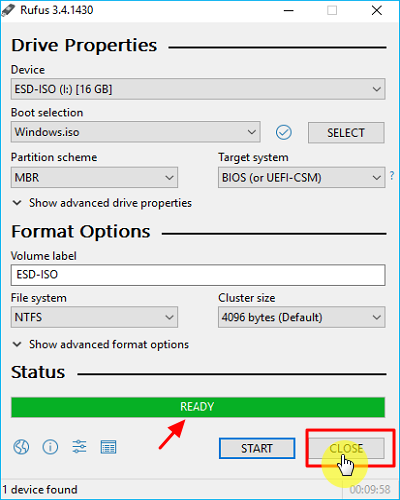
After completing the USB bootable drive creation, you can boot your PC from it and initiate the installation of Windows 10/11.
Bonus Tip: Easy Way to Create Windows 10 Bootable USB
Creating a Windows 10 bootable USB can be complicated, but there are alternative ways to achieve this without using an ISO file. Instead, you can utilize professional Windows To Go USB creator software, such as Qiling OS2Go, to easily create a bootable USB.
Qiling Disk Master Pro is a utility that allows you to create a Windows bootable USB drive without using an ISO file. It enables you to put your Windows 10 on another PC and automatically download a desired Windows 10 version with a few a few clicks, and can also help run Windows on your Mac without Boot Camp.
- Easy-to-use interface. The software allows users to create a portable Windows To Go USB stick with a simple and user-friendly interface, making it possible to do so in just a few seconds.
- MakeWindows portable. You can make a portable Windows for Windows 10/11.
- Run Windows on macOS. It enables you to create a bootable Windows USB drive for Mac.
- Excellent technical support. You can reach out to Qiling if you have any issues with OS2Go.
The Bottom Line
To create a bootable USB from an ISO file of Windows 10, you can use the Windows Media Creation Tool, download the ISO file, and burn it to a USB drive, which will help you create a Windows bootable USB.
If you don't want to create a Windows bootable USB drive using an ISO file, you can use Qiling OS2Go, a tool that simplifies the process and also allows you to create a Windows To Go USB without the enterprise edition.
FAQs
1. Can I copy Windows ISO to USB?
To create a Windows 10 installation media on a USB flash drive, download and run the Windows Media Creation program, select Create Installation Media, and follow the on-screen instructions. You can also use Rufus to help you complete the process.
2. Which is Better Power ISO or Rufus?
Rufus has alternatives like PowerISO and Qiling OS2Go, which can also create bootable USB drives for Windows and Mac, and have additional features such as disk mounting, virtual drive creation, and image format conversion.
Related Articles
- RAM Test: How to Check RAM for Errors in Windows
- There Was an Error Connecting to the Apple ID Server on MacBook [Fixed👍]
- How to Restore Backup From Google Drive to Every Device You Want
- How to Fix Dynamic Mirror Showing Failed [Three Working Solutions]
This guide is designed to help users understand and resolve the dynamic mirror showing failed error. The error typically occurs due to various reasons. - Why Is My SD Card Suddenly Blank | How to Fix Blank SD Card?
Have you ever inserted an SD card only to find it blank? This phenomenon can be frustrating, but there's a solution. This article provides a detailed guide and explanation, and offers eight efficient ways to recover your SD card and get it back to its original state. - Why Is My SD Card So Slow [All Reasons Explained 2023]
Find out why your SD card is slow and how to improve speed. Check card class, file system, device compatibility, errors, and formatting options.
Products
Articles & Tutorials
- Data Recovery
- Data Backup
- File Recovery
- File Backup
- System Backup and Restore
- Disk and Partition Clone
- Technical articles
- Mobile articles
- Disk Master Help
- Windows Data Recovery Tutorials
- Windows Secure Delete Tutorials
- Windows Partition Management Tutorials
- Windows File Backup and Restore Tutorials
- Windows System Backup and Restore Tutorials
- Windows Disk Backup and Restore Tutorials
- Windows Clone Tutorials