Why Is My SD Card Suddenly Blank | How to Fix Blank SD Card?
If you've ever removed an SD card from a device that wasn't turned off, you might need unsupported SD card data recovery. The phrase "SD card is blank" doesn't necessarily mean the device is empty, but rather that there's an issue with the SD card itself.
So, in this article, I will explain in detail to you how to fix a blank SD Card without losing data and how to handle an SD Card safely. Read on to find out more!
Why Is My SD Card Suddenly Blank on Android
A blank SD card is often caused by a corrupt RAW file system format, virus infection, bad sectors, logical damage, or improper SD card usage.
- Improper insertion or ejection of SD Card: Insert the SD card into the computer and wait for Windows to recognize it. In the File Explorer, navigate to This PC, right-click on the SD card, and select Format.
- Use of SD Card in Virus-infected device: If your Android device has a virus, the malware can also affect your SD card.
- File system corruption: If your file system is corrupt, it can cause applications in your Android device to malfunction or stop working, which can also affect your SD Card.
- Accumulating bad sectors in SD card: An old SD Card, one that has completed its read/write cycle, or one that has been affected by a virus, may develop bad sectors, which can impair its functionality and cause issues with your device.
An SD Card may go blank on an Android device due to various reasons, such as corrupted files, improper ejection, or physical damage. This can also cause your computer to run slowly. To fix a blank SD Card for Android, you can try various methods, including formatting the card, checking for physical damage, and using a data recovery tool. If you're experiencing slow performance on your SD card, you can click the link below for further assistance.

Why Is My SD Card So Slow [All Reasons Explained]
The SD card's speed can slow down due to various reasons, including physical wear and tear, file fragmentation, and excessive data storage, which can be prevented or fixed by regularly cleaning up unnecessary files, updating the operating system, and using a reliable SD card reader, among other measures.
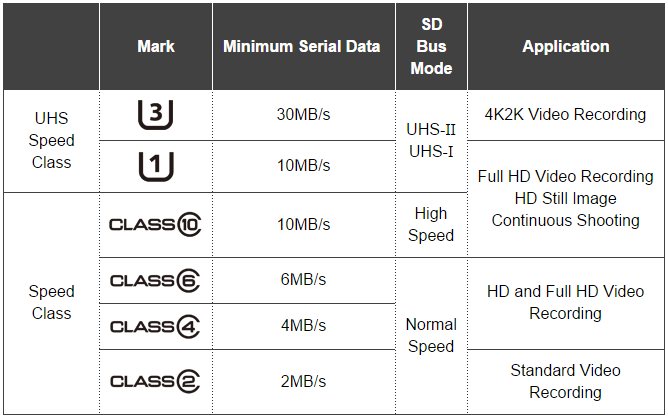
How to Fix Blank SD Card for Android
After understanding the causes of a blank SD Card on your Android device, you can try the following eight easy fixes. Make sure to understand each method before attempting it. The approaches include checking the card's compatibility, formatting the card, using a different card reader, checking for physical damage, running a virus scan, checking for firmware updates, using a recovery mode, and seeking professional help if all else fails. Each method is a potential solution to resolving the issue of a blank SD Card on your Android device.
- Fix 1. Format SD Card Safely
- Fix 2. Check Bad Sectors
- Fix 3. Reboot Android Phone
- Fix 4. Repeatedly Insert and Pull Out the SD Card
- Fix 5. Check and Delete Hidden Files on SD Card
- Fix 6. Run CHKDSK to Fix Errors
- Fix 7. Change Another SD Card
- Fix 8. Contact the Manufacturer
Let's start with the first fix to remove the SD card corruption.
Fix 1. Format SD Card Safely
- Notice:
- Backup data from your SD Card before formatting.
To resolve the issue of an SD Card not being recognized, start by backing up all data to a safe location. Then, use the Qiling Disk Master tool to format the SD Card safely, ensuring all data is erased. This process will reset the SD Card's formatting, potentially resolving the recognition issue.
Why Qiling Disk Master:
A disk management software that allows users to modify disk space, create new partitions, combine partitions, and set up a hard drive on Windows.
The tool can create or delete disk partitions, resize or remove partitions, extend system partitions, merge partitions, and format partitions, making it efficient for formatting an SD Card, with the added safety of an Undo button to prevent accidental formatting.
To format an SD card, follow these steps: First, insert the SD card into your computer or device. Next, open the file explorer or disk management tool on your computer.
Step 1. To format an SD card, locate the card and right-click on the partition you want to format, then select the "Format" option from the context menu.
Step 2. Set a new partition label, file system and cluster size to the selected partition.
Step 3. Click the "Proceed" button to start formatting your SD card.
Step 4. Click "Yes" on the pop-up window to continue.
Fix 2. Check Bad Sectors
If your SD Card suddenly goes blank, it's likely due to bad sectors. In this case, you can use Qiling Disk Master to check and fix the bad sectors on the SD card, potentially resolving the issue.
While Windows can refuse to fix the error, tools such as this can help resolve the problem and allow you to use the SD card again. You may check all the bad sectors within these steps:
Step 1. Open Qiling Disk Master. Right-click the disk that you want to check, and then click "Surface Test".
Step 2. The operation will be performed immediately, and all bad sectors will be marked as red.
Fix 3. Reboot Android Phone
Rebooting the phone may resolve the issue if it's a minor glitch, as restarting clears flags and checks again, potentially allowing you to read data on the SD card.
Step 1. Press and hold the power button on your Android phone until the menu appears. From there, you can select the option to restart your phone.
Step 2. To restart your phone, simply select the restart option and let it return to its normal state.
Step 3. Try checking the SD card using a file manager.
To restart your phone, long-press the power button, select restart, and enter your passcode.
Fix 4. Repeatedly Insert and Pull Out the SD Card
To verify if the SD card remains blank, remove it from your Android device and insert it into a computer or another device with an SD card reader. If the SD card is still blank, you will not see any files or data on it. This confirms that the formatting process was successful and the SD card is now ready for use.
Step 1. On your Android phone, go to Settings.
Step 2. Go to Device Care > Storage > Advanced.
Step 3. Now, choose an SD card.
Step 4. Choose Unmount button from the bottom of the screen.
Step 5. After unmounting, remove the SD Card from your device.
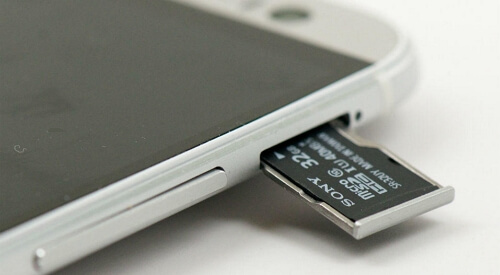
Step 6. Turn off your phone and wait for a few minutes.
Step 7. Now, repeatedly insert and remove the blank SD card.
To troubleshoot an SD card issue on an Android device, repeatedly insert and remove the SD card, then turn on the device and verify if it can read the SD card.
Fix 5. Check and Delete Hidden Files on SD Card
To find hidden files and fix a blank SD Card, start by enabling the "Show hidden files" option in the file explorer settings. Then, navigate to the SD Card and look for files with unusual names or extensions, as these may be indicative of a virus. Check the file attributes and permissions to identify any suspicious activity. Next, use a file recovery software to scan the SD Card for deleted files and recover them.
Step 1. From the File Explorer, open your SD Card drive.
Step 2. Click on the three horizontal dots next to the View option.
Step 3. Press Options.
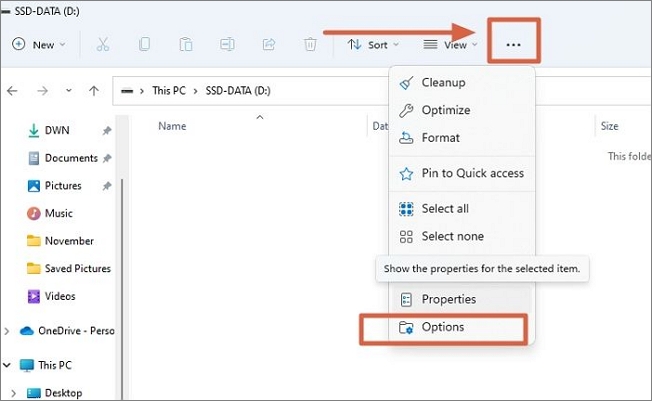
Step 4. In the Folder Options window, choose the View tab.
Step 5. In the File Explorer settings, go to the "Hidden files and folders" section and select the option to "Show hidden files, folders, or drives". Then, uncheck the box next to "Hide protected operating system files" and click "Apply" and "OK" to save the changes.

To check if your SD Card has hidden folders due to malware, follow this method. After the process, if there are hidden files, they will be displayed on the screen.
Fix 6. Run CHKDSK to Fix Errors
To fix the SD card issue, run the chkdsk command. Remember that this operation will remove the card's stored data, so back up all the data before starting. Connect your SD card to the computer and proceed with the following steps to start this method.
Step 1. To open the Command Prompt as an administrator, type "cmd" in the Start search bar, right-click on the Command Prompt option, and select "Run as administrator" from the context menu, which will open the Command Prompt window.
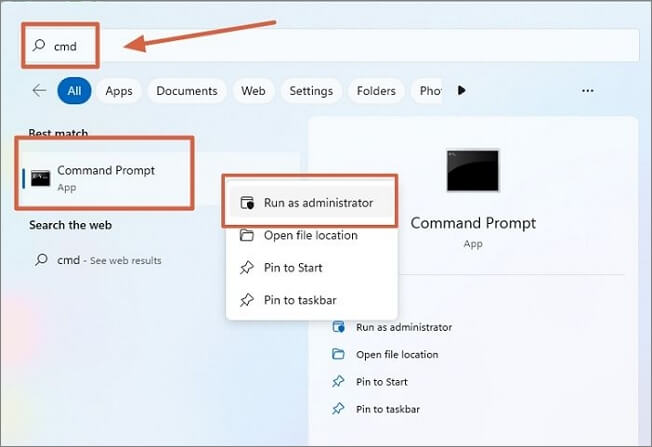
Step 2. Run the command `chkdsk D: /f` in Command Prompt, replacing `D:` with your SD card drive letter, to check and fix any errors on your SD card.
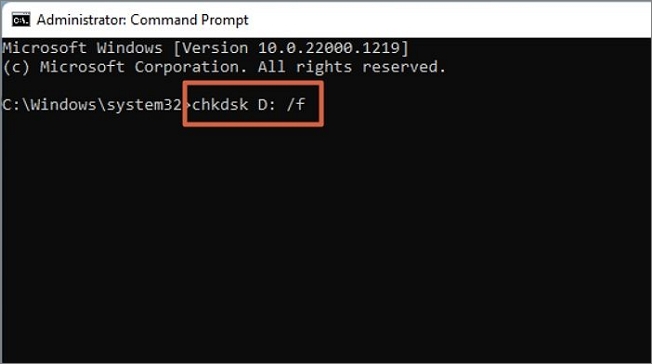
Run the CHKDSK command to check the SD card's operation, and it will be readable again after fixing any issues. Re-insert the SD card into your mobile device to verify if the problem persists.
See also:
Fix 7. Change Another SD Card
If the current SD card isn't working, you can try replacing it with a new one. This way, you can still recover data from the old card and transfer it to the new one.
Fix 8. Contact the Manufacturer
If the steps above do not work, you can contact the SD Card's manufacturer and ask for a solution, as some OEMs offer advanced tools that can work with their SD card to fix the problem.
Conclusion
To safely format your SD Card, you can use the Qiling Disk Master tool, making sure to back up your data first. Alternatively, you can try other simple methods mentioned in the article to resolve the issue of your SD Card turning blank.
FAQs About Why Is My SD Card Suddenly Blank
Here are some frequently asked questions and answers about a blank SD Card:
1. Why Is My SD Card Suddenly Empty?
The SD card may become inaccessible due to file system corruption caused by improper operation or virus attacks, resulting in a blank error even if it's fully loaded.
2. How Did My SD Card Get Corrupted?
SD cards can become corrupted due to various reasons such as inappropriate use, malware, accumulated bad sectors, manufacturing defects, and physical damage. However, formatting is not the only solution to fix corrupted SD cards.
3. Why Is My SD Card Suddenly Unsupported?
The micro SD card might be unsupported or corrupt, but using free partition software like Qiling Disk Master can be a solution to the mount failure issue.
Related Articles
- How to Fix Windows 11 23H2 Update Failure in 5 Ways
- Tekken 8 Save File Location & Config File Location How to Back Up It
- [Fixed] Target Disk Mode Not Working on macOS Ventura/Monterey
- How to Use HP USB Format Tool? [2024 Final Guide]
- What Should I Do with My Old SSD in 2023 [New Guide]
What should I do with my old SSD? If you get same questions, this article can help. It introduces four ways to help you reuse your old SSD. - Where Do You Want to Install Windows and How [2024 New]
When reinstalling or installing Windows, the setup process will ask where you want to install Windows. This question is addressed in detail in the provided article.
Products
Articles & Tutorials
- Data Recovery
- Data Backup
- File Recovery
- File Backup
- System Backup and Restore
- Disk and Partition Clone
- Technical articles
- Mobile articles
- Disk Master Help
- Windows Data Recovery Tutorials
- Windows Secure Delete Tutorials
- Windows Partition Management Tutorials
- Windows File Backup and Restore Tutorials
- Windows System Backup and Restore Tutorials
- Windows Disk Backup and Restore Tutorials
- Windows Clone Tutorials