Why Is My SD Card So Slow?
A slow SD card can be caused by various factors, including an old USB port, slow card reader, or slow computer, as well as outdated SD card drivers. To improve SD card performance, consider replacing the SD card reader, optimizing the card's performance, formatting the memory card, or updating the SD card driver.
This article explains in detail why SD cards slow down, providing you with the information you need to fix and prevent this issue.
Why Is My SD Card So Slow
SD cards may be slow when transferring data to a computer due to various reasons, with the SD card itself being a possible culprit. However, many other factors are likely at play, and addressing these may resolve the issue.
1. SD Card Is Slow
The original SD card has no extra designation on it, just "SD." They have been categorized by size and speed as follows, with the speed being a measure of the card's ability to transfer data. The original SD card has a maximum data transfer rate of 20 MB/s.
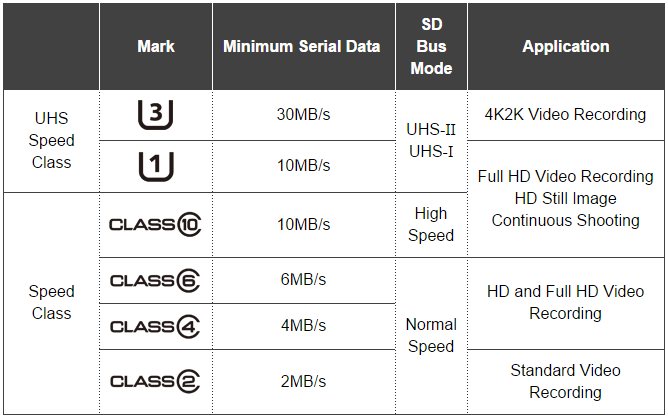
The speed class of an SD card can be understood from the numbers above, but it's essential to note that these numbers are purely theoretical and don't reflect actual card speeds. While SD cards can theoretically achieve such speeds, their performance is also limited by factors like bus speed class. When purchasing an SD card, consider its theoretical speed, interface requirements, and other factors to ensure optimal performance.
If you want to know what grade your SD card belongs to and its suitability, click the link below to learn.
2. Slow SD Card Reader
If you have a fast SD card but use a slow SD card reader, the SD card's speed will be limited to the reader's speed, so it won't be as fast as advertised.
Therefore, you must double-Ensure your card reader is compatible with the USB standard you're using, and also verify that it supports the SD card standard you're using.
3. Old USB Port
Assuming you have a relatively fast SD card and corresponding card reader, the next factor to consider is your USB port. The release time and corresponding speed of different USB ports vary, with speeds ranging from 1.5 Gbps to 20 Gbps.
| Version | USB 1.0 | USB 2.0 | USB 3.0 | USB 4.0 |
|---|---|---|---|---|
| Release Date | 1996 | 2001 | 2011 | 2019 |
| Speed | 1.5 MB/s | 60 MB/s | 625 MB/s | 20 Gbit/s |
If your computer was released before 2011, it likely only has USB 2.0 ports, which can cause slow transfer speeds.
If you're using an old USB 2.0 hub with a USB 3.1 port, you'll only get USB 2.0 speeds, which can be slow. However, plugging the card reader directly into the computer can help determine if the SD card speed improves. This can help identify if the issue is with the hub or the card reader.
If you want the full speed of the USB port, the SD card, SD card reader, cable, USB hub, and USB port on the computer must all support the same maximum speed.
4. Slow SSD/HDD on PC
Even with the fastest USB port, cable, card reader, and SD card, transfer speed is limited by the speed of the storage device (HDD or SSD) in your computer.
To solve the problem of a slow SSD, you can install a faster NVME SSD on your computer, which will likely improve its speed. Additionally, if your current SSD is also experiencing slow speeds, you can follow the link provided to troubleshoot the issue.
5. Hardware Failure/Old Driver
If your SD card is slow, it might be due to incorrect drivers. Windows usually installs the correct driver automatically, but you can also manually update the SD card driver to resolve the issue.
The cable may be faulty or the USB port on the computer is faulty, try using another port, USB hub, or computer, which usually resolves the issue. If it persists, it could be a hardware failure that may cause other problems.
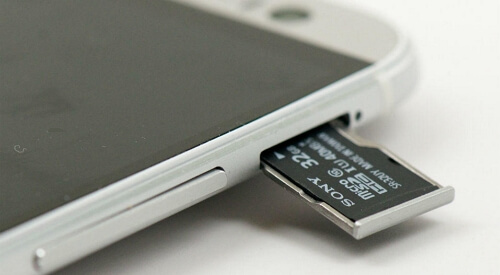
If your SD card has suddenly become blank, it's likely due to a corrupted file system or physical damage. To fix a blank SD card, try using a card reader and a computer to scan the card for errors. If the card is still not readable, try formatting it, but be aware that this will erase all data on the card.
This article will provide a detailed guide on how to fix a blank SD Card without losing data and discuss safe handling of SD Cards, so you can learn more about these essential steps.
6. Large Files
SD cards have a limited read speed, which can make transferring large files a slow process. Consider using a faster storage device like an SSD to store or back up your large files, which can handle faster read and write speeds.
We have learned that SD cards can slow down due to various reasons, but now we need to find out how to test the speed of an SD card. This will be covered in the next section.
How Do I Know the Speed of My SD Card
The speed of an SD card can vary, making it difficult to determine its precise speed. To get an accurate measurement, you can use a reliable third-party tool, such as Qiling Disk Master, which can test the speed of an SD card and provide clear results, including sequential read/write speed, random read/write speed, delay, and I/O.
Download this application on your PC and follow this guide:
Step 1. Launch Qiling Disk Master. Click the download button to activate the "Surface test" feature under the "Disk management" tab page.
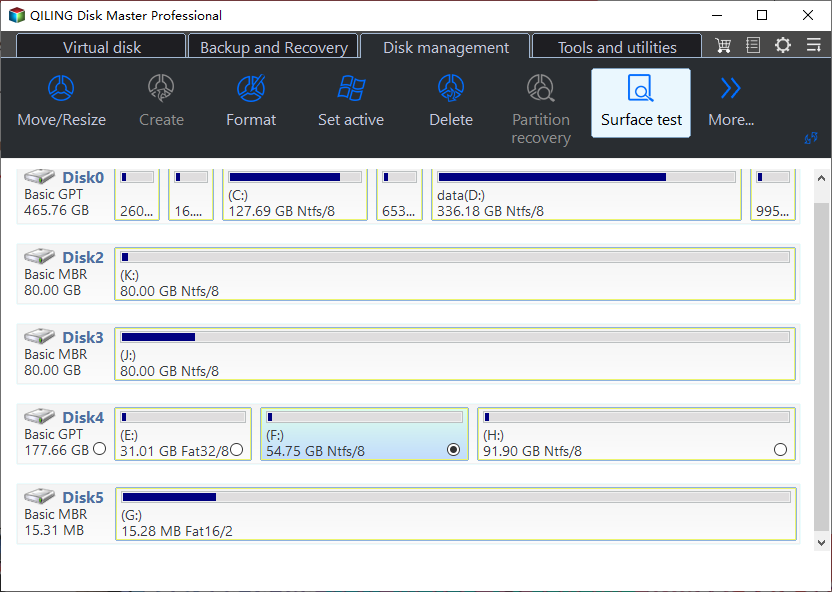
Step 2. Select the target drive, test data, and block size by clicking on the drop-down boxes provided.
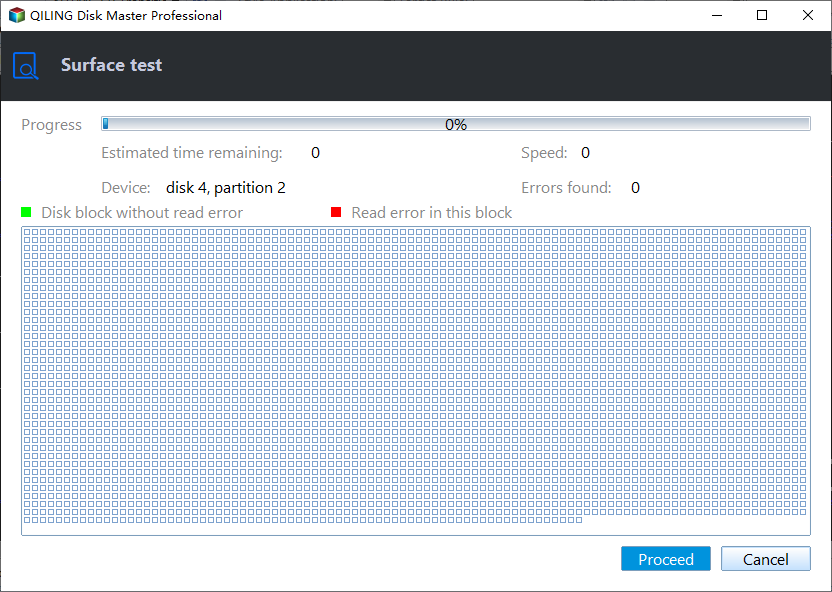
Step 3. Once everything is configured, click "Proceed" to begin the disk test, which will display sequential read speed, I/O, and Delay data.

Conclusion
SD cards, or memory cards, have slower read/write speeds compared to other external data storage devices.
Your SD card's speed can be slowed down by various factors, including card reader speed limits, hardware failures, the need to store large files, and outdated card drivers. These issues can cause the read/write speed to decrease, resulting in a significant slowdown when opening files stored on the card, making it take a long time to access and use the files.
Why Is My SD Card So Slow FAQs
Your SD card may be slowing down due to various reasons. To understand the issue better, here are some questions and answers: What happens when your SD card gets slow? It could be due to a full storage, corrupted files, or a faulty SD card.
1. What is the lifespan of an SD card?
SD cards, based on the SD standard, store information in flash memory and have a typical lifespan of 10 years or more due to current technology and normal use, making frequent upgrades unnecessary and reducing electronic waste.
2. How can I speed up my slow SD card?
To speed up a slow SD card, try the following measures: Check if the card is corrupted or damaged, and if so, replace it. If not, try formatting the card, which can sometimes resolve issues.
- Replace card reader
- Format SD card
- Update SD card drivers
- Optimize SD card performance
- Clean up SD card junk files
3. Why does an SD card take forever to load?
You can try the following and check if it helps.
I suggest you run the hardware troubleshooter:
Open the Control Panel, click on Troubleshooting, and then select Hardware and Devices to run the Troubleshooter.
The issue can be resolved by installing the latest drivers from the manufacturer's website.
Related Articles
- 5 Best Free Adobe CC alternatives You Don't Want to Miss
- Can't Install macOS Sonoma? Fixed in 10 Proven Ways (2023)
- [2 Ways] How to Boot Mac into Disk Utility/Recovery Mode with Mac Startup Keys
- Does BitLocker Slow Down SSD? Yes, up to 45%
Many users wonder if BitLocker slows down SSDs, and if there's a way to disable it to enhance performance. If you're curious about this, keep reading for comprehensive answers to your questions. - Why Does Steam Say I Have No Disk Space [Reasons & Solutions]
Learn why Steam says there is no disk space and fix the issue by checking storage, game files, download cache, and Steam settings. - Why Is My SD Card Suddenly Blank | How to Fix Blank SD Card?
Have you ever inserted an SD card only to find it blank? This phenomenon can be frustrating, but there's a solution. This article provides a detailed guide and explanation, and offers eight efficient ways to recover your SD card and get it back to its original state.
Products
Articles & Tutorials
- Data Recovery
- Data Backup
- File Recovery
- File Backup
- System Backup and Restore
- Disk and Partition Clone
- Technical articles
- Mobile articles
- Disk Master Help
- Windows Data Recovery Tutorials
- Windows Secure Delete Tutorials
- Windows Partition Management Tutorials
- Windows File Backup and Restore Tutorials
- Windows System Backup and Restore Tutorials
- Windows Disk Backup and Restore Tutorials
- Windows Clone Tutorials