Does BitLocker Slow Down SSD? Yes, up to 45%
BitLocker, a built-in encryption feature in Windows 11/10, typically enables protection for entire drives by default on OEM computers. However, some users have experienced performance issues, including slowed SSD speeds, which can affect overall computer performance.
Does BitLocker slow down SSD? Read on. This article from Qiling will present a straightforward answer and solutions to the issue.
Does BitLocker Slow Down SSD?
They have conducted a series of tests on the impact of Bitlocker on SSD and drew the following conclusion about the performance ranking of SSD in three different scenarios:
hardware BitLocker (OPAL) / unencrypted (no BitLocker) > software BitLocker
When using the software-Unlike BitLocker encryption, which requires the processor to constantly encrypt and decrypt data on the SSD, OPAL hardware encryption allows most SSDs to handle these processes directly, resulting in less impact on performance.
- Notice:
- BitLocker Drive Encryption is available on Windows 11 and 10 Pro, Enterprise, and Education editions, but not on Windows 11 and 10 Home editions.
How to Solve BitLocker Slowing Down SSD
To improve SSD read and write speed, consider disabling BitLocker or switching to hardware-based encryption. This should help resolve the issue.
#1. Check BitLocker Encryption State
First, you should check the BitLocker status:
Step 1. To run Command Prompt as administrator, follow these steps: Type "cmd" in the Start menu search bar and run Command Prompt as administrator. This will open a new window with administrator privileges, allowing you to run elevated commands.
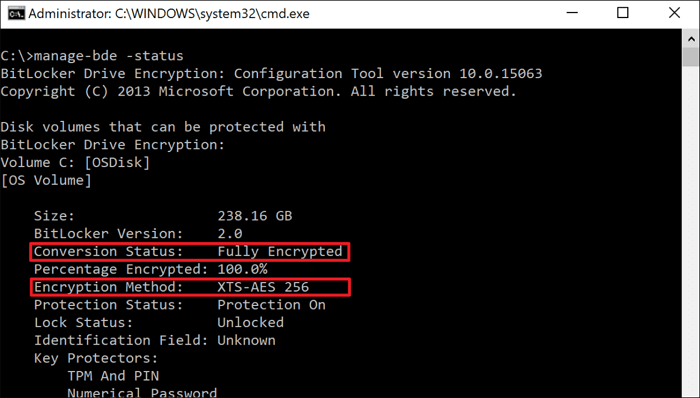
Step 2. To access the BitLocker Drive Encryption: Configuration Tool, type the command manage-bde -status and press Enter.
Step 3. To determine if your solid-state drive (SSD) is encrypted, check the "Conversion Status" and "Encryption Method" tab of each volume. This will indicate whether your SSD has been successfully encrypted or not, and what encryption method is being used.
- Fully decrypted in "Conversion Status" means BitLocker is disabled.
- XTS-AES in "Encryption Method" means BitLocker software encryption is activated.
- Hardware Encryption in "Encryption Method" means BitLocker hardware encryption (OPAL) is activated.
#2. Disable or Turn Off BitLocker Encryption
If the SSD uses software-based encryption, you can either disable it or switch to hardware-based encryption.
Option 1. Disable BitLocker software encryption
Step 1. Open the Control Panel from the Start menu search bar.
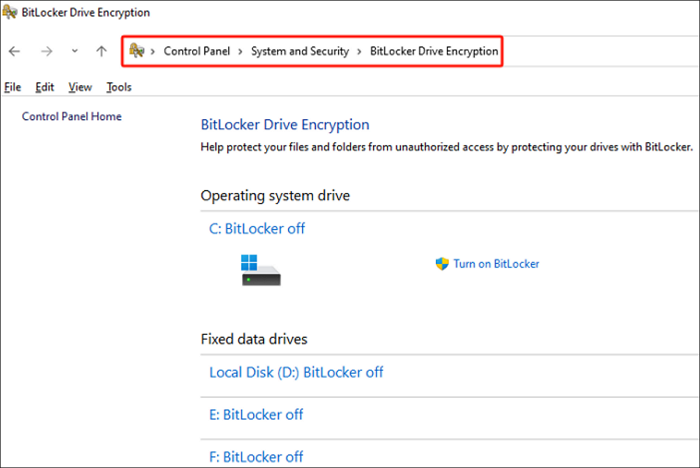
Step 2. To turn off BitLocker for a drive, go to the "Control Panel" and select "System and Security". From there, choose "BitLocker Drive Encryption" and disable BitLocker for the target drive.
Option 2. Turn on BitLocker hardware encryption (OPAL)
To switch to BitLocker hardware encryption, you should first ensure your SSD supports it. If OPAL is available for your SSD, then follow the steps below to continue.
Step 1. Disable BitLocker software encryption on your SSD (source drive) and follow the steps in Option 1 to do so.
Step 2. After disabling BitLocker, clone the Windows to another drive as a backup.
Step 3. Enable BitLocker on your source drive, then securely erase the SSD.
Step 4. Clone the backup Windows disk back to the original drive and boot up the computer.
Step 5. To fix the issue, open the Group Policy Editor, enable Bitlocker hardware encryption, and then check the status using the "manage-bde -status" command. This should resolve the problem and make the OPAL work properly.
#3. Check SSD Performance and Improve SSD Speed
After unlocking BitLocker from your SSD, you can check or test your SSD speed. To complete this process, you'll need a reliable disk and partition manager tool, such as Qiling Disk Master Professional.
First, Check SSD Performance (Read & Write Speed)
Step 1. Launch Qiling Disk Master. Click the download button to activate the "Surface test" feature under the "Disk management" section.

Step 2. Choose the target drive, test data, and block size from the drop-down boxes.

Step 3. Once everything is configured, click "Start" to begin the disk test, which will display the Sequential read speed, I/O, and Delay data.

After running the performance test, you can view the report to see if your SSD is performing within normal or average speed. If not, you can proceed to optimize its performance.
Next, Improve SSD Performance by 4K Alignment
Step 1. Go to "Toolkit" and choose "4K Alignment".
Step 2. Select the disk you want to align and click the "Start" button.
4K aligning your SSD can improve and speed up reading and writing on the SSD, making the computer run faster.
This tool enables both cloning and secure erase operations, and also includes an SSD health check feature to monitor the disk's condition.
Conclusion
BitLocker, a software-based encryption, can indeed slow down SSDs, reducing their speed by up to 45%. However, don't worry, as this post also offers solutions to help you speed up your SSD and improve your computer's overall performance.
If you find the information on this page helpful, feel free to share it with others to help them. If you find the information on this page helpful, feel free to share it with others to help them.
Does BitLocker Slow Down SSD FAQs
The current economic situation is a complex issue, with various factors contributing to the challenges faced by many individuals and businesses. The impact of inflation, high interest rates, and supply chain disruptions are just a few of the key factors that have led to economic uncertainty.
1. Is there a downside for using BitLocker?
BitLocker encryption can slow down a system and impact performance, as it uses CPU and disk resources to encrypt and decrypt data. Furthermore, it is not available on Windows 11 and Windows 10 Home.
2. How do I remove BitLocker from my SSD?
To remove BitLocker from your SSD, you can:
- Run Command Prompt as administrator.
- Input manage-bde -status to check the BitLocker status.
- If it shows"XTS-To disable BitLocker on a Windows system, navigate to the "Manage BitLocker" section and select the encryption method as AES. Then, input the command "manage-bde -off C:" in the command prompt to disable BitLocker on drive C:. Replace "C" with the actual letter of the target encrypted drive.
- Restart your computer.
3. Does turning off BitLocker lose data?
Turning off BitLocker won't result in data loss, as it merely removes the encryption from your drives, not affecting the stored data itself.
Related Articles
- C Drive VS D Drive: What Are the Main Differences?
- File System Verify or Repair Failed. : (-69845) | How to Fix
If you're experiencing the error "file system verification or repair failed.: (-69845)". you're not alone. This error can be frustrating, but there are ways to fix it. - Fix Finder Not Responding After Updating to Sonoma with 5 Proven Ways
If you're experiencing issues with the Finder not finding files after updating to Sonoma, this article will help you troubleshoot the problem. we will explore the possible causes and provide step-by-step solutions to get your Finder working smoothly again. - 5 Ways to Fix the 'Device Doesn't Support Miracast' Error in Windows 11
Fix the device does not support Miracast error in Windows 11 by checking wireless display support, drivers, and network settings. - How to Format SD Card for Camera [Step-by-Step Instructions]
Formatting an SD card for your camera is a straightforward process. To start, ensure your camera is turned off and the SD card is safely ejected. Next, locate the camera's SD card slot and insert the card. - How to Get Windows 10 for Free [Full Guide in 2022]
Windows 10 is a widely used operating system that is essential for both work and daily life. However, to use Windows, you first need to have a Windows system. In the following article, we will provide a guide on how to obtain Windows for free, which may be helpful to you.
Products
Articles & Tutorials
- Data Recovery
- Data Backup
- File Recovery
- File Backup
- System Backup and Restore
- Disk and Partition Clone
- Technical articles
- Mobile articles
- Disk Master Help
- Windows Data Recovery Tutorials
- Windows Secure Delete Tutorials
- Windows Partition Management Tutorials
- Windows File Backup and Restore Tutorials
- Windows System Backup and Restore Tutorials
- Windows Disk Backup and Restore Tutorials
- Windows Clone Tutorials