How to Create Bootable USB from ISO Windows 11
Creating a bootable USB drive from an ISO of Windows 11 is a straightforward process. To do this, you can use a Windows 11 USB bootable USB creator tool, which can also be used to create a bootable USB from an ISO of Windows 10. This tool allows you to create a bootable USB drive that can be used to install Windows 11 or repair a damaged Windows 11 installation. The process is similar to creating a bootable USB from an ISO of Windows 10, and the tool can be used to create a bootable USB from an ISO of Windows 11.
Why You Create a Windows 11 Bootable USB from ISO
Windows 11 has gained popularity due to its benefits, such as dependability, improved user experience, and safety. As a result, many users have upgraded to Windows 11 or purchased new computers with it pre-installed. For those who prefer a clean install, using a Windows 11 ISO image is a viable option.
Creating a Windows 11 bootable USB allows you to boot your computer using the file system stored on the flash drive rather than the hardware, and provides several advantages, including the ability to boot your computer.
- Clean install Windows 11. A bootable USB drive is used to install or run Windows OS without a CD or DVD, allowing you to install a Windows OS on a new or damaged computer.
- Troubleshooting. A bootable USB device can be used as a recovery tool in a system failure, allowing you to quickly and easily replace the operating system on your computer when it has a significant issue that cannot be fixed.
- Configure multiple computers. A bootable USB drive can save a studio or business from repeatedly downloading an ISO file to deploy several computers simultaneously, allowing for a more efficient and streamlined process of deploying software or operating systems to multiple machines at once.
In the next section, you can learn how to create a bootable USB from ISO for Windows 11 installation. Keep reading!
3 Ways to Create Windows 11 Bootable USB from ISO
Creating a bootable USB on Windows 11 from an ISO image file can be done in various ways. While using Command Prompt is an option, it may not be suitable for beginners due to its complexity. Fortunately, there are three more accessible methods that can be used to create a bootable USB from an ISO, making it easier for users to achieve their desired outcome.
- Way 1. Using Professional Bootable USB Creator Tool
- Way 2. Using Rufus to Burn ISO to USB Drive
- Way 3. Using Windows Media Creation Tool
Way 1. Using Professional Bootable USB Creator Tool
Creating a Windows bootable USB flash drive is easiest with a professional bootable USB drive creator tool, which allows you to create a bootable USB without downloading or using an ISO file. Qiling Disk Master is a suitable option for this purpose.
Qiling Disk Master is a tool that allows users to create a bootable USB drive with Windows installed, including the ability to install Windows without a Microsoft account, and even download and install the desired Windows version with a few clicks. It also enables users to run Windows on a Mac computer without the need for Boot Camp.
The following is what makes this bootable USB creator so recommendable.
- Bypass Windows installation requirement. It allows you to install Windows 11 without the Trusted Platform Module (TPM) and Secure Boot requirements.
- Easy-to-use interface. The software has a user-friendly interface that allows users to easily create a portable Windows To Go USB drive, making the process quick and straightforward.
- Install multiple operating systems. You can use a dual-boot system to install two operating systems on one computer.
- Make Windows portable. This tool allows you to create a portable version of Windows 10 or 11, making it possible to run the operating system on a USB drive or other external storage device, allowing for easy portability and flexibility in using the Windows environment.
- Run Windows on macOS. It allows you to run Windows games on a Mac and create a bootable Windows USB drive for your Mac.
Steps to create Windows 11 bootable media using Qiling Disk Master.
- Notice:
- Qiling Disk Master has already prepared the Windows 11 ISO file, so you just need to select the Windows 11 version to create a Windows 11 bootable USB from ISO.
Way 2. Using Rufus to Burn ISO to USB Drive
To create a bootable Windows 11 from ISO, download the Windows 11 ISO file and use USB bootable software like Rufus to burn it to a USB drive. This method involves downloading the ISO file and using Rufus to create a bootable USB drive.
Part 1. Download Windows 11 ISO File
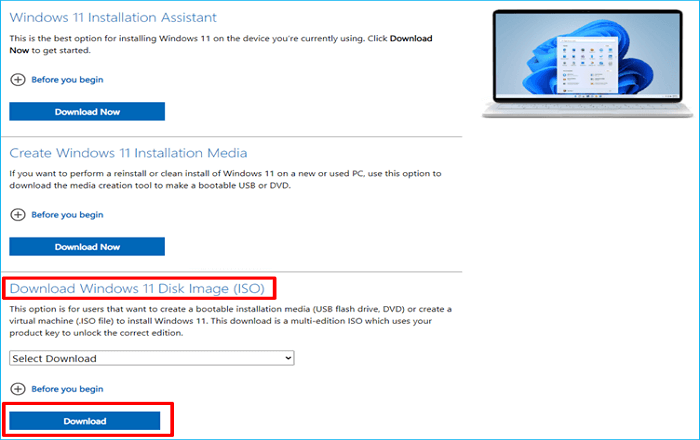
To download the Windows 11 ISO file, go to the Windows 11 download page, click "Download for the Windows 11 ISO file", select a path to save the ISO file, and follow the wizard to complete the process.
Part 2. Burn It to USB Drive
Some users prefer using USB bootable software like Rufus to create a bootable USB from an ISO file. Rufus, a free and open-source tool, is considered one of the best Windows 11 USB tools, allowing users to create bootable USB drives for various operating systems.
To burn the Windows 11 ISO file to your USB flash drive using Rufus, follow these steps. First, download and install Rufus on your computer.
Step 1. Go to download Rufus from its official website.
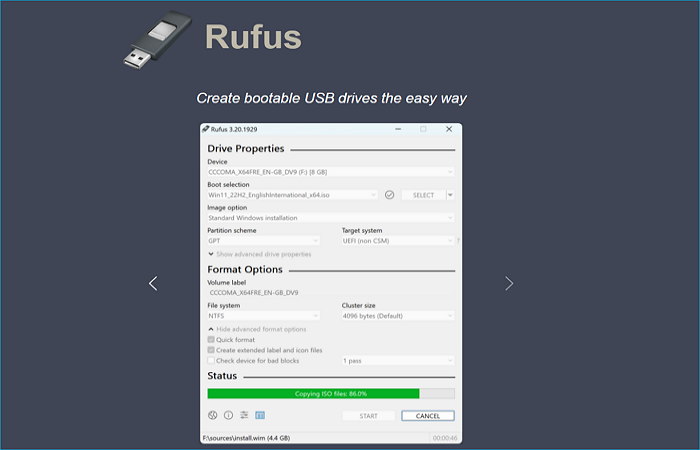
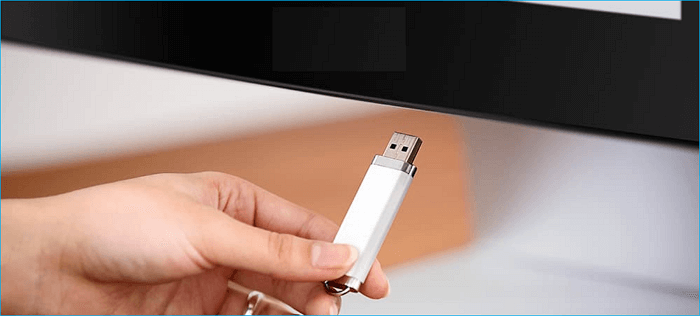
Step 2. Insert the USB drive into your computer and launch the ISO to USB burning tool.
Step 3. Rufus will automatically detect the USB drive connected to your computer. You need to click Select to select the Windows 11 ISO file you already downloaded. Keep other options in Rufus to default values and then hit START to create a Windows 11 bootable USB from ISO.
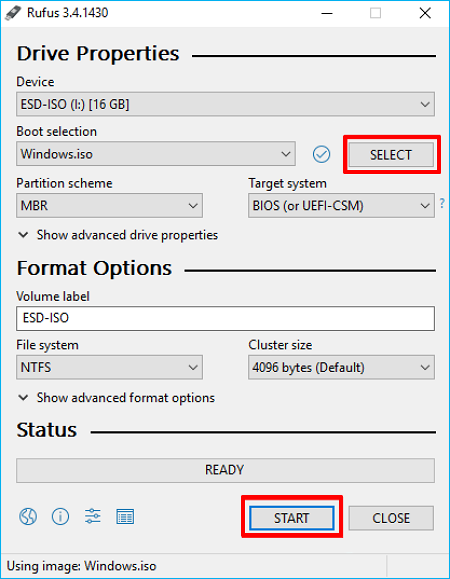
Step 4. Rufus will start to burn ISO to the USB drive, which will take some time. Once the Status shows ready (in green), tap CLOSE to exit the tool.
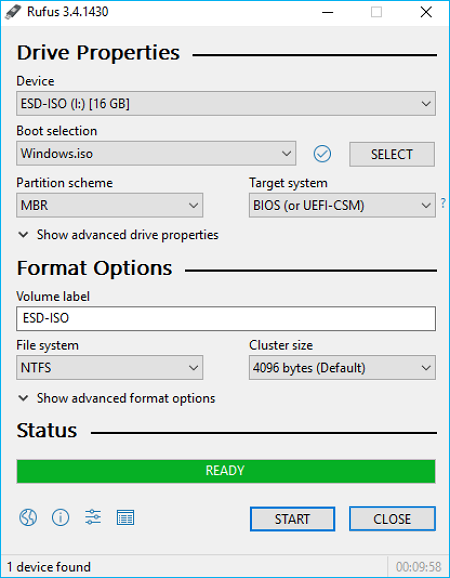
After creating the Windows 11 USB bootable drive, you can boot your computer from it and either start installing Windows 11 or enter the computer repair environment for a fix.
Way 3. Using Windows Media Creation Tool
Microsoft offers a utility called Windows Media Creation Tool, which allows you to download a Windows ISO file and create a bootable USB to install Windows, or create an iso image from a hard drive or existing operating system. With this tool, you can follow the instructions to make a Windows 11 bootable installation media from an ISO.
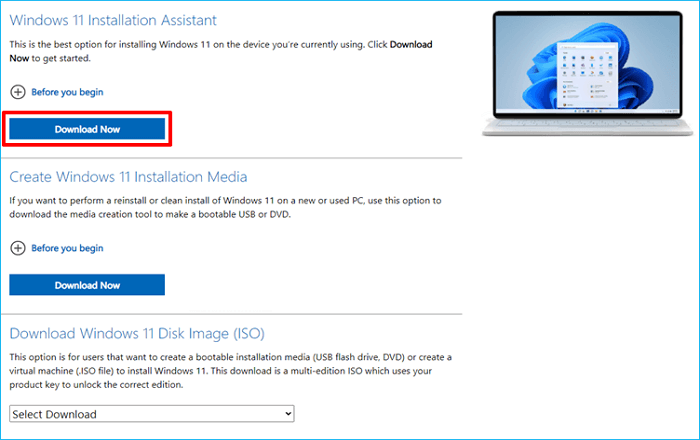
Step 1. To download Windows 11, go to the Windows 11 download page and click "Download Now" for the Media Creation Tool. After installing it, launch the tool, and if necessary, run it as an administrator. Once you've agreed to the license terms, click "Accept".
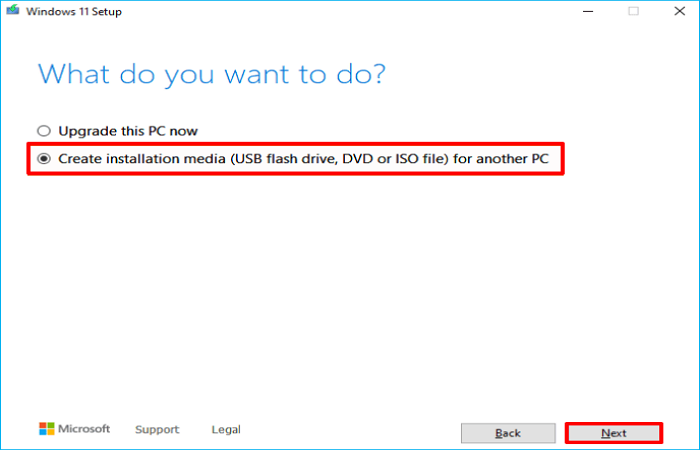
Step 2. On the "What do you want to do" window, select the "Create installation media for another PC" option and then click "Next".
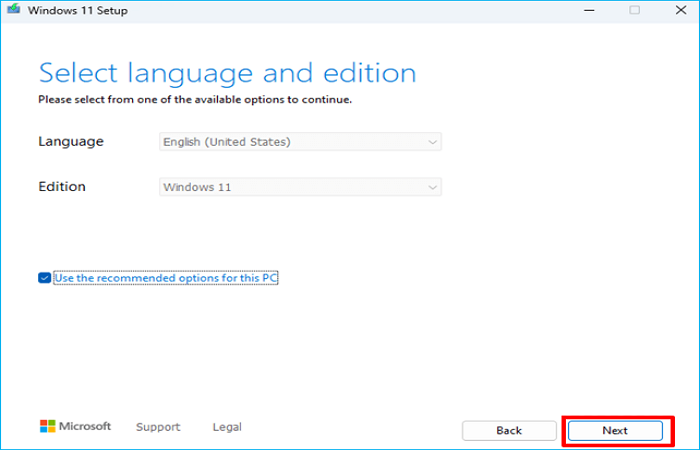
Step 3. Choose the language and edition for Windows 11.
- Warning
- The Media Creation Tool will download an ISO with the same language, edition, and architecture as the current PC if the "Use the recommended options for this PC" box is left checked.
Step 4. Select the USB flash drive from the "Choose which media you want to use" window.
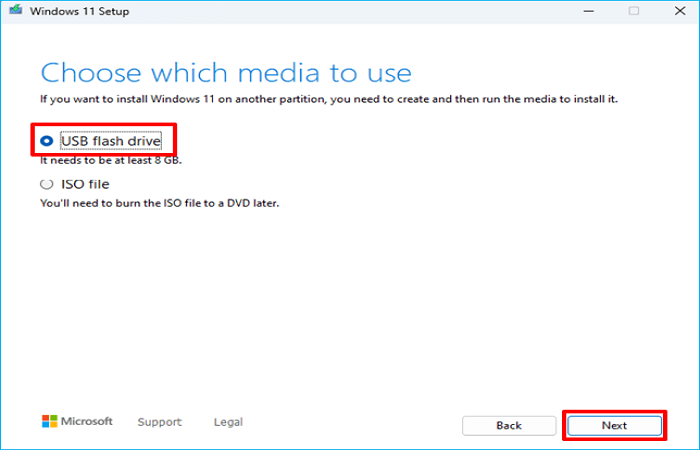
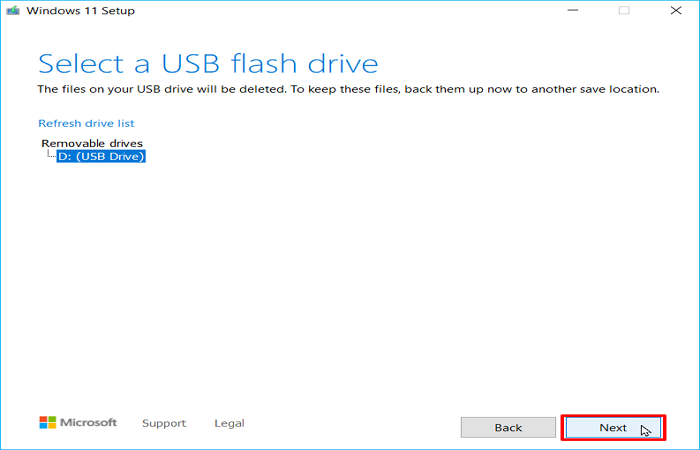
Step 5. Select the USB connected to your computer from the list, and then click Next.
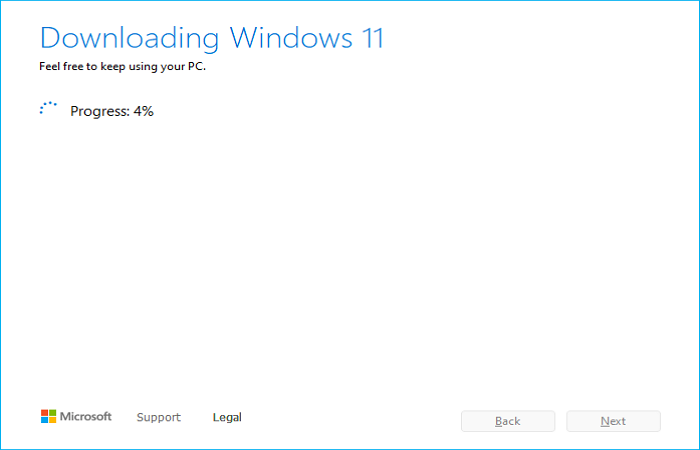
Step 6. The tool will begin downloading Windows 11 to the chosen USB drive.
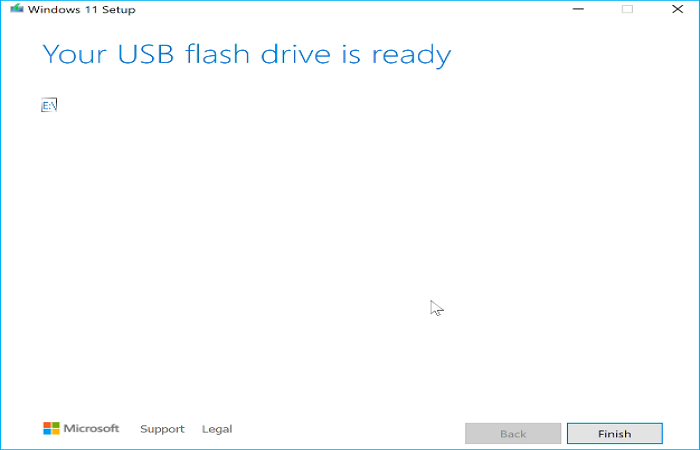
Step 7. After completing the process, you'll see a message indicating that your USB flash drive is ready. Click on the "Finish" button to finalize the process.
To Wrap Things Up
Now, you know the top ways to create a bootable USB from an ISO file for Windows 11. After the Windows 11 media creation is finished, you can proceed to clean install Windows 11 and troubleshoot your computer in case of a system failure.
Among the 3 ways to create a Windows 11 bootable USB from ISO, Qiling Disk Master is highly recommendable. This is because it offers more practical features than creating bootable media, such as installing multiple systems, running Windows on Mac, and solving the WinToUSB not working issue. Download and try it.
FAQs on Create Bootable USB from ISO Windows 11
1. How to burn ISO to USB without software?
To create a bootable USB without any software, open the My Computer window, right-click on the DVD drive and choose Open to view the contents of the ISO image, then transfer all of the DVD's data and folders to the USB drive.
2. How to run bootable USB without BIOS?
If you can't boot your PC from a USB drive because the USB boot is disabled, you'll need to access the BIOS settings to enable it. If you've forgotten your BIOS password, contact the laptop's manufacturer's customer service for assistance, but be prepared to provide proof of ownership.
3. Why is my USB not booting in UEFI mode?
If your Windows won't boot from a bootable USB drive and your computer supports UEFI, make sure the USB is formatted in FAT32 file system to install Windows in UEFI mode. NTFS file system won't work for this.
Related Articles
- How to Use Rufus to Install Windows 11 (with Pictures)
- Fix WintoUSB Stuck at 0% and Install Windows with An Easy Tool
- How to Migrate OS to HDD or SSD in Windows 11/10/8/7?
This article tells how to migrate OS to HDD or SSD step by step via using Qiling Disk Master Professional. - 4 Solutions to SanDisk SSD Slow in Windows 11, 10, 8, 7
SanDisk SSD slow down? Here we share several easy solutions to tackling with the solid-state drive running slow problem in Windows PC. - [Tutorial] How to Install Windows 11 without Secure Boot and TPM
Although you are not allowed to install Windows 11 on devices that don't enable Secure Boot or TPM 2.0, you can still find some workarounds to get it done. This article will show you the detailed steps to install Windows 11 without Secure Boot/TPM and a way to work Windows 11 on any unsupported PC. - How to Create a Windows 11 to Go USB
Creating a Windows 11 to Go USB drive allows users to run Windows 11 on any qualified device. To do this, you'll need to download the Windows 11 ISO file and use a tool like Rufus to create a bootable USB drive.
Products
Articles & Tutorials
- Data Recovery
- Data Backup
- File Recovery
- File Backup
- System Backup and Restore
- Disk and Partition Clone
- Technical articles
- Mobile articles
- Disk Master Help
- Windows Data Recovery Tutorials
- Windows Secure Delete Tutorials
- Windows Partition Management Tutorials
- Windows File Backup and Restore Tutorials
- Windows System Backup and Restore Tutorials
- Windows Disk Backup and Restore Tutorials
- Windows Clone Tutorials