What to Do If Computer Restarts After Shutdown (for Windows 11/10/8/7)
Some Windows users experience their computer restarting after shutdown, which can be frustrating. This issue may be caused by various factors, including system file corruption, driver issues, or even a faulty power supply. To troubleshoot this problem, users can try booting in safe mode, checking for system file corruption, updating drivers, and inspecting the power supply.
This error can lead to serious system issues like outdated drivers or malware attacks, causing abrupt shutdowns of ongoing programs and online meetings. It's essential to check the power options and address this issue promptly.
Why Does My Computer Restart After Shutdown
There is no specific reason why the computer restarts after shutdown, but common precursors include issues such as software conflicts, overheating, faulty power supplies, or corrupted system files, which can cause the computer to restart unexpectedly after shutdown.
- The computer's internal components have overheated due to prolonged or intense usage.
- The graphics driver has become obsolete.
- Malware infection affecting the operating system functionality.
Depending on the potential cause or other issues you notice in your system, you should take specific steps to fix the problem.
8 Ways to Fix Computer Restarts Instead of Shutting Down
When your computer suddenly shuts down each time you restart, there are multiple tactics you can use to fix the functional issue. However, before attempting any of these, make sure to follow the steps mentioned when the computer restarts after shutdown.
- Way 1. Disable Fast Startup Feature in Power Options
- Way 2. Force Shut Down Computer and Restart
- Way 3. Disable Automatic Restart
- Way 4. Uninstall the ON/OFF by Gigabyte Program
- Way 5. Reconfigure Network Adapter
- Way 6. Change Registry Configurations
- Way 7. Use System File Checker
- Way 8. Update Windows
Way 1. Disable Fast Startup Feature in Power Options
Microsoft should include Fast Startup as a feature in Windows computers to improve boot-up time, but some configurations can cause malfunctions in the Startup.
If you disable Fast Startup, it may resolve the sudden restarting issue caused by it.
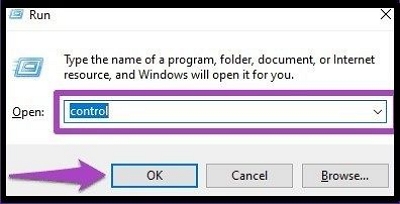
Step 1: To open the Run dialog box, press the Windows key + R keys simultaneously. Then, type "control" and press OK to open the Control Panel.
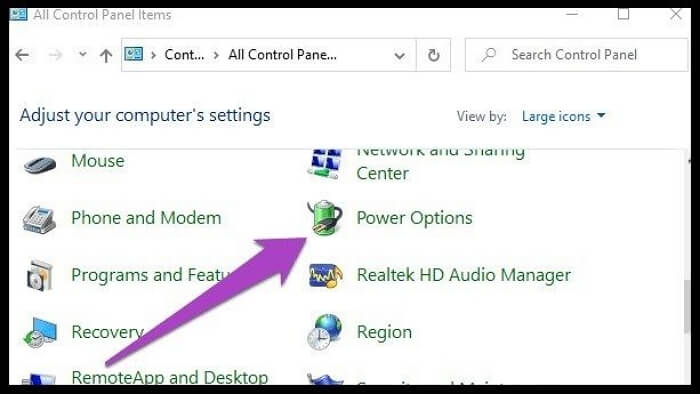
Step 2: When the Control Panel opens, click on View > Large icons.
Step 3: Next, choose the Power Options choice.
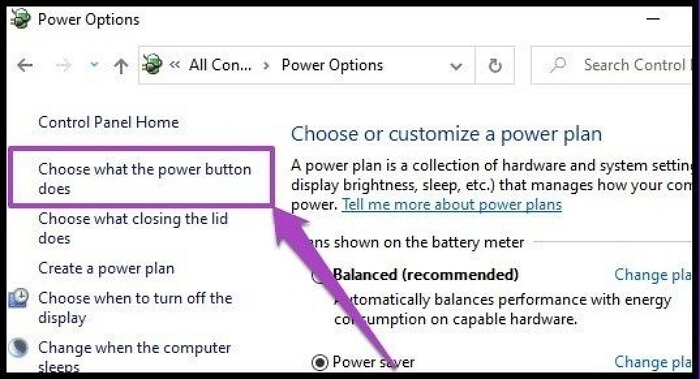
Step 4: To change the power button function, tap on the option to select what function the power button performs from the left panel.
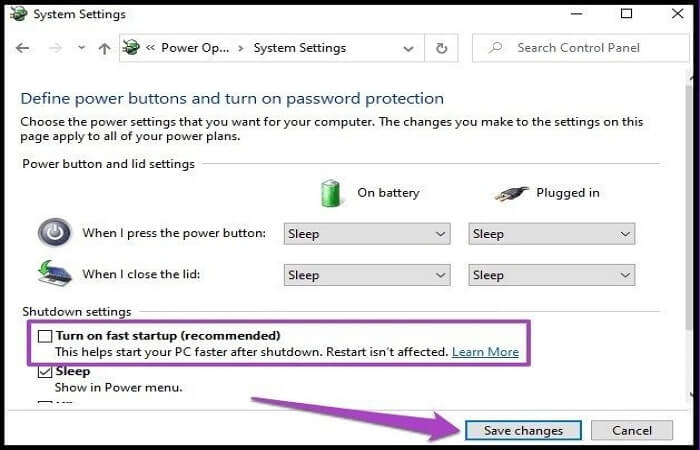
Step 5: To disable Fast Startup, click on the "Change settings…" link in the Power Options window, which will open the Power Options window. From there, toggle the switch next to "Turn on fast startup (recommended)" to the "Off" position.
Step 6: Following that, remove the checkmark beside the "Turn on fast startup (recommended)" choice > Save Changes.
Step 7: Switch off the PC to see if this worked.
Way 2. Force Shut Down Computer and Restart
Forcing the computer off can sometimes fix the computer restarting problem in your Windows device, but the standard Shut Down feature may not work in some cases, making the command-line shutdown process a viable alternative.
Step 1: Click Start and type "cmd" > Run as Administrator.
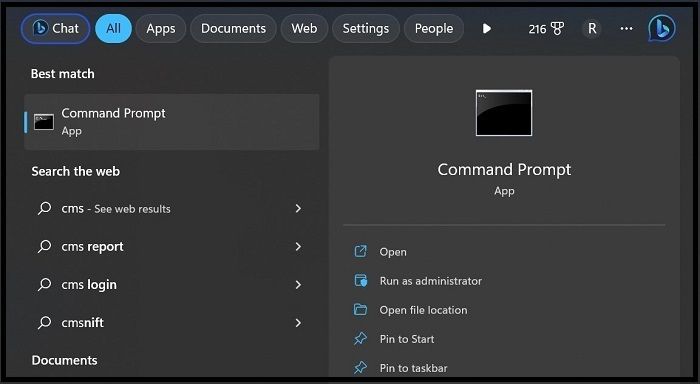
Step 2: To open the Command Prompt window, right-click on the Start menu and select Command Prompt (Admin). Once the window is open, type the following command: "netsh int ip show config" and press Enter.
Shutdown/s /f /t 0
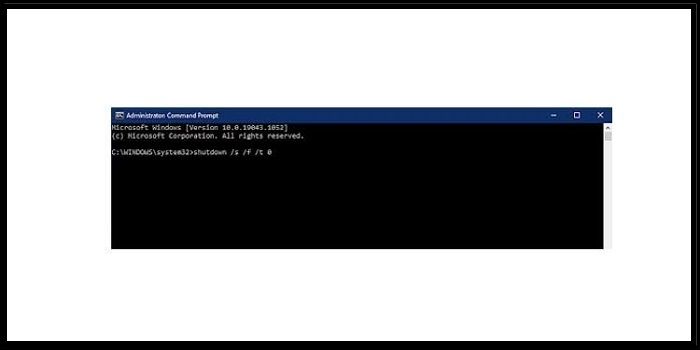
Step 3: After a little wait, restart your PC.
Way 3. Disable Automatic Restart
To fix the sudden restart error, try switching off the Automatic Restart option, which is a temporary solution.
When you disable the automatic restart feature on Windows 11, it prevents the operating system from rebooting, but be cautious as misusing this feature can cause more harm than good, so proceed with the steps carefully.
Step 1: Open the Settings menu > System > About.
Step 2: Choose Related Links and tap on Advanced System Settings.
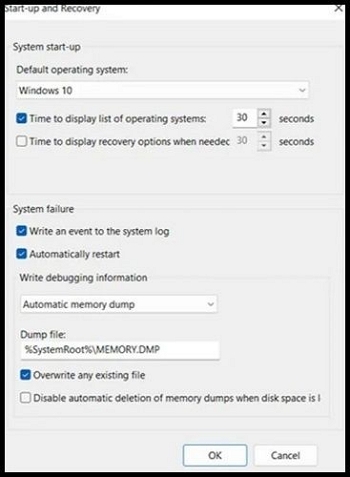
Step 3: Under the System Properties sections, go to Advanced, then Startup and Recovery, and finally Settings.
Step 4: Uncheck the Automatically restart choice under System Failure and press OK.
Way 4. Uninstall the ON/OFF by Gigabyte Program
In some newer versions of Windows, the Gigabyte On/Off Charge tech is unavailable, which is typically found in in-built GIGABYTE motherboards and was more commonly available in older Windows 8 or 7 versions.
If computers keep restarting after shutdown, it might be due to motherboard issues, which can be resolved by disabling the function.
Step 1: Click on Start > Control Panel.
Step 2: Programs > Uninstall a Program.
Step 3: To uninstall the "ON_OFF Charge B11.1102.1" option, go to the settings menu, choose the "ON_OFF Charge B11.1102.1" option, and select it.
Step 4: After completing the setup process, follow the on-screen instructions for final configurations and check the progress bar to ensure everything is in place.
Way 5. Reconfigure Network Adapter
To resolve constant computer restarts after shutdown, try deactivating the Network Adapter functionality in your device, which is an advanced system setting that can help resolve the issue.
Step 1: To access the Device Manager, right-click on the top of the Start Menu icon and select Device Manager from the context menu.
Step 2: To find the network adapter in your PC, open the "Open Network Adapters" application and locate the adapter connected to your PC. If you're using a wireless connection, look for "Intel Wireless" or the name of your Ethernet connection for a wired connection.
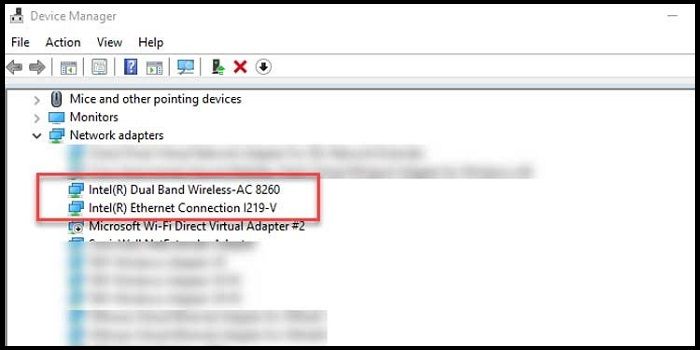
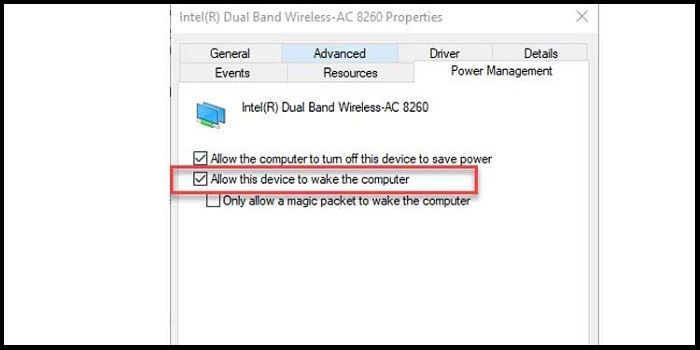
Step 3: Double-click on the selected adapter's properties and navigate to the Power Management tab.
Step 4: Disable the option about allowing the device to access the computer system wakeup. Press OK.
Way 6. Change Registry Configurations
Check if the "PowerdownAfterShutdown" registry key/file option is working as expected after a manual shutdown, ensuring the PC remains shut off.
Step 1: To open the Windows Quick Access menu, press the Win + X keys and select Command Prompt (Admin).

Step 2: Grant necessary administrative permissions if asked. Then, add the next Command and press Enter:
REG QUERY "HKEY_LOCAL_MACHINE\SOFTWARE\Microsoft\Windows NT\CurrentVersion\Winlogon" /v PowerdownAfterShutdown
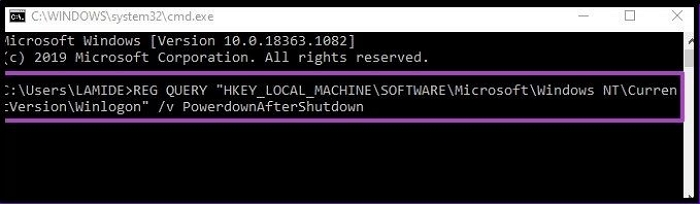
Step 3: If you see the value as 0, this function is disabled. You can enable it by adding the following command line and pressing Enter:
REG ADD "HKEY_LOCAL_MACHINE\SOFTWARE\Microsoft\Windows NT\CurrentVersion\Winlogon" /v PowerDownAfterShutdown /d 1
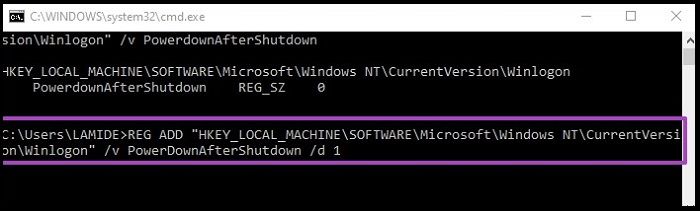
Step 4: The overwriting process can be confirmed by typing the "Y" key, which will initiate the process. Once initiated, the system will automatically overwrite the existing data with the new information.
Way 7. Use System File Checker
The System File Checker tool scans all protected system files to check for issues, and if corrupted system files are causing the restarting issue, you can make configuration changes to fix it.
Step 1: To open the Command Prompt as an administrator, follow these steps: Open the Start menu and type "cmd" in the search bar. Then, right-click on the Command Prompt result and select "Run as administrator".
Step 2: The sfc/scannow command in the Command Prompt window is used to scan and replace corrupted system files with a cached copy of the correct files. To use this command, open the Command Prompt as an administrator, type sfc/scannow, and press Enter.
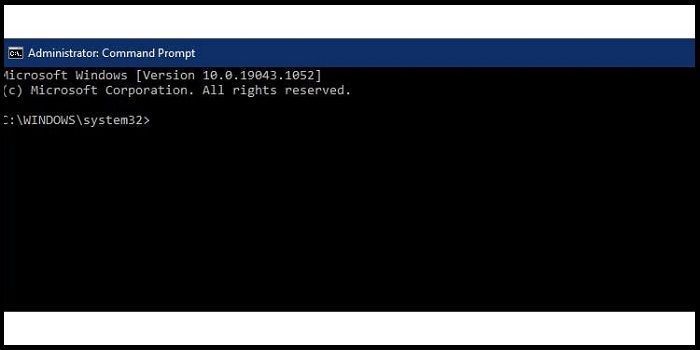
Step 3: Wait for the verification process to complete.
Way 8. Update Windows
If you're experiencing issues with your Windows 10 system, updating the entire system can be a last resort, but be aware that it may result in data loss, so take necessary precautions beforehand.
To update the system, go to the Settings menu, click on the Updates & Security section, and press the Windows Update button.
Additional Guide: How to Backup your PC to Protect Data
Updating the system software can cause intensive data loss, so it's a good idea to back up all system files and data before proceeding. Qiling Disk Master is a suitable app for this task.
Qiling Disk Master Home is a powerful tool that helps users protect their data by backing up systems, files, disks, partitions, and more, saving backups in various locations such as local drives, Cloud, NAS, and Security Zone. It also enables users to create an iso image from their operating system, clone a hard drive, image a hard drive, and back up an SSD to an image.
Key Features:
- Automatic backup is possible.
- Active schedule backup to protect your data.
- Create different backup types, including full, incremental, and differential backups.
- Save the complete disk data or partitions.
- Install Windows on a hard drive for another PC.
To create a system backup of your computer, you can follow these steps: first, ensure you have enough space on an external drive or a cloud storage service to store the backup; next, go to the Control Panel and select the option to create a system image; then, choose the drive you want to use for the backup and select the files you want to include; finally, click on "Create" to start the backup process. This will create a complete backup of your system, including all installed programs and settings, which you can use to restore your computer to its current state in case of a problem or if you need to replace your computer.
Step 1. On the main page, click "Select backup contents".

Step 2. Among the four available categories, click System backup.

Step 3. Qiling Disk Master will automatically select your system partition, you just need to choose the backup destination.

Step 4. Both local drive and NAS are available for you to save the backup file.

Step 5. After completing the backup process, you can check the backup status, recover, open, or delete the backup by right-clicking the backup task on the left.

The Bottom Line
If you notice that your computer restarts after shutdown, it's likely due to outdated drivers or overheating, which can cause functional issues. To resolve this, try disabling the startup function and reconfiguring other software functions. This may help resolve the issue and prevent the computer from restarting after shutdown.
To avoid losing your data, create a system backup using a capable backup software like Qiling Disk Master, then try out the software to see how it works and use it to save your files in case of sudden functional issues.
FAQs
1. Can sudden shutdown damage a computer?
A sudden shutdown due to power outages can cause system files to become damaged, data to become corrupted, and system or hardware malfunctions to occur, as ongoing processes are stopped mid-way.
2. Can a Forced Shutdown Ruin My Computer?
A forced shutdown of a computer will not cause physical damage to the hardware, but it may result in data loss or corruption in some files.
3. Is it OK to shut down your computer every day?
It's okay to shut down your computer daily if you have a new one, as it helps keep components within their intended functionality, especially during the warranty period.
After the warranty period, it's recommended to keep the computer running continuously to prevent stress caused by shutting down and switching on, which can lead to permanent damage.
Related Articles
- SSD Showing RAW File System? All Fixes Here 2023
- How to Increase Transfer Speed of External Hard Drive
- How to Restart MacBook Pro in 6 Ways [Troubleshoot Frozen MacBook Pro]
- 4 Ways to Open Microsoft Management Console [2023 Step-by-Step Guide]
- This Device Cannot Start Code 10 - 12 Methods Included
Fix This device cannot start Code 10 in Windows. Try driver updates, device checks, hardware troubleshooting, and system repairs. - Thunderbird Profile Missing? Solutions to Restore Quickly
Thunderbird, an open-source email client from Mozilla, is a widely used application for personal and professional use. However, users may encounter errors like a missing Thunderbird profile, which can be resolved by identifying the top reasons and implementing quick solutions. - Fix ACPI_BIOS_ERROR (0x000000A5) in Windows 11
Products
Articles & Tutorials
- Data Recovery
- Data Backup
- File Recovery
- File Backup
- System Backup and Restore
- Disk and Partition Clone
- Technical articles
- Mobile articles
- Disk Master Help
- Windows Data Recovery Tutorials
- Windows Secure Delete Tutorials
- Windows Partition Management Tutorials
- Windows File Backup and Restore Tutorials
- Windows System Backup and Restore Tutorials
- Windows Disk Backup and Restore Tutorials
- Windows Clone Tutorials