How to Increase Transfer Speed of External Hard Drive
Speed Up External Hard Drives
- To begin, click on the Start button, then right-click on Computer and select Manage.
- Click on Device Manager on the side menu.
- To expand disk drives, click on the "Disk drives" option in the list, and then select the "External drive" from the list to locate it.
- Right-click on the drive and select Properties.
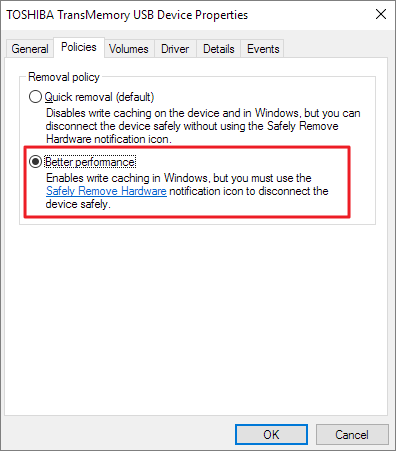
- On the Policies tab, select Optimize for performance.
4 Solutions to Increase Transfer Speed of External Hard Drive
If you're experiencing slow transfer speeds with your external hard drive, there are ways to improve it. By following these solutions, you can increase the transfer speed of your external hard drive.
| Workable Solutions | Step-by-step Troubleshooting |
|---|---|
| Fix 1. Convert FAT32 to NTFS | Install and launch Qiling Partition Master on your computer. Select a FAT32 partition...Full steps |
| Fix 2. Change Default Settings | Open "Windows File Explorer" and locate your external hard drive...Full steps |
| Fix 3. Clean Up Junk Files | Download Qiling CleanGenius for free and install it on your computer...Full steps |
| Fix 4. Replace the old HDD | Open Qiling Partition Master. Right-click the disk that you want to copy or clone...Full steps |
Also read: Fix Slow External Hard Drive on Mac.
Problem - How to Increase the Transfer Speed External Hard
"I have a backup that is 140GB. I have an external hard drive that I am trying to copy to (on a USB 3.0 port). The external hard drive is a WD My Passport Ultra. It's saying it will take 2 hours+.
- What am I doing wrong?
- Why is it taking so long?
- How can I speed up?"
If your external USB hard drive is working slowly, especially when copying or transferring files, there are ways to increase its transfer speed. To improve the hard drive transfer speed in Windows 10/8/7, you can try the tips provided in previous articles, which can help you copy files faster to an external hard drive.
- How to solve the problem of hard drive very slow suddenly
- How to fix a slow WD external hard drive without losing data
Or try the new solutions presented in this article:
Fix 1. Convert FAT32 to NTFS to Make External Hard Drive Faster
The file system of an external USB hard disk drive significantly affects the file transfer speed, with NTFS being faster and more efficient than FAT32 for file copy and transfer. To convert FAT32 to NTFS without losing data, download Qiling partition software and follow the steps to change the FAT32 partition to NTFS.
Step 1. Install and launch Qiling Partition Master on your computer.
Step 2. To convert a FAT32 partition to NTFS, select the partition, right-click, and choose "Convert to NTFS". If converting a storage device like an SD card or USB flash drive, insert it into your PC first and follow the same process.
Step 3. Click "OK" on the pop-up dialog box to continue.
Step 4. The conversion process will begin automatically. Please wait until the operation is completed.
Fix 2. Change Default Hardware Settings for Better Performance
Aside from changing the file system, you can also try modifying the default hardware settings on your Windows computer to accelerate the transfer speed of an external storage device.
Step 1. To access the properties of your external hard drive, open "Windows File Explorer" and locate your external hard drive. Right-click the external drive icon and choose "Properties" from the drop-down menu.
Step 2. To improve transfer performance of a disk, go to the "Hardware" tab, select the desired disk and click "Properties".
Step 3. In the device properties window select "Change settings".
Step 4. To optimize your disk for performance, click on the "Policies" tab in the disk properties window and select the "Optimize for performance" option. This will allow your disk to prioritize faster access times over data redundancy, which can improve overall system performance.
Step 5. Be cautious and disconnect the device properly. To do this, right-click the tray icon and select "Safely remove USB Mass Storage Device".
Fix 3. Clean Up External Hard Drive Junk Files to Speed Up the Drive
To improve the transfer speed of the external hard drive, it's recommended to clean up junk files first. This is because a large number of junk files can slow down the transfer speed. A free tool like Qiling can be used to easily and quickly clean up large files, making the transfer process more efficient.
Step 1. DOWNLOAD and install Qiling Partition Master Suite for free and launch it on your Windows PC.
On the suite, hover your mouse on "PC Cleaner", click the download icon to install and launch Qiling CleanGenius.
Step 2. To clean up your device using Qiling CleanGenius, select the "Cleanup" option on the main screen, then click "Scan" to initiate the scanning process.
Step 3. When the scanning process finishes, select unnecessary large files and click "Clean" to remove them.
Step 4. When Qiling CleanGenius finishes cleaning the selected files, click "Done" to complete the cleaning process.
Fix 4. Replace the Old External Hard Drive With a New One
If your external hard drive is old, it may have a slow transfer speed. Consider replacing it with a new one. If you want to keep the data, you can clone the old hard drive using Qiling partition software, then replace it with the new one.
Step 1. Select the source disk.
Right-click the disk you want to clone and select the "Clone" option from the menu.
Step 2. Select the target disk.
Select the desired hard drive or solid state drive as the destination and click "Next" to proceed.
Step 3. To view the disk layout and edit the target disk partition size, you can use the built-in Disk Management tool in Windows. To access it, press the Windows key + R to open the Run dialog, type "diskmgmt.msc," and press Enter.
To install Windows 10 on the target disk, you'll need to wipe out all data on it. When prompted, click "Continue" to confirm, but be aware that this will erase all data on the disk. If you have valuable data on the target disk, back it up in advance to avoid losing it.
To customize your disk layout, you can choose from three options: Autofit the disk, Clone as the source, or Edit disk layout. The last option is recommended if you want to leave more space for the C drive.
Step 4. Click "Proceed" to start the disk cloning process.
Conclusion
The transfer speed can vary greatly depending on the drive model, file system, and more, but solutions like the ones mentioned can often resolve slow transfer speed errors. If you still experience issues, feel free to contact us for further assistance. Additionally, Qiling Partition Master can help with partition management, such as resizing a partition or partitioning a hard drive, which can improve disk management on Windows 10.
How to Transfer Files from PC to External Hard Drive Faster FAQs
To transfer files from your PC to an external hard drive quickly, you can consider the following methods. First, ensure that your external hard drive is properly connected to your PC and has sufficient storage space.
How to transfer files from pc to flash drive faster?
To speed up the USB transfer:
- 1. Connect the USB to Rear Port
- 2. Update USB/Chipset Drivers
- 3. Enable USB 3.0 Port
- 4. Optimize the Performance
- 5. Convert FAT32 to NTFS
- 6. Format USB
How long does it take to copy 1TB data over USB 3.0
1TB of data would take approximately 4.9 hours to transfer via USB 3.0 at 625MB/s.
How to speed up file transfer?
Here's how to speed it up:
- Check the HDD and external media for corruption
- Disable the Auto-tuning feature
- Turn Off RDC
- Use a different USB port
- Check USB drivers
- Disable Drive Indexing
- Disable the antivirus
- Use the Disk Cleanup utility
Related Articles
- Download Windows 10 Builds 14393.67/14393.51 ISO Images
- Fix Kernel Security Check Failure Error in Windows 10/8/7
- Where Is My Hosts File and How to Reset Hosts File to Default in Windows 10
- 5 Best Free DVD Backup Software/DVD Ripper[Windows&Mac&Linux]
- Boot From USB HP Laptop | Everything You Need to Know
To boot from a USB on an HP laptop, follow these steps. First, ensure the USB drive is bootable and contains the operating system you want to install. Next, create a bootable USB drive using a tool like Rufus or the HP USB Recovery Creator. - Call of Duty Modern Warfare 2 File Location [All You Should Know]
Find Call of Duty: Modern Warfare 2 file locations, including save, config, and document files, and learn how to back them up.
Products
Articles & Tutorials
- Data Recovery
- Data Backup
- File Recovery
- File Backup
- System Backup and Restore
- Disk and Partition Clone
- Technical articles
- Mobile articles
- Disk Master Help
- Windows Data Recovery Tutorials
- Windows Secure Delete Tutorials
- Windows Partition Management Tutorials
- Windows File Backup and Restore Tutorials
- Windows System Backup and Restore Tutorials
- Windows Disk Backup and Restore Tutorials
- Windows Clone Tutorials