Thunderbird Profile Missing? Solutions to Restore Quickly
Mozilla Thunderbird is an open-source email application that has become a staple for many internet users. However, like any software, it can experience errors, with the Thunderbird profile missing error being a notable one.
The Thunderbird profile missing error can be frustrating, but there are several reasons and fixes to resolve it. The error can occur due to a corrupted profile, incorrect profile path, or missing profile folder. To fix this, try checking the profile path in the Thunderbird settings, and ensure that the profile folder is not missing or corrupted. If the issue persists, try creating a new profile and importing your data from the old profile.
[Possible Causes] Why Is Thunderbird Profile Missing
The Thunderbird profile missing error can occur due to several reasons, including incorrect profile settings, corrupted profile files, or issues with the Thunderbird installation. To resolve this issue, it's essential to identify the root cause, which can be attributed to factors such as incorrect profile settings, corrupted profile files, or issues with the Thunderbird installation. Once the underlying reason is identified, you can take the necessary steps to resolve the error and get your Thunderbird profile up and running again.
- The error occurs when the prefs.js file, which stores Thunderbird's user preferences, becomes empty or corrupted, often as a result of the program suddenly crashing or Windows malfunctioning.
- The profile folder saved on the network drive may be the cause of this error.
- The error is likely to occur when the program is executed from a removable drive, such as a USB stick, due to the high likelihood of this scenario.
- Renaming, moving, or deleting any of the Thunderbird profile folders from within the application can lead to this error.
[Solutions] How to Fix Thunderbird Profile Missing
After exploring the detailed reasons for the Thunderbird profile missing error, it's time to move on to the quick fixes. The top methods to resolve this issue include checking for corrupted profile files, verifying the profile location, and ensuring the profile is not being used by another instance of Thunderbird. Additionally, users can try running Thunderbird in safe mode, resetting the profile, or reinstalling the software.
- Method 1. Recreating Thunderbird Profile
- Method 2. Recovering Data from The Backup Profile
- Method 3. Deleting The Incorrect Profile
- Method 4. Copying The Local Folder
Method 1. Recreating Thunderbird Profile
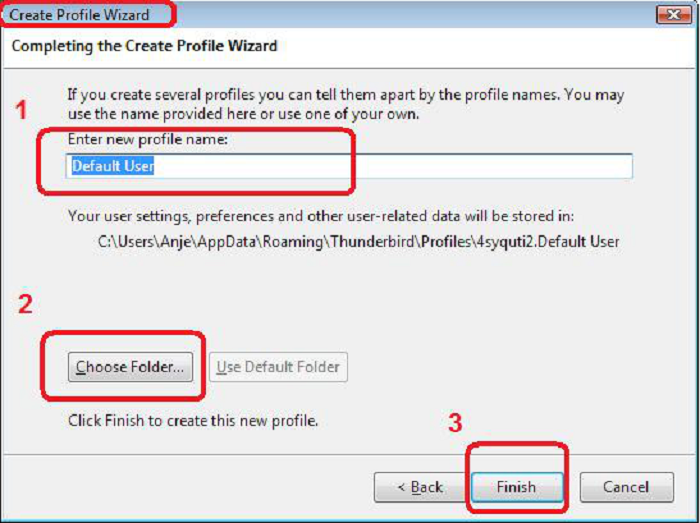
To get rid of the Thunderbird profile missing error, you can easily recreate the Thunderbird profile using the Profile Manager. This helps in the seamless use of Thunderbird on your system. To do this, follow the quick steps:
Step 1. Open the Thunderbird app and start the "Profile Manager."
Step 2. Now select "Choose User Profile" and go to "Create Profile."
Step 3. Click on "Next" and type the profile name.
Step 4. Select the desired folder location by choosing the "Choose Folder" option.
Step 5. To create a new profile, go to the website, click on the "Sign up" or "Create account" button, fill in the required information such as name, email, password, and other details, and then click on the "Finish" button.
Method 2. Recovering Data from The Backup Profile
If you're experiencing the "Thunderbird profile missing" error, you can recover your data from a backup profile. To do this, follow these quick steps:
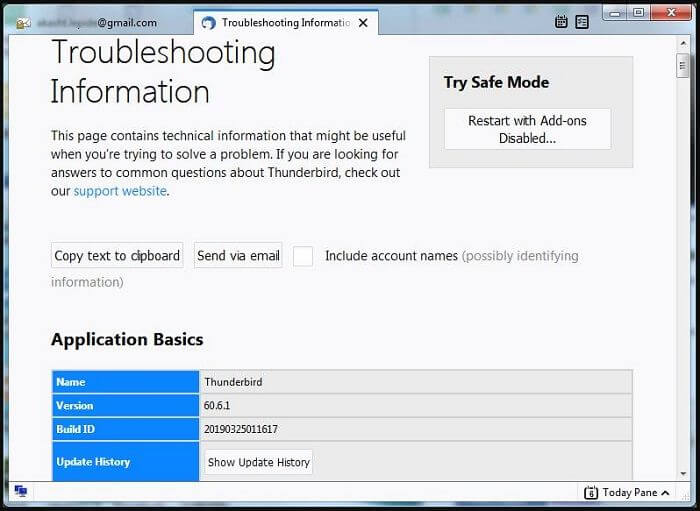
Step 1. To access Thunderbird's troubleshooting information, open the program and navigate to the "Help" menu, then select "Troubleshooting Information."
Step 2. To access the profile folder, select "Application Basics" and click on the "Show in Finder" option. This will open the profile folder in the Finder application.
Step 3. To confirm if the existing Thunderbird profile folder and backup have identical names, quit Thunderbird and check if the profile folder and backup have the same name in the same location.
Step 4. You can change the extension of the backup profile to .default by replacing the .restore extension with .default extension in the file name.
Step 5. Now replace the existing profile with the backup file.
Method 3. Deleting The Incorrect Profile
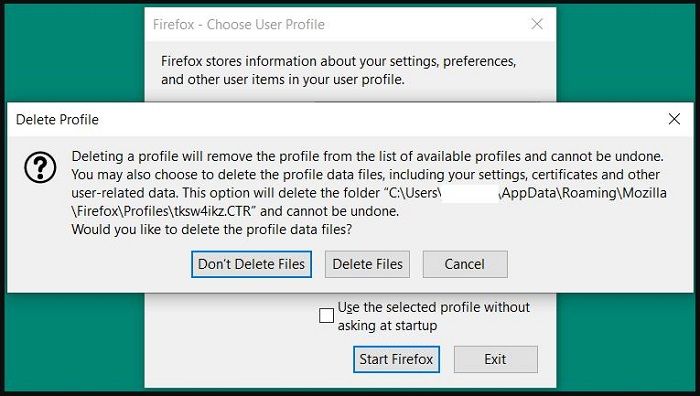
To resolve the Thunderbird profile missing error, simply delete the incorrect profile and confirm the correct one. This can be done quickly by following a few simple steps: delete the incorrect profile, confirm the correct profile, and you're done! The process is straightforward and should eliminate the error.
Step 1. To verify the displayed profile in Thunderbird, start the application, go to the "Profile Manager," and confirm that the correct profile is shown.
Step 2. Select the profile folder location to check for the present profiles.
Step 3. To resolve the issue, confirm that the correct profile is selected, delete the incorrect profile, and edit the profiles.ini file to point to the correct profile name. This will ensure that the correct profile is used for future sessions.
Step 4. To resolve the issue, simply copy the entire Thunderbird profile to another location directly and then open Thunderbird again. This will allow you to access your email account without any issues.
Step 5. Confirm the correct profile on Thunderbird.
Method 4. Copying The Local Folder
To resolve the Thunderbird profile missing error, copy the local folder to fix the issue. Here's a quick rundown of the steps:
Step 1. Create a new profile on the Thunderbird application.
Step 2. Go to the "Directory."
Step 3. To transfer data from an old profile to a new one, copy the contents of the old profile's local folder into the new profile's local folder. This can be done by opening the File Explorer, navigating to the old profile's local folder (usually located at `C:\Users\OldUsername\AppData\Local`), selecting all files and folders, and then pasting them into the new profile's local folder (usually located at `C:\Users\NewUsername\AppData\Local`).
Step 4. Restart the Thunderbird to check if the error persists.
[Bonus Tips] How to Prevent Thunderbird Profile from Missing
To prevent the Thunderbird profile missing error, consider the following quick tips: regularly back up your profile data, update Thunderbird to the latest version, use a cloud storage service like Google Drive or Dropbox to sync your profile, and avoid deleting or modifying the profile folder. Additionally, make sure to close Thunderbird properly before making any changes to your profile or system. By following these simple precautions, you can minimize the risk of encountering the profile missing error and ensure a smooth Thunderbird experience.
1. To ensure the safety of your Thunderbird profile, it's essential to back it up regularly. A reliable solution for this is Qiling Disk Master, which offers automatic data backup and serves as a complete backup and restore solution for personal use, with additional features like quick cloning, upgrades, or data transfer.

Features of Qiling Disk Master:
- It offers disk/partition backup and recovery.
- It allows secure restoration for program files, boot partition, and backup systems.
- The software enables fast and convenient backup of data to cloud storage, USB drives, and network-shared locations.
- It offers system clone, disk clone, and clone options.
- It helps send a report of the execution result to any email address.
Functions of Qiling Disk Master:
- It allows multiple backup solutions.
- It can be used to clone a hard drive.
- It can mount the backup image to extract individual files.
- It can automatically create a backup copy of data and save it to an FTP server, providing an extra layer of protection against data loss.
2. Avoid running the program from removable media.
3. Avoid saving the profile folder on the network drive.
4. Check if there are any corrupted or empty JavaScript files (.js) on your system, possibly caused by a Windows crash.
5. Avoid renaming, moving, or deleting the profile folder from the Thunderbird application.
Concluding Thoughts
Thunderbird users may encounter the profile missing error, but with a clear understanding of the issue, it's easy to resolve. This error can occur due to various reasons such as renamed users or running the program from removable media, among others. Despite this, Thunderbird remains a reliable open-source application for both personal and professional use, offering users the best experience possible.
To quickly resolve the issue of a missing Thunderbird profile, readers can refer to the provided solutions to restore it quickly. Additionally, following the quick tips to prevent this error can ensure a seamless experience with Thunderbird. For added convenience, users can utilize the Qiling Disk Master to back up their Thunderbird profile quickly and easily.
FAQ on Thunderbird Profile Missing
After reviewing the Thunderbird profile missing issue, you may have some questions. Here are the top and frequently asked questions on this error:
1. How do I recover my Thunderbird profile?
To recover your Thunderbird profile from a backup, follow these quick steps: simply restore the backed-up profile folder to the original location where your Thunderbird profile was saved, and then restart Thunderbird. This will allow Thunderbird to automatically detect and load the restored profile. Alternatively, you can also import the backed-up profile into a new Thunderbird installation by following the import profile wizard in Thunderbird, which will guide you through the process of importing your profile and settings.
Step 1. To access the Troubleshooting Information in Thunderbird, go to the "Help" menu, then select "Troubleshooting Information."
Step 2. To access the profile folder for the application basics, select the "Application Basics" option and then click on the "Show in Finder" option. This will allow you to view the location of the profile folder in the Finder.
Step 3. To confirm if the existing profile folder and backup have identical names, quit Thunderbird and verify that the profile folder and backup have the same name in the file system. This can be done by checking the file path and name of the profile folder and the backup in the operating system's file explorer.
Step 4. To change the extension of the backup profile, you can replace the `.restore` extension with `.default` extension. This will modify the profile's extension to match the default profile's extension.
Step 5. Now replace the existing profile with the backup file.
2. Where is my profile in Thunderbird?
The quick steps to locate your profile in Thunderbird are:
Step 1. Open Thunderbird and go to its "Help" menu.
Step 2. Select "Troubleshooting Information."
Step 3. To find the profile folder, go to the "Application Basics" section and select the "Profile Folder" option, then click on "Show in Finder".
3. To transfer your Thunderbird profile from one computer to another, follow these steps: 1) Close Thunderbird on both computers, 2) Go to the profile location on the first computer (usually C:\Users\Username\AppData\Roaming\Thunderbird on Windows or /home/username/.thunderbird on Linux/Mac), 3) Copy the entire profile folder, 4) Go to the profile location on the second computer, 5) Paste the copied profile folder into the profile location on the second computer, and 6) Start Thunderbird on the second computer.
To transfer a Thunderbird profile from one computer to another, follow these quick steps: First, locate the Thunderbird profile folder on the source computer, which is usually found in the "Thunderbird" or "Mail" folder in the user's home directory. Next, copy the entire profile folder to an external drive or a network location.
Step 1. To start, connect a device for data transfer, such as a remote storage device or a USB flash drive, to initiate the process.
Step 2. Go to the "Menu" option, select "Help," and then go to "Troubleshooting Information."
Step 3. To resolve the issue, search for the "Profile Folder" in Thunderbird and click on "Open Folder." Close Thunderbird after doing so. This will allow you to access and potentially resolve the problem with your profile.
Step 4. To access the Thunderbird profile folder in Windows Explorer, navigate up three levels from the profile folder, right-click on the parent folder, and select "Copy."
Step 5. Right-click on the data transfer device and select "Paste."
Step 6. Now, connect the same device to the destination PC.
Step 7. Right-click on the copy of the Thunderbird profile folder on the storage device and select "Copy".
Step 8. Now, open Thunderbird, go to the "Menu" option, select "Help," and go to "Troubleshooting Information" to resolve any issues with your email client.
Step 9. To resolve the issue, search for the "Profile Folder" in Thunderbird, click on "Open Folder" to locate it, and then close Thunderbird. This will allow you to access the profile folder and potentially resolve any issues.
Step 10. To replace the current Thunderbird profile, go up three levels in Windows Explorer from the Thunderbird profile folder, right-click on the parent folder, select "Paste" and replace the current data when prompted.
Related Articles
- FIXED: Windows 10 Startup Repair Not Working🔥
- How to Recover Overwritten Word Document No Previous Version [Full Ways]
- FIXED: Windows Update Error 80072EFE [Windows 7 Tips]
- The Operation Could Not Be Completed Because the Volume is Dirty [SOLVED]
- Repairing Disk Errors This Might Take an Hour - How to Fix?
If you're experiencing the 'repairing disk errors this might take an hour' error, this guide can help to fix this issue, simply follow the steps outlined here to resolve the problem and get your computer up and running smoothly again. - How to Reset PS5 Without Losing Data [2 Tested Methods]
Reset PS5 without losing data by choosing the right reset option, backing up game saves, and protecting PlayStation 5 data.
Products
Articles & Tutorials
- Data Recovery
- Data Backup
- File Recovery
- File Backup
- System Backup and Restore
- Disk and Partition Clone
- Technical articles
- Mobile articles
- Disk Master Help
- Windows Data Recovery Tutorials
- Windows Secure Delete Tutorials
- Windows Partition Management Tutorials
- Windows File Backup and Restore Tutorials
- Windows System Backup and Restore Tutorials
- Windows Disk Backup and Restore Tutorials
- Windows Clone Tutorials