Why Can't I Format My External Hard Drive on PS4? [Ultimate Answer and Tutorial]
PS4 won't reformat external hard drive
I had my external hard drive plugged into my PS4, but after powering it up, I got an error message saying it needed to be repaired. The PS4 then instructed me to reformat it, but that didn't work. - from reddit
If you're facing the same issue as before, you're probably wondering why you can't format your external hard drive on your PS4. Fortunately, there are ways to format for PS4, and this passage aims to help you find a solution to your problem.
This article will delve into the reasons why external hard drives cannot be formatted on the PS4, and provide alternative methods to address this limitation.
Why Can't I Format My External Hard Drive on PS4
The PS4 may not be able to format an external hard drive due to a malfunction or issue with the external drive, requiring analysis and troubleshooting to find a solution.
| Devices | Reasons of "Can't Format External Hard Drive on PS4" |
|---|---|
| PS4 |
PS4 can't recognize external hard
|
| USB External Hard Drive |
External hard drive can't be connected to PS4
External hard drive stopped working |
If you're unable to format a USB external hard drive on your PS4, it's possible that the PS4 is unable to read the USB. This could be due to the USB not being connected properly or the external hard drive itself being faulty. Alternatively, there might be an issue with the PS4 itself. To troubleshoot, you can try reconnecting the USB, checking the external hard drive for any issues, or resetting the PS4.
How to Fix "Why Can't I Format My External Hard Drive on PS4"
After analyzing the problem above, you can know why you can't format the USB external hard drive on PS4. If it is USB not being recognized, you can follow the solutions below.
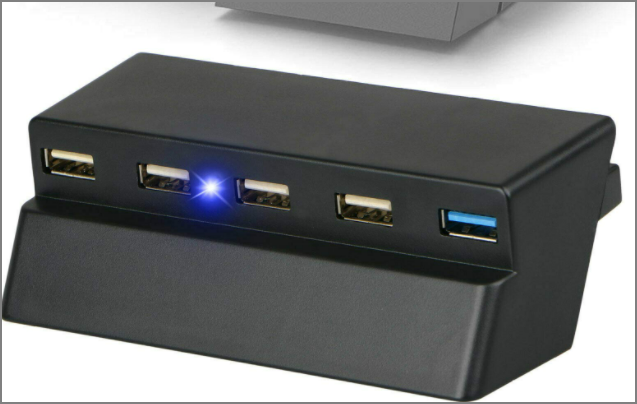
Fix 1. Check the USB Cable or Interface
If your USB cable is damaged, you can try using a different one to connect your device to a different USB port, preferably a USB 3.0 port. If the cable is beyond repair, consider replacing it or getting it professionally fixed.
Fix 2. Format the Write-Protected PS4 USB on Windows
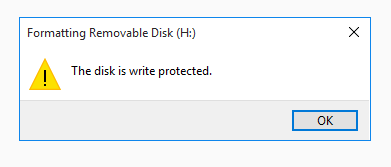
If the USB is protected, it means that Windows OS has set administrator restrictions, corrupted registry entries, virus infection, or third-party encryption software has locked your USB drive. If the USB is protected, you can repair and format the write-protected USB/pen drive to work correctly again. Here are six methods to solve this problem:
1. Unlock USB via Its Lock
2. Clear Virus
3. Use CMD
4. Use Write Protection Removal Tool
5. Use Registry
6. Use File Explorer Properties
7. Format Write Protected USB Pen Drive after Removing Protection
To see the detailed steps, click on the link below.

How to Format Write Protected USB/Pen Drive [7 Ways]
This error can be efficiently fixed by using a tool like Qiling Partition Master or MiniTool Partition Wizard. These tools can help resize, merge, or split partitions, and can also convert a write-protected drive to a non-write-protected one.
Fix 3. Use Another USB
If your PS4's external hard drive is damaged, it won't be recognized by the console. To troubleshoot, connect the drive to a computer instead. If the issue persists and you get a "USB device not recognized" error, try replacing the USB cable.
Fix 4. Update PS4 System Software
If your external hard drive isn't working on your PS4, it may be due to an outdated system software. You can try updating your system software to resolve the issue of being unable to format a USB external hard drive on your PS4.
Step 1. Click on PS4 "Settings" and select "System Software Update."
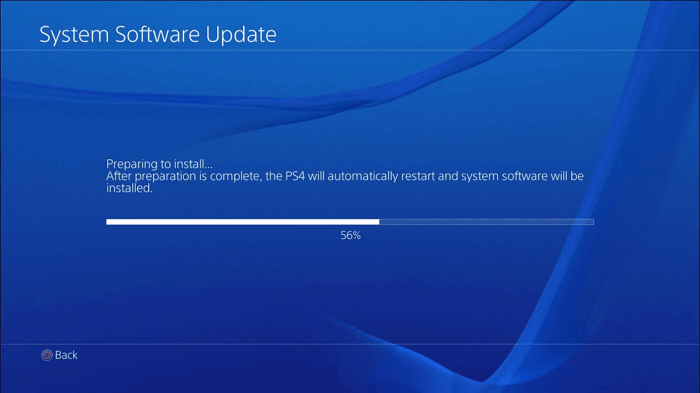
Step 2. Click "Next." And then select "Update."
Step 3. Select "Download" to install the update you downloaded.
Step 4. Connect the USB to the PS4 to see if it is recognized. If it is, you're good to go.
If your external hard drive suddenly stops working, it may cause the formatting process to fail on your PS4, preventing you from formatting your USB external hard drive. However, you can resolve this issue by following the provided methods.
Fix 5. Restart PS4
This is one of the easiest methods. You can follow the method below when you can't format the USB external hard drive on PS4 successfully.
Step 1. Open the "Quick Menu" and select "Turn off PS4".
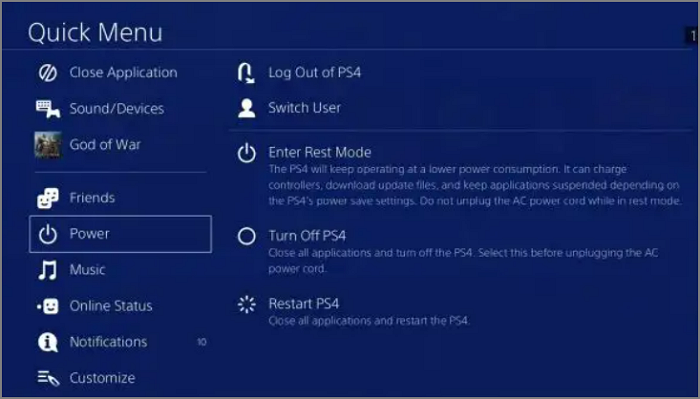
Step 2. Wait a few minutes and turn on your PS4.
Step 3. 1. Reconnect the USB drive to the PS4. 2. Check if the PS4 can connect to the USB drive properly.
Fix 6. Rebuild the PS4 Database
PS4 has a built-The PS4 has a built-in feature called "Rebuild Database" that can help resolve various issues, including fixing corrupted database errors. However, this function can only be used when the console is in safe mode, and the steps to access it can be found below.
Step 1. Turn off PS4.
To turn off the PS4, press and hold the power button until you hear the second beep.
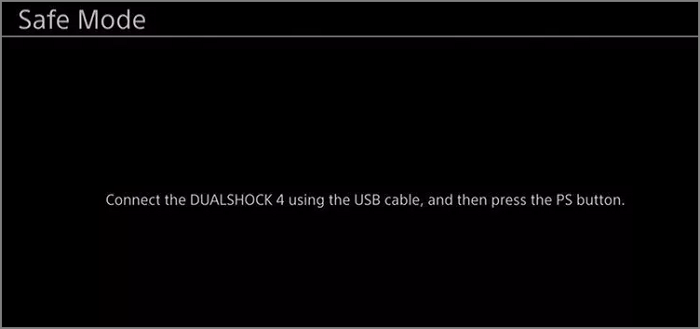
Step 2. Turn on PS4 Safe Mode. And connect the PS4.
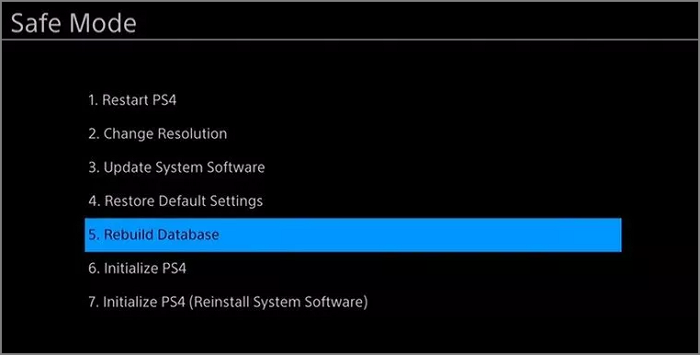
Step 3. Select "Rebuild Database."
The solutions to why you can't format an external hard drive on a PS4 include various reasons such as the drive not being compatible, not being recognized by the console, or having issues with the formatting process. If you encounter the error code ce-37857-0, you can refer to the solution provided.
Bonus Tip: Use Professional Software to Format External Hard Drive for PS4
If you're having trouble formatting your external hard drive on your PS4, you can try formatting it on a Windows or Mac computer first, then connect it to your PS4. This can help convert the drive from NTFS to FAT32 or exFAT, which may resolve the formatting issue.
I highly recommend using Qiling Partition Master, a free and all-in-one partition manager designed for personal users. Even if you're new to computers, you can easily operate it.
- Right-Click the external drive or USB you intend to format and choose "Format".
- Set the Partition label, File system (NTFS/FAT32/EXT2/EXT3/EXT4/exFAT), and Cluster size, then click "Proceed".
- Click "Yes" to format the hard drive partition.
On Windows, you can use Disk Management, and on Mac, you can finish formatting your PS4 external hard drive using Terminal commands or Disk Utility. You can click the button below for detailed steps.
Summary
If you're having trouble formatting a USB external hard drive on your PS4, it's likely because the PS4 can't recognize the USB or the USB has stopped working. This can cause issues with formatting. Fortunately, this article provides solutions to address this problem.
Formatting the PS4 USB external hard drive on Windows using Qiling Partition Master is the most recommended solution, making it a safe and effective method to try.
FAQs About Why Can't I Format My External Hard Drive on PS4
If you're experiencing issues formatting your external hard drive on your PS4, there are several potential solutions to try. The problem may be due to the PS4's inability to recognize the external hard drive, which could be caused by a faulty USB port, a corrupted file system, or a PS4 system software issue. To resolve the issue, try using a different USB port, reformatting the external hard drive on a PC or Mac, or updating your PS4 system software to the latest version.
1. How do I fix my PS4 external hard drive error?
To fix PS4 external hard drive errors, you can refer to the multiple methods provided in this guide or simply restart your PS4 by following the steps below to see if that resolves the issue.
Step 1. Disconnect the USB external device from the PS4.
Step 2. Find "Settings" and turn off PS4.
Step 3. Turn on PS4 and reconnect the USB.
2. How do I reformat my external hard drive for PS4?
To reformat your external hard drive for PS4 on PS4, go to Settings > Storage > Extended Storage, then select the external hard drive you want to use. Next, go to Settings > Storage > Format.
Step 1. Go to "Settings" and find "Devices."
Step 2. Find the USB and click "USB Storage Devices" to format.
3. What is exFAT format PS4?
The PS4 only supports exFAT and FAT32 file systems, with exFAT allowing large data transfers without file size limitations, making it ideal for transferring data from the PS4.
Related Articles
- Install IDE Hard Drive
- Can't Install macOS Ventura? Here Are the 9 Best Solutions
- Free PDF Editor - Top 6 Best Free PDF Editors 2020 Update
- How to Repair Your Drive in Windows 10 Without Losing Your Data
- What Happens When You Format an SD Card? [2022 Ultimate Answer]
This guide will explain to you what happens when you format an SD card. You will know what formatting will bring to you and get several methods to format an SD card. - What Is C Drive on a PC in 2022 [Full Guide on How to Manage it]
What is C drive? This article focuses on its definition, specific functions, and how to manage the C drive on a PC. Besides, it also introduces a professional helper to manage the C drive.
Products
Articles & Tutorials
- Data Recovery
- Data Backup
- File Recovery
- File Backup
- System Backup and Restore
- Disk and Partition Clone
- Technical articles
- Mobile articles
- Disk Master Help
- Windows Data Recovery Tutorials
- Windows Secure Delete Tutorials
- Windows Partition Management Tutorials
- Windows File Backup and Restore Tutorials
- Windows System Backup and Restore Tutorials
- Windows Disk Backup and Restore Tutorials
- Windows Clone Tutorials