How to Fix PS4 Error Code CE-37857-0 [100% Working Solutions]
ps4 error code CE-37857-0
If you're experiencing issues with accessing your games on your PS4 and it's telling you that no USB storage device is connected even though it's properly plugged in, try checking the USB drive for any issues or try a different USB port on the PS4. If the problem persists, you may want to try resetting the PS4 by turning it off, unplugging it, waiting for 30 seconds, and then plugging it back in and turning it on again. If this doesn't resolve the issue, you can try contacting Sony support for further assistance. - from Reddit
If you're experiencing the PS4 error code CE-37857-0, you're not alone - it's a common issue with the console's USB. The problem could be due to a faulty USB format, a damaged USB port, or other reasons. Fortunately, this guide will walk you through detailed methods to troubleshoot and resolve the issue.
What Is PS4 Error CE-37857-0?
PS4 Error CE-37857-0 refers to "the USB storage device is not connected."
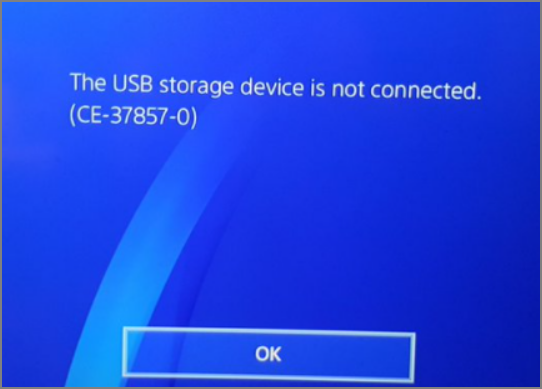
PS4 error CE-37857-0 can occur when trying to access content on an external device or copy content to a device, sometimes accompanied by code SU-41333-4. This error can also occur without a code number. When this error occurs, it's essential to resolve the issue. The following section will discuss the causes of this error.
What Causes PS4 Error CE-37857-0?
The error may be caused by physical or logical damage to the PS4, and the USB connection may not be working properly, either from the start or after a prolonged period of time.
- USB format is not correct
- The port of USB is faulty
- A USB integrator is used
- The PS4 database is corrupted
- USB storage device is corrupted
- PS4 is improperly installed system software
- The cable connecting the USB to the PS4 is faulty
- Power effects, sudden power surges, or power shortages
How Do I Fix PS4 Error CE-37857-0? [8 Ways]
To solve the problem, we will start by checking the power cord and ensuring that the PS4 is properly connected to the power source. Next, we will restart the console and check for any loose connections or faulty cables. If the problem persists, we will check the system's software for any updates and install the latest version.
Method 1. Format PS4 USB Drive to FAT32 or exFAT
If your PS4 doesn't recognize a USB, the file system format may be inconsistent. Typically, USB drives use NTFS, but PS4 only supports FAT32 and exFAT. To resolve this issue, you can use a free disk tool like Qiling Partition Master Free, which is simple and fast.
This is an all-A disk performance optimizer can easily convert file systems between NTFS and FAT32 without formatting the selected drive. You can learn more about it by following the steps below.
Step 1. Select the USB drive to format.
Connect a USB drive to your computer, download and launch Qiling partition software, and right-click the drive to format it.
Step 2. Set the drive letter and file system on USB.
Assign a new partition label, file system (NTFS, FAT32, EXT2, EXT3, EXT4, or exFAT), and cluster size to the selected partition, then click "Proceed".
Step 3. Check "Yes" to confirm formatting USB.
Click "Yes" if you see the Warning window. If you have important data on it, back up the data in advance.
Method 2. Turn Off PS4
A power issue may cause the PS4 error CE-37857-0. To fix it, you can follow these steps.
Step 1. Remove the USB from the PS4 first.
Step 2. Open "Quick Menu" and select "Turn Off PS4."
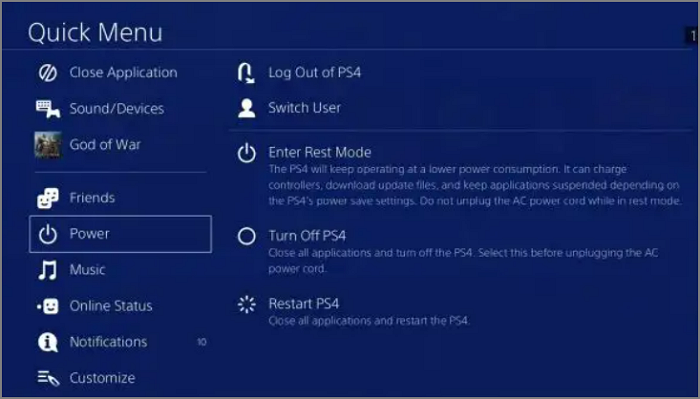
Step 3. Power off the PS4 and wait for a few minutes.
Step 4. Then, turn it back on again.
Step 5. Connect the USB again and check if it will allow it properly.
This operation helps the PS4 to recover from any error caused by a sudden short circuit.
Method 3. Check the PS4 USB Port
To fix the PS4 error CE-37857-0, you need to check if the USB port is damaged, as this is a common issue causing the error.
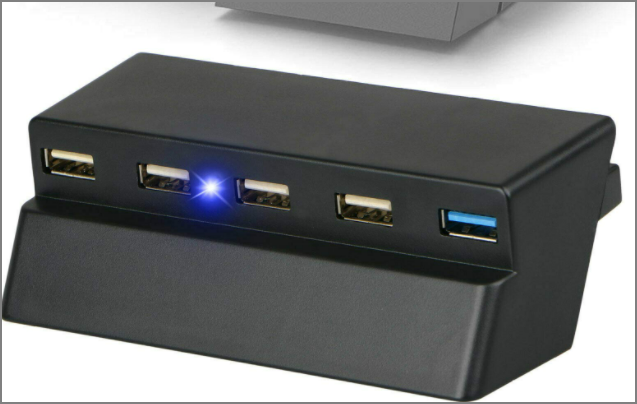
If the USB storage device is too large to fit into the front USB port, you'll need to plug it into the back USB port instead. Alternatively, if it's broken, you'll need to get it repaired.
Method 4. Connect Another USB
If the issue persists with the second USB, it's likely the problem lies with the PS4 connection cable. You may need to replace it with a new one to resolve the issue.
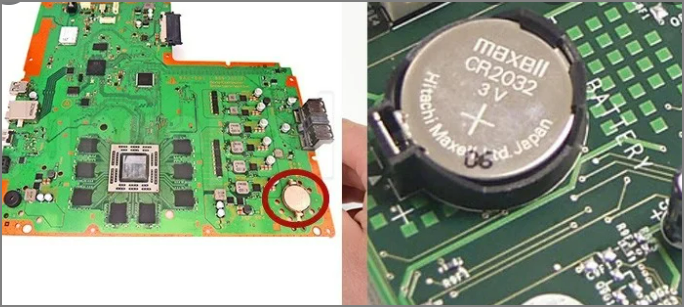
Method 5. Clear CMOS Memory
The PS4 error CE-37857-0 can be caused by corrupted CMOS memory data, which can be fixed by checking if the data has been corrupted, but this method requires some technical expertise.
Method 6. Rebuild PS4 Database
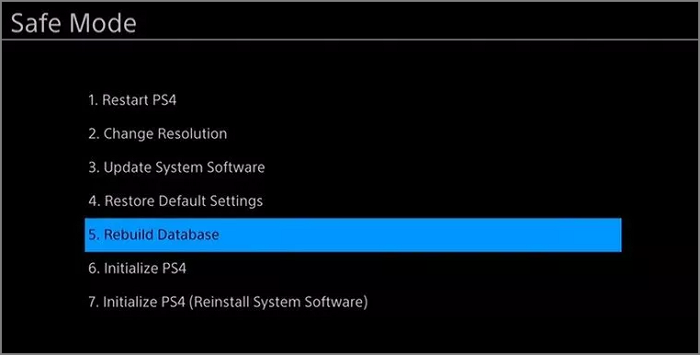
Rebuilding the database can fix many problems related to PS4. You can use it to fix PS4 error CE-37857-0. You will need to rebuild the database every six months or as often as necessary to keep your PS4 performing at its best. Here are the specific steps.
Step 1. Unplug the power cord from the back of the PS4, and then press and hold the power button on the front of the PS4 for 30 seconds. This will discharge any residual power in the system.
Step 2. Enter "Safe Mode."
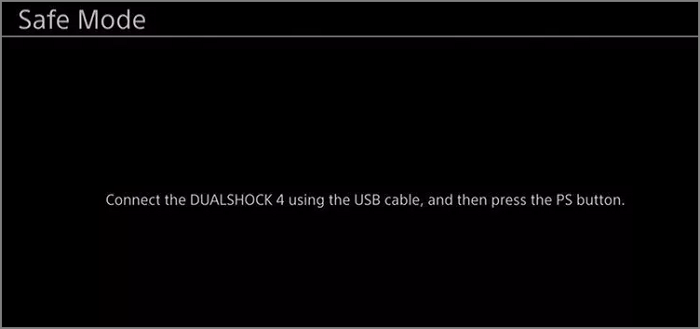
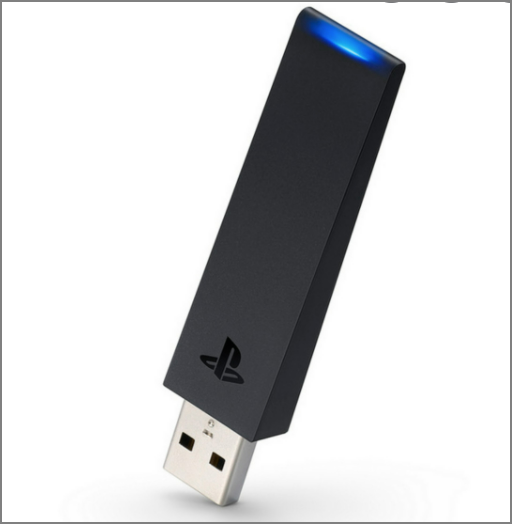
Step 3. Connect the DualShock 4 controller to the USB-A.
Step 4. Select "Rebuild Database."
Method 7. Reset PS4
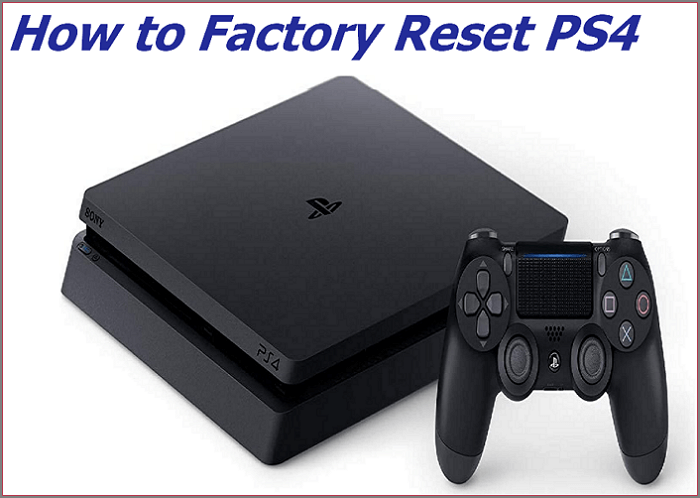
Initializing PS4 is a method of last resort to fix error CE-37857-0, requiring a factory reset to original settings. This process involves a soft initialization followed by a full one if the first doesn't work, but it's essential to back up game saves to the cloud or a USB before proceeding. If you're unsure, click the link below to learn two ways to factory reset your PS4.

How to Factory Reset PS4 [2022 Complete Guide]
Factory resetting a PlayStation 4 returns the console to its original, out-of-the-box state, erasing all user data, settings, and installed games. There are two effective methods to achieve this, which will be outlined in the article.
Method 8. Contact PlayStation Support
If you've checked the PS4 and found no issues with the USB, you can reach out to PlayStation support for assistance. They can be contacted on their helpline, available Monday through Friday, at 1-800-345-SONY (7669).
If your PS4 is experiencing issues with system storage access and displays the error code CE-34335-8, you can find solutions by visiting the provided link.
Summary
To fix PS4 error CE-37857-0, check the cause first, but a common issue is incorrect USB formatting. Try formatting the USB to exFAT or FAT32, then use a professional disk tool like Qiling Partition Master to resolve the problem quickly.
FAQs About PS4 Error Code CE-37857-0
This article offers various solutions to fix PS4 error code CE-37857-0, providing a comprehensive guide to resolving the issue. Additionally, it addresses common questions related to the error code, offering a one-stop resource for those seeking to troubleshoot and resolve the problem.
1. Why is my PS4 extended storage not supported?
The PS4 may not be compatible with your hard drive, requiring a format conversion. Alternatively, the issue could be with the drive's cable or port. You can refer to the provided article for troubleshooting methods.
2. How do I know if my PS4 hard drive is failing?
In addition to the code issues mentioned, several other situations can cause your PS4 to malfunction, such as failed downloads, game errors, or video download issues.
3. What format does PS4 use for USB?
If your PS4 only supports exFAT or FAT32, and your USB drive is NTFS, you'll need to convert the USB drive's format to one of the supported formats.
Related Articles
- How to Boot from USB Ubuntu? [Full Guide in 2022]
- Fix System Restore Failed and Did Not Complete Successfully Error in Windows 10
- Windows 10 Thinks My Hard Drive is Removable
- How to Increase Transfer Speed of External Hard Drive
- What Is A Modem and How Does It Work?
The modem, once a staple of internet connectivity, may seem like a relic of the past. However, this article will delve into what a modem is and how it functions, followed by a comparison with modern routers to assess its relevance in today's digital landscape. - What Is a Snapshot and How Is It Different from a Backup
The concept of a Snapshot is explained in this post, where it is defined and distinguished from a backup, providing a concise answer to the question.
Products
Articles & Tutorials
- Data Recovery
- Data Backup
- File Recovery
- File Backup
- System Backup and Restore
- Disk and Partition Clone
- Technical articles
- Mobile articles
- Disk Master Help
- Windows Data Recovery Tutorials
- Windows Secure Delete Tutorials
- Windows Partition Management Tutorials
- Windows File Backup and Restore Tutorials
- Windows System Backup and Restore Tutorials
- Windows Disk Backup and Restore Tutorials
- Windows Clone Tutorials