How to Use Mac to Format External Hard Drive, Everything You Should Know
To make a Mac format external hard drive compatible with your Mac system, you need to reformat it to the Mac file system, which is HFS+. This can be done by connecting the external drive to your Mac, going to Disk Utility, selecting the drive, and clicking on the "Erase" button. Alternatively, you can also use the "Format" button to format the drive to HFS+. Once formatted, the external drive should be compatible with your Mac system.
Do I Need to Use Mac to Format External Hard Drive?
You need a Mac format external hard drive for various applications, including data storage, transfer, and space expansion. However, not all external hard drives are compatible with Mac systems, making formatting necessary for several reasons, such as ensuring seamless integration and functionality with your Mac device.
- Buying a new external hard drive
- Deleting all the contents of the external drive
- To use an external drive on both Windows and Mac, you'll need to format it in a file system that's compatible with both operating systems. The most convenient option is to format the drive in exFAT, which is a file system that's widely supported by both Windows and Mac.
You need to choose the best external hard drive file system for Mac, regardless of the reason you want to format the disk. We'll cover the different file systems next.
What Is the Best Format for Mac Format External Hard Drive?
For computer systems, there are many file systems:
- NFTS: The default and modern file system used by Windows.
- APFS: Used by macOS 10.13 (High Sierra) or later.
- HFS+: Used by macOS 10.12 (Sierra) or earlier.
- exFAT: Works with USB connections
- FAT32: Older file systems
To choose the best file system for your Mac, consider the pros and cons of each option. If you need to access files from Windows or Linux, HFS+ might be the way to go, but it's not the most efficient. APFS is a more modern and efficient option, but it's only compatible with macOS High Sierra and later. Next, let's explore the different file formats, and then you can follow the table below to pick the perfect file system for your Mac.
| File System | Pros | Cons |
|---|---|---|
| NFTS | Classic system | Unable to write on Mac |
| APFS | Quick and efficient, more functions | Only used for Mac |
| HFS+ | Used for Mac | Replaced by APFS |
| exFAT | The software has a large file size and is available for both Mac and Windows operating systems. | A little slow |
| FAT32 | Available for multiple versions of systems | Older systems and slow |
Comparing the different types of systems reveals a key conclusion: each system has its unique characteristics, advantages, and limitations, but they all share a common goal of maintaining homeostasis and regulating the internal environment to ensure the survival and proper functioning of the system. Whether it's the human body, a thermostat, or a computer network, the underlying principle remains the same: to maintain a stable and optimal state through feedback mechanisms, control systems, and regulation processes.
- APFS is the best choice if you only want to use it on a Mac, as it is quick and efficient.
- ExFAT and FAT32 are the preferred file system formats for both Windows and Mac, but they have a key difference: FAT32 has a 4GB file size limit, whereas exFAT can handle larger file sizes.
- Macs can read NTFS files but cannot write to them, and NFTS and HFS+ file systems are not supported on Mac. Mac can read HFS+ files but cannot write to them. Mac can read NTFS files but cannot write to them.
ExFAT is a popular file system format that supports cross-platform compatibility, making it ideal for use on Macs. It's also fast and can handle large file sizes, making it a convenient choice for formatting external hard drives.
How to Use Mac to Format External Hard Drive? [Two Ways]
To format a drive on Mac, you can use the built-in Disk Utility tool or input a command in the terminal. This will erase all data on the drive and rewrite its format to exFAT or another desired format. The process can be completed using either method, providing a clean slate for future use.
Method 1. Use Mac to Format External Hard Drive with Disk Utility
Disk Utility is a built-On a Mac, you can use the Disk Utility tool to format external hard drives and manage partitions. To format an external hard drive, follow these steps:
Step 1. Link the external hard drive to your Mac.
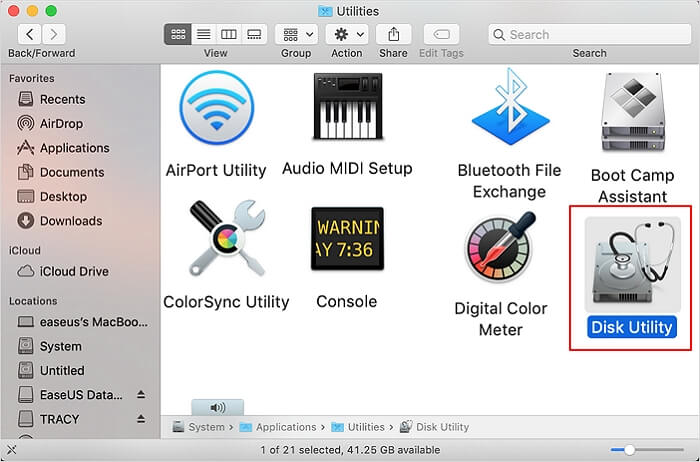
Step 2. To open Disk Utility, click the "Command + Space" keys to open Spotlight search, type "Disk Utility" in the search bar, and then click on the "Disk Utility" application that appears in the search results. Once Disk Utility is open, you can proceed with the steps to create a bootable USB drive.
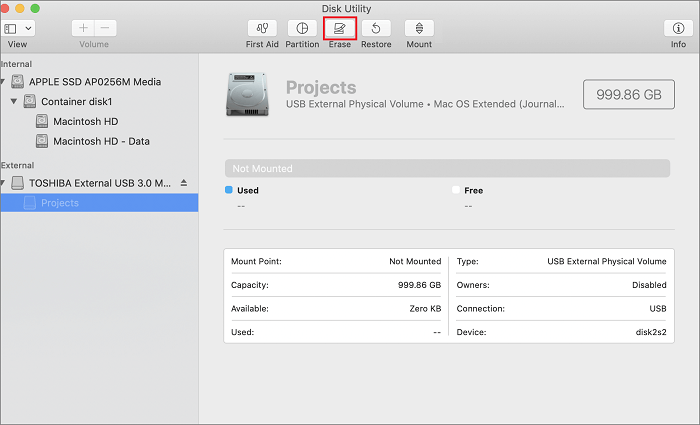
Step 3. Choose the drive and click "Erase" to format it.
Step 4. Name the drive and select "ExFAT" as the format.
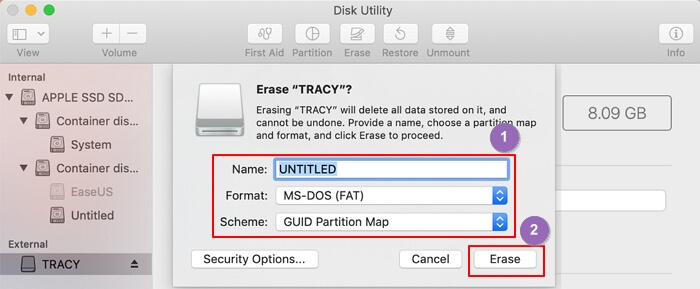
Step 5. Click on "Erase" to finish formatting the external hard drive.
Method 2. Use Mac to Format External Hard Drive with Terminal Command
This is a more complicated way. You can format the external hard drive by entering commands. Here are the detailed steps of the command.
Step 1. Connect the external drive to your Mac.
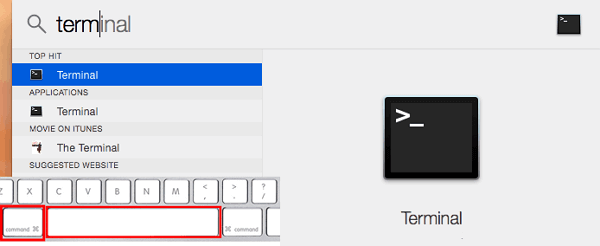
Step 2. Press and hold "Command+Space" and type "Terminal."
Step 3. Type "diskutil list" and find the external drive.
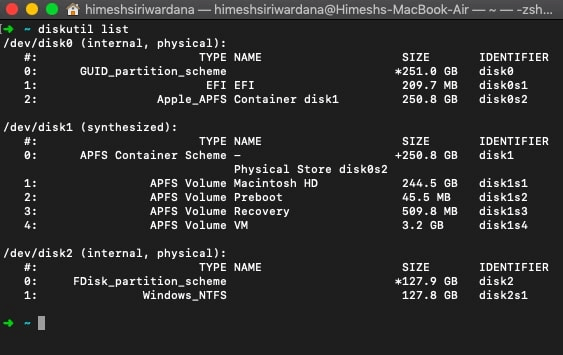
Step 4. Input the command and press enter.
sudo diskutil eraseDisk FAT32 MBRFormat /dev/disk2
- Tip
- The file system format can be changed from FAT32 to other formats, such as NTFS or exFAT, which offer improved features and capabilities.
- The command "rsync -aAX /dev/disk2" is used to copy files from "/dev/disk2" to the current directory, preserving the permissions, timestamps, and ownership of the files. The "-a" option stands for archive mode, which means that the files will be copied in a way that preserves their permissions, timestamps, and ownership. The "-A" option is used to preserve ACLs (Access Control Lists), and the "-X" option is used to preserve extended attributes. This command is useful for backing up files or synchronizing files between two locations.
Step 5. Wait for the ending and click "Close."
Bonus Tip: Format External Hard Drive for Mac on Windows
You can also format an external hard drive for Mac on Windows using third-party software. Qiling Partition Manager is a trustworthy option that can easily format a USB or external hard drive to exFAT format. You can follow the detailed guide to complete the operation.
Step 1. Launch Qiling Partition Master, right-click the partition on your external hard drive/USB/SD card which you want to format and choose the "Format" option.

Step 2. Assign a new partition label, file system (NTFS, FAT32, EXT2, EXT3, EXT4, exFAT), and cluster size to the selected partition, then click Proceed.

Step 3. In the Warning window, click "Yes" to start formatting your external hard drive/USB/SD card.
What Else Can Qiling Partition Master Provide?
After formatting the external hard drive to your desired format, you can link it to your Mac and start using it. Alternatively, you can use Qiling Partition Master, which offers more powerful functions and benefits such as.
- Convert MBR to GPT
- Format partitions, erase partitions/disks
- Cloning larger HDD to smaller SSD
- Migrate the operating system to HDD/SSD
- Convert dynamic disk to basic without losing data
- Check disk partition health status and file system errors
Summary
For a Mac format external hard drive, you can choose APFS for the Mac system, or exFAT for use on both Mac and Windows.
Formatting an external hard drive can be done quickly on a Mac system using Disk Utility, while on Windows, Qiling Partition Master is another easy and quick option.
FAQs About Use Mac to Format External Hard Drive
To format an external hard drive on Mac, you can follow the steps outlined above. This process will erase all data on the drive, so make sure to back up any important files before proceeding. If you're using a USB drive, you may need to use the Disk Utility app to format it, while a Thunderbolt drive may require a different process.
1. Is Mac exFAT or NTFS?
The various file system formats have their own advantages and disadvantages. For Mac users, the exFAT format is the most suitable option, as it allows for the storage of files of any size and is compatible with both Windows and Mac operating systems.
2. Should I use APFS or macOS journaled?
APFS is preferred on Mac due to its additional features and speed, while macOS journaled is used by earlier versions of macOS.
3. What are the disadvantages of exFAT?
Despite being a suitable file system for Mac, exFAT has some limitations. It is less compatible than FAT32 and lacks journaling features and advanced features found in NTFS.
Related Articles
- How to Make Mac Dark Mode [for macOS Ventura/Monterey/Big Sur]
- [Too Slow!] Fix: Windows 10 APPs Take Forever to Load
- [7 Ways] Can't Install Windows 10 on a New Build with Code 0x80300024, Get Help Here!
- Google Chrome Windows 7&8.1 End of Support: What Should You Do
- RAW to NTFS Converter Software Free Download (for Windows Only. 100% FREE)
Need a free RAW to NTFS converter? Discover the top 3 methods to convert RAW drives to NTFS without losing data, including CMD commands, Disk Management, and specialized tools. - What is Remote Direct Memory Access (RDMA)
Learn what RDMA (Remote Direct Memory Access) is, how it works, and its benefits. Discover how RDMA enables high-speed, low-latency data transfer between computers without CPU involvement.
Products
Articles & Tutorials
- Data Recovery
- Data Backup
- File Recovery
- File Backup
- System Backup and Restore
- Disk and Partition Clone
- Technical articles
- Mobile articles
- Disk Master Help
- Windows Data Recovery Tutorials
- Windows Secure Delete Tutorials
- Windows Partition Management Tutorials
- Windows File Backup and Restore Tutorials
- Windows System Backup and Restore Tutorials
- Windows Disk Backup and Restore Tutorials
- Windows Clone Tutorials