What Is FAT32 Partition Size Limit and How to Break It
Overview - What's FAT32 Partition Size Limit
FAT32 is one of the oldest Windows file systems, using a 32-bit binary number record management method developed from FAT and FAT16.
The advantages of FAT32 include good stability and compatibility, making it fully compatible with Win 9X and previous versions, and easy to maintain. However, the disadvantage is that it has poor security, and it has limitations, such as only supporting up to 32GB partitions and single files of up to 4GB.
| Name | Disk Structure | Advantages | Limitations |
|---|---|---|---|
| FAT32 |
|
Great stability and compatibility |
|
4 GB maximum file size: If you try to transfer a file larger than 4GB to a FAT32 drive, the transfer will fail and you'll get the error "the file is too large for the destination file system".
2 TB maximum partition size: If you have a 3TB drive, you're limited to formatting it as a single partition using the FAT32 file system, which has a maximum capacity of 2TB. However, you can format the drive as a single NTFS partition, which supports larger capacities.
How to Break the FAT32 Size Limit (2 Ways)
To break the 2 GB file size limit of FAT32, you can use the NTFS file system, which has no such limitations.
NTFS NTFS (New Technology File System) is a disk format designed for Windows NT that offers improved security, robustness, and support for larger files and drives compared to FAT32.
You can convert FAT32 to NTFS to break the 4GB file size limit. There are three ways to do this, but only two of them allow converting FAT32 to NTFS without losing data.
Method 1. Break FAT32 Limit with Free FAT32 Converter
NTFS is ideal for internal drives. To convert to NTFS, a reliable FAT32 converter is needed, and Qiling Partition Master Free is a recommended tool that can convert FAT32 to NTFS without losing any data.
Here is the key information:
Your Reliable Choice - Qiling Partition Master Free
- Transfer free disk space from one drive to another directly.
- Resize/move, merge, clone partition, and check file system error.
- You can clone a disk, convert a data disk to either MBR or GPT, change its partition style to dynamic or basic, and even wipe its data.
- Migrate OS, increase partition space, and more
Step 1. Install and launch Qiling Partition Master on your computer.
Step 2.To convert a FAT32 partition to NTFS, select the partition, click on it, and choose the option to convert it to NTFS. This process can be applied to internal partitions or external storage devices like SD cards or USB flash drives, which should be inserted into the PC before the conversion.
Step 3. Click "OK" on the pop-up dialog box to continue.
Step 4.The converting process will start automatically, and you should wait until the operation process is finished.
Method 2. Break FAT32 Size Limit with Command Prompt
You can convert a FAT partition to NTFS using the Command Prompt. To do this, open Command Prompt, navigate to the partition you want to convert, and type the command "convert /fs:ntfs" followed by the drive letter (e.g. "convert /fs:ntfs d:").
Step 1. Press the Windows logo key + R to open the Run dialog box.
Step 2. Enter cmd to open the command prompt window.
Step 3. Type help convert and then press "Enter".
Step 4. At the command line prompt, type convert (drive letter): /fs:ntfs.
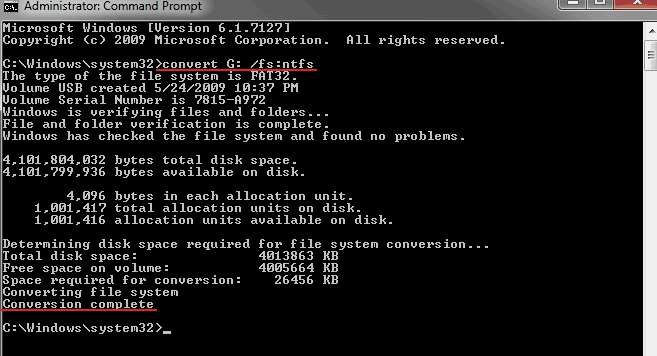
Then, type exit when the converting process completes.
Extra Tips: How to Format FAT32 Larger Than 32GB
Users may find that formatting a partition larger than 32GB to FAT32 is not possible using Windows 10/8/7's built-in tools, despite FAT32 supporting up to 2TB. However, free partition software like Qiling can solve this problem, allowing a 2TB hard drive to be formatted to FAT32 at most.
Step 1. Right-click the hard drive partition and choose the "Format" option.
Step 2. In the new window, set the partition label, file system, and cluster size for the partition.
Step 3. You can see a warning window, click "OK" to continue.
Step 4. To start formatting the hard drive partition, click the "Proceed" button.
Conclusion
You can bypass the 4GB FAT32 limitation without losing data by using the built-in CMD command in Windows, or by using a third-party software that can resize the drive without losing data.
Related Articles
- How to Wipe a USB Drive and Permanently Delete Files from USB Flash Drive
- Full Guide: Convert/Change File System to NTFS, FAT32, EXT2, or EXT3 Without Losing Data
- Windows 11 MBR to GPT Convert Tool [Free&Paid]
- How Do I Convert Bootable Disk or Bootable USB to Normal in Windows 11
- SD Card Benchmark 2024 Tutorial with Full Step Guide
To troubleshoot issues with your SD card, use benchmark tools to check its performance. These tools can identify problems before they cause software or hardware issues, allowing you to address them early on. - 5 Best SD Card Formatter FAT32 Free Download for Windows
This page collected 5 reliable SD card formatter software that helps you to format all types of SD cards to FAT32 for free. Follow to download the best free SD Card formatter FAT32 software and set the desired file system to your SD card on Windows now.
Products
Articles & Tutorials
- Data Recovery
- Data Backup
- File Recovery
- File Backup
- System Backup and Restore
- Disk and Partition Clone
- Technical articles
- Mobile articles
- Disk Master Help
- Windows Data Recovery Tutorials
- Windows Secure Delete Tutorials
- Windows Partition Management Tutorials
- Windows File Backup and Restore Tutorials
- Windows System Backup and Restore Tutorials
- Windows Disk Backup and Restore Tutorials
- Windows Clone Tutorials