How to Fix HP Laptop Running Slow on Windows 11/10 [2024 Newest]
HP is a well-known IT company that produces a wide range of laptops in various models and specifications. Their laptops are generally considered reliable and extensive. However, depending on usage and requirements, systems can slow down over time.
You may experience your HP laptop running slowly, affecting its performance. However, there are 8 different ways to resolve this issue, which will be explained in this article in easy and simple steps. Qiling will guide you through these solutions to get your device running smoothly again.
| ⏱️Reading Time | 3-7 minutes |
| 🧑💻Task | Fix HP laptop running slow |
| 🗂️Reasons | Insufficient RAM and hard drive space、hardware failure、PC problems |
| ✍️Solutions |
|
How to Fix HP Laptop Running Slow
Facing issues with an HP laptop running slow can be frustrating, and it's not just limited to performance issues, but also includes slow startup times. However, don't worry, as there are solutions to fix this problem, including the top 8 fixes that can be found here.
Fix 1. Extend Partition
Extending the partition on your HP laptop allows you to allocate more disk space to a specific partition on your hard drive, which can improve overall system speed. You can use Qiling Disk Master to create or extend partitions within Windows XP/Vista and Windows 11/10/8.1/8/7, ultimately ensuring your operating system works optimally with sufficient disk space.
The partitions can be cloned without losing any data, making important information safe. Additionally, partitions can be merged, formatted, or wiped.
To easily and efficiently extend a partition using Qiling Disk Master, follow these steps:
Step 1. Locate the Target Partition.
To resize or move a partition using Partition Manager, follow these steps: Locate the target partition, select "Resize/Move" from the available options, and proceed with the chosen action.

Step 2. Extend the Target Partition.
To add unallocated space to your current partition, drag the partition panel to the right or left, incorporating the unallocated space into your current partition.

Extra Option: Get Space from Another Drive
If there's not enough unallocated space on your disk, right-click on a large partition with sufficient free space and select "Resize/Move".
To extend a partition, select the target partition that you want to extend at the "Allocate space to" column.
Step 3. Execute Operations to Extend Partition.
To resolve the issue, drag the dots of the target partition into the unallocated space.
Then Click the "Proceed" to keep all the changes.
Qiling Disk Master is a powerful tool that allows you to partition your disk, and also performs other operations such as shrinking, extending, and merging partitions.
Read Also:

How to Fix HP Stream Low Disk Space [100% Working]
The HP Stream's low disk space issue can be resolved by deleting unnecessary files, uninstalling unused apps, and clearing browsing history and cache. Additionally, consider expanding storage capacity by adding an external hard drive or using cloud storage services like Google Drive or Microsoft OneDrive. To prevent future low disk space issues, regularly clean up your device by deleting temporary files, emptying the recycle bin, and closing unused apps.
Fix 2. Clean Up Disk Space
Your hard disk may be filled with junk data consuming important disk space, requiring urgent disk cleanup. You can use a space analyzer to check how much disk space Windows takes. If the space is insufficient, clean it up. Qiling CleanGenius is a perfect solution for this purpose, offering a faster disk cleanup by removing all junk files or bloatware, ultimately improving the system's speed.
Advanced PC cleaning tools can help restore valuable storage space and improve system speed by removing useless data, corrupt registries, and other unwanted items. This allows for more storage space to be used for important data.
To clean up your disk space using Qiling CleanGenius software, follow these simple steps. This software can help you free up space on your computer by removing unnecessary files and data.
Fix 3. Disable Startup Items
Startup items can slow down your HP laptop, as they automatically open when you start your computer, minimizing system speed and efficiency. To resolve this, you can follow these simple steps to deactivate the startup items.
Step 1: To access the Task Manager, open your computer's Task Manager system application, which will navigate you into the Task Manager panel.
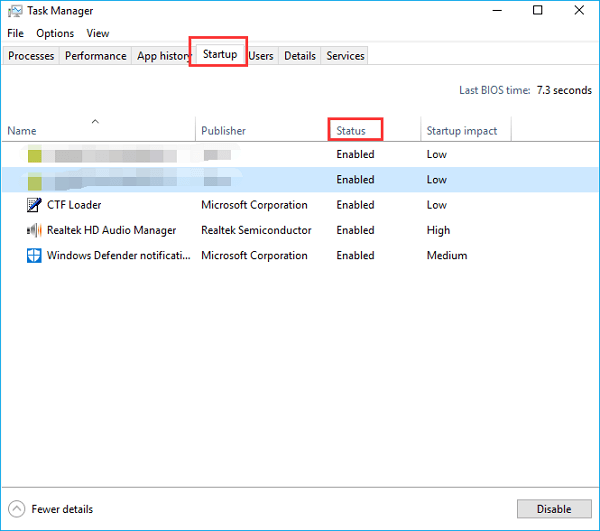
Step 2: Move into the "Startup" tab to see different applications with their "Status". Select the applications having "Enabled" status and click the "Disable" button from the bottom right.
Fix 4. Check for Windows Updates
Windows updates are crucial to resolve underlying bugs and ensure compatibility with new programs, but an outdated system can be difficult to operate. To address this, it's essential to regularly check for and install Windows updates, which will improve your computer's performance and functionality.
Step 1: To access the Windows Update settings, press the "Win + S" keys on your keyboard to open the search dialog. From there, search for "Settings" and select the "Update & Security" option to proceed.
Step 2: Click on Windows Update in the left panel and check for available updates on the right side, where you can see them if there are any.
Fix 5. Check for Malware
Malware or viruses can severely impact your computer's performance by crashing it due to spyware running in the background, disrupting CPU, GPU, and RAM functionality. To prevent this, it's essential to regularly check for malware, and I can provide you with simple steps to do so.
Step 1: From the Windows search bar, search and open "Settings" and then click the "Update & Security" option from the menu.
Step 2: Select Windows Security from the left-side panel, then proceed to Virus and Threat Protect, and finally press the Quick Scan button to scan your computer for viruses and threat protection.
Fix 6. Upgrade Memory
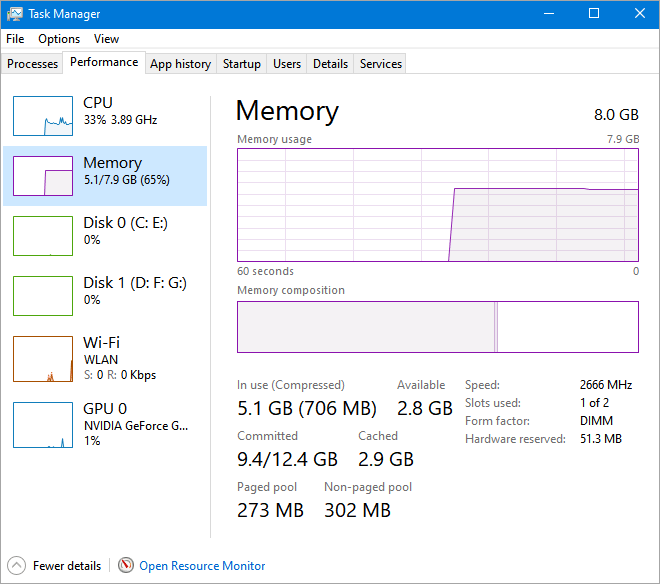
Increasing the RAM on your HP laptop is essential as it directly impacts the performance of your device. With low RAM, your laptop will slow down, making everyday tasks challenging. As software advancements introduce new features, RAM consumption increases, highlighting the importance of upgrading your laptop's RAM to ensure smooth operation and efficient multitasking.
To stay up-to-date with this software, you can upgrade your RAM from 128GB to 6TB, depending on your system's specifications, which can enhance performance by allowing smooth video editing, efficient multi-tasking, and fast browsing.
Fix 7. Upgrade HP Hard Disk to SSD
Replacing a hard disk with an SSD can significantly boost system speed. To achieve this, you can clone your data from the HDD to an SSD using Qiling Disk Master, which allows for seamless copying of data between HDD/SSD. This process effectively replaces the slower hard disk with a faster SSD, enhancing overall system performance.
The cloning process is seamless, with no data loss, and the platform is user-friendly, featuring simple navigation and compatible with Windows 7, 8, 10, and 11.
Here's how to clone data from your hard disk to an SSD using Qiling Disk Master in a nutshell: Simply connect your hard disk and SSD to your computer, launch Qiling Disk Master, select the source and target drives, choose the cloning mode, and initiate the cloning process. The software will handle the rest, ensuring a seamless transfer of data from your hard disk to your new SSD.
Step 1. Select the source disk.
- To clone a disk, click the "Clone" option from the left menu, select either "Clone OS Disk" or "Clone Data Disk" depending on your needs, and then click "Next" to proceed with the cloning process.
- Choose the source disk and click "Next".
Step 2. Select the target disk.
- Select the desired storage drive (HDD or SSD) as the destination and proceed by clicking "Next".
- Read Warning message and confirm "Yes" button.
Step 3. To modify the target disk partition size, you can view the current disk layout and make adjustments as needed. This can be done by accessing the disk management or partitioning tool, which varies depending on the operating system being used. For example, in Windows, you can use the built-in Disk Management tool, while in Linux, you can use tools like fdisk or parted.
The program will then guide you through the process of erasing the data on the target disk, and the process may take some time depending on the size of the disk. Once the process is complete, the disk will be completely erased and ready for reuse.
You can choose between "Autofit the disk", "Clone as the source", and "Edit disk layout" to personalize your disk setup, with "Edit disk layout" being the best option if you want to reserve more space for the C drive.
Step 4. Click "Start" to start the disk cloning process.
Qiling Disk Master provides additional assistance for upgrading your hard disk. If you need it, you can click on the link below to explore more.
Fix 8. Reboot Computer
If all the above fixes don't work, the last and most trusted option is to reboot/restart your computer, which may resolve underlying issues causing it to work slowly.
To reboot your computer, click the Windows icon from the bottom toolbar, select the Power button, and then press Restart.
Why Is HP Laptop So Slow
It's common for HP laptops to run slow over time, which can significantly reduce system performance. Several factors contribute to this issue, including outdated software, a cluttered hard drive, overheating, and hardware limitations. Additionally, the laptop's age, usage patterns, and lack of regular maintenance can also impact performance. Furthermore, a slow laptop can be caused by malware, viruses, or other security threats that can consume system resources. To resolve this issue, it's essential to regularly update software, clean up the hard drive, and perform routine maintenance tasks to ensure optimal performance.
- Low Hard Disk Space: When the RAM is fully used, the operating system relies on virtual memory, but with limited disk space, it becomes challenging to allocate memory, leading to slower system performance.
- Insufficient RAM: RAM is a crucial component of a computer system. When multiple applications are running simultaneously, the Operating System allocates a specific amount of RAM to each program. If the available RAM is insufficient, the system's speed and performance will be significantly reduced.
- Hardware Failure: A hard drive failure can cause a computer's system to slow down and experience disruptions due to hardware component issues, leading to data loss and storage problems.
- Computer Overheating: Overheating can cause HP laptops to slow down and decrease performance due to excessive CPU and GPU workload.
- Virus: Computer viruses can cause a system to slow down due to malicious processes that disrupt its components.
- Improper Use: Forgetting to delete applications and software after use can consume free space on your device, leading to decreased system speed.
We've analyzed why HP laptops run slowly and provided additional fixes, which can also solve the Windows 10 slow issue after cloning. If you found this article helpful, please share it with others who need it.
Bonus Tips to Speed Up HP Laptop
To avoid frustration and interruptions to daily tasks, it's essential to speed up your HP laptop. Fortunately, there are some bonus tips that can help you achieve this. By following these tips, you can increase the speed of your HP laptop and make it more efficient.
- Wisely Use Laptop: To free up storage space, delete unused software and applications, making room for more useful ones.
- Heat Dissipation: Using your HP laptop, you can dissipate system heat accurately, which will cool down the GPU and CPU, automatically increasing speed and performance.
- Upgrade RAM: Upgrading the RAM on a laptop with limited memory can greatly enhance its performance, particularly when handling resource-heavy tasks or multiple applications at once.
- Update Drivers: Outdated, corrupted, or incompatible HP drivers can cause performance issues. To resolve this, you can visit the HP customer support website and download the latest drivers for your HP laptop.
- Solving Flash Ad Troubleshooting: Paying attention to Flash Ad troubleshooting can help increase system speed by reducing resource consumption, preventing malware, and minimizing crashes.
Conclusion
HP laptops often run slowly due to increased usage, which minimizes available storage, as well as low system specifications, malware, startup applications, and other issues. However, there are ways to increase the speed and performance of your HP laptop, including the use of Qiling Disk Master, which can provide shared fixes and is a reliable solution provider.
See Also:
FAQs About HP Laptop Running Slow
If your HP laptop is running slow, there are several steps you can take to troubleshoot the issue. First, check for any software updates and install them. Next, run a disk cleanup and disk defragmentation to free up space and improve performance.
1. Why my brand-new HP laptop is so slow on Windows 11?
Your HP laptop may be slow due to various reasons such as a nearly filled disk, unnecessary startup applications, malware presence, outdated Windows, or not using a Solid-State Drive (SSD), among other factors.
2. Why is the HP laptop slow after the factory reset?
It's possible your laptop may not have dedicated drivers installed, which can slow down the system. Additionally, insufficient system resources and bloatware can also contribute to reduced system speed.
3. How to make my laptop run faster?
To make your laptop run faster, you can follow these simple steps to turn off startup items:
Step 1: To see which applications are launching at startup, open the Task Manager on your computer, then navigate to the "Startup" tab. This will display a list of different applications that are set to launch automatically when your computer starts up.
Step 2: Select the applications with the status "Enabled" and click "Disable" to disable them. Continue to do so until all applications are disabled.
Related Articles
- How to Disable Low Disk Space Warning in Windows 11/10
- We Couldn't Update the System Reserved Partition Win 10/11
- How to Partition Hard Drive without Formatting in Windows
- Fixed: Your Password Has Expired and Must Be Changed
- Why Can't I Format My SD Card on My Camera? Answered and Fixed
Formatting and SD card on camera might make you run into some issues. This article will explore possible reasons and fixes for that. - Easily Solved: Windows 10 Media Creation Tool Not Working
If the Windows 10 media creation tool isn't working, it can be difficult, especially when you're in the middle of installing Windows 10. Fortunately, this article offers six potential fixes to resolve the issue, as well as a convenient alternative to get you back on track.
Products
Articles & Tutorials
- Data Recovery
- Data Backup
- File Recovery
- File Backup
- System Backup and Restore
- Disk and Partition Clone
- Technical articles
- Mobile articles
- Disk Master Help
- Windows Data Recovery Tutorials
- Windows Secure Delete Tutorials
- Windows Partition Management Tutorials
- Windows File Backup and Restore Tutorials
- Windows System Backup and Restore Tutorials
- Windows Disk Backup and Restore Tutorials
- Windows Clone Tutorials