Why Can't I Format My SD Card on My Camera? Answered and Fixed
The SD card, a shortened form of Secure Digital Card, is a portable device that allows users to store data on the go. It is a non-volatile flash memory that comes in various sizes and shapes, with even the smallest variant offering at least 2GB of storage capacity.
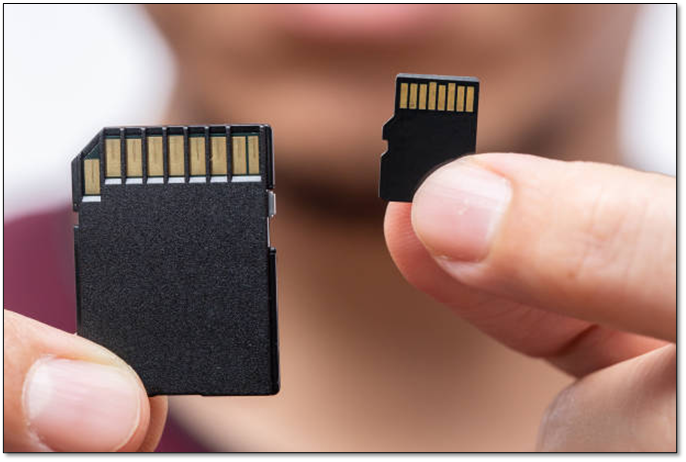
SD cards come in various capacities, with lower variants like SD offering 2 to 32 gigabytes of memory, while higher variants like SDHC offer 2 to 32 gigabytes and SDXC offers 32 gigabytes to 2 terabytes. However, some users encounter issues when trying to format their SD card on their camera, leading to the question of what the solution is.
SD Cards provide an extension to the internal memory of cameras, allowing users to capture more high-quality images and videos beyond the limited internal storage offered by most cameras today.
The issue of being unable to format SD cards on a camera can be frustrating, but it's often caused by software or hardware issues, such as a corrupted file system, a faulty SD card, or a camera that's not properly configured. To resolve this, users can try restarting their camera, checking for any software updates, or trying a different SD card. If the problem persists, they may need to seek further assistance or contact the camera's manufacturer for support.
Why Can't I Format My SD Card on My Camera? Possible Reasons
If you're having trouble formatting an SD card on your camera, it might be due to a simple issue: the card isn't properly inserted. This is often the culprit, but other potential problems include low battery power or a locked switch on the SD card itself.
- Your SD card might contain internal errors.
- The lock switch on your SD card is latched.
- Broken or physical damage to your SD card.
- Carbon/dust build-up on the SD card connector.
- The camera doesn't have enough battery to perform a format.
- The SD card is not properly inserted into the camera, which is preventing it from being read.
- The SD card's format may not be compatible with the camera, specifically if it's formatted in NTFS or FAT32.
To avoid formatting your SD card incorrectly, you can format it on a computer using the built-in disk formatting tool. This will ensure that the formatting is done correctly and your data will be safe. You can also use a third-party formatting software if you're not comfortable with the built-in tool.
Solutions to Fix Can't Format SD Card on Camera Error
Now that we're here, we're going to explore a few solutions to fix this issue. There are various ways to solve this problem, but the five we've picked out for you work every time. Unless your SD card has physical damage or hardware issue, these fixes will help you avoid it. So, let's get started.
- Solution 1. Reconnect SD Card to the Camera and Format It on the Camera
- Solution 2. Recharge the Camera and Format the SD Card
- Solution 3. Unlock SD Card
- Solution 4. Check and Fix File System Errors on SD Card
- Solution 5. Format SD Card on PC with SD Card Formatter
Solution 1. Reconnect SD Card to the Camera and Format It on the Camera
Cameras usually have a latch-Here's how to keep SD cards in place with a simple system:
Step 1. Pull the SD card out of the camera.
Step 2. Clean the connector pins with an alcohol wipe or use 99% isopropyl with cotton buds.
Step 3. Let the wet paper towel sit in your camera for one minute to allow it to absorb any remaining moisture. After that, carefully place the paper towel back into your camera.
Step 4. The camera's internal options, which vary depending on the camera model, can be used to format the memory card. This process, also known as "initializing" or "formatting," prepares the card for use by erasing any existing data and reorganizing the file system.
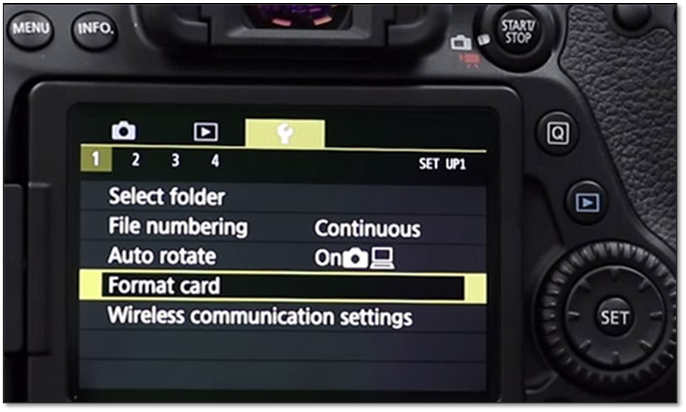
If the card wasn't seated properly, try resitting it to fix the issue. If that doesn't work, move on to the next step.
Solution 2. Recharge the Camera and Format the SD Card
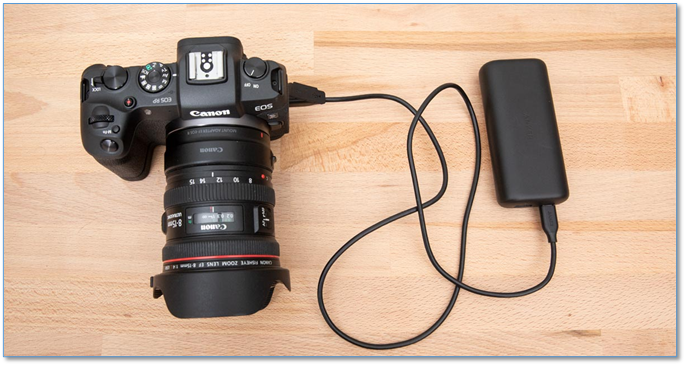
You'll need to recharge your camera, using the adapter/cable that came with it, since the SD card is already cleaned and seated.
To set up your new phone, follow these steps:
Step 1. Connect the cable to your camera.
Step 2. To charge your device, connect the charging cable to the charging port on your device and then connect the other end (usually USB/Type-C) to the charger or power bank/brick.
Step 3. Let it charge until it's 100%.
Step 4. Go back into the menu.
Step 5. Format SD card.
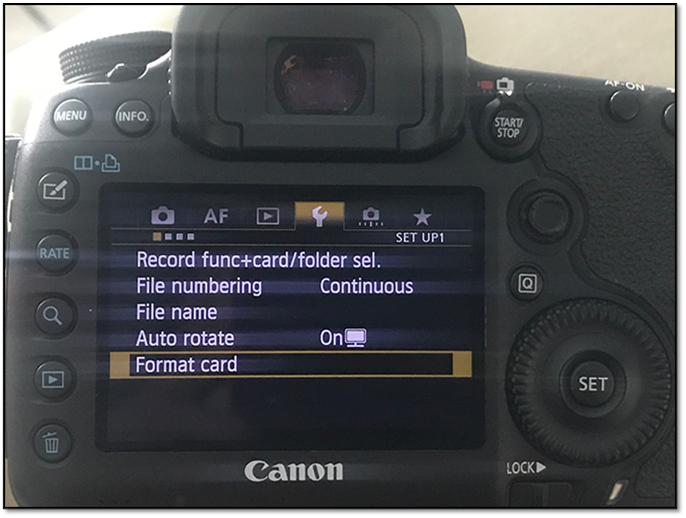
If your battery is low, try charging it. If that doesn't work, try other fixes. If the problem persists, continue trying other solutions until the issue is resolved.
Solution 3. Unlock SD Card
To disable the lock on an SD card for a camera, you can try the following: remove the SD card from the camera and insert it into a computer or card reader. Then, format the SD card using the computer's operating system. This will overwrite any existing data on the card and reset it to its original state, effectively disabling the lock. Alternatively, you can also try using a third-party software or tool specifically designed to remove the lock from SD cards.
Step 1. Pull the SD card out of your camera.
Step 2. Check if the switch is locked.
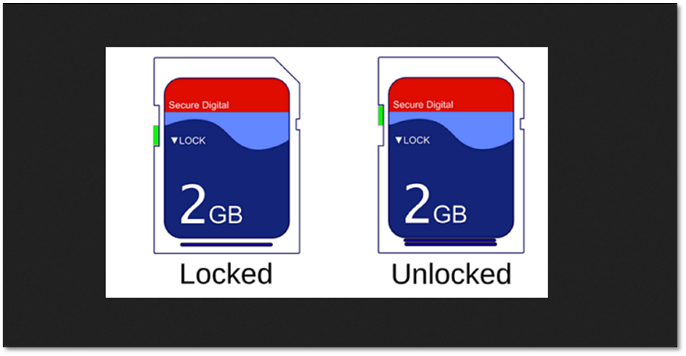
Step 3. If it's unlocked, leave it as is.
Step 4. If it's locked, unlock it.
Step 5. Put it back into your camera.
Step 6. Try to format it again.
If the switch was set to lock, this was the issue preventing the camera from formatting, but if the switch was untouched, try the next fix.
Solution 4. Check and Fix File System Errors on SD Card
To fix the error using Qiling Disk Master, first, download and install the software. Then, launch the program and select the SD card as the target disk. Next, click on "Fix System Errors" and let the tool scan and repair any issues. Finally, restart your device and check if the problem persists. If it does, you may need to perform a factory reset or seek further assistance.
Step 1. Right-click the target partition that has a problem.
Step 2. Choose "Advanced" > "Check File System".
Step 3. Confirm if you want to hide the partition or not.
Step 4. In the Check File System window, select the "Fix the error on the disk" option.
Step 5. Click "Start" to check errors on your partition.
The camera will format your SD card, which will fix any internal errors on your device.
Solution 5. Format SD Card on PC with SD Card Formatter
To fix the issue, you'll need to use a third-party SD card format tool, specifically Qiling Disk Master, to format the SD card to the correct file format. This will resolve the problem and allow the SD card to work properly with your device.
Step 1. To format your SD card, locate it and right-click on the partition you want to format, then select "Format" from the options.
Step 2. Set a new partition label and file system to the selected partition.
Step 3. Click the "Proceed" button to start formatting your SD card.
Step 4. Click "Yes" on the pop-up window to continue.
To backup your SD card before formatting, you can use a computer or a phone with a memory card reader. Connect the SD card to the device and use the built-in backup software or a third-party app to copy the data to the device's internal storage or another external drive.
Bonus Tips to Keep SD Card Working Properly on Camera
If you wish to prolong your SD card's life, then you need to adapt to a few basic camera etiquettes. This way, you will avoid camera catastrophe and ensure that your camera's SD card works safely and properly. So, how do you do this? Here are a few tips:
- Use a card reader to transfer data to a PC, not the camera cable.
- Always safely eject the SD card from your camera and PC to prevent data loss and damage to the card.
- To avoid damaging your camera, it's best to avoid editing images directly on the device. Instead, transfer your photos and videos to a computer first, where you can safely edit and manage them. This simple precaution can help extend the life of your camera.
- Always set the correct file format/system format for your SD card, as specified in the camera manual, to ensure compatibility with your camera's file system, such as FAT32 or NTFS.
- Regularly backing up photos to cloud storage or another SD card/USB device ensures that your data is safe, even if your primary storage device is damaged or lost. This way, you can access your photos from anywhere and have a backup in case of an emergency.
These tips will keep your SD card safe and working properly. So, make sure you follow them properly.
Final Verdict
If your camera's SD card gets stuck and you can't format it, try using Disk Cleanup, Disk Defragmenter, and Check Disk. If these don't work, use Qiling Disk Master to fix internal issues and format the card in a system supported by your camera. This will help you avoid camera-related catastrophes and allow the camera to format the card again.
FAQs About Why Can't I Format SD Card on Camera
If you have any more questions, then you'll find their answers here.
1. How do you fix a memory card that won't format?
If your SD card is not working, try formatting it using disk management, then CMD, and if that doesn't work, use Qiling Disk Master. If it's physically damaged, it may not work.
2. How do I format my SD card for my camera?
You can usually find these settings in the settings menu on your camera, but it's suggested to plug your SD card into a PC using an SD card reader and choose the file format suggested by your camera manufacturer, such as FAT32 or NTFS.
3. Why is my SD card not working on my camera?
There are a few usual reasons why an SD card doesn't work or stops working on a camera. The most common reason is the fact that the SD card might be broken, or you can try to format it in another file format.
Related Articles
- Guide on Checking Disk Speed in Windows 10 Using CMD [2024 Tutorial]
- How to Format Write Protected USB/Pen Drive [7 Ways]
- How to Tell If a Hard Drive Is Dead [Step-by-Step-Guide]
- How to Move Windows 11 to Another Drive | Ultimate Guide🔥
How to move Windows 11 to another drive? This post will introduce two safe and efficient tips that can help you transfer Windows 11 to a new drive without reinstallation. - Diskpart Delete Server Partition: Get Solutions to Delete Recovery Partition
How do I use Diskpart to delete the partition? How to delete recovery partition in Windows server? We've set a series of methods to help you delete partitions quickly. - How to Delete Unallocated Space Windows 10 [Three Efficient Ways]
To delete unallocated space in Windows 10, you can create a new partition on the unallocated space, extend the existing partition into the unallocated space, or merge the unallocated space with the existing partition.
Products
Articles & Tutorials
- Data Recovery
- Data Backup
- File Recovery
- File Backup
- System Backup and Restore
- Disk and Partition Clone
- Technical articles
- Mobile articles
- Disk Master Help
- Windows Data Recovery Tutorials
- Windows Secure Delete Tutorials
- Windows Partition Management Tutorials
- Windows File Backup and Restore Tutorials
- Windows System Backup and Restore Tutorials
- Windows Disk Backup and Restore Tutorials
- Windows Clone Tutorials