How to Move Windows 11 to Another Drive - Complete Guide
If you're looking to boost your computer's performance and storage capacity, consider using a high-performance new drive as your main storage, which involves transferring all data, including the operating system, to another drive. To make this process smoother, we'll guide you through two practical Windows system migration tools in this article, along with a comprehensive tutorial covering pre, during, and post operations.
If you're looking to upgrade your storage on Windows 11, you can use the built-in tools to expand your storage capacity. To do this, you'll need to purchase an external drive or a new internal drive that's compatible with Windows 11.
How to Move Windows 11 to Another Drive - 2 Ways
To migrate Windows 11 to a new hard drive, you'll need to prepare by backing up your important files and data, and then choose a method: either cloning the existing drive using a tool like Qiling Partition Master, or performing a clean installation of Windows 11 on the new drive and then restoring your files and settings. This will ensure a smooth transition to your new hard drive and get your computer running like new again.
Prerequisites - Make Everything Ready for Migrating Windows 11
Before moving Windows 11 to another drive, you need to ensure certain preparations are completed. This includes backing up your files and data, as the process will erase the existing installation.
1️⃣Download the OS Migration Tool
Qiling Disk Master Professional is an efficient data migration tool that allows for a seamless transfer of data without the need to reinstall the operating system or applications, making it easy to move Windows 11 to another drive quickly and simply.
2️⃣Prepare a New Drive
To add a new storage drive to your system, you can choose an HDD or SSD with a larger storage capacity than the C drive on your system disk. You will need a SATA cable to connect it. Install and initialize the new drive by following these steps:
Way 1. Apply System Migration Tool - Qiling Disk Master
- ⏱️Duration: 25-30 minutes
- 💻Difficulty: Easiest
- 🧲Suitable Users: All users, especially computer beginners
Qiling Disk Master allows you to effortlessly move Windows 11 to another drive, compatible with all Windows systems. With its powerful software, you can seamlessly relocate your operating system to a new drive, making it a convenient solution for upgrading your storage or optimizing your computer's performance.
Note: The process of moving an operating system to a new SSD or HDD may erase all existing partitions and data on the target disk if there's not enough unallocated space available. This means that any important data saved on the target disk should be backed up to an external hard drive beforehand to prevent loss.
Step 1. To proceed, select the "Tools" tab page, then select "System clone" and click "Next" to continue.
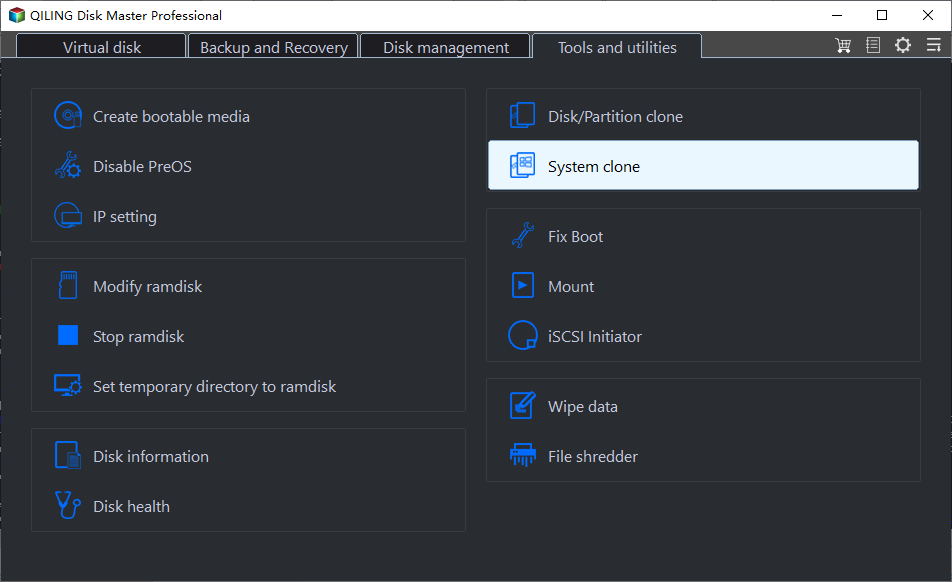
Step 2. Select the target disk you want to clone. Click "Next".

Step 3. Preview the layout of your target disk, and customize it if needed, before clicking "Proceed" to start migrating your OS to a new disk.

Step 4. To proceed, click "Yes" after verifying the warning message. This will initiate the deletion of data and partitions on the target disk, so ensure that important data has been backed up beforehand. If not, it's recommended to back up any critical data immediately.

Here are some of its noble features:
- Clone Windows to a new SSD with professional cloning software, making it easy to migrate Windows.
- Clone SD Card: it can clone SD or micro SD card to a larger SD card in Windows 11/10/8/7.
- You can clone your external hard drive to your internal hard drive, which allows you to transfer both data and the operating system from the external drive to the internal one.
If you want to migrate Windows 10 to a new hard drive or SSD, you can refer to the related page, which provides a step-by-step guide on how to transfer Windows 10 to a new drive, including preparing the new drive, backing up data, and cloning the old drive to the new one, to ensure a smooth and efficient migration process.
Way 2. Run the Windows System Image tool
- ⏱️Duration: 30-40 minutes
- 💻Difficulty: Medium
- 🧲Suitable Users: Experienced Windows users
On Windows, there is a system image tool that allows users to transfer the Windows system by creating a bootable USB. However, this process requires more manual steps, including creating a backup system image and a recovery USB flash drive, before moving the Windows 11 system image to another drive.
Note: You need to prepare two new external storage devices(USB/SSD/CD).
Step 1. Create a Windows 11 System Image:
- Connect the USB to your computer, then open the Control Panel, navigate to System and Security, and select Backup and Restore (Windows 7) to proceed.
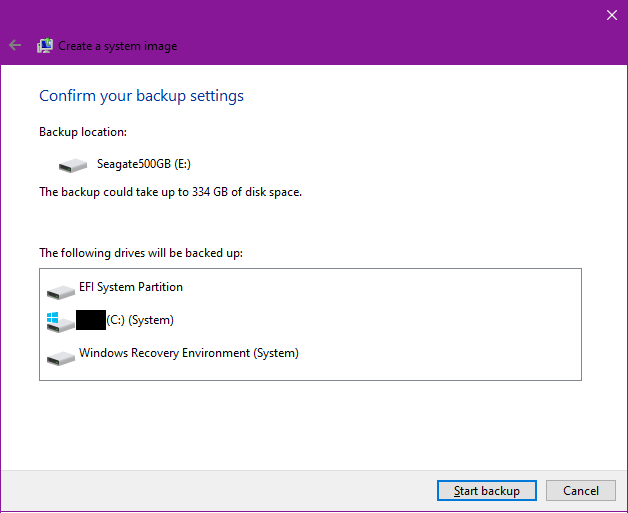
- Connect an external USB drive to your computer, go to the System Protection tab in the Control Panel, select "Create a system image," choose the external USB drive as the destination for the system image, and click "Next" to proceed.
- The System and System Reserved partitions will be selected by default, and pressing "Next" will proceed with the process.
- To start creating your system image on the USB stick, click the "Start backup" button.
Step 2. Make a Windows Media Creation Tool:
- Connect a USB drive of at least 8 GB to your computer.
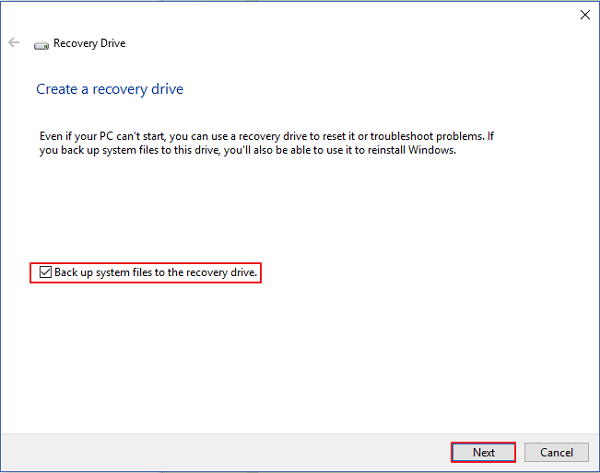
- To create a Windows recovery drive, press the "Windows + S" keys, type "recovery drive", and open the utility.
- After selecting "Back up system files to the recovery drive" in the Recovery Drive box, click "Next" to proceed.
- After selecting the USB disk as the target, press "Next" and follow the onscreen instructions to complete the procedure.
Step 3. Transfer Windows 11 to the New Drive:
- After connecting the Windows 11 installation disc and the Windows image backup drive to your computer, reboot your computer.
- To access the BIOS and change the installation media as the boot drive, press the F1, F2, or Del key.
- After starting the computer again using the Windows Installation Media, click "Repair your computer" in the Install Now window.
- To resolve the issue, click on the "Troubleshoot" option, which will take you to the Advanced settings, where you can then select "System Image Recovery."
- To view and choose your Windows 11 system image disk, select the "Select a system image" option and press "Next" to continue.
- To remove the existing system disk and only keep the new HDD/SSD, click "Exclude disks..." and then press "OK" to confirm.
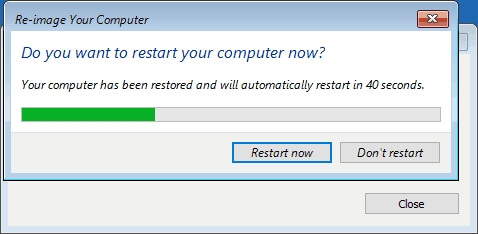
- To start the restoration process, click "Next" and wait for it to complete.
Post Guide - Set to Boot Windows 11 From New Drive
After completing the Windows 11 migration process, you can set the new drive as the first boot device in the BIOS/UEFI. Below is what you should follow:
Step 1. Restart the target computer and press the key (usually F2, F12, or Del) to open the BIOS settings.
Step 2. To make the new hard drive the boot drive, go to the "Boot" tab and select the new hard drive as the primary boot device. This will ensure that the computer boots from the new hard drive instead of the old one.
Step 3. Save the changes, close BIOS, and restart the computer.

Conclusion
By following the step-To move Windows 11 to another drive effectively, follow these steps: First, backup your data to ensure it's safe. Next, download and install Qiling Disk Master, a user-friendly tool that can help you move your operating system to a new drive without reinstalling Windows 11 from scratch. With Qiling Disk Master, you can keep all your boot files and settings intact, making it a great option for beginners. Simply follow the tool's instructions to clone your current drive to the new one, and you'll be able to enjoy improved performance and increased storage capacity without any hassle. Take your time, and you'll be up and running on your new drive in no time!
FAQ of How to Move Windows 11 to Another Drive
If you're looking for more information on moving Windows 11 to another drive, this section is for you. It provides additional answers to common queries, covering everything from preparing the new drive to ensuring a smooth transition. By following the steps outlined here, you'll be able to successfully relocate your Windows 11 installation to a new drive, resolving any storage space issues and freeing up space on your current drive.
1. Should I install Windows 11 on an external SSD?
It's highly recommended to use the latest fast SSD to run Windows 11, and migrating to a new hard drive or SSD is a simple process, allowing you to install other apps and software on the drive.
2. Can I move Windows 11 to another drive that already has one Windows OS?
You can have two Windows systems on one hard drive as long as you install them separately on two different partitions. This allows you to choose which Windows OS to boot by simply changing the boot device in your BIOS settings.
3. What is the difference between system cloning and migration?
While migration often involves moving data or information from one system, disk, or drive to another, cloning is making an identical duplicate of the current system. For more details, you can refer to the article below:
🚩Read More: System Clone VS System Migration: What's the Differences
Related Articles
- How to Fix Hard Drive Very Slow in Windows 10/8/7
- How to Use SD Card as Internal Storage in Windows 11/10?
- The Disk Is Write Protected in Windows 11/10/8/7 | 6 Fixes
- Top 8 Free SD Card Speed Test Tool 2024 New Checklist
- How to Free Up Disk Space for Gaming?
Is your PC feeling sluggish and your gaming experience suffering? It might be time to give your computer a boost by learning how to free up disc space for gaming! By freeing up space, you'll be able to run games smoothly and enjoy a more enjoyable experience. - 6 Tips to Fix Recovery Drive Full in Windows 10/8/7
In Windows 10, 8.1, 8, and 7, the recovery drive can become full, causing a low space error to pop up. This issue can be resolved by implementing six useful solutions, which include freeing up space on the recovery drive.
Products
Articles & Tutorials
- Data Recovery
- Data Backup
- File Recovery
- File Backup
- System Backup and Restore
- Disk and Partition Clone
- Technical articles
- Mobile articles
- Disk Master Help
- Windows Data Recovery Tutorials
- Windows Secure Delete Tutorials
- Windows Partition Management Tutorials
- Windows File Backup and Restore Tutorials
- Windows System Backup and Restore Tutorials
- Windows Disk Backup and Restore Tutorials
- Windows Clone Tutorials