How to Solve PS4 Running Slow [Reasons & Fixes]
The PS4 is a popular video game console that offers exciting features like multiplayer gaming, a better controller, streaming support, but sometimes experiences slowdowns while playing crucial games.
The PS4 can run slow due to various reasons, but understanding these causes can help implement the right solutions. Luckily, there are several solutions that can be applied to address the issue. This article will discuss the reasons behind the PS4's slow performance and provide solutions to fix it.
Why Is PS4 Running Slow
The PS4 may be running slow due to multiple causes, but understanding these reasons is key to adopting the necessary solutions. These causes include a variety of factors that can be addressed to improve the console's performance.
- Poor Internet connection
- Low disk space
- Hard drive failure
- PS4 overheating and malfunction
- Dust accumulation and poor ventilation of the operating console
- Outdated PS4 system
- Corrupt PS4 database
Further reading: PS4 External Hard Drive Not Working
How to Fix PS4 Running Slow - Top 8 Ways
If your PS4 is running slow, there are several solutions to help resolve the issue. You can try checking for system updates, as newer software can improve performance. Additionally, deleting unused apps and data can free up space and improve speed. You can also try restarting your PS4 in safe mode to troubleshoot and fix any software issues.
- 1. Restart PS4
- 2. Check the Internet Connection
- 3. Delete the Game Data
- 4. Free Up Hard Drive Space
- 5. Check the Hard Drive Health
- 6. Rebuild the Database
- 7. Update PS4
- 8. Replace the Hard Drive
1. Restart PS4
Restarting the PS4 is often the simplest solution to resolve slow performance issues. To do this, put the console in Rest Mode before restarting the system, and the restart should resolve most problems.
To restart your PS4, press and hold the power button on the front of the console until you hear the second beep, then release the button. This will immediately shut down the console.
Step 1: To access the Power options, press and hold the PS button on your controller. This will bring up a menu where you can select the Power options.
Step 2: Choose the option – Turn off PS4. Wait for the system to turn off. Now, remove the power cable.

Step 3: 10 minutes after turning off the power, reconnect the power cables.
Step 4: Press the PS button and turn it on.
2. Check the Internet Connection
If you're experiencing lag in PS4 games, it might be due to a slow internet connection. Try restarting your router to see if that resolves the issue. This simple step can help improve the system's performance.
If you're unsure about your internet speed, try using speed-checking websites to determine it. If the router is not nearby, consider using a repeater network booster to boost the signal. If neither of these solutions work, you might need to switch to a different internet connection.
3. Delete the Game Data
The PS4 stores temporary game files on the hard drive after each play session, which can accumulate and take up a significant amount of space over time.
Deleting saved data is one of the quickest ways to clear space, avoiding the need to uninstall games.
Here are the steps to follow:
Step 1: Open Settings. Choose the Application Saved Data Management option.
Step 2: Go to System Storage, select Saved Data, and press the Delete button.
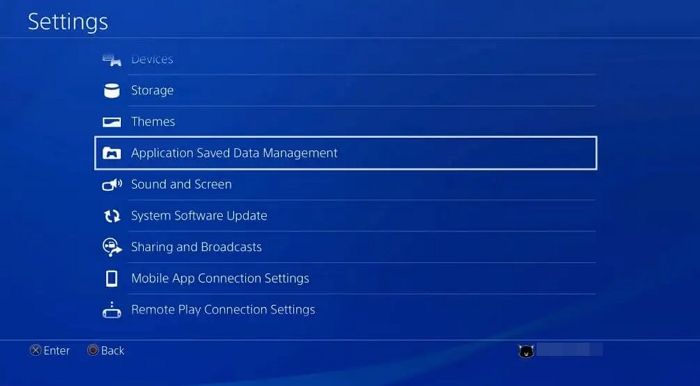
Step 3: To delete saved data from gaming apps, choose the apps in question and look for the saved data. Once you find it, you can proceed to delete it.
Deleting data on your PS4 not only frees up space but also helps you get more storage on the console. If you're looking to free up hard drive space, we have a solution that can help. For more detailed information on PS4 storage and how to manage it, click the link below.
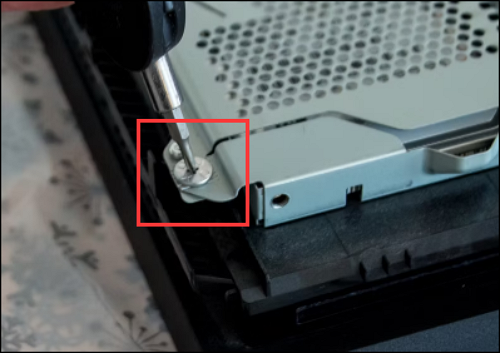
If your PS4 storage is full, don't worry! There are ways to free up space and get more storage on your console. You can delete unused games, apps, and other data to clear up some space.
PS4 storage full is a frustrating issue, this guide explains how to free up more storage on your PS4, so you can enjoy your games and apps without any hassle. Whether you're a gamer or just looking for some helpful tips, this guide is here to help you get the most out of your PS4.
4. Free Up Hard Drive Space
If your PS4 hard drive is almost full, it's time to clean up and free up space. Take some time to review the games installed on your drive and consider uninstalling some to make room for others. This will help maintain your console's performance and prevent it from slowing down.
Here are the steps to follow to get rid of games from PS4:
Step 1: To view a list of installed games on a Steam Deck, go to Settings, select System, then Storage Management, and you will see a list of installed games.
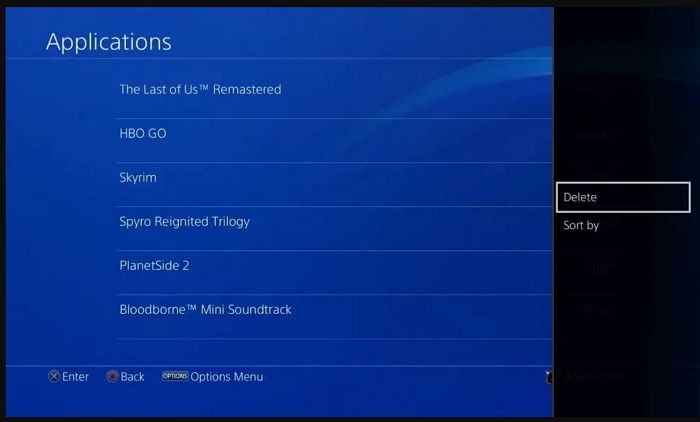
Step 2: To delete an application, go to the Applications option and select the Options button, then choose the Delete option.
Step 3: Check out the list of games. Click on the Delete button.
To free up space on your Windows computer, you can delete unnecessary files and also consider wiping your hard drive to prevent data leaks. If you have important files, you can copy your partition to another drive to keep them safe.
- Notice:
- To perform PS4 hard drive operations on Windows, first uninstall the hard drive from the PS4, and then check the specific steps at the provided link: https://www.ifixit.com/Guide/PlayStation+4+Hard+Drive+Replacement/24717.
5. Check the Hard Drive Health
If you want to check the health of your PS4 hard drive, you'll need to disassemble it and connect it to a computer, at which point using a professional PC disk management tool like Qiling Disk Master is a good idea.
Qiling Disk Master is an excellent tool that offers a wide range of features for disk management, making it easy to use. It can check the temperature and S.M.A.R.T status of a hard disk, and analyze bad sectors to repair them afterwards.
Step 1. Launch Qiling Disk Master and click the blue arrow to activate the "Disk Health" feature under the "Discovery" section.

Step 2. Select the target disk and click the "Refresh" button, which will then display the health condition of your disk.

Qiling Disk Master has many topics to help you solve the problems you encounter on PS4 or PS5, such as troubleshooting and guides for various issues.
- Fix PS4 error code CE-37857
- Format external hard drive for PS4
- Run PS5 SSD speed test
- Fix PS5 can't start game or app
Whatever errors you meet, you can try Qiling Disk Master!
To learn more about hard drive failure symptoms and other methods to check hard drive health, you can watch a video.
6. Rebuild the Database
A cluttered PS4 database can slow down the console's performance, but rebuilding the database can help improve performance by organizing data and reducing access time.
Check out the steps you must adopt:
Step 1: To shut down your PS4, press the PS button, select Power, and then choose Turn off PS4.
Step 2: Connect the console and controller with a USB cable, then press and hold the power button until you hear two beeping sounds.
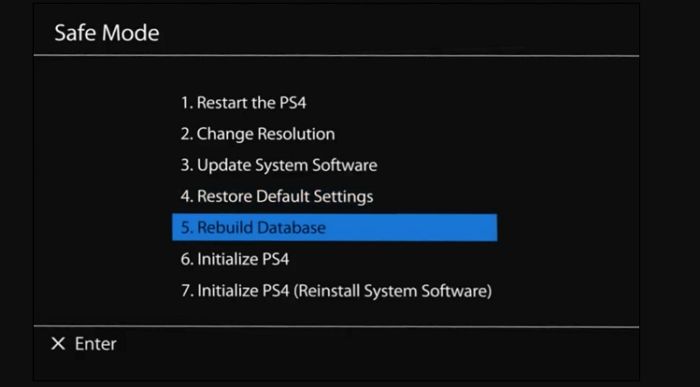
Step 3: To enter safe mode, restart your computer and press the F8 key repeatedly. Once you're in safe mode, navigate to the System Configuration Utility and select the "Rebuild Database" option. Click "OK" to proceed and wait for the process to complete. This will resolve the issue.
7. Update PS4
You can try updating your PS4 to see if it resolves the issue. To do so, go to Settings, select System, and then select System Software Update. Ensure all games are closed before updating. This simple step can often resolve the problem.
Here are the steps to update PS4:
Step 1: Check the internet connection and make sure it is strong and stable. Open Settings. Make sure the Wi-Fi is enabled, and the network is selected.
Step 2: To update the system software, go to the settings, select the System Software Update option, and follow the prompts to download and install any available updates.
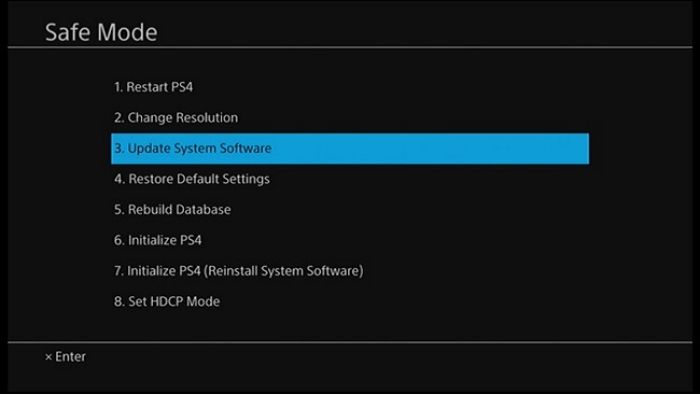
Step 3: Open Notifications. Choose Downloads. Install the recent version immediately.
8. Replace the Hard Drive
If nothing else works, you can try replacing the hard drive with a brand-new one, which should give you the desired speed. It's a good idea to purchase the new hard drive from an official store.
Ensure you read all the specifications before purchasing, using the new hard drive and backing up the previous data. To do this, go to Settings, then System, and select Back up PS4.
To upgrade the hard drive on your PS4, you'll need to download the latest version first. Once done, shut down the console and remove the previous hard drive. Then, enter Safe mode and connect the new hard drive to the controller using a USB cable. For a detailed guide, follow the steps to view the process on PS4 hard drive upgrade.
How to Upgrade PS4 Hard Drive [Step-by-Step Tutorial]
Upgrading your PS4 hard drive can provide a better gaming experience and more storage, and this article will guide you through the process without losing any data.
Conclusion
The PS4's slow functioning can be attributed to various factors, including a poor internet connection, a corrupted database, or a lack of hard drive space, among others. Fortunately, there are several solutions that can be applied to resolve this issue, offering a potential fix for users experiencing these problems.
If you're experiencing issues with your PS4, you can try troubleshooting by changing the net connection, updating the console, or freeing up space on the hard drive. To check the health of your hard drive, consider using professional software such as Qiling Disk Master. This can help identify any problems with your hard drive and provide a solution to get your PS4 up and running smoothly again.
The Qiling Disk Master is a user-friendly software that simplifies disk management on your system with its efficient features. Install and download it today!
FAQs About PS4 Running Slow
Here are ways to fix a PS4 running slow issue:
1. What causes a PS4 to run slowly?
The PS4 can run slow due to various reasons, including a slow internet connection, low hard drive space, damaged hard drives, dust accumulation, and overheating.
2. How can I speed up my PS4?
To speed up your PS4, consider adopting a combination of solutions. This can include clearing the cache, deleting unused apps, and updating the system software to the latest version. Additionally, closing unused applications, disabling background applications, and checking for corrupted data can also help.
- Clean the device physically to get rid of blockages.
- Check game settings and see if everything is fine.
- Upgrade PS4 to the latest version.
- In case of a corrupted PS4 database, rebuild it.
3. Will cleaning my PS4 make it faster?
Cleaning the PS4 can improve its performance by removing dust, dirt, and grime that accumulate over time, which can clog the system and hinder its optimal functioning.
Related Articles
- How to Run First Aid from Recovery Mac | Detailed Tutorial for macOS
- How to Factory Reset Xbox One | Detailed Guide for Xbox One Users
- How to Fix Zsh: Command Not Found: Python [with Video]
- How to Change Time and Date on Windows 10/11
- 10 Fixes to Solve Chromebook Black Screen [2024 Guide]
Fix a Chromebook black screen with practical checks for power, display, system glitches, and recovery options. - (All Methods to Fix) Computer Keeps Booting to BIOS
Fix a computer that keeps booting to BIOS. Learn common causes, boot order checks, disk issues, and ways to protect your data.
Products
Articles & Tutorials
- Data Recovery
- Data Backup
- File Recovery
- File Backup
- System Backup and Restore
- Disk and Partition Clone
- Technical articles
- Mobile articles
- Disk Master Help
- Windows Data Recovery Tutorials
- Windows Secure Delete Tutorials
- Windows Partition Management Tutorials
- Windows File Backup and Restore Tutorials
- Windows System Backup and Restore Tutorials
- Windows Disk Backup and Restore Tutorials
- Windows Clone Tutorials