How to Factory Reset Xbox One | Detailed Guide for Xbox One Users
Why Need to Factory Reset Xbox One
The Xbox One may experience freezing, lagging, or bugs, similar to other tech devices, often due to prolonged use or new software updates. Users may also encounter issues like the console not turning on.
To resolve issues on your Xbox One, such as freezing or crashing, a factory reset can be a helpful solution. This process, which can be either partial or full, resets the console's settings to their default state, updates the operating system, and removes problematic files.
A full factory reset is a process that erases all data from a device and returns it to its original state, with no apps, settings, or user profiles.
If you're looking to factory reset your Xbox One, there are several reasons why you might want to do so. The top 3 reasons include the need to troubleshoot issues, the desire to remove all user data and settings, and the intention to sell or give away your console.
- 💻If you're experiencing software or performance issues on your Xbox One that you can't resolve, you may need to factory reset the console to resolve the issue. This will restore the console to its original settings, which can help resolve any software glitches.
- 👩💻You want to sell or give away your Xbox One and need to erase all personal data, or you're giving away an outdated device to buy a new one, so you need to factory reset it to protect your personal data.
- 🎮If you're looking to start fresh with a clean slate, reinstalling all games and apps on your Xbox is the way to go. This is especially useful if you're giving your console to a friend or need to troubleshoot a technical issue, as it allows you to start from scratch. Microsoft makes this process easy by allowing you to keep your apps and games installed, giving you a brand new experience with a totally clean slate.
Preparation Before Factory Reset Xbox One
If you're planning to sell, give away, or fix your Xbox One console, there are steps to take before factory resetting it. You can back up and transfer your saved games, profiles, and apps to another Xbox One or an Xbox 360 with a compatible storage device. This will ensure that you don't lose any of your progress or content. Additionally, you can also remove any sensitive information, such as your Microsoft account and credit card details, to protect your privacy.
1. Back up important data
It's crucial for Xbox One users to back up their game data before performing a factory reset, as this process will erase all data, including games, profiles, and settings, from the console.
Step 1. The first step in preparation is to backup any important data you want to preserve.
Step 2. To backup your computer, hit the start button, go to Settings, then Update and Security, followed by Backup, and finally Insert a drive, where you'll be prompted to choose an external drive.
Step 3. To reset your Xbox One, hit the "Get started" button under "Reset this Console" and follow the on-screen instructions. Note that this process will delete all files, settings, and applications, so you'll need to reinstall everything afterwards.
2. Remove any discs from the console
To factory reset your Xbox One, remove any discs from the console by restarting and then ejecting the disc.
Step 1. To open the "Power Center" on your Xbox, hold the Xbox button in the middle of the controller.
Step 2. Hit the "Restart Console".
Step 3. Select the restart button.
Step 4. Once the system has restarted, locate the eject button adjacent to the disc slot and press it to eject the disc.
Step 5. If the game doesn't work, you can try removing the disc using your controller. To do this, press the Xbox button to open the guide, select Home, highlight the inserted game, and press X to eject the disk.
- Notice:
- If your Xbox freezes, hold the Xbox button until it turns off, then press it again to restart. Press the eject button afterwards.
3. Sign out of your Xbox Live account
To sign out of your Xbox Live account, press the Xbox button to open the guide, then navigate to Profile & System, and select Sign Out. This will log you out of your account.
4. Disconnect any external storage devices or accessories
To prepare for a factory reset on an Xbox One, you need to disconnect any external storage devices. This can be done by accessing the Finder window, navigating to the "Devices" section on the sidebar, locating the external drive you want to eject, and clicking the eject button to the right of the drive's name.
5. Ascertain that your console is linked to an internet connection
To check if your Xbox console is linked to the internet, unplug the network cable from the back of the console, inspect the cable's connector and the Xbox socket for any debris, and plug them back in securely. Then, follow the network cable to your gateway and router, and unplug it from there.
How to Factory Reset Xbox One: Step-by-Step Guide
You no longer have to physically remove and retrieve your Xbox One console, as it now offers a straightforward method to reset the OS to its factory defaults, making it easier to fix various issues.
You can conduct a factory reset of the Xbox One using two methods: from the Console and a USB flash drive. To do this, you can follow the step-by-step methods, but first, it's essential to note that you should back up any important data, such as games, profiles, and settings, before proceeding with the factory reset. This is because the process will erase all data on the console, and you won't be able to recover it.
How to Factory Reset Xbox One from Console
To factory reset your Xbox One, follow these steps from the console: go to Settings, then System, and select Console Reset. Confirm that you want to reset the console, and then select Reset Console. This will erase all data, settings, and applications, returning the console to its original factory settings.
Step 1. Hit the Xbox button to let the guide open.
Step 2. Opt for Settings.
Step 3. Select "All Settings".
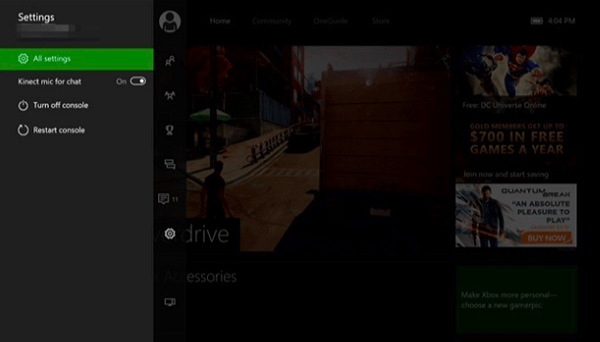
Step 4. Opt for "System."
Step 5. Choose "Console info & updates".
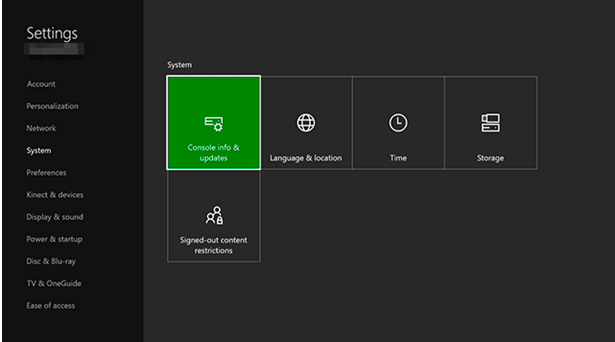
Step 6. Choose "Reset Console".
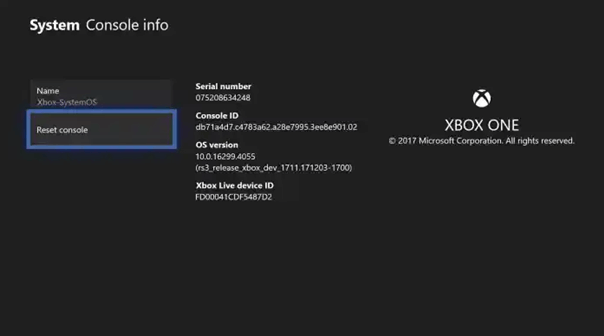
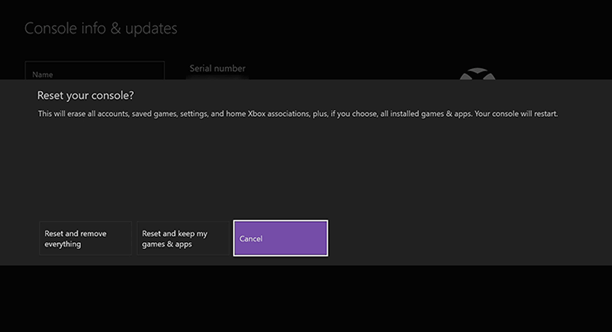
Step 7. You need to select the best option to reset the console. You can choose "Reset and keep your games and applications", "Reset and eliminate everything", or "Cancel".
How to Reset Xbox One Using USB Flash Drive
Follow the steps below to reset your Xbox One using USB Flash Drive:
Step 1. Unplug the network cable if you're using a wired network connection.
Step 2. To ensure the Xbox console is completely powered off, unplug the power cord from the back of the console. This will prevent any residual power from causing issues during the repair or maintenance process.
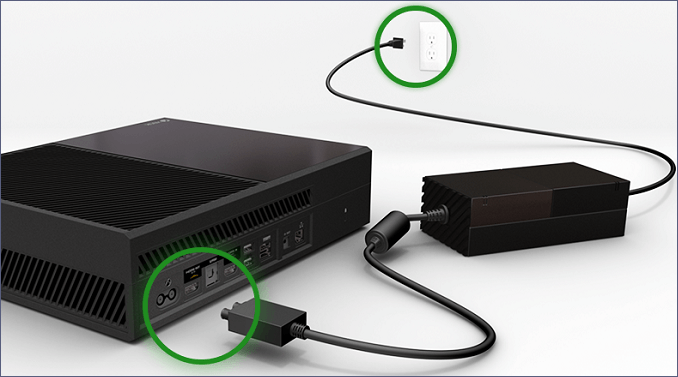
Step 3. Plug the power cord after waiting 30 seconds.
Step 4. Connect the flash drive to the console's USB connector.
Step 5. To reset your Xbox, press and hold the Pair button and the Eject button simultaneously. Once you've done this, press and hold the Xbox button on the console. This will initiate the reset process.
Step 6. Hold the Pair and Eject buttons for 15 seconds max.
Step 7. Listen for two distinct tones that are spaced a few seconds apart. These tones are often used as a "power-up" or "level-up" sound in video games and other digital media.
Step 8. Once the second power-up tone is heard, press the Pair and Eject keys simultaneously.
Step 9. Eject the USB flash drive when the console restarts.
Step 10. The digital setup interface will appear after the system resumes, guiding you through the process of resetting the console.
- Important
- If you lost important files on your USB flash drive, you can use a recovery program to get them back. You can find a detailed tutorial on how to perform USB drive data recovery on Windows by clicking the link.
Restore Lost Game Data After Xbox One Factory Reset
If your Xbox One downloaded games have gone missing, you can easily recover deleted documents and lost saved game data using the Xbox support solutions offered by Deep Data Recovery.
Despite the difficulty of recovering data from an Xbox One if it's not encrypted, Deep Data Recovery can successfully restore lost or damaged game files on an external drive, and recover saved game data on Xbox Series X, as long as no duplicate information exists.
The Qiling data recovery program not only retrieves deleted files but also restores data from destroyed hard drives and lost/RAW Xbox One partition, making it a professional tool for recovering lost game data.
Step 1. Launch Qiling file recovery software on your Windows computer and select the exact location where you lost the files. Click the "Scan" button to initiate the recovery process.

Step 2. The software will quickly scan the drive and display deleted files, allowing you to stop the scan once you find the needed files. To speed up the search, you can use the file format filter to narrow down the results.

Step 3. To recover files, select the desired files such as Word, Excel, PDF, photos, videos, or emails and click the "Recover" button, then you can choose a different location to save the recovered files.

Bonus Tip: How to Keep Xbox One Running Smoothly
A slow console can hinder your Xbox One's smooth operation, but following these tips can help: ensure your console is updated to the latest software, check for and clear any corrupted game saves, and consider reinstalling problematic games. Additionally, regularly deleting temporary files and system caches can also help improve performance. By implementing these simple steps, you can help keep your Xbox One running at its best.
Check the Wi-Fi connection
To troubleshoot your console's connectivity issues, ensure it's placed near the router and on the same network band. Keep devices on a minimal band and ensure your router has a VPN.
Clear the cache
The first step to ensure the console operates smoothly is clearing the cache after a short span, as a full cache can cause the Xbox to lag or run slowly.
Power off hassle-free transitions on your dashboard
To disable the theme, search for the menu screen and look for the themes & settings. Once you find it, toggle it off. This should resolve the issue.
Summary
These are the leading ways to reset Xbox One and run smoothly. Consider one of them, and reset it without a hassle. Meanwhile, you can download professional data recovery software, Deep Data Recovery, if you have lost game data after Xbox One factory reset.
How to Factory Reset Xbox One FAQs
Go through these FAQs below to understand the topic better:
1. How to factory reset PS5 without losing data?
To factory reset your PS5 without losing data, you can restore your console's data from a USB drive. This process allows you to wipe the console's memory and start fresh while still retaining your saved games and settings. Simply plug the USB drive into your PS5, navigate to Settings, then System, and select the "Restore PS5 Data" option.
- Connect the USB drive to the PS5 console.
- Opt for Settings > System.
- To restore your PS5, go to system software > backup & restore > restore PS5, and select your USB drive from the list of connected USB drives.
- Decide what kind of data you want to retrieve.
- Opt for Restore > Yes.
2. How to recover lost game saves on Xbox One?
To recover lost game saves on Xbox One, first, ensure that your Xbox One is connected to the internet. Then, go to the Settings menu and select "System" followed by "Console Settings.
- To resolve the issue, you need to run the Xbox app and navigate to Settings, where you will find the Account & Download History option.
- Search for the games you downloaded > Opt for Download Again.
3. How do I factory reset my Xbox One without turning it on?
To pair your Xbox One controller, press and hold the Eject key on the front of the control panel, then hold down the Pair button on the left edge of the console. Press the Xbox icon on the console, but don't hold it down. Alternatively, hold down both the Pair and Eject keys for 10-15 seconds.
4. Why does my Xbox One run so slow?
Your Xbox One may be running slowly because its storage is full. Try deleting old games you no longer play to free up space.
Related Articles
- Time Machine Backups Not Visible on Mac, Why and How to Fix It
- How to Change the Administrator on Windows 10 [Step-by-Step Guide]
- How Do I Format an SD Card in Linux? [2023100% Working Solution]
- Tutorial on Diskpart Assign Drive Letter in Windows 11/10/8/7 [Detailed Guide]
- What Is SD Card Reader? [You Must Know This]
You need an SD card reader when you want to use your computer to access files on an SD card. This article will detail what is SD card reader and recommend some of the best ones for you. Please continue reading this article and learn more useful information. - Target Disk Mode | How to Use Target Disk Mode on Mac
Learn what Target Disk Mode is on Mac, how to start it, and how to use another Mac to access, transfer, or recover files.
Products
Articles & Tutorials
- Data Recovery
- Data Backup
- File Recovery
- File Backup
- System Backup and Restore
- Disk and Partition Clone
- Technical articles
- Mobile articles
- Disk Master Help
- Windows Data Recovery Tutorials
- Windows Secure Delete Tutorials
- Windows Partition Management Tutorials
- Windows File Backup and Restore Tutorials
- Windows System Backup and Restore Tutorials
- Windows Disk Backup and Restore Tutorials
- Windows Clone Tutorials