[Fixed]Unable To Update Minecraft Native Launcher 2023
The Minecraft Native Launcher update issue on Windows 10/11 is frustrating gamers due to irregularities in the new launcher and compatibility issues with third-party apps. This problem prevents players from updating the game, causing inconvenience. To resolve this, it's recommended to troubleshoot the issue by checking for software updates, disabling third-party apps, and verifying the launcher's integrity. Additionally, reinstalling the launcher or seeking support from Minecraft's official resources may be necessary to resolve the issue and allow for a smooth update process.
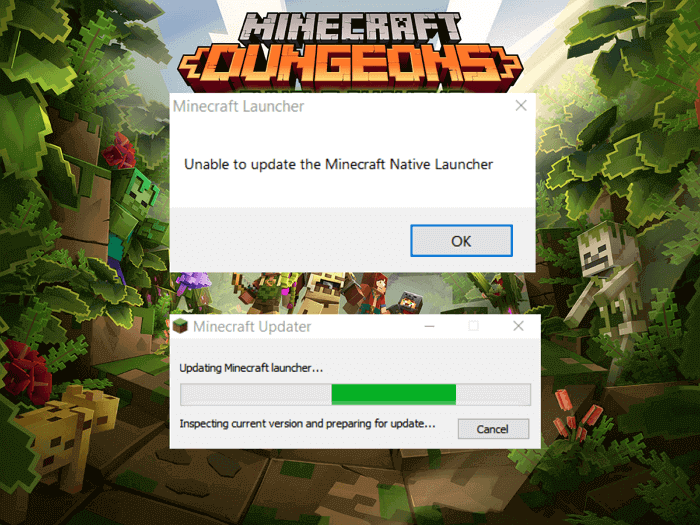
Users are experiencing issues with updating Minecraft from the Launcher app, as the update process gets stuck and results in an error message saying "Unable to update the Minecraft Native Launcher."
Minecraft's updating process getting stuck due to an error message can be frustrating. The issue might be caused by a corrupted game file, outdated Java version, or a problem with the Minecraft launcher. To resolve this, try deleting the `natives.
Some users claim that this problem is caused by irregularities in the launcher and compatibility issues with third-party apps.
The new launcher is experiencing issues with fetching files from the internet, with the feature being buggy and affecting downloads. Additionally, third-party applications such as antivirus programs and supporting apps are malfunctioning and blocking basic operations.
Solutions to fix the unable to update the Minecraft Native launcher error 2023
To resolve the issue, try the solutions one by one, and see which one resolves the problem. If the first solution doesn't work, move on to the next one. Keep trying until you find the one that solves the issue.
Run the Compatibility troubleshooter
Windows provides a compatibility troubleshooter for applications, which helps coordinate the system and app's launch. If an application can't run, the troubleshooter attempts to automatically diagnose the problem or suggest solutions to resolve the issue.
Steps to do a compatibility troubleshooter:
Step 1. To access the file location of an app, search for the app's name in the search bar, or manually navigate to the app's folder in the file system. This will allow you to view and manage the app's associated files and data.
Step 2. Right-click on the Minecraft app file and select "Compatibility Troubleshooter" from the options.
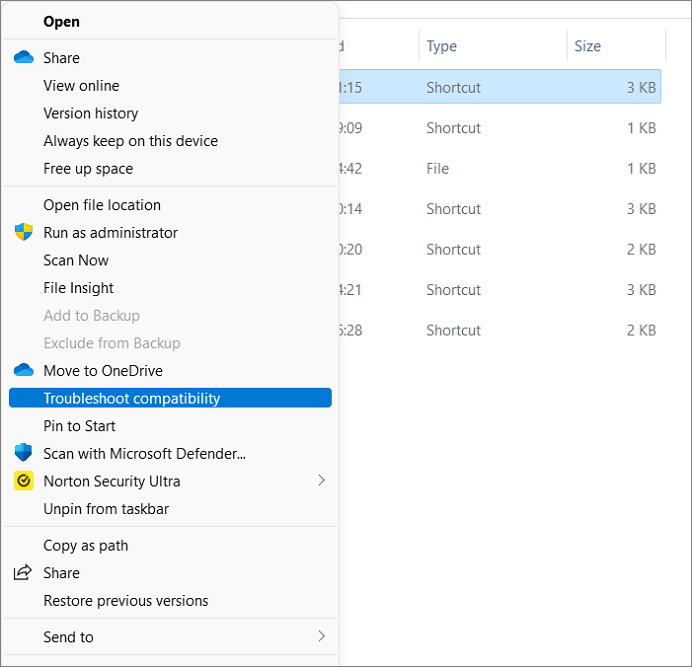
Step 3. Once the action is invoked, follow the on-screen instructions to complete the process.
Step 4. The system suggests some compatibility settings to carry on, allowing you to either select them or choose your own preferences.
If you're experiencing issues with Minecraft, the system will attempt to resolve the problem on its own or provide a solution to fix the issue. If the problem persists, you can try updating using the Minecraft native launcher. If that doesn't work, proceed to the next step.
Manage the Antivirus Program
Some users have reported that their PC's antivirus is mistakenly labeling Minecraft as a malicious program, preventing it from launching. To resolve this, you can either temporarily disable the antivirus or add Minecraft to the list of allowed programs. This should allow the game to run without interference.
If you're using a private antivirus, go to your system settings and disable the app. Try running Minecraft. If it works fine, continue with the option. If you think your device may be vulnerable, you can whitelist the Minecraft app and try using it.
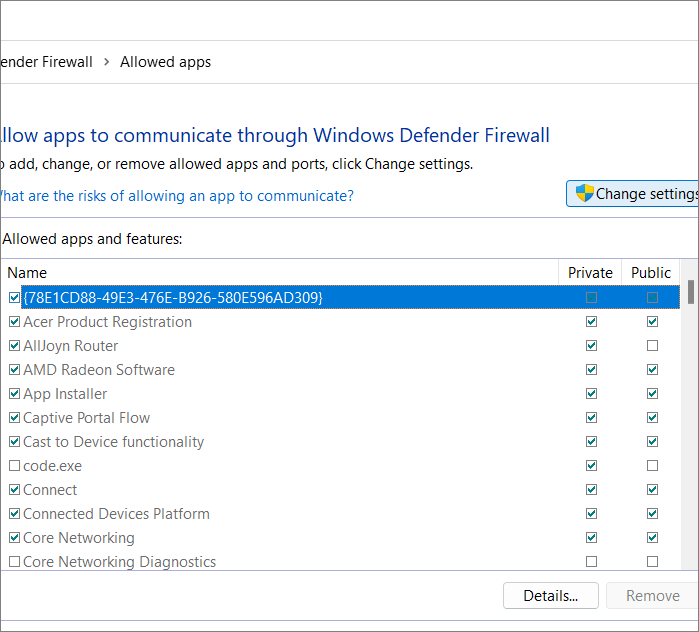
Below are the steps to whitelist the app on the Windows Defender:
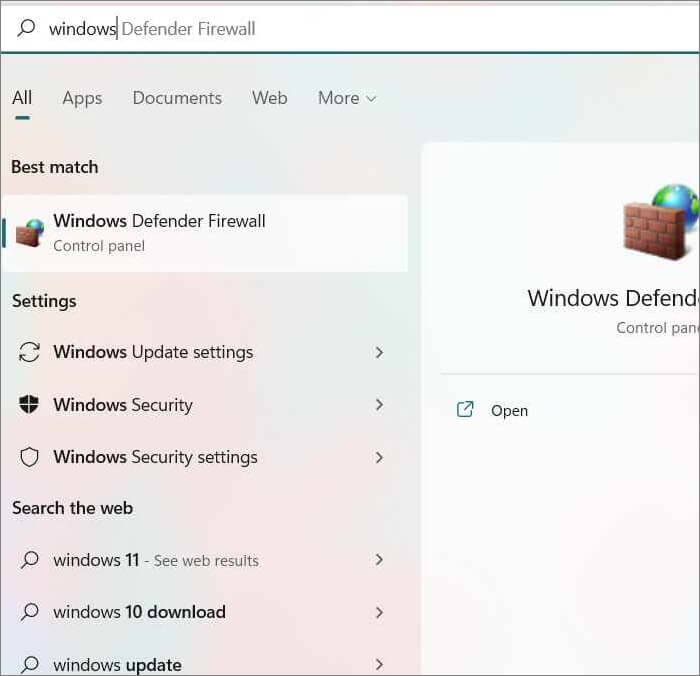
Step 1. Search for "Windows Firewall Defender" on the computer.
Step 2. To allow Minecraft through Windows Firewall, click on "Allow an app or feature through Windows Firewall Defender" and select the Minecraft app.
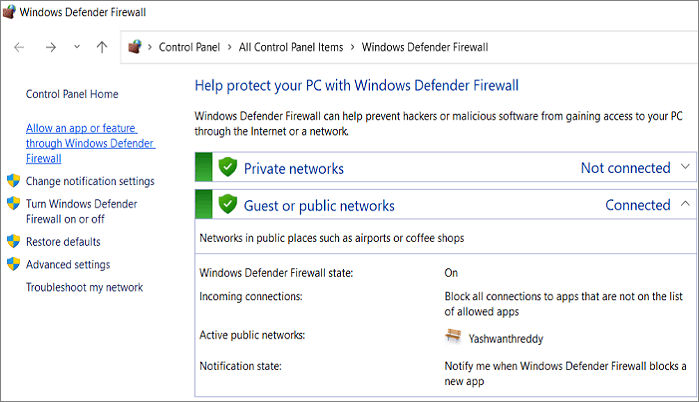
Step 3. Click on change settings to save the changes.
Download updates from the Minecraft Website
If the above steps to update the Minecraft Native Launcher don't work, you can try downloading the Minecraft app and updates from the official website, then manually updating the files.
Step 1. Go to the official website of Minecraft.

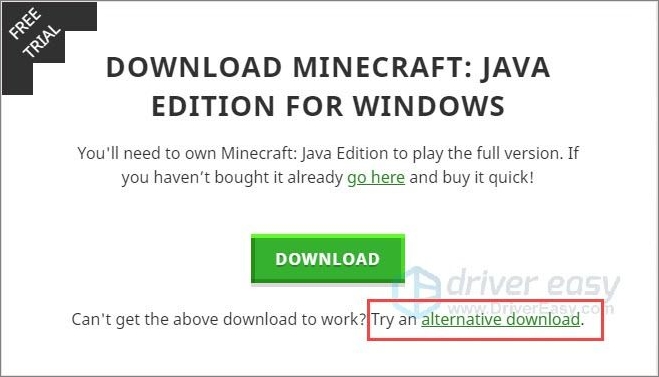
Step 2. You are directed to a page with the Java Edition of Minecraft for Windows. Click on the "alternative download" option.
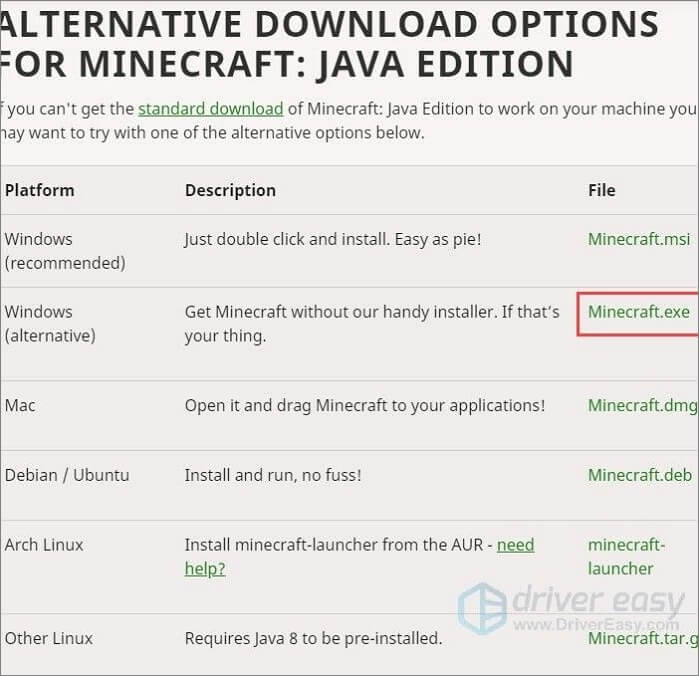
Step 3. Download the alternative version and Install it.
To learn more about updates and rollbacks in Minecraft, visit the official Minecraft website for the latest information and updates.
Reinstall Minecraft
If none of the above methods work, the last resort would be to completely reinstall the Minecraft application, which would result in losing all existing data and starting from scratch as a new user. This is a last option, but it's better to be able to play than not be able to play at all.
To remove the app from your device and reinstall using the official website, follow these steps: uninstall the app from your device, then head to the official website and download the app again. This will ensure you have the latest version and avoid any potential issues with the app.
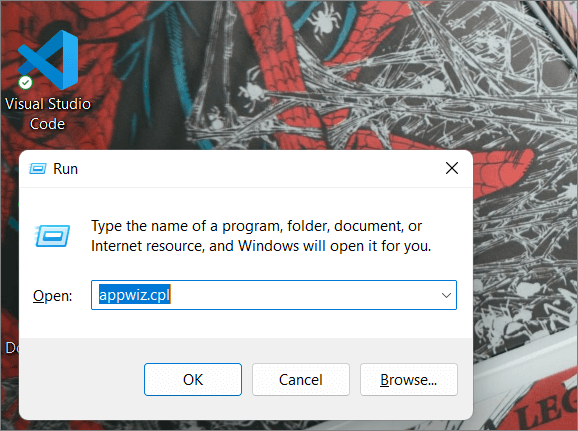
Step 1. Press Windows + R to open the Run app.
Step 2. Enter appwiz.cpl in the text box and click OK.
Step 3. Right-click on the app and "Uninstall" it.
Step 4. Along with the app, you need to delete the files related to it.
Step 5. Open the run app again, enter %Appdata%, and click "OK."
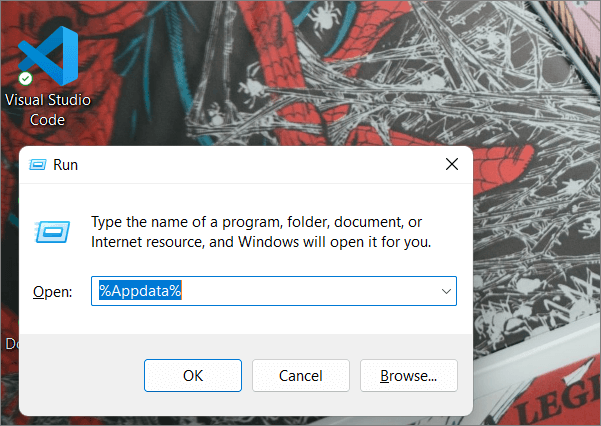
Step 6. Find the Minecraft files and delete them.
Use the official website to reinstall Minecraft.
If the above fixes don't work, try checking additional methods mentioned in the article by Microsoft Community.
Final Verdict
The native Minecraft launcher on Windows is experiencing issues while updating features, with users suspecting bugs in the launcher or antivirus software as the cause. Many users are unable to update the launcher, and solutions are being sought to resolve the problem and get gamers back to playing.
If you found this article helpful, please consider sharing it with your friends. You can also leave a comment below to let us know what you thought of the content. If you have any questions or need further clarification on any point, feel free to post them in the comment box and we'll do our best to address them.
Related Articles
- [Problem Solved] How to Install Mods in Sims 4 in 2023
- Fixed: Xbox One Not Reading Disc [2023 Complete Guide]
- How to Get Windows 10 for Free [Full Guide in 2023]
- How to Fix Black Line on MacBook Screen [5 Methods]
- How to Fix Steam Unpacking Slow Error Efficiently - 7 Ways
If you're experiencing the 'Steam unpacking slow' issue when downloading or preinstalling a game, this article offers seven efficient fixes to help resolve the error. - [BSOD Error] How to Fix the Stop Code Memory Management in Windows
Are you receiving stop codes from memory management in Windows? Then check out these solutions which help you resolve the problem and ensure the stop code doesn't reappear. Even if it does, you always know how to resolve it.
Products
Articles & Tutorials
- Data Recovery
- Data Backup
- File Recovery
- File Backup
- System Backup and Restore
- Disk and Partition Clone
- Technical articles
- Mobile articles
- Disk Master Help
- Windows Data Recovery Tutorials
- Windows Secure Delete Tutorials
- Windows Partition Management Tutorials
- Windows File Backup and Restore Tutorials
- Windows System Backup and Restore Tutorials
- Windows Disk Backup and Restore Tutorials
- Windows Clone Tutorials