New Computer Keeps Freezing? Find Causes & Solutions Here
If your computer randomly freezes, runs slowly, or hangs, this article is for you. You'll learn about the causes and solutions to your computer freezing, a common Windows 10 problem that can be frustrating since it often occurs without an error message or blue screen.
Because many of us neglect the basic upkeep required of a computer, inactive or frozen computers are a common issue. However, regular users can easily perform these PC maintenance procedures in just a few minutes without the help of a specialist. This guide explains the reasons behind your computer freezing and provide a solution to resolve the issue.
You may be interested:
Why Does My New computer keep Freezing?
- 1. Too many software packages are operating in the background
Running multiple software applications on your PC can consume a significant amount of resources, including memory and computational capacity. If numerous apps are running in the background, your computer may not have the necessary resources to handle them, potentially leading to performance issues.
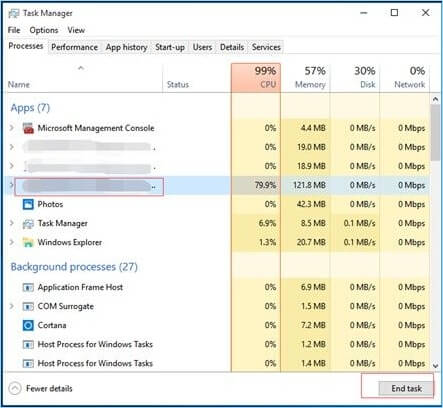
To stop certain applications that are running, launch the Task Manager by pressing CTRL+SHIFT+ESC. Then, select the unused apps and click END TASK.
- 2. Insufficient RAM
If your computer freezes often, it may be due to inadequate RAM, which can cause it to slow down.
Computer infections can cause a computer to freeze and potentially render it useless by damaging the system.
- 4. System files corruption or loss
Windows 10, 7, or any other Microsoft operating system will freeze with a damaged or missing system file.
- 5. Computer bugs
Computer freezes can be caused by software packages that attempt to use resources not allowed by Windows, defects in the application itself, or the program using too many resources, causing the system to struggle. To resolve the issue, updating all applications on the computer is a good starting point. If the software is no longer needed, it can be safely removed using a professional tool, such as a program uninstaller.
- 6. Driver Corruption or Errors
Computer drivers are responsible for communication between hardware devices and the operating system. If they become outdated or corrupted, it can lead to intermittent computer freezes.
- 7. Overheating
Excessive computer temperatures can cause slowdowns and freezes, and if left unchecked, may irreparably damage components.
- 8. Faulty external devices
External devices such as a USB drive, mouse, or keyboard can cause a computer to freeze. To troubleshoot, connect each device one by one to determine which one is causing the problem.

Windows 10 keeps freezing on startup due to various reasons such as corrupted system files, malware, outdated drivers, overheating, or hardware issues. To resolve this issue, users can try troubleshooting steps like running the System File Checker (SFC) and DISM tools, checking for malware, updating drivers, checking for overheating, and running a System Restore.
If Windows 10 keeps freezing on startup, try the following solutions: run a System File Checker, disable any recently installed software, boot in Safe Mode, perform a System Restore, or reset Windows 10 to its default settings. These steps can help identify and resolve the issue, allowing your computer to start normally again.
Solutions to Fix New Computer Keeps Freezing
Check out these possible strategies to fix the problem of your computer occasionally freezing up.
Method 1: Start the SFC scan.
If your Windows system is experiencing issues due to corrupted system files, running the SFC command is a good place to start. This utility can search for and fix faulty Windows system files. For a broader comparison of repair commands, see the SFC and CHKDSK guide.
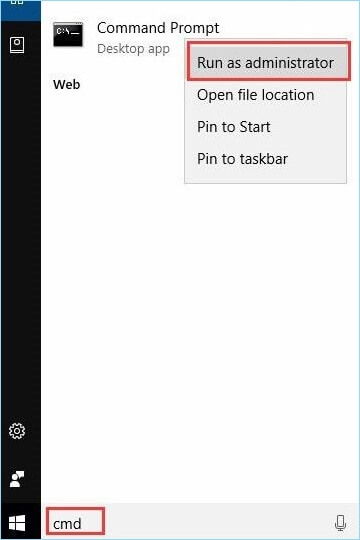
Step 1: To open the Command Prompt as an administrator, click on the Start Menu button and then select "Open Command Prompt" (Admin).
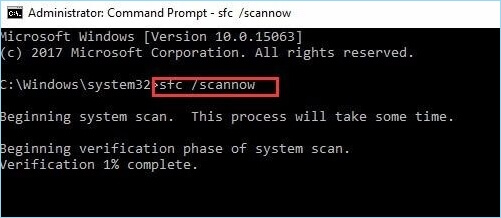
Step 2: To run the System File Checker tool, open Command Prompt as administrator, type the command `sfc /scannow`, and press Enter. This will scan all protected system files and replace any corrupted ones with a cached copy. Wait for the process to complete, as it may take some time.
Step 3: Additionally, after it's done > restart your machine.
Step 4: Check to see if the issue with the machine freezing up has been resolved.
Method 2: Upgrade device drivers
To update your drivers, you can use the best driver update software or rely on Windows Update. Simply follow these steps:
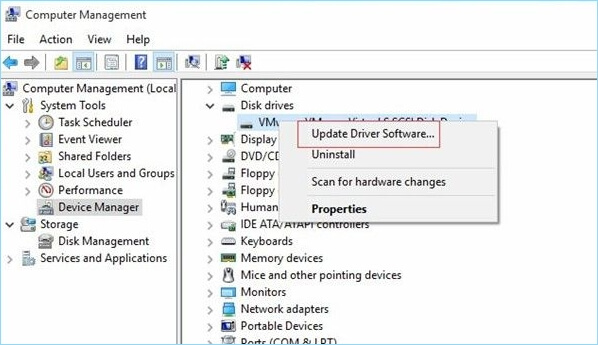
Step 1: To open the Device Manager, right-click on "This PC" in Windows 10/8, select "Manage," and then choose "Device Manager" from the menu that appears.
Step 2: Navigate to the category that you believe includes the hardware you need to update the drivers and select it.
Step 3: To update the driver software for a piece of hardware, right-click on its name or icon in the system tray and select "Update Driver Software" from the context menu.
Method 3: Update Windows Regularly
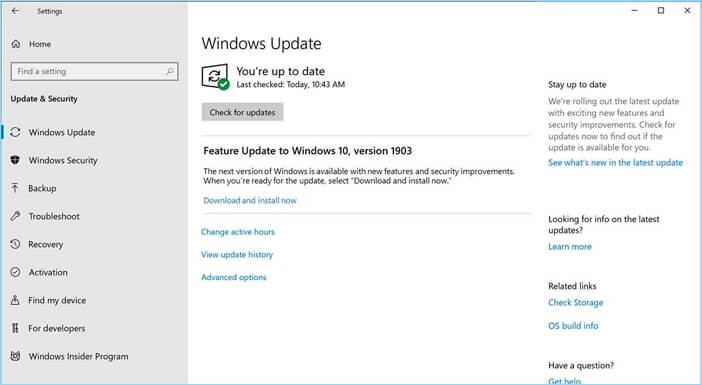
To keep your laptop PC's efficiency, ensure you're running the latest operating system updates, which can be accessed through a legitimate Windows installation. Windows 10 has automatic updates enabled by default, and you can also find the most recent drivers and updates on manufacturers' websites. To upgrade your software in Windows, follow these steps:
Step 1: Launch Settings and open Control Panel.
Step 2: To update your Windows, select System and Security from the menu, and then choose Windows Update from the menu.
Step 3: You can check if your laptop has any newer versions of Windows by using Windows Update, which shows you any available updates. We recommend installing any critical updates.
Method 4: Use a Cooling Pad
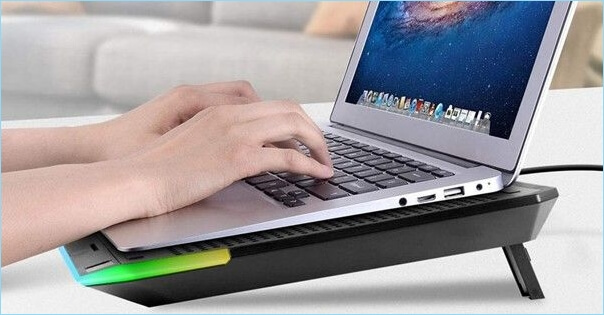
When a laptop's CPU isn't running at its best speed, its performance may slow down due to overheating, causing the processor to reduce its speed to prevent damage. This issue is called performance throttling, which can be prevented by ensuring proper heat dissipation from the laptop's internal components.
A laptop cooler, also known as a cooling pad, is the most effective way to prevent overheating. It improves the laptop's cooling performance by drawing hot air from the exhaust vents and releasing it outside, maintaining a better temperature. To enhance airflow, place the laptop on a firm, flat surface, avoiding uneven or soft surfaces like blankets, pillows, or laps. This setup helps the laptop to dissipate excess heat efficiently.
Backup Computer Regularly to Avoid Data Loss Due to Computer Freezing
After updating to Windows 10, if your computer is still freezing randomly, you can try a system restore to revert to an earlier version of Windows or a clean installation of Windows 10 as a solution. Both options are available.
To avoid losing your data, create backups in advance, and use Qiling Disk Master Pro to create a disk image that can be restored in case of a system restoration or fresh Windows 10 installation. This will allow you to restore everything at once without reinstalling Windows and all your programs individually.
Follow the steps below to create a system image for disaster recovery:
Step 1. Launch Qiling Disk Master on your computer, click Create Backup on the home screen, and select backup contents by clicking the big question mark.

Step 2. To back up your Windows operating system, click on the "System backup" option to initiate the backup process.

Step 3. The Windows operating system information and all system related files and partitions will be automatically selected, and you'll need to choose a location to save the system image backup by clicking the illustrated area.

Step 4. The backup location can be another local drive, external hard drive, network, cloud, or NAS, but it's recommended to use an external physical drive or cloud to preserve system backup files.

Step 5. The Options button allows for customization settings, including enabling an automatic backup schedule for daily, weekly, monthly, or upon an event, as well as making a differential and incremental backup. Upon clicking "Proceed", the Windows system backup process begins, with the completed task displaying on the left side in a card style.

FAQ on New Computer Keeps Freezing
1. Why does my brand-new computer keep freezing?
Your computer may be freezing due to missing, corrupt, or damaged system files, which can be resolved by repairing and replacing faulty system files with the help of Reimage. To do this, you can run a System File Checker (SFC) scan to identify and replace any problematic system files. This can help resolve the freezing issue and get your computer running smoothly again.
2. How do I make my computer stop freezing?
Your computer freezing can be caused by missing, corrupt, or damaged system files. You can resolve any issues with your computer's system files by repairing the damaged files or installing new ones with Reimage.
3. How do I find out why my computer keeps freezing?
Inadequate RAM may cause regular and persistent computer freezes. Adding more memory to your machine or reinstalling your operating system may help resolve this issue. Freeze mode might be triggered if BIOS parameters are altered, but resetting the BIOS to its factory settings may resolve the issue.
Related Articles
- How to Activate Windows 10 for Free Permanently in 2023
- Microsoft Word Files with An ASD Extension Cannot Be Opened from This Location [Fixed]
- [5 Ways] How to Fix DISM Error 87 Option Is Unknown Windows 11/10/7
- macOS Monterey Installation Failed? Here Are Trustworthy Fixes for You
- Why Does My Computer Keep Crashing? Top 8 Reasons Are Here!
Computer keeps crashing on Windows 10? Learn the top 8 reasons for random PC crashes and freezes, plus effective fixes to prevent data loss. Restore your system stability today. - Why Is My Camera Telling Me to Format My SD Card [Full Explanation]
Why is your camera telling you to format the SD card? Learn the causes and 3 safe methods to format an SD card without losing data on Windows, camera, and Android. - Fix Windows 11 Freezing Randomly (2026 Guide)
- Kernel-Power Event 41 in Windows 11: How to Find the Cause
Products
Articles & Tutorials
- Data Recovery
- Data Backup
- File Recovery
- File Backup
- System Backup and Restore
- Disk and Partition Clone
- Technical articles
- Mobile articles
- Disk Master Help
- Windows Data Recovery Tutorials
- Windows Secure Delete Tutorials
- Windows Partition Management Tutorials
- Windows File Backup and Restore Tutorials
- Windows System Backup and Restore Tutorials
- Windows Disk Backup and Restore Tutorials
- Windows Clone Tutorials