Guide on Diskpart Create FAT32 Partition | How to Create FAT32 Partition with Diskpart
The partition is divided into sectors, also known as File Allocation Table, to organize and manage data on disk drives. The FAT32 file format, with a 32-bit data width, is an improvement over its predecessor, FAT16.
To create a FAT32 partition, you can use the Diskpart command-line utility in Windows. You can create a new partition, format it as FAT32, and assign it a drive letter. Alternatively, you can use a third-party partition manager like Qiling Partition Master, which offers a user-friendly interface and more features than Diskpart. With Qiling Partition Master, you can create, delete, merge, and format partitions, as well as resize and move partitions without losing data.
Can Diskpart Create FAT32 Partition
Diskpart, a utility that works on command-line actions, can create, convert, or format partitions to FAT32. It can work on all versions of Windows and is useful for organizing USB drives, hard disk drives, and more.
You can give commands to Diskpart to create, delete, and even merge partitions. This tool can do wonders in disk partitioning and organizing drive volumes, serving as an alternative to Disk Management.
To create a FAT32 partition using Diskpart, start by opening Command Prompt as an administrator, then type "diskpart" and press Enter. Next, type "list disk" to view a list of available disks, select the desired disk by typing "select disk #", where "#" is the number of the disk you want to work with. After that, type "clean" to erase any existing data on the disk, then type "convert mbr" to convert the disk's master boot record to a standard MBR.
Guide on Diskpart Create FAT32 Partition
Diskpart is a command-line utility that can be used to create, format, and partition disks, providing an alternative to the Disk Management tool when it fails.
Want to create a FAT32 partition using the Diskpart command-line utility? Follow the below steps:
Step 1. There are two ways to run Diskpart to create a FAT32 partition.
- To access the Disk Management tool, you can type "Diskpart" in the search box and right-click on it to run it as an administrator.
- To open the Command Prompt as an administrator, you can search for "Command Prompt" in the Start menu, right-click on it and select "Run as administrator." Alternatively, you can press the Windows + X key combination, which will open a menu with the Command Prompt option.
Step 2. Once the Diskpart is opened in the command prompt window, you can start typing the commands. Type "list disk" to have a list of all the disk drives that are currently connected to your PC.
Step 3. To proceed, select the disk drive that contains the targeted partition by typing "select disk 1" if it's located in disk 1.
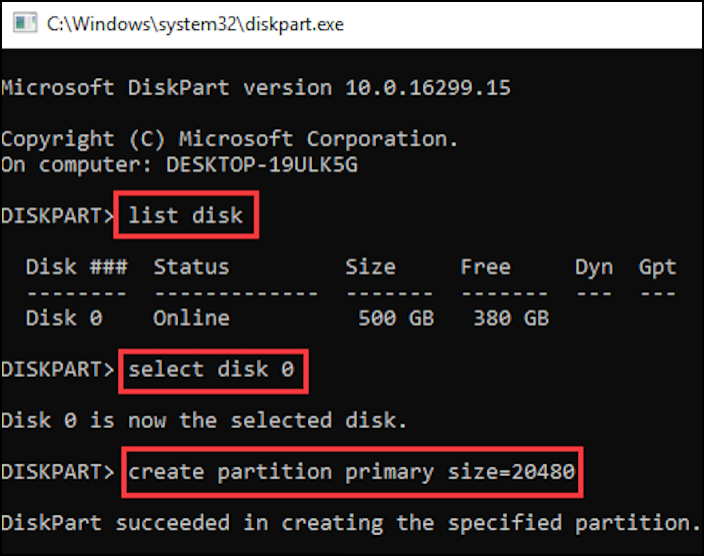
Step 4. Type "format fs=fat32" to convert the format to FAT32.
When Disk Management or File Explorer fails to create primary partitions or delete all partitions, the Diskpart tool can be a lifesaver. You can use command lines in Diskpart to create primary partitions or delete all partitions, providing an alternative solution when other methods fail.
Professional Alternative to Diskpart - Qiling Disk Master
Although Diskpart is a great choice and more advanced than File Explorer and Disk Management Tool, it has some downsides, such as not being able to format a drive to FAT32 if it's over 32 GB or having a command line user interface that can be hard to understand. In such cases, a professional alternative to Diskpart, like Qiling Disk Master, can be a helpful option.
Qiling Disk Master is a free, all-in-one partition manager that offers basic functionalities such as creating, deleting, extending, resizing, moving, or merging partitions, and quick disk partitioning. It is easy to use and can be operated by following the provided guidance.
Step 1. Launch Qiling Disk Master, right-click on the unallocated space on your hard drive or external storage device and select "Create" from the main window.
Step 2. Resize the partition, choose a file system, and label the new partition to prepare it for use.
Step 3. Click on the "Proceed" button to create a new partition.
Watch a video tutorial to learn how to create a partition in NTFS, FAT, or EXT file system.
Moreover, it has advanced-level actions such as clone partitioning, converting NTFS to FAT32, converting MBR to GPT, Surface test, 4K tests, changing cluster size, and more.
Conclusion
Creating FAT32 partitions can help with compatibility across platforms, better partition management, and replacing the old FAT16 system. However, using the Disk Management Tool or Diskpart to create FAT32 partitions may not always be the best option due to size limitations and complex user interfaces. For a detailed guide on creating FAT32 partitions, you can refer to the instructions on "Diskpart create FAT32 partitions".
We recommend using Qiling Disk Master not only to create FAT32 partitions but to also merge, delete, format, or perform many other advanced actions related to disk drives or partitions.
FAQ of Diskpart Create FAT32 Partition
Be cautious when creating or modifying partitions, as you might lose data permanently. If you have questions about using Diskpart to create a FAT32 partition, you can find answers here.
1. How do I create a partition using Diskpart?
Follow the steps below to create a partition using Diskpart:
Step 1. To execute the Diskpart command, press the Windows key + R to open the Run dialog box, then type 'Diskpart' and press Enter. This will open the Diskpart utility, allowing you to manage and interact with the disk partitions on your system.
Step 2. 1. Type "list disk" to view the disk selection menu.
Step 3. Then type format fs=fat32 to complete the process.
2. Can you format a partition as FAT32?
You can format a partition as FAT32 using Diskpart or Qiling Disk Master, which can also convert NTFS to FAT32.
3. How do I create a FAT32 partition in Windows 10?
You can use Qiling Disk Master to create a FAT32 partition in Windows 10.
Step 1. Launch Qiling Disk Master and shrink any partition to free up unallocated space.
Step 2. Right-click on unallocated space and select Create.
Step 3. Choose the FAT32 file format, set the partition size, and click proceed to complete the process.
Related Articles
- Quick Fix External Hard Drive Access Denied Error
- How to Turn off The Firewall in Windows 10 [A Complete Guide]
- Solve Silicon External Hard Drive Not Showing Up [Windows & Mac]
- How to Uninstall Sonoma Without Losing Data
- How to Boot Computer from USB and Make A Portable OS
Learn how to boot a computer from USB on Windows PCs. Create a bootable USB drive, change BIOS or UEFI boot order, and start your PC from USB. - How to Use CMD Delete File/Folder [Windows 11 Applicable]
To delete files and folders using Windows cmd, you'll need to use two command lines: del and rmdir. The del command is used to delete files, while the rmdir command is used to delete folders.
Products
Articles & Tutorials
- Data Recovery
- Data Backup
- File Recovery
- File Backup
- System Backup and Restore
- Disk and Partition Clone
- Technical articles
- Mobile articles
- Disk Master Help
- Windows Data Recovery Tutorials
- Windows Secure Delete Tutorials
- Windows Partition Management Tutorials
- Windows File Backup and Restore Tutorials
- Windows System Backup and Restore Tutorials
- Windows Disk Backup and Restore Tutorials
- Windows Clone Tutorials