How to Burn ISO to USB? 2024 Complete Guide 🔥
Yes, you can burn an ISO to a USB flash drive. An ISO file is an image of a CD, DVD, or Blu-ray disc that contains an operating system, software, or other data. Burning an ISO image to a USB drive offers several benefits, including the ability to create a portable and self-contained operating system or software environment that can be booted from the USB drive. To burn an ISO to a USB drive, you can use software such as Rufus, Etcher, or PowerISO, which can help you create a bootable USB drive from the ISO image file with ease.
| 🔢Complex Level: | Simple, Beginners |
| ⏱️Duration: | 5-10 minutes |
| 🎯Applies to: | Burn ISO to USB Windows 10/11 and Windows 7. |
| 🧰Tools: | USB, Windows PC, File Explorer, Windows ISO file, ISO Burning Software |
Key Takeaways of Burning ISO Image to USB:
- First, set the USB drive to FAT32 format. If you need help with this, follow the steps in Stage 1. If your USB drive is already formatted as FAT32, you can skip ahead to Stage 2.
- Burning an ISO image is a complex procedure that requires a professional ISO to USB burning tool or software. Fortunately, tools like Qiling Disk Master make it easy, allowing users to write ISO to USB with just a few clicks. By installing this tool and following a simple tutorial, users can execute the task with ease.
Benefits- Write ISO to USB
Here is a list of benefits of burning a desired ISO file to a USB drive so that you can take a deep view:
- USB is portable and versatile for use in many aspects.
- You can create a bootable USB flash drive for Windows.
- You can repair a PC with the Windows ISO image burned onto a USB drive. This allows you to boot from the USB and access the Windows recovery environment, where you can run diagnostic tools, repair or reinstall Windows, and even recover your system files and settings.
- You can make a Windows ISO image bootable on a USB drive for various purposes, such as Windows transfer, system installation, or reinstallation.
To make an ISO image file burnt to a USB flash drive, you need to prepare a blank USB drive, an ISO file, and a burning software. The software will help you create a bootable USB drive from the ISO file. You can use a tool like Rufus or PowerISO to create the bootable USB drive. Simply insert the USB drive, select the ISO file and the USB drive as the target, and follow the software's instructions to complete the process. This will allow you to create a bootable USB drive from the ISO file.
How to Burn ISO to USB on Windows
To burn an ISO image file to a USB drive on a Windows computer, follow these steps. We'll use Windows ISO image burning as an example to guide you through the process.
And we'll break the procedure into three parts, as shown below:
#Stage 1. Make the USB Drive Ready for ISO Image Burning
To prepare a USB drive for burning a Windows ISO image file, you need to format it as FAT32 first, which is a specific file system format required for this process.
Step 1. Connect a USB stick drive with a storage capacity of 32GB or larger to your PC.
Step 2. Open the USB flash drive and backup all valuable files to another location.
Step 3. To access the USB flash drive, press the Windows + I keys to open File Explorer, and right-click on the USB flash drive to open its context menu.
Step 4. The USB drive was formatted with the FAT32 file system format.
Step 5. Click "OK".
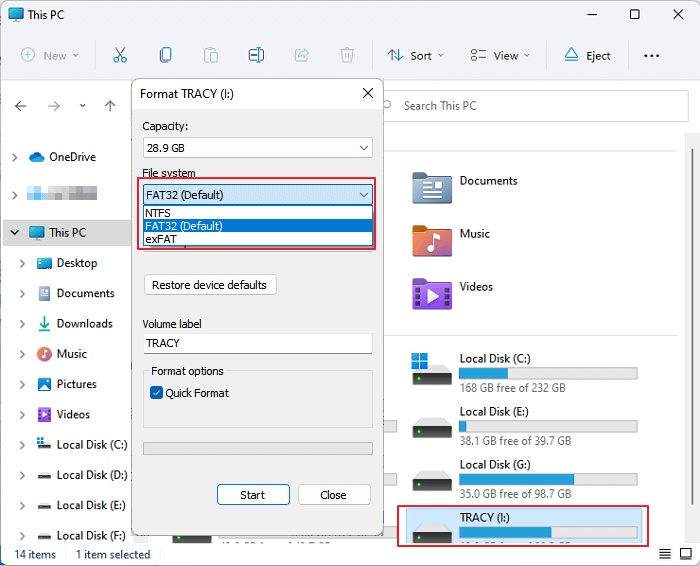
Go straight to write ISO to USB now.
#Stage 2. Download ISO Burning Tool for Help
Some users may recommend using the Windows Media Creation Tool to burn an ISO image to a USB, but this method can be too complicated for beginners.
We recommend using Qiling Disk Master, a reliable ISO burning software, to write ISO to USB with its Burn ISO feature, allowing for simple steps to complete the task.
In addition to burning ISO files to USB, this software can also be used to set up USB sticks for various purposes, such as creating a bootable USB drive, installing an operating system, or even setting up a portable storage device for carrying files and programs on the go.
- Format 128GB USB to FAT32
- Fix USB won't format to FAT32 error
- Format USB for PS4, PS5.
- Check for file system errors on USB devices, etc.
- Burn ISO to DVD
To create a bootable USB from an ISO file, follow the next guide to start burning the ISO image file to your USB drive and making a bootable USB.
#Stage3. Burn ISO to USB
To start burning the ISO to USB, download the Windows ISO image file on your PC first, either from the official Microsoft website or a secure online source.
After downloading the Windows ISO image on your PC, you can proceed with writing the ISO to a USB drive using the steps outlined. This process allows you to create a bootable USB drive that can be used to install Windows on a computer.
Step 1. Launch Qiling Disk Master and go to the Tools and utilities section, then click "Create Bootable Media".

Step 2. Click "Next" and select the target USB as destination.
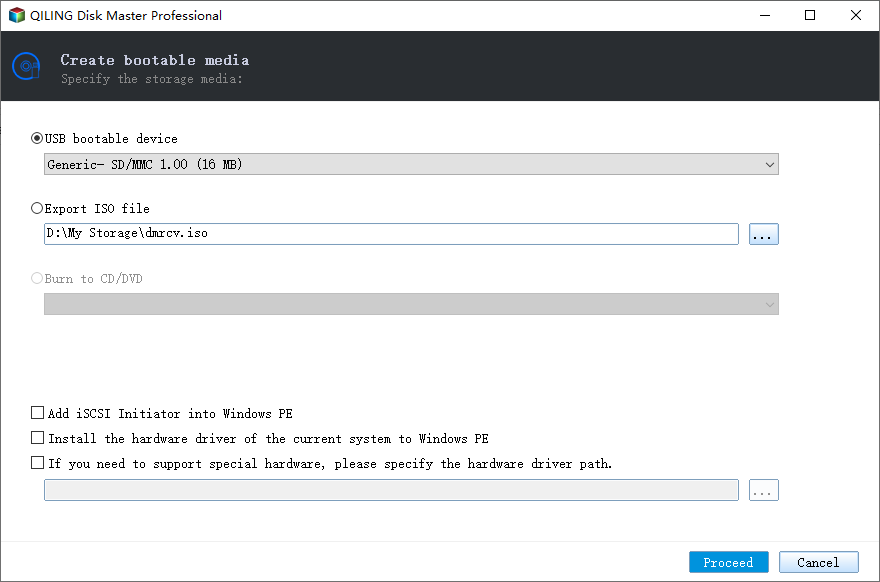
Step 3. Click "Burn" to execute the operation.
If you're interested in installing Windows from a burnt ISO image file on your USB drive, you can refer to Microsoft's guide on how to do it: Install Windows from USB.
Extended Reading: Fix Can't Burn ISO File to USB
What Is ISO File
An ISO image file is a single file that contains a complete copy of a CD, DVD, or Blu-ray disc. It's a compressed archive that includes the entire contents of the disc, including files, folders, and other data.
An ISO file contains all parts of an OS or program that needs to be built, but is useless until opened, assembled, and used, and can be opened using ISO to USB tools like Qiling Disk Master, Rufus, or BalenaEtcher, or burned to a USB.
ISO images can be used for a variety of purposes, including installing operating systems, creating bootable USB drives, backing up data, and burning CDs or DVDs. They can also be used to create virtual machines, clone hard drives, and transfer data between computers. Additionally, ISO images can be used to create live USB drives, which can be used to run operating systems without installing them on the host computer.
- Data transfer
- Data backup
- OS migration or system installation/reinstallation
- Program duplication, backup, migration, etc.
Burning an ISO image to a USB drive is the most widely used method to make it work. This is because a USB drive can be easily used as a boot device, allowing the ISO image to be executed directly from the drive. This method is particularly useful for installing operating systems, running live CDs, and accessing other bootable media. By burning the ISO image to a USB drive, users can create a portable and self-contained bootable device that can be used on any computer with a USB port, making it a convenient and flexible solution for various computing needs.
🚩Explore More: How to Burn ISO to External Hard Drive Windows 10
Burning ISO to USB Is Easy, and You Can Do This with Correct Method
On this page, we simplified the procedure of writing ISO images to USB into 3 phrases:
- #1. Set up USB to FAT32
- #2. Download ISO burning software
- Download an ISO file and use software to burn it onto a USB drive, making it bootable with just a few simple steps.
For experienced users, you can skip stage 2 and start burning ISO files with stage 3 using the Microsoft Official method. However, for Windows beginners, it's recommended to follow the guidelines one by one, and the entire procedure is easy and simple with the help of reliable ISO image writing tool software - Qiling Disk Master.
Write ISO to USB FAQS
Here are some bonus questions related to ISO image burning to USB, answered shortly:
1. Can I use Rufus to burn ISO to USB?
- Download and open the Rufus tool. Insert the USB drive and choose a device. Select either the option to write a Disk or ISO image, then locate and choose the ISO image to burn onto the USB drive.
- Under the Image option, choose Standard Windows installation, and select Start, leaving the other options as they are.
- Wait for Rufus to say "Ready," then close Rufus and remove the USB drive.
2. Can I burn the ISO image to USB?
You can directly burn a pre-downloaded ISO image to a USB drive without needing to download and install the operating system first. This can be done using a tool like Rufus or a similar software. The process typically involves selecting the ISO file, choosing the USB drive as the target, and starting the burning process.
- Connect the USB to your PC.
- Format the USB to FAT32.
- Run an ISO image-burning tool like Qiling Disk Master.
- Burn the ISO image to USB.
3. How do you burn ISO to USB on Linux?
- Connect a USB to a Linux computer.
- Run the UNetbootin app on a Linux computer.
- Select 'Diskimage' and select 'ISO file' and click 'Download.'
- Click 'Open', click 'USB Drive,' and click 'OK'.
4. How do I burn ISO file to USB on Mac?
- Connect a USB drive to a Mac computer.
- Go to Application and open Terminal utility.
- Type the next two command lines in Terminal and hit Enter each time:
- sudo /Applications/Install\ macOS\
- *.app/Contents/Resources/createinstallmedia --**volume /Volumes/MyVolume
You can try deleting the problematic app by going to Applications > Utilities > Terminal, then typing `xattr -r -d com.apple.quarantine /Volumes/My\ Volume/Big\ Sur.app` (or the equivalent command for your specific app and volume) and pressing Enter. This should remove the quarantine flag and allow you to delete the app normally. If you're still having trouble, you can try restarting your computer in Safe Mode and then deleting the app.
- Press 'Y' key and hit the Return key.
- Click 'OK'.
Related Articles
- Panasonic SD Formatter Windows 10 [2024 Full Guide]
- How Big Is Overwatch 2 | Solution for Insufficient Disk Space🔥
- Solved 2024: Unable to Recover Your PC. The System is Too Small
- How to Fix Windows 11 Startup Repair Not Working | 7 Tips
- How to Change BIOS Mode from Legacy to UEFI Windows 10/11
If you're running Legacy BIOS, you may need to convert Legacy BIOS to UEFI to take advantage of its new feature. This process is relatively simple, but it will require you to boot into your BIOS and change a few settings. If you're ready to make the switch, here's what you need to do. - Can't Change Drive Letter in Windows Server
You're trying to change the Window Drive Letters but are unable to do so. I've can help. Changing window drive letters is a straightforward process that can be completed in a few steps.
Products
Articles & Tutorials
- Data Recovery
- Data Backup
- File Recovery
- File Backup
- System Backup and Restore
- Disk and Partition Clone
- Technical articles
- Mobile articles
- Disk Master Help
- Windows Data Recovery Tutorials
- Windows Secure Delete Tutorials
- Windows Partition Management Tutorials
- Windows File Backup and Restore Tutorials
- Windows System Backup and Restore Tutorials
- Windows Disk Backup and Restore Tutorials
- Windows Clone Tutorials