How to Burn ISO to USB on Windows 10, Here Is Full Guide
Burning an ISO image to a USB flash drive in Windows 10 can be a complex process, but it can be simplified by using a professional ISO to USB burning tool or software. By following the steps outlined on this page, you can successfully burn an ISO image to a USB drive in just a few simple steps.
You can burn an ISO file to a USB drive, and we'll show you two ways to do it on Windows 10. A table is available to help you choose the best method for your needs.
| 🆚Comparison | 🥈Windows To Go | |
|---|---|---|
| 💻System |
|
|
| 🧩USB Limitation |
|
|
| ⚙️Operation Difficulty |
|
|
| ✏️Steps |
|
|
Qiling Disk Master is easy to use, while Windows To Go has specific requirements for burning an ISO file to a USB drive, including Windows versions and USB capacity. To use Qiling Disk Master, you'll need to prepare by following the process, which includes using the software to burn the ISO file to the USB drive.
- #1. Prepare a USB
- #2. Format USB to FAT32
- You can download Windows 10 ISO files directly from Microsoft's official website.
- #4. Download Qiling Disk Master to burn ISO
🔥You May Like: Burn ISO to External Hard Drive Windows 10
Way 1. Burn ISO to USB on Windows 10 via Qiling Disk Master
Qiling Disk Master allows you to burn ISO files to a USB drive on any version of Windows, including Windows 11/10/8/7, without requiring a certified USB stick, and a 13 GB drive capacity is sufficient. You can download the free software and follow the guide below.
Step 1. Launch Qiling Disk Master and go to the Tools section, then click "Create Bootable Media" in that section.

Step 2. Select the target USB as the destination and click "Proceed" to execute the operation.

Alongside burning ISO to USB on Windows 10, users can also utilize Qiling Disk Master to set up USB drives for various purposes, including creating bootable USB drives, installing operating systems, and more.
- Burn ISO to DVD
- Format USB for PS4/5
- Format 128GB USB to FAT32
- Windows 10 format USB to FAT32
- Create/merge partitions on USB drive
Download Qiling Partition to help burn ISO to USB and manage your USB storage.
Way 2. Burn ISO to USB on Windows 10 via Windows To Go
To create a bootable USB drive, you can use Windows To Go if you're running Windows 8/8.1 Enterprise or Windows 10 Education/Enterprise/Pro, but this process can be challenging for inexperienced users. Alternatively, you can use Qiling Disk Master or follow the guide below carefully. If you're looking for other tools to burn ISO, you can check out the top 5 ISO burners for Windows 10.
I divide the whole process into four steps:
- #1. Prepare a USB larger than 32 GB
- #2. Format it to FAT32 (back up your data, if any)
- #3. Download ISO files from Microsoft's official website
- Connect a certified USB drive to the PC, then follow the steps to burn the ISO file to the USB drive.
Step 1. To start, go to the Control Panel and search for "Windows To Go" in the window, then click on the "Windows To Go" option.
🚩Also Read: Top 3 Windows 1123H2 ISO Downloader
Step 2. The system will automatically detect the inserted USB drive. Click on the USB drive you plan to burn the ISO to and click Next to continue.
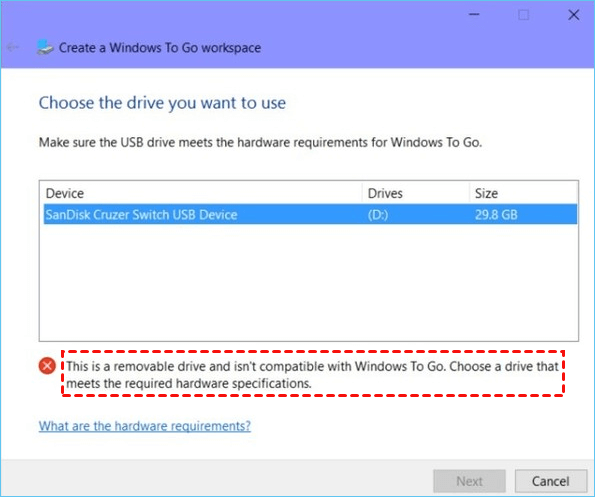
To proceed with the installation of Windows, the U disk must meet the hardware specifications required by Microsoft, allowing the "Next" button to be clicked without encountering an error message.
Step 3. Add a search location, search for the Windows 10 installation ISO file, and select the mounted ISO file.
Step 4. You can enable BitLocker Drive encryption on the Windows To Go workspace, protecting important data on the USB drive in the subsequent window.
Step 5. Windows will move the Windows 10 ISO to the target USB drive.
If your Windows computer won't boot from a USB drive, you can try checking this link for troubleshooting steps: https://support.microsoft.

Fix Windows (11/10/8/7) Won't Boot From USB Error
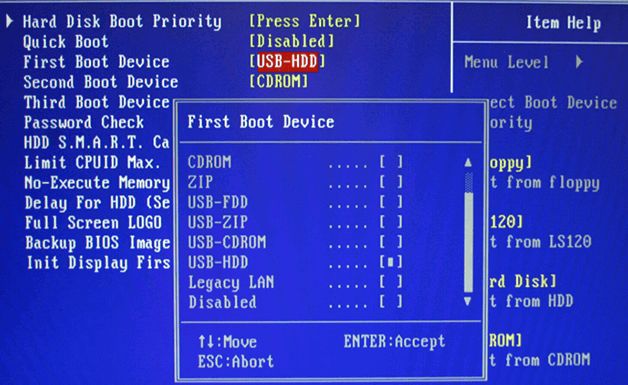
You can't boot from a Windows 10 bootable USB drive by default. To boot from a USB drive, you need to enable the "Secure Boot" option and set the USB drive as the first boot device in the BIOS settings. This can vary depending on your computer's manufacturer and model.
Final Verdict
Choosing the right tool to burn an ISO to a USB drive on Windows 10 can be a challenge, but Qiling Disk Master makes it easier, especially for new users.
This tool can create bootable USB using the present system and can help with various tasks such as transferring OS to SSD/HDD, allocating space from one partition to another, merging partitions into one, splitting a large partition into two smaller partitions, and converting MBR to GPT for Windows 11.
Burn ISO to USB on Windows 10 FAQs
In addition to the main content, we also gathered some bonus questions related to burning ISO files to USB flash drives. If you're interested, you can follow the link to find answers.
1. How do I burn an ISO to a USB drive?
With the help of Qiling Disk Master, which supports Windows 10/11/8/7/Vista/XP, it can be easy to follow the steps to complete the task.
Step 1. Prepare a USB and format it to FAT32.
Step 2. Download the Windows ISO file from the official website.
Step 3. Launch Qiling Disk Master and navigate to the "Bootable Media."
Step 4. After downloading the ISO image, select it on your PC and click "Open." Next, choose the target USB drive and click "Burn" to start the burning process.
2. Can I burn Windows ISO to USB?
To try Burn Windows ISO to USB, follow the guide below:
- Make a USB drive ready for ISO image burning: Prepare a USB and format the USB to FAT32.
- Download ISO burning software for help: Third-party software is recommended for creating a portable Windows environment, as the built-in tools like Windows To Go can be challenging for inexperienced users.
- Burn ISO to USB: Launch Qiling Disk Master and follow the guide to proceed with the process.
3. How do you put an ISO on a USB and make it bootable?
To put an ISO on a USB and make it bootable, start by downloading the ISO file you want to use and a USB creation software such as Rufus. Next, select the ISO file and the USB drive as the target device in the software, then choose the correct settings for your USB drive's type and size.
- To prepare a USB for use, format it to FAT32 and connect it to the PC.
- Download Qiling Disk Master and launch it, then navigate to the "Bootable Media" section.
- Select the ISO file to be burned and click Next.
- Choose the target USB drive and click "Burn" to start the process.
Related Articles
- Don't Miss Best FAT32 Formatter: Free FAT32 Format Tools Recommend
- Diskpart Has Encountered an Error Access Is Denied | How to Fix
- How Do I Securely Erase Hard Drive/SSD, Wipe Confidential Data? Your Reliable Guide Is Here
- How to Install Windows 10 to eMMC [Step-by-Step Guide]
- SFC SCANNOW Stuck – Fixed with 5 Ways
Have you ever encountered that SFC Scannow stuck? Click on this article and see how to fix it in different situations. - What Is the Easiest Way to Shred Files in Windows 10?
Are you concerned about data security? You can easily protect your sensitive information by securely shredding files on your Windows 10 computer. This simple method ensures that your confidential data is completely erased, leaving no chance of unauthorized access.
Products
Articles & Tutorials
- Data Recovery
- Data Backup
- File Recovery
- File Backup
- System Backup and Restore
- Disk and Partition Clone
- Technical articles
- Mobile articles
- Disk Master Help
- Windows Data Recovery Tutorials
- Windows Secure Delete Tutorials
- Windows Partition Management Tutorials
- Windows File Backup and Restore Tutorials
- Windows System Backup and Restore Tutorials
- Windows Disk Backup and Restore Tutorials
- Windows Clone Tutorials