Unable to Download Windows 11 ISO File? Why and How to Fix?
You may receive an error when downloading the Windows 11 ISO file online from Microsoft due to various factors, but you can properly download Windows 11 from an ISO file by identifying and addressing these issues.
| ⚙️Complex Level | Low, easy for beginners |
| 🕰️Duration | 3-8 minutes |
| 💡Fixes |
|
| 🔧Causes |
Insufficient disk space, internet connection, antivirus programs, etc. |
| 🖥️Applies to |
|
Let's read this article and learn how to fix this error.
Why Unable to Download Windows 11 ISO File
We usually download Windows 11 ISO files from Microsoft's official website, as this method is the safest and free from viruses and ads. The download links are valid for 24 hours after they are created.
Download errors can occur unexpectedly, resulting in an error message stating that certain users, entities, and locations are prohibited from using the service. There are several reasons why you might be unable to download the Windows 11 ISO from Microsoft to a PC, including insufficient disk space, internet connection issues, or interference from antivirus programs.
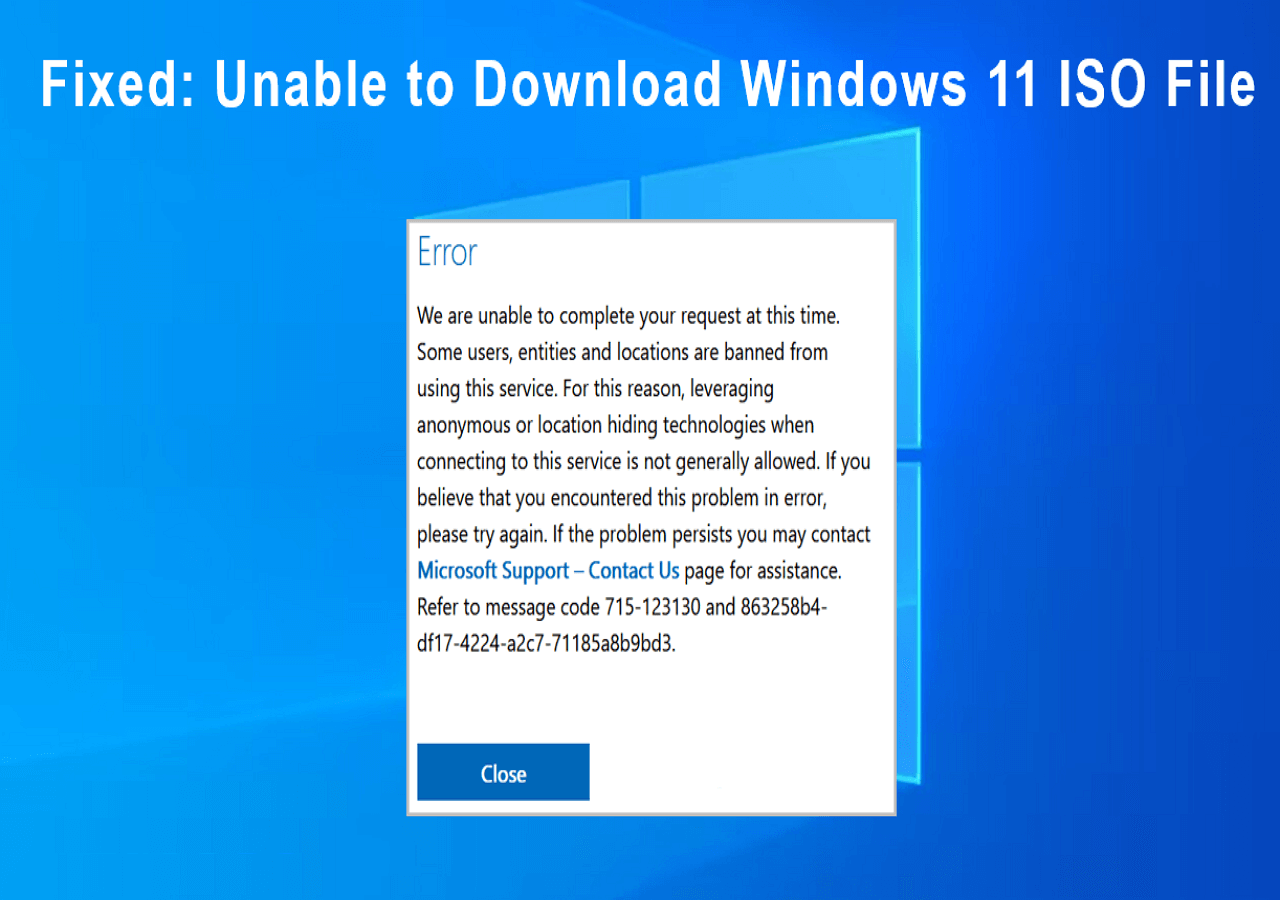
Fortunately, we've researched and found a fix that works, so if you're having download issues, take it easy and try the fixes below.
Six Fixes for Unable to Download Windows 11 ISO File Error
Here are six fixes to help you download Windows 11 ISO file and avoid download errors:
Fix 1. Recheck Windows 11 System Requirements
To download Windows 11 ISO, visit the official Windows 11 download page, click "Download Windows 11 Disk Image (ISO)", and then click "Check system requirements before you begin" to ensure your computer meets the necessary specifications.
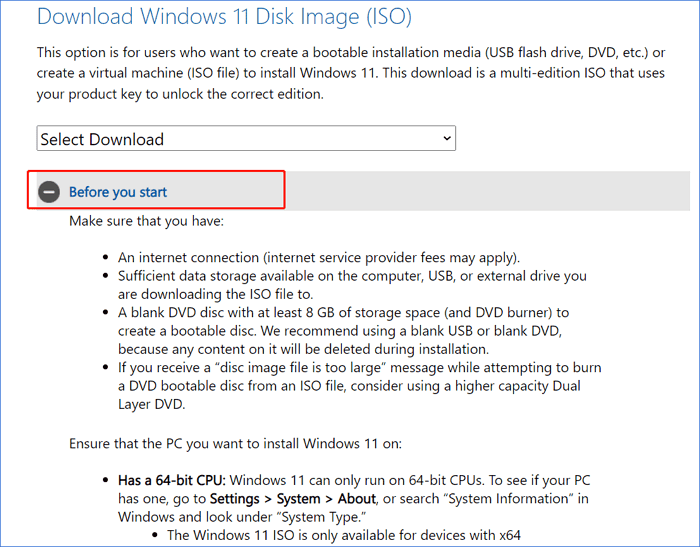
As shown, there are a few things you should be aware of:
- 💡A stable internet connection.
- 💡A DVD or USB drive with at least 8GB of disk space.
- 💡To download the Windows 11 ISO file, ensure you have enough data storage space on your PC, USB, or other external drive.
Read Also: How to Boot From USB on Windows 11
Fix 2. Disable Third-Party Antivirus Software
Sometimes, your third-If you're having trouble downloading the Windows 11 ISO from Microsoft, try uninstalling or disabling your antivirus software, as it may be blocking the download.
Step 1. Hit the Windows key in the taskbar and enter "Settings."
Step 2. To access the Apps & Features tab, go to Settings, then choose Apps, and finally select the Apps & Features tab.
Step 3. Locate the antivirus tool in the Apps section and right-click on it.
Step 4. Select Uninstall from the options and confirm the uninstall.
Note that: The method of disabling a product varies depending on the product itself. You can search for the corresponding method on the internet.
Fix 3. Disable VPN
Microsoft will ban the IP or service from accessing its content if a VPN service is abused, so to download the Windows 11 ISO file, disable the VPN and try again.
Step 1. Launch the Settings feature on Windows.
Step 2. Click the Network and Internet option.
Step 3. Select the VPN category in the left menu.
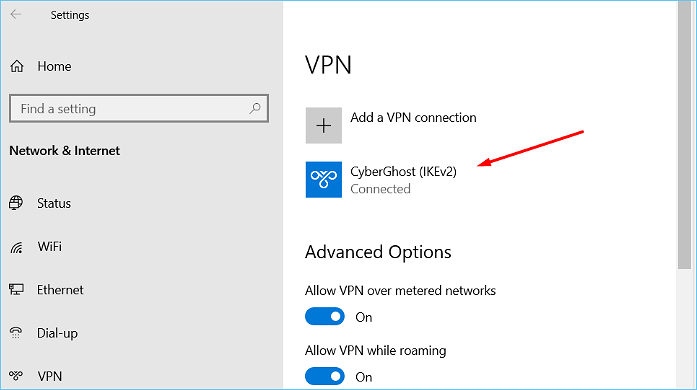
Step 4. Select the VPN connection to disable it.
Step 5. Click Disconnect or Remove it based on your needs.
- Disconnect - Disconnect
- Remove - Delete
Fix 4. Prepare a USB with Enough Space
To create a Windows 11 installation media, ensure the target USB or external hard drive has at least 8GB of free space to hold the Windows 11 ISO file. For USB flash drives, use blank ones, and check that the file system is NTFS, not FAT32, to avoid issues with large files. You can format the USB drive to NTFS using Qiling Disk Master, which also wipes the drive for free.
Step 1. Launch Qiling Disk Master, right-click the partition you intend to format and choose "Format".
Step 2. In the new window, enter the partition label, select the desired file system (FAT32/EXT2/EXT3/EXT4), and set the cluster size according to your needs, then click "Proceed".
Step 3. You will see a warning window, click "Yes" to start formatting the partition to FAT32/EXT2/EXT3/EXT4 after clicking "Yes" in it.
This tool can manage a USB, performing various tasks such as the tasks below.
Fix 5. Try Another Web Browser
If you encounter a download error while downloading the Windows 11 ISO from Microsoft using a particular web browser, you can try downloading it using a different web browser. This might resolve the download issue.
Fix 6. Disable Browser Extensions
Temporarily disabling browser extensions can resolve Windows 11 ISO download errors, allowing you to complete the download and then re-enable the extensions afterwards.
You can share this article to help others who are also unable to download Windows 11 ISO files. The issue seems to be related to the Microsoft website's inability to handle a large number of requests, causing the download link to be unavailable.
Conclusion
If you're having trouble downloading the Windows 11 ISO to your PC, try these solutions to fix it. Once resolved, you can create a bootable Windows 11 drive to install the new operating system on your computer. You can also use tools like Qiling Disk Master to burn the ISO to a USB drive and make it bootable. This can be helpful if you need a tool for this specific task.
Unable to Download Windows 11 ISO File FAQs
Here are some other issues you may like to learn about:
1. Create Windows 11 Installation Media VS download Windows 11 disk image? Which is easier?
The two methods, Creating Windows 11 Installation Media and Download ISO, serve different purposes and have their advantages. Creating Windows 11 Installation Media is ideal for users who plan to reinstall or clean-install Windows 11 on a new or used PC, as it allows for a straightforward installation process. On the other hand, Download ISO is more suitable for users who want to create a bootable installation media (USB or DVD) or a virtual machine (.ISO file) to install Windows 11, providing greater flexibility and customization options.
2. Why can't I download Windows 11 ISO file?
To resolve the Windows 11 ISO file download failure, check your VPN settings, available disk space, USB file system, and other potential factors. For instance, the Windows 11 ISO file requires an NTFS-formatted USB with more than 8 GB of disk space, and VPN or antivirus software may also interfere with the download.
3. How do I download Windows 11 from an ISO file?
Right-To install Windows 11, click the ISO file, select Mount, and then double-click on the disk to view the files. Next, double-click on the setup.exe file to begin the installation process.
Related Articles
- [Fixed] No Boot Disk Has Been Detected or The Disk Has Failed
- Fixed: File System Check Exit Code Is 8 | Multiple Plans
- (4 Solutions) How to Fix Windows 7 Startup Repair Not Working
- Clean C Drive without Formatting in Windows 10/8/7 [Tested & Worked]
- Should I Install Steam on SSD? 2023 Full Guide Here!
This article provides guidance on whether to install Steam on an SSD or HDD, and tips on improving Steam's SSD performance. - Show Hidden Partition Using Command Prompt [100% Working Solutions]
Show a hidden partition with Command Prompt or Qiling Partition Master, and manage hidden disk partitions more easily.
Products
Articles & Tutorials
- Data Recovery
- Data Backup
- File Recovery
- File Backup
- System Backup and Restore
- Disk and Partition Clone
- Technical articles
- Mobile articles
- Disk Master Help
- Windows Data Recovery Tutorials
- Windows Secure Delete Tutorials
- Windows Partition Management Tutorials
- Windows File Backup and Restore Tutorials
- Windows System Backup and Restore Tutorials
- Windows Disk Backup and Restore Tutorials
- Windows Clone Tutorials