Fixed: File System Check Exit Code Is 8 | Multiple Plans
| Workable Solutions | Step-by-step Troubleshooting |
|---|---|
| To fix the file system check exit code 8 on an external hard drive, first, safely eject the drive from your computer. Then, physically unplug it from your power source and any USB ports. |
|
| To fix the File System Check Exit Code Is 8 on Macintosh HD, you can try running the Disk Utility tool in Recovery Mode. This will allow you to repair any disk errors and potentially resolve the issue. |
... |
What Causes File System Check Exit Code Is 8
A file system check is a process that runs on your system to prevent minor issues from becoming severe. It can be done automatically when the system boots, and it's essential to understanding the File System Check Exit Code Is 8 error. This error occurs when the file system check encounters an issue that prevents it from completing successfully, resulting in an exit code of 8. Understanding file system checks is crucial to addressing this error and resolving the underlying issue.
When running First Aid on a Mac, users may encounter an error message stating "File System Check Exit Code Is 8" on external hard drives and Macintosh HD. This issue can be resolved by running the First Aid tool in Mac Disk Utility to check the disk and repair minor errors, potentially resolving the error code 8 issue.
The File System Check Exit Code Is 8 error can be caused by various factors, including corrupted system files, incorrect file system settings, or issues with the disk itself, such as bad sectors or disk errors. Additionally, malware or viruses can also trigger this error, as well as user errors, such as accidentally deleting system files or modifying file system settings. Furthermore, hardware issues, such as a failing hard drive or a faulty disk controller, can also cause this error.
- ❌Sometimes, the cause of the error is wrong configurations, so you can revisit the settings and set it up accordingly.
- 👿A virus or malware attack can also cause file corruption, resulting in this error.
- 💽Out-Outdated drivers can also cause this error, as they may be incompatible with the system, leading to the error message.
- 🛠️A bad sector on a storage disk can cause the File System Check Exit Code Is 8 error. This occurs when there are unreadable parts in a disk, leading to the error.
- 📑Corruption in the file directory within the drive can also be another cause of the error.
To resolve the File System Check Exit Code Is 8 error, you can try running the chkdsk command with the /f option to fix the issue. If the issue persists, you can try running the command with the /r option to attempt to recover data from the problematic area.
How to Recover Data from Storage Drive with Software
Data loss can occur after encountering the Fix File System Check Exit Code Is 8 error, but with professional data recovery software, you can retrieve lost data. This means that even in cases where data loss does occur, it's not a cause for concern, and your important information can be recovered.
You can use Deep Data Recovery to retrieve data with ease. This tool can restore various data types, including music files, videos, emails, photos, documents, and more. It also supports data recovery from multiple Mac-based devices, such as SSD, HDD, memory card, and fusion drive.
Deep Data Recovery for Mac allows you to recover lost data from various scenarios, including accidental deletion, partition loss, formatting, repartitioning, system crashes, and virus attacks.
Deep Data Recovery
- Need to recover deleted files on your Mac? Don't worry, it's possible to retrieve deleted documents, photos, audio, music, and emails effectively.
- To recover data from an external hard drive, Mac, memory card, flash drive, digital camera, or camcorder, follow these steps: 1) Stop using the device immediately to prevent overwriting of data. 2) Use a data recovery software such as Disk Drill, Data Rescue, or Deep Data Recovery to scan the device for recoverable files.
- On a Mac, corrupted files can be caused by various situations such as hard drive corruption, virus attacks, and system crashes. In such cases, repairing corrupted files is crucial to recover lost data and prevent further damage.
To use Deep Data Recovery for Mac, simply follow these easy steps. The tool allows you to recover lost data, and with these steps, you can get started right away.
Step 1. Select the location to scan
Launch Deep Data Recovery for Mac, select the device where data was lost, and click "Search for lost files" to initiate scanning.
Note: Before attempting data recovery, it's a good idea to click "Disk Backup" from the left sidebar to create a backup of your Mac, which can help prevent further data loss. Once backed up, the software can then recover data from the Mac backup, allowing your computer to write new data again.

Step 2. Filter lost Mac data
The software automatically scans MacBooks and iMacs for lost data. After the scan is complete, users can filter and retrieve the desired data by selecting the "Type" and "Path" buttons.

Step 3. Recover lost data or files
Double-To recover lost data, click on a file to preview it, and then click the "Recover" button to restore the lost data to a desired location.

Fix File System Check Exit Code Is 8 on External Hard Drive
If you have encountered this file system check issue on an external hard drive, you have three methods to fix this error. Keep reading to learn more, and you can share the tutorials on your social media:
1. Run First Aid in Recovery Mode to Fix the File System Check Exit Code Is 8
To repair your Mac disk using the First Aid feature, open Disk Utility, select the disk you want to repair, and click the "First Aid" button. This will check and repair any issues with the disk's formatting and directory structure, helping to resolve issues like File System Check Exit Code Is 8 on your external hard drive.
Step 1. Open Applications.
Step 2. Select the Utilities folder.
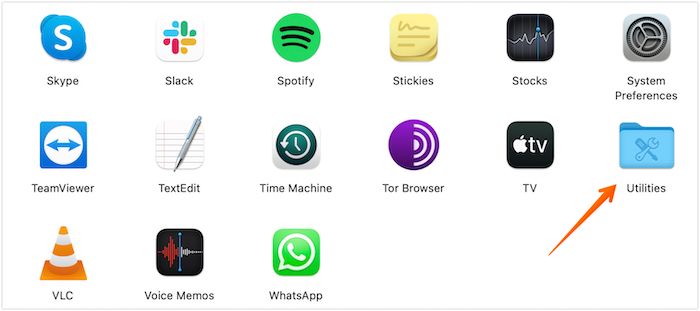
Step 3. Choose Disk Utility.
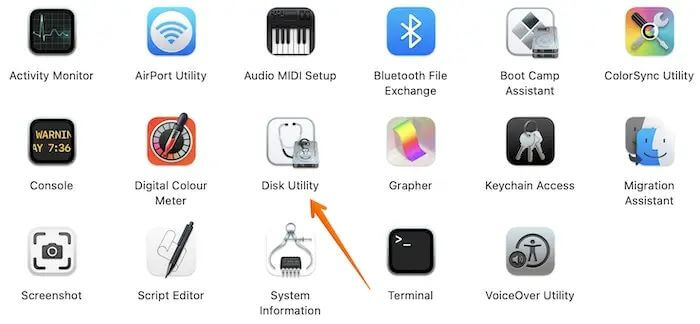
Step 4. Pick the corrupted drive.
Step 5. Choose First Aid.
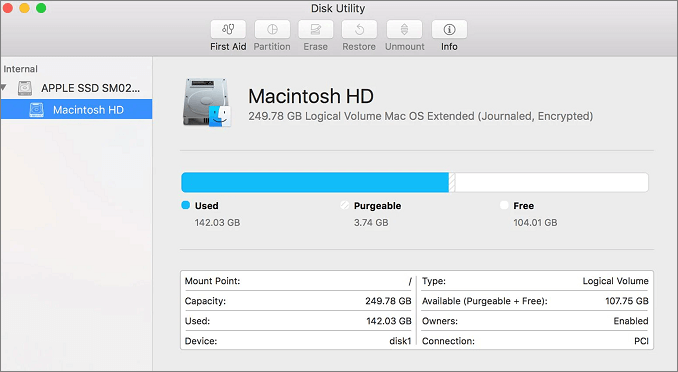
Step 6. Select Done.
Step 7.To restart your MacBook Pro/Air, press the power button until the computer turns off, then press it again to turn it back on. Alternatively, you can restart it by going to the Apple menu, selecting Restart, and following the on-screen instructions. If you need to open Disk Utility in Recovery Mode, you can do so by restarting your MacBook Pro/Air and immediately holding down the Command (⌘) + R keys.
2. Update Outdated Applications on Mac to Fix File System Check Error
Upgrading outdated apps can resolve the File System Check Exit Code Is 8 error, which can be resolved by checking for updates and installing the latest versions of affected software.
Step 1. Click on the Apple Menu.
Step 2. Choose App Store.
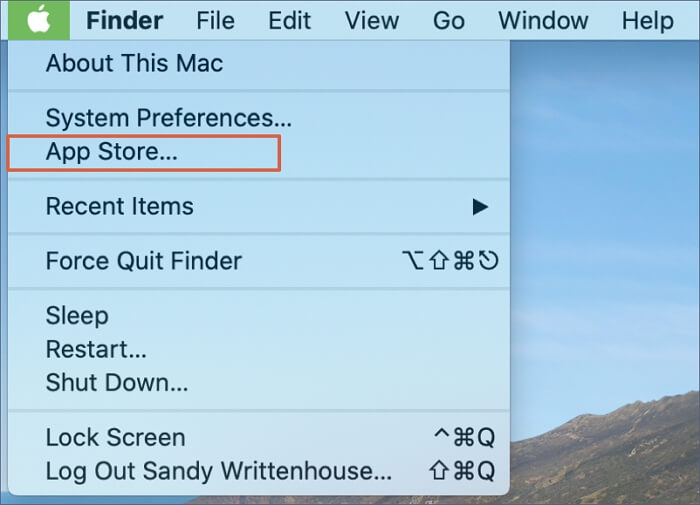
Step 3. Select Updates.
Step 4. Take a look at the updates available.
Step 5. Please choose the ones you want or click on Update All button.
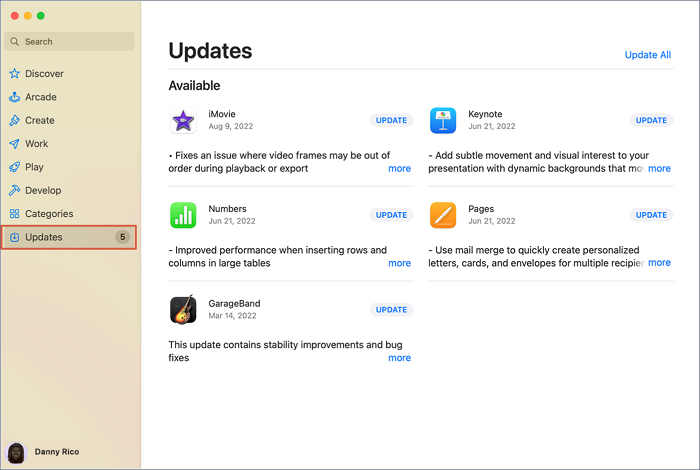
To update your Mac, you can follow the steps outlined in this tutorial, which will guide you through the process of ensuring your computer is running with the latest software and security patches.
3. Reformat External Hard Drive to Solve File System Check Exit Code Is 8
To resolve the error, erase or reformat the external hard drive by following these steps:
Step 1. Open Disk Utility.
Step 2. Choose the external hard drive you want.
Step 3. Select the Erase button.

Step 4. Enter name and file system type.
Step 5. If you've accidentally erased the wrong hard drive on your Mac, don't panic. You can try to recover your data using a data recovery software or by booting from a recovery mode and using the built-in Disk Utility. If you're unable to recover your data, you may need to reinstall macOS from the Recovery Mode or contact Apple Support for further assistance.
Fix File System Check Exit Code Is 8 on Macintosh HD
If you encounter the file system check exit issue on the Mac startup disk, you can resolve the error using five different methods, which include running the Disk Utility, booting in Safe Mode, booting from a different startup disk, booting from a recovery mode, and reinstalling macOS.
1. Reboot Your Mac Device to Troubleshoot Problems
To troubleshoot the error, start by restarting your Mac. This will remove temporary files, caches, and preferences generated by your system, allowing it to reset and potentially resolve the issue with a simple reboot. If the error persists, further troubleshooting steps may be necessary.
Step 1. Click the Apple menu.
Step 2. From the drop-down menu, choose "Restart" to restart MacBook Air.
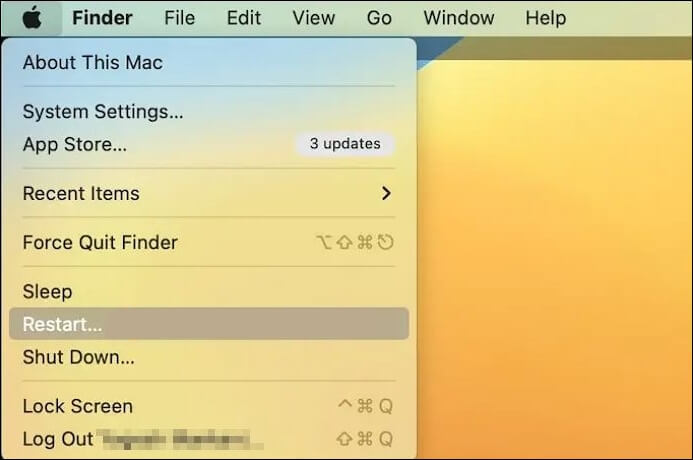
Step 3. Wait for the system to shut down and power on. Now, see if the error still happens.
2. Fix File System Check Exit Code Is 8 in Safe Mode
To enter Mac Safe Mode, follow these steps:
For Apple Silicon Macs:
Step 1. Turn off the system.
Step 2. Press and hold the power button till you come across the startup options. At that point, you'll see a list of options, including the ability to restart, shut down, or access the BIOS.
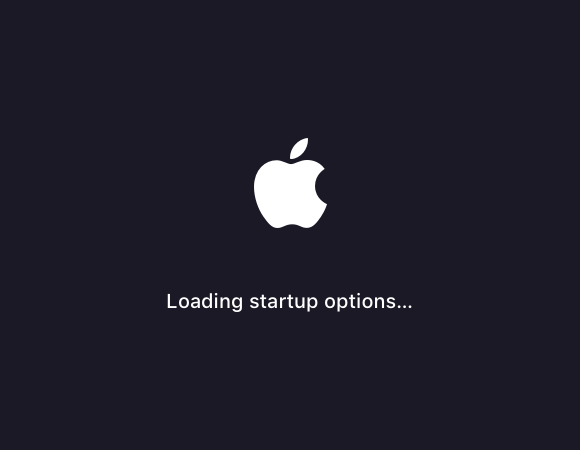
Step 3. Choose the startup disk.
Step 4. Now, press and hold the Shift key.
Step 5. Click Continue in Safe Mode.
For Intel-based Macs:
Step 1. Turn off the system.
Step 2. Please turn it on.
Step 3. At the same time, press and hold the Shift key.
Step 4. When the login screen appears, release the key.
Let the Safe mode check the disks, which may take time, and see if the error persists after it's done. If your Mac can't boot into Safe Mode, check the article on how to fix the problem.
3. Run First Aid in Recovery Mode to Fix the File System Check Error
To access Mac Recovery Mode, turn off your Mac, then press the power button while holding down the Command (⌘) + R keys. Once in Recovery Mode, select Disk Utility from the Utilities window and click Continue. Then, select your startup disk and click the Erase button to run First Aid. If the issue persists, select Reinstall macOS and follow the prompts to reinstall macOS.
Step 1. Enter the macOS Recovery Mode.
Step 2. Wait for the macOS Utilities window to appear.
Step 3. Choose Disk Utility.
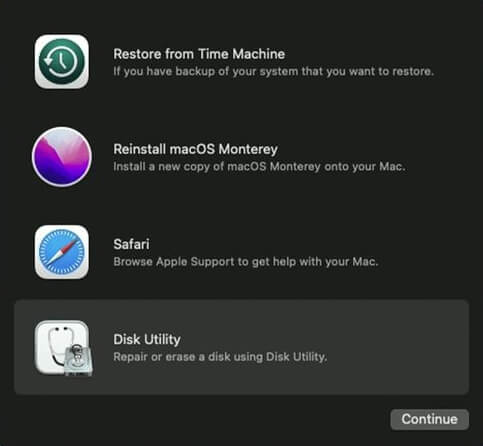
Step 4. Choose the disk with the error.
Step 5. Click on the First Aid button.
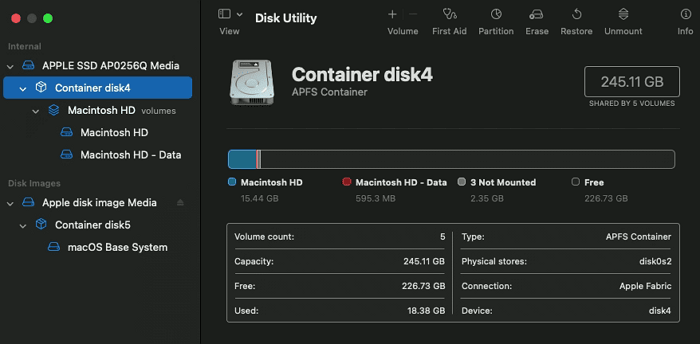
Step 6. Select Done.
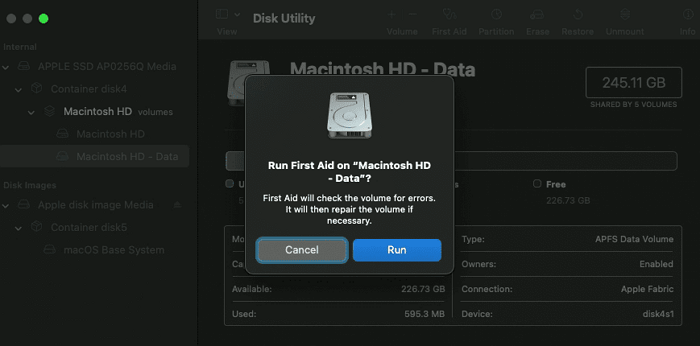
Step 7. Restart the system.
4. Run FSCK Command to Fix the File System Check Exit Code Is 8
If First Aid can't resolve the error, you can run the FSCK command. To do this, you'll need to enter Single User Mode, which can be done by holding the power button and immediately releasing it while booting your Mac. This provides access to the command line, where you can run the FSCK command. Alternatively, you can also restart your Mac and immediately hold the power button and the Command (⌘) + R keys to boot into Recovery Mode, and then select the "Terminal" option to access the command line.
Step 1. Turn off the system.
Step 2. To enter Single User Mode, press the Command and S keys simultaneously when you hear the boot sound. This will allow you to access and modify system files without being prompted for a password.
Step 3. Type fsck -fy.
Step 4. If you see the message "File system was modified", type the above command again. This will ensure that the file system is updated with the latest changes and the message will disappear.
Step 5. If you're getting the message "The volume (name) appears to be OK," it means that the volume you're checking is functioning properly and there are no immediate issues with it. This is a positive indication that the volume is working correctly.
Step 6. Type reboot.
Step 7. Boot the system normally.
5. Reinstall macOS on Mac Device to Troubleshoot This Error
One reason for File System Check Exit Code Is 8 error is damaged or corrupt system files. In that case, reinstalling macOS can help. Take a look at the steps here:
Step 1. Restart the system in macOS Recovery Mode.
Step 2. Choose the Reinstall macOS option in the macOS Utilities window.
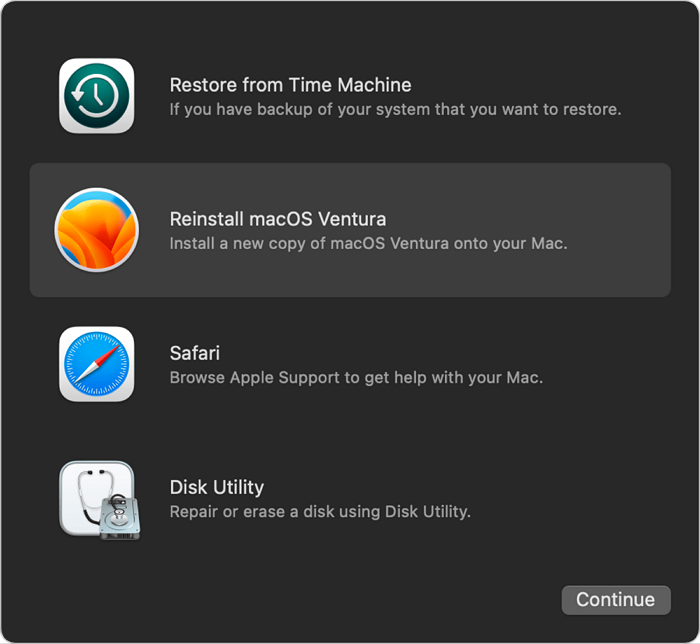
Step 3. Follow the instructions present on the screen.
When the macOS installation completes, check if the error is resolved. If this doesn't work, you need to contact Apple support.
Preventive Measures for File System Check Exit Code Is 8
Encountering the File System Check Exit Code Is 8 error can be frustrating, especially for new Mac users. Fortunately, there are preventive measures that can be taken to avoid this error from occurring in the first place. By adopting these measures, you can ensure a smoother and more efficient experience with your Mac.
To ensure your Mac runs smoothly, make sure it has enough power at all times and shuts down normally in case of unexpected outages. Additionally, install anti-virus software immediately to safeguard your system against malicious attacks.
Conduct check-Regularly check and fix minor issues to prevent them from becoming major problems. Also, keep apps up-to-date to ensure you have the latest security patches. Lastly, prioritize backing up critical data to prevent data loss.
Bottom Line
Mac users have reported facing the File System Check Exit Code Is 8 error, which can be caused by various reasons such as viruses, corrupted file directories, or outdated drivers. Despite the frustration, there are several solutions available to resolve the issue.
You can run First Aid or update the apps for external hard drives, or reboot the system, run First Aid, and use the FSCK command for Macintosh HD. Keep in mind that data loss can occur, so it's a good idea to use Deep Data Recovery for Mac if that happens.
Check out Deep Data Recovery for Mac today!
File System Check Exit Code Is 8 FAQs
What is the File System Check Exit Code Is 8 error and how is it caused?
1. How to fix a corrupted hard drive on Mac?
To fix a corrupted hard drive on Mac, open the Disk Utility app, select the volume, choose First Aid, click Run, and follow the on-screen instructions.
2. How to fix the file system check exit code is 8?
To fix the file system, check the exit code is 8, and restart the system. Run First Aid in recovery mode, erase the drive, and reinstall macOS from the Utility window.
3. Why did I encounter the file system check exit code is 8?
Several reasons can cause the file system check exit code 8 error, including malware attacks, out-of-date drivers, incorrect system settings, and bad sectors on the storage space.
4. How to recover lost files after fixing the file system check exit code is 8?
If you've encountered a file system check exit code of 8, you can recover lost files, especially if you have a backup. However, if you don't have a backup, professional data recovery software like Deep Data Recovery for Mac can be a viable option. This software can efficiently recover lost files after fixing the file system check exit code is 8.
Related Articles
- 4 Ways to Open Microsoft Management Console [2023 Step-by-Step Guide]
- How to Fix Windows Boot Manager Boot Failed [Full Guide]
- How to Fix "Disk Showing as Raw Instead of NTFS" [2 Methods]
- How to Fix "the Archive Is Either in Unknown Format Or Damaged" [100% Working Solution]
- What Is An Expansion Card? (One-Stop Info Collection)
This post provides a comprehensive guide to expansion cards, covering what they are, their physical appearance, functions, and common types. By reading this one-stop information collection, you'll gain a thorough understanding of expansion cards and their role in computing systems. - What Is APFS Format? [Full Information]
APFS (Apple File System) is a modern file system developed by Apple for its operating systems. It works by storing data in a hierarchical structure, with files and folders organized in a tree-like fashion.
Products
Articles & Tutorials
- Data Recovery
- Data Backup
- File Recovery
- File Backup
- System Backup and Restore
- Disk and Partition Clone
- Technical articles
- Mobile articles
- Disk Master Help
- Windows Data Recovery Tutorials
- Windows Secure Delete Tutorials
- Windows Partition Management Tutorials
- Windows File Backup and Restore Tutorials
- Windows System Backup and Restore Tutorials
- Windows Disk Backup and Restore Tutorials
- Windows Clone Tutorials