How to Format Hard Drive from BIOS in Windows [2024 How-to Tutorial]
Formatting a hard drive from BIOS can be a straightforward process with the right steps. To start, ensure your computer is turned off and then press the power button to enter the BIOS settings. Look for the "Boot Order" or "Boot Priority" section and change the boot order to prioritize the hard drive you want to format. Save the changes and exit the BIOS settings. Then, insert the installation media (such as a USB drive or CD/DVD) and follow the on-screen instructions to format the hard drive.
Can I Format Hard Drive from BIOS
You cannot format a hard drive directly from the BIOS settings, but you can create a bootable USB/CD/DVD and use it to format the hard drive from there.
How Can I Format Hard Drive from BIOS
Formatting or wiping a hard drive from BIOS in Windows 10 may be necessary in situations such as reinstalling Windows, removing malware, or preparing a hard drive for sale or donation.
- To completely wipe a hard drive on a dead PC, you'll need to take it to a professional data destruction service or a reputable computer repair shop. They will have the necessary equipment and expertise to safely and securely erase all data on the hard drive.
- To reset a hard drive ready to install Windows from BIOS.
- To format a hard drive without OS on a computer.
- To format hard drive on an unbootable computer.
- Format a hard drive that won't boot.
- Format system hard drive.
- Important
-
Disk formatting in Windows is a process of cleaning up a storage device, such as a hard drive, USB, or SD card, by removing all existing data. Before proceeding, it's essential to back up any essential data from the target hard drive to another secure location to avoid losing important information. This ensures that your data is safe and secure once the formatting process is complete.
To format a data drive, you can follow the link for Windows 10 formatting instructions. If your computer is unbootable, you can learn how to backup files without booting into Windows 10.
To format a hard drive from the BIOS, you can use the Qiling bootable USB format tool to create a bootable media and format your hard drive from the WinPE desktop. This is the most efficient way to do so. The tool allows you to create a bootable USB drive with a WinPE environment, which can then be used to format the hard drive. This approach provides a graphical interface and is more user-friendly compared to formatting from the BIOS directly.
3 Ways to Format Hard Drive from BIOS
Here is a comparison table and you can follow it to learn which method suits you better:
| Hard Drive Formatting Tools | Tools Required | Complex Level |
|---|---|---|
| Qiling Bootable USB Format Tool |
|
Easy, for beginners. |
| Command Prompt |
|
Complex, for experienced users. |
| Windows Installation Process |
|
Complex, for experienced users. |
Windows beginners are best suited to try Qiling bootable USB format tool, making it a good starting point. To proceed, let's delve into the details of formatting a hard drive or SSD in the BIOS settings.
For Method 2 and Method 3, you'll need to create Windows Installation Media on a USB drive beforehand. You can find a detailed guide on how to do this on a separate page.

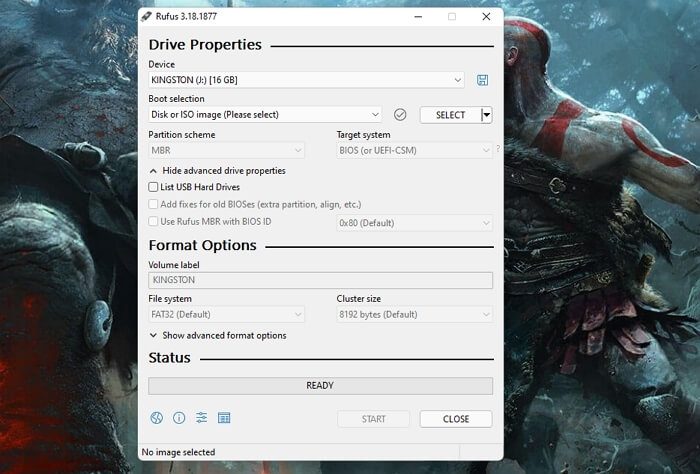
How to Create Windows 10 Installation USB Drive
The Media Creation Tool is the official and most obvious way to create Windows 10 installation media. Using it allows you to install Windows, repair your computer, or even format your hard drive from a bootable USB.
Method 1. Format Hard Drive from BIOS with Qiling Bootable USB Format Tool
- Suitable for: Windows beginners
- Supported OS: All Windows operating systems
- Tools needed: An empty USB, Qiling Disk Master
To format a hard drive from BIOS, using third-party software like Qiling Disk Master is the simplest solution. This software's WinPE feature allows you to create a bootable USB that enables you to format any type of hard drive without needing to boot into Windows.
To directly format a hard drive from BIOS, you can follow these steps:
1. Create Bootable USB Format Tool
Step 1. To create a bootable disk of Qiling Disk Master, prepare a storage media such as a USB drive or CD/DVD disc, and connect it to your computer.
Step 2. Launch Qiling Disk Master, and find the "Bootable Media" feature on the left. Click on it.
Step 3. You can choose to save the ISO file to a USB, CD, or DVD when the drive is available. Alternatively, if you don't have a storage device handy, you can save the ISO file to a local drive and burn it to a storage media later. Once you've made your choice, click the "Create" button to start the process.
- Check the Warning message and click "Yes".
Step 4. When the process finishes, a pop-up window will appear, asking if you want to restart your computer from the bootable USB.
- Reboot Now: You want to restart the current PC and enter Qiling Bootable Media to manage your disk partitions without an operating system.
- Done: You want to use the bootable USB on a new PC, not restart the current one.
Note: To use the bootable disk on a new PC, simply restart the target computer, press F2/F8/Del key to enter BIOS, and set the USB bootable disk as the first boot disk.
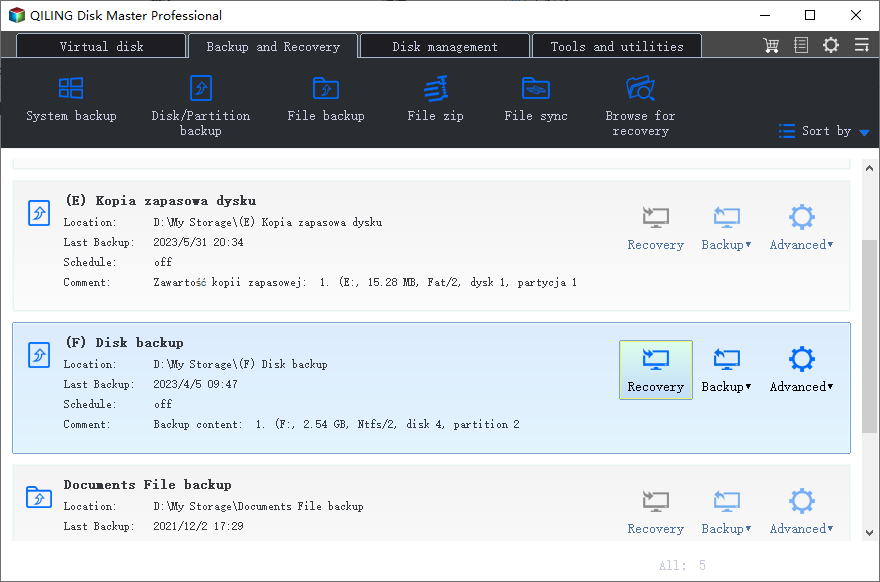
Your computer will automatically boot up from the USB bootable media and enter Qiling WinPE desktop once you wait patiently.
2. Format Hard Drive from BIOS
Connect your bootable USB to your PC, restart the computer, and press F2/Del to enter the BIOS. In the BIOS, set the bootable USB as the boot drive, then wait for the computer to boot into Qiling Disk Master, where you can format the drive.
Step 1. Run Qiling Disk Master, right-click the hard drive partition you intend to format and choose "Format".

Step 2. In a new window, configure the partition label, file system (NTFS, FAT32, EXT2, EXT3, EXT4, or exFAT), and cluster size for the partition to be formatted.

Step 3. To initiate the partition formatting process on your hard drive, click the "Proceed" button. This will start the formatting process, which will erase all data on the selected partition.

Step 4. Then you will see a warning window, click "Yes" in it to continue.
What Else Can You Do with Qiling Bootable USB Format Tool?
You can manage your computer's hard drive and data using the Qiling Bootable USB format tool, which allows you to format the hard drive from BIOS, alongside other operations such as managing the computer hard drive and data.
- Format HDD or format SSD without Windows
- Convert MBR to GPT without Operating System
- Clone hard drive without booting into Windows
- Format C drive in C drive, without booting into Windows
- Wipe hard drive from BIOS
If you have any of the demands like deleted or lost files, system crashes, or corrupted data, you can use Qiling Disk Master to help you recover or repair your data with its featured functions.
Method 2. Format Hard Drive from BIOS Using Command Prompt
- Suitable for: Sophisticated Windows users
- Supported OS: All Windows operating systems
- Tools needed: A bootable USB created with Windows Installation Media
When the OS is working, you can format a hard drive using the Diskpart command "format fs=ntfs quick". However, if you can't boot the computer, you'll need to use a Windows installation USB drive to execute the operation.
Here are the steps to format the hard drive from BIOS using Command Prompt:
Step 1. Connect a bootable USB drive to your PC, then restart the PC and press F2 to enter the BIOS settings.
Step 2. To start the Windows installation process, you need to enter the BIOS settings, set the USB drive as the primary boot device, and then wait for the Windows installation media to load and open.
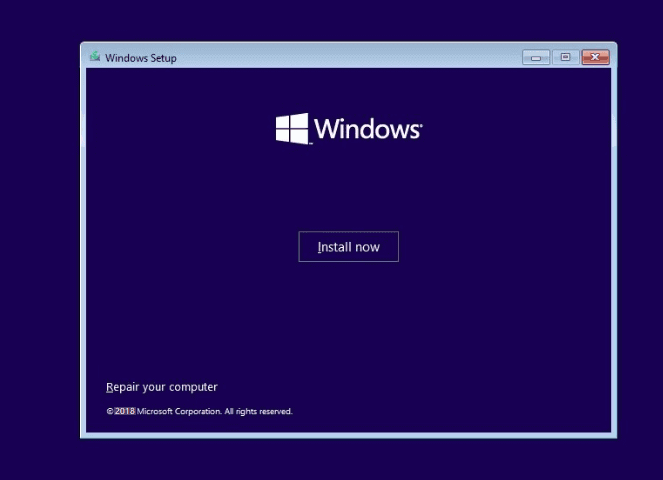
Step 3. Click "Repair your computer" on the Install new window.
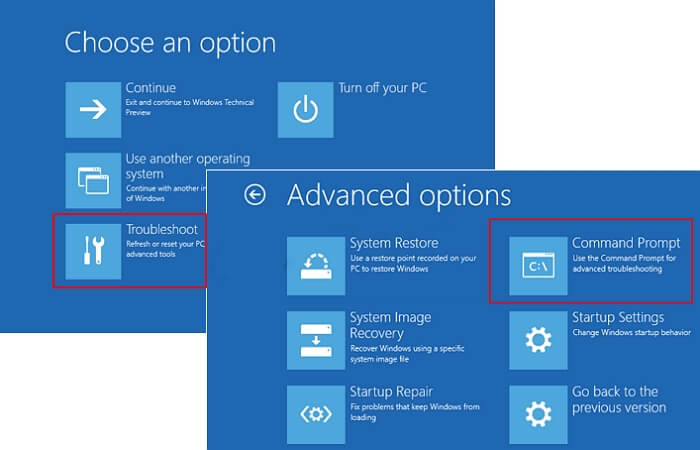
Step 4. To access the Command Prompt on the Advanced options screen, follow these steps: Go to Troubleshoot, and select "Command Prompt" on the Advanced options screen. This will open a Command Prompt window where you can execute various commands to troubleshoot and repair your Windows installation.
Step 5. To start formatting your hard drive volumes from BIOS, open the command prompt and type the following command lines:
- diskpart
- list volume
- exit
- dir C: If your system drive isn't labeled as C, replace it with D, E, or F until you find the OS drive. For example, if your system drive is labeled as D, use D instead of C in the commands. If your system drive is labeled as E, use E instead of C.
- format C: /fs:NTFS (Replace C: with other drive letters on the hard drive you want to format.)
- Y
Repeat the process until you complete formatting all existing partitions on the hard drive using the command prompt in BIOS.
Method 3. Format Hard Drive from BIOS During Windows Installation Procedure
- Suitable for: Sophisticated Windows users
- Supported OS: All Windows operating systems
- Tools needed: A bootable USB created with Windows Installation Media
This method is designed for users who need to reinstall their computer with Windows installation media. If you're one of them and need to format a hard drive in BIOS for reinstalling Windows, you can download Windows ISO and create Windows installation media to a USB drive first.
To format the hard drive from BIOS, follow these steps: Enter the BIOS settings by pressing the designated key (usually F2, F12, or Del) when your computer starts, then locate the "Boot" or "Boot Order" section
Step 1. Connect a bootable USB drive to your PC, restart the PC, and set it to boot from the USB drive.
Step 2. Click "Install now" on the setup window.
Step 3. Skip Windows Product Key and License Terms settings, and select "Custom: Install Windows only (advanced)".
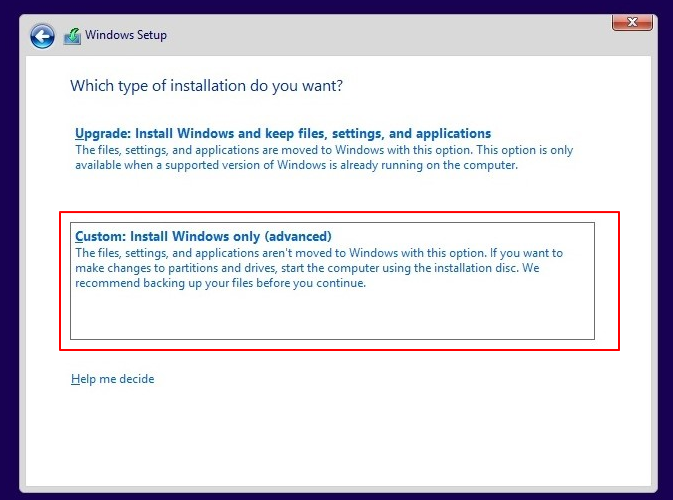
Step 4. Select the existing partitions on your target hard drive one by one, and click "Format" to erase the data and prepare the drive for new partitions.
Step 5. To confirm formatting the selected partition on your target hard drive, click "OK".
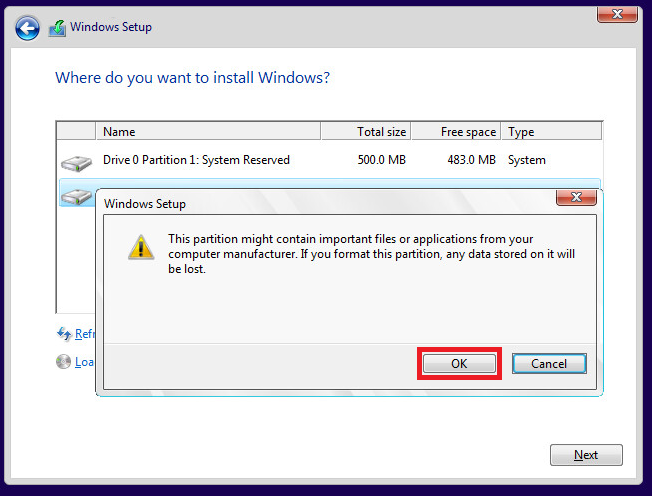
Repeat the process until you complete formatting all the hard drives on your computer.
If you don't want to complete installing Windows on your hard drive, you can stop the process after formatting all existing partitions on your hard drive from BIOS.
The information provided above is a summary of the topic. If you found this information helpful, please consider sharing it with others who may benefit from it.
Formatting Hard Drive from BIOS Is Complex, And You Can Make It As Easy As 1-2-3
Many people need to format their hard drives from BIOS due to system failure, unknown reasons, or other issues that prevent them from accessing their operating system.
Formatting hard drives from BIOS settings can be complex, and many Windows beginners may need to seek professional help. However, a reliable third-party tool like Qiling Disk Master can simplify the process. By creating a bootable USB format tool using Qiling Disk Master, users can easily format their disks directly from BIOS settings, making it a more accessible and user-friendly option.
For experienced users, trying the Command Prompt method mentioned above is recommended, as it is simpler compared to the Windows installation procedure.
FAQs About Formatting Hard Drive From BIOS
If you still have questions on this, refer to the answers listed below.
1. How do I wipe my hard drive from BIOS?
To wipe a hard drive from BIOS, create a bootable USB with Qiling Disk Master WinPE Creator, boot the PC from BIOS, and select "Wipe Disk" in Qiling Disk Master to start wiping the hard drive.
2. How do I completely format a hard drive?
- Before taking any action, make sure to back up all important data to another secure location, ensuring that your critical information is protected in case of any unforeseen events.
- Second, open Disk Management.
- Right-click on each partition on the disk and select "Format...".
- Set the file system format to the desired option, then tick the box next to "Perform a quick format" and click "OK" to confirm the changes.
- Format all existing partitions on the hard drive by repeating the process until all partitions are formatted.
3. How do I format a hard drive that won't boot?
If your hard drive won't boot, you can try formatting it using Qiling Disk Master, a tool recommended on this page, following the method described. Alternatively, you can refer to Method 1 for assistance.
To resolve the issue, you can try removing the hard drive from your computer and connecting it to another healthy computer. From there, you can use the Disk Management tool to format the hard drive. This can help restore the drive to a working state and potentially resolve any issues that were causing the problem.
Related Articles
- Fix High RAM Memory Usage Issue on Windows 11/10 [10 Practical Fixes]
- How to Resize Encrypted Partition in Windows 10/11 [Step-by-Step Guide]
- Sony VAIO Boot Menu: Everything You Should Know
This guide will introduce the Sony VAIO boot menu and Sony BIOS key, allowing you to easily boot Sony VAIO from USB drives. - How to Speed Up Computer Performance in Windows 11/10/8/7 [Step-by-Step Guide]
This article provides a guide on how to speed up computer performance in Windows 11/10/8/7, addressing the issue of computers running slow. A professional tool is also introduced to help extend your partition, which is a key solution to resolving computer performance issues. - Partition Magic Server 2003 Free Download for Windows Server 2003 [How-To Guide]
This page offers a reliable and official download of Partition Magic Server 2003 software for Windows Server users, providing access to disk partitioning and resizing volume capabilities. - Download Partition Magic Server 2008 (R2) to Manage Server 2008 Disk Partition Safely
This page offers a reliable and effective Partition Magic Server 2008 software that enables safe management of disk partitions on Windows Server 2008 and Server 2008 R2.
Products
Articles & Tutorials
- Data Recovery
- Data Backup
- File Recovery
- File Backup
- System Backup and Restore
- Disk and Partition Clone
- Technical articles
- Mobile articles
- Disk Master Help
- Windows Data Recovery Tutorials
- Windows Secure Delete Tutorials
- Windows Partition Management Tutorials
- Windows File Backup and Restore Tutorials
- Windows System Backup and Restore Tutorials
- Windows Disk Backup and Restore Tutorials
- Windows Clone Tutorials