Windows 7 Password Reset Tools - Top 5 Checklist
The need for reliable and effective password recovery solutions is evident in today's computing environment, particularly in critical scenarios where a user is locked out of a Windows 7 system. In such situations, password recovery and resetting utilities can be the only solution available, making them a crucial tool for resolving user lockouts without compromising security.
When selecting the best password recovery application, several factors come into play. The application should be able to recover a wide range of password types, including those for various software applications, email accounts, and online services.
Operational difficulty, security, compatibility, and application efficiency.
When selecting a Windows 7 Password reset tool, consider the following factors: ease of use, compatibility with your system, and the level of password recovery complexity. A user-friendly interface will make the process smoother, while ensuring the tool is compatible with your Windows 7 version is crucial.
Overview: Windows 7 Password Reset Tools
Once we have zeroed in on the essential considerations while choosing the perfect Password reset tool, we will explore the ones that fit the framework. In this section, we present our readers with the most effective Password Recovery Solution; we navigate the strengths and weaknesses of each tool, empowering our users to make an informed choice. Hence, I request you to please share, read, and share the article to maximize the dissemination of the information.
The table provides a concise comparison of the best available tools based on the deciding factors in their adoption, presenting features such as ease of use, customization options, and compatibility with various systems, as well as their respective pros and cons.
| Tool | Operational Difficulty | Security | Size | Efficiency |
|---|---|---|---|---|
| Qiling Disk Master | Beginner-Friendly | High | 30 MB | Fast |
| Ophcrack | Moderate | Moderate | 15 MB | Variable |
| Microsoft Password Reset Disk | Moderate | High | Included | Slow |
| PassFab4 WinKey | Moderate | High | 400 MB | Fast |
| Free Windows 7 Installation Disk | Complicated | High | Disk Space | Moderate |
The Qiling Disk Master stands out as the best available Password Reset Tools for Windows 7 due to its ease of use and wide array of related features, making it a top choice for users.
Windows 7 Password Reset Tools - Top Checklist
The Windows 7 Password Reset and Recovery Tools have various features and options, which can be summarized in a checklist. A detailed analysis of these utilities reveals the objectives and features of their respective manufacturers, including their capabilities and limitations.
1. Qiling Disk Master
Qiling Disk Master Pro stands out for its ease of use and efficiency, making it the top choice for those who value data security. Its user-friendly interface makes it accessible to those with limited technical expertise, allowing them to effectively manage password recovery and disk partitioning options with great success in recovering lost or deleted documents and multimedia files.

Manufacturer: Qiling
Objective: It provides disk partition management and password recovery solutions, allowing users to create, format, and manage partitions, as well as recover passwords.
Password Reset Feature: The Partition Recovery feature enables users to recover deleted or lost partitions that contain user data, including forgotten passwords, allowing for the retrieval of important information and files.
Key Features:
- Cloning and migration of disks
- MBR-to-GPT conversion
- Create a Windows 10 password reset USB for another computer
- Unlock Dell/Lenovo/ASUS/Acer laptop without a password
| 👍Pros | 👎Cons |
| User-friendly GUI | Paid version required for full functionality |
| Best partition management tools | Windows only |
| Data recovery process | |
| Supports various file systems |
Download Link:
Professional Review Quote: Qiling Disk Master Professional Edition, priced at $40 with a free demo available, is a top-notch program that stands out in nearly every aspect, according to PCWorld, which rates it as good as anything else currently available.
The software offers the most comprehensive disk partitioning options available, despite not being entirely free or open-sourced.
2. Ophcrack
Ophcrack is a free, open-source utility software that can reset Windows 7 passwords. It's widely used in forensic investigations globally, utilizing the Password Hashing mechanism to encrypt passwords into a short alphanumeric code, protecting against unauthorized access.
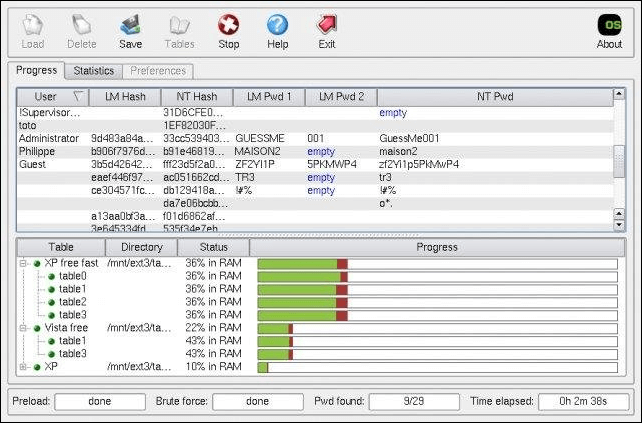
Manufacturer: Ophcrack Team
Objective: The tool is an open-source password reset tool that uses rainbow tables and hashing facilitated through encryption algorithms to recover Windows passwords.
Password Reset Feature: This tool recovers Windows passwords using hashing and rainbow table techniques, effectively allowing users to retrieve the original password that was used to create the hash.
Key Features:
- Free and Open-source
- Password recovery via hashing and rainbow tables
- Graphical Interface
- Offline password recovery
| 👍Pros | 👎Cons |
| Open-source | Less effective for complex or longer passwords |
| Installation not required | It may not work for recent Windows versions |
| Support all versions of Windows |
Download Link: https://ophcrack.sourceforge.io/
Review Quote: Ophcrack is a capable open-source password recovery tool that's especially useful for simpler Windows passwords, offering an easy-to-use interface and efficient recovery using rainbow tables.
The application has its own advantages and disadvantages in resetting Windows 7 passwords, like all others, but experts can only explore and utilize this utility to the fullest.
Share this article to let more users know about these password recovery tools, which can help them regain access to their accounts and get back to work with ease.
3. Microsoft Password Reset Disk
This application is highly trusted due to its ease of use and negligible chances of data loss, making it a top choice in the Windows 7 password recovery realm. As it's provided by Microsoft, its trustworthiness is at its peak, allowing users to create password reset disks and reset Windows 7 password with USB, adding to its portability.
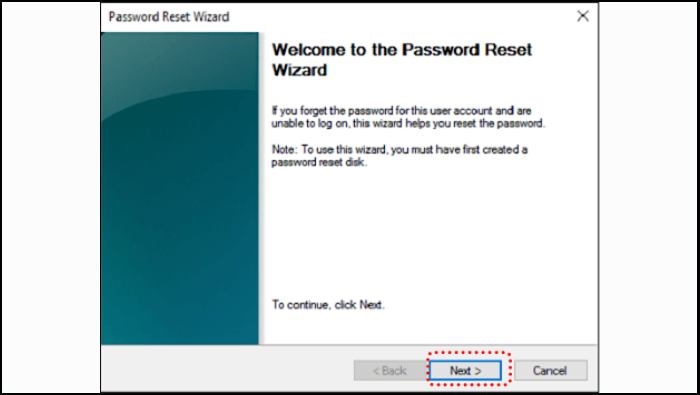
Manufacturer: Microsoft
Objective: The tool is designed to assist Windows 7 users in retrieving or resetting their local account passwords if they are forgotten.
Password Reset Feature: The feature allows users to create a password reset disk beforehand, which can then be used to reset their Windows password if they forget it. This can be a convenient option for users who want to have a backup plan in case they forget their password.
Key Features:
- Local account password reset
- Need USB drives
- Windows built-in feature
| 👍Pros | 👎Cons |
| Integrated into Windows | It must be created beforehand. |
| Ease of use | Limited support for online accounts. |
| No Third-party application involved | The password reset tool will not function properly if the password is changed after the disk creation process. This means that if the password is updated or changed after the initial setup, the tool will not be able to access the necessary information to complete the reset process. |
Download Link: NA
Review Quote: Microsoft's Password Reset Disk is a useful built-in feature that allows Windows users to regain access to their local accounts if they've created the reset disk beforehand.
The application has its own set of complexities, and the recovery features are only useful in specific situations.

Password Reset Disk Windows 7: How to Create and Use
To create a password reset disk for Windows 7, insert a blank floppy disk or a USB drive into your computer, go to the User Accounts window, click on the "Manage my network passwords" link, and then click on "Save to floppy disk" or "Save to USB drive". To use it to reset the password, boot from the disk, select the user account you want to reset, enter the new password, and click "Next" to complete the process.
4. PassFab 4WinKey
Windows 7 Password recovery software is one of the most efficient tools, capable of recovering passwords within 5 minutes with a high success rate. It supports a wide range of hardware and ensures optimal security, with a user-friendly interface that makes the process easy to navigate.

Manufacturer: PassFab
Objective: PassFab 4WinKey is a tool that helps users regain access to their Windows accounts by resetting or recovering their passwords.
Password Reset Feature: It allows resetting Windows 7 passwords for local and Microsoft accounts.
Key Features:
- Windows password reset tool for Microsoft standalone accounts.
- External device support for password reset.
- User-friendly UI
| 👍Pros | 👎Cons |
| Effective for Microsoft standalone accounts. | The trial version has limited functionality. |
| User-friendly interface | Disk management and partitioning features are not included |
| Provides regular updates and support |
Download Link: https://www.passfab.com/windows-password-recovery/how-to-use-passfab-4winkey.html
Review Quote: PassFab 4WinKey is a comprehensive Windows password recovery tool that stands out for its user-friendly design, effective password reset capabilities, and timely updates, making it a reliable solution for password-related issues.
The application can only be helpful if the paid version is used, and its lack of other disk management utilities makes it less competitive compared to its counterparts.
5. Free Windows 7 Installation Disk
The Windows 7 installation disk can be used to install or repair Windows OS, but it also allows for password recovery and enabling built-in Administrator accounts through System Restore or command line instructions from the Windows Terminal.
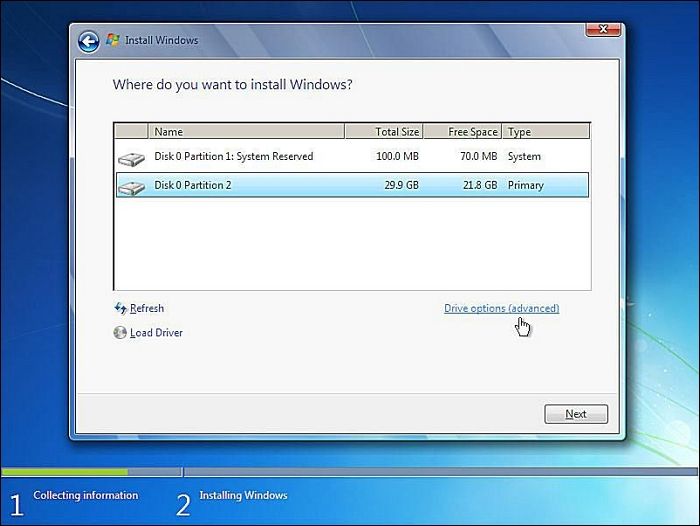
Manufacturer: Microsoft
Objective: The Windows 7 Installation Disk is primarily used for installing or repairing Windows 7.
Password Reset Feature: The installation disk can be used to access Windows Terminal, allowing users to perform local account password reset or recovery actions.
Key Features:
- Windows 7 Installation and Recovery
- Windows Terminal access for system repair and password reset
- Support for system image recovery
| 👍Pros | 👎Cons |
| Windows Integrated | Chances of data loss during reinstallation |
| Multiple system recovery options | Requires technical expertise for password reset |
| You can also repair and reinstall the OS | Discontinued support for Windows 7 since January 2020 |
Download Link: NA
Review Quote: The Free Windows 7 Installation Disk is a tool that can be used for system installation and repair, but also as a last resort for password reset, requiring caution to avoid data loss.
Conclusion
The article serves as a comprehensive guide for Windows users, providing them with the best methods and tools to recover a Windows 7 password. It offers a detailed overview of various tools and utilities, weighing their advantages and disadvantages, allowing users to make an informed decision and choose the most suitable option for their needs.
Windows 7 Password Reset Tools FAQs
The below-FAQs are designed to cover the most common queries about password recovery utilities, and you can reach out to us if you have further questions.
1. How do I force a password reset on Windows 7?
If you've forgotten your Windows 7 password or need to reset it, you can follow these steps. First, restart your computer and immediately start tapping the F8 key to access the Advanced Boot Options menu.
Step 1. After restarting the computer, press the F8 key repeatedly before the Windows logo appears, taking you to the Advanced Boot Options.
Step 2. Select the option Safe Mode with Command Prompt.
Step 3. The command `net user [username] [new password]` in the Command Prompt can be used to reset the existing password for a user. To do this, replace `[username]` with the actual username of the user you want to change the password for, and `[new password]` with the new password you want to set.
2. How do you reset your Windows 7 password using a bootable USB?
To reset the Windows 7 password using a bootable USB drive, you can follow these steps: Insert a blank USB drive into your computer and download a Windows 7 password reset tool such as Hiren's BootCD or Ophcrack. Create a bootable USB drive using the downloaded tool.
Step 1. To boot from a USB drive, insert the drive into your computer and adjust the boot order in the BIOS settings. The BIOS settings can usually be accessed by pressing a key such as F2, F12, or Del during the boot process.
Step 2. Select the preferred language and keyboard input method.
Step 3. On the next screen, select Repair your computer.
Step 4. Select the Windows 7 installation from the list and click Next.
Step 5. Select the Command Prompt from the System Recovery Options.
Step 6. To reset a user's password, enter the command "net user [username] [new password]" in the Command Prompt, replacing [username] with the actual username and [new password] with the desired new password.
3. Is there a free Windows password reset tool?
Among the many free password reset and recovery tools available, Qiling Disk Master stands out as a highly recommended choice. Its user-friendly features make it easy for inexperienced users to follow the instructions and reset their passwords, making it a great option for those who need help with password recovery. By following the steps outlined in this article, users can successfully reset their passwords using Qiling Disk Master.
Related Articles
- How to Resize Partitions with Windows XP Partition Manager Software
- How to Check Samsung SSD Warranty Serial Number
Checking the warranty serial number is a vital step in estimating your disk's lifespan and health status. This post will cover solid ways to check the Samsung SSD warranty serial number. - How to Find Hard Disk Serial Number in Windows 10
Do you want to check the serial number of your disk without taking out the hard drive? If so, continue reading, and I will tell you how to find hard disk serial number in Windows 10 in an easy way. - How to Fix USB Is Write Protected or Read Only, Help
This article can explain why write protection or read-only happen and provide practical solutions to help you remove the write protection and get the USB back to use. - File Copy Stuck at 5 Seconds Remaining [Fixed]
If you're experiencing a file copy stuck at 5 seconds remaining error on Windows 10, 8, or 7, this article will guide you through fixing the issue without losing any data. - How to Fix "File System Error (-805305975)" in Windows 10/11 [Step-by-Step Guide]
To fix file system errors (-805305975), you can use a professional tool that checks the file system error and bad sectors. This tool can help identify and resolve the issue, allowing you to access your files and data again.
Products
Articles & Tutorials
- Data Recovery
- Data Backup
- File Recovery
- File Backup
- System Backup and Restore
- Disk and Partition Clone
- Technical articles
- Mobile articles
- Disk Master Help
- Windows Data Recovery Tutorials
- Windows Secure Delete Tutorials
- Windows Partition Management Tutorials
- Windows File Backup and Restore Tutorials
- Windows System Backup and Restore Tutorials
- Windows Disk Backup and Restore Tutorials
- Windows Clone Tutorials