Fixed: Unmountable Boot Volume Windows 11
The critical error "Unmountable Boot Volume" in Windows 11 indicates that the operating system cannot access or mount the boot drive, which includes crucial files needed for the system to start, resulting in symptoms such as.
- The error message displays on the blue screen of death (BSOD).
- A system restart loop due to an inability to boot into Windows can be caused by various factors, such as corrupted system files, outdated drivers, or faulty hardware. To resolve this issue, one can try booting into Safe Mode, running a System File Checker (SFC) scan, and checking for any driver updates.
- Automatic attempts to correct the problem fail to fix it.
- The primary drive is the main storage device of a computer, containing the operating system, data, and system files. Accessibility issues with these files can arise from various factors, including outdated software, corrupted files, or incorrect permissions settings.
If you're experiencing an unmountable boot volume Windows 11 error, this guide can help. Qiling has covered five possible fixes and the common causes of this issue, which can be resolved with the right troubleshooting steps.
- Tip
- If you encounter the Unmountable Boot Volume error on Windows 10/8/7, this guide can also be applied to other operating systems with similar issues.
How to Fix Unmountable Boot Volume Windows 11
To solve the unmountable boot volume problem in Windows 11, you can try various solutions. One approach is to boot in Safe Mode and then run a System File Checker (SFC) scan to identify and replace corrupted system files. Another method is to use the Windows Recovery Environment (WinRE) to access the Command Prompt and run a DISM scan to repair any issues with the Windows image.
- Fix 1. Use Auto Repair
- Fix 2. Repair MBR
- Fix 3. Run SFC
- Fix 4. Run the CHKDSK
- Fix 5. Use Boot Repair Utility
If you're experiencing unmountable boot volume errors on Windows 11, don't worry, we've can help. We'll provide step-by-step guides to help you fix this issue. If you find this guide helpful, be sure to share it with someone in need by clicking the buttons.
Fix 1. Use Auto Repair
Windows 11 offers an automated repair feature to fix unmountable boot errors. The "Auto Repair" utility, part of the Windows installation media, can troubleshoot and resolve boot-related issues on its own. To access this feature, users can use the Windows 10/11 installation media, which will guide them through the process to automatically repair the boot issue.
Step 1: Connect a USB media drive to your system, turn it on, and you'll be able to access the repair menu.
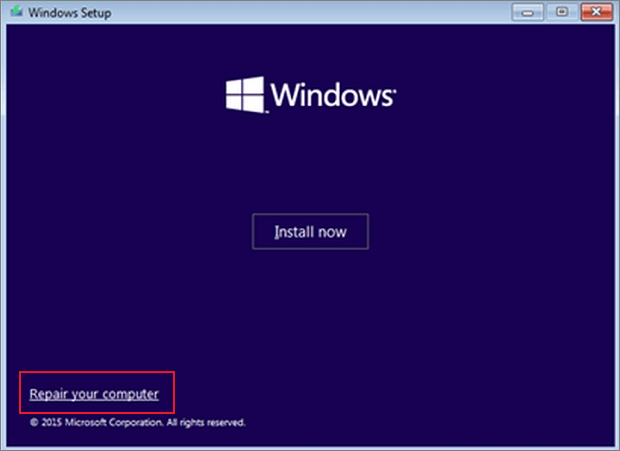
Step 2: To fix the issue, wait for the computer to boot up and then select the "Repair your computer" option as soon as it becomes available. This will allow you to access the recovery environment and potentially resolve the problem.
Step 3: Select "Troubleshoot" for the "Advanced options."
Step 4: Select the "Troubleshoot" option from the list.
Step 5: Click "Startup Repair" and let the system fix the unmountable boot volume error.

Step 6: If the issue persists, try resetting the system to its default settings. This will erase all installed apps and data, so make sure to back up any important files before proceeding. To reset the system, go to Settings > System > Recovery, and then select the "Reset this PC" option.
If Auto Repair fails to repair the issue, try repairing the Master Boot Record (MBR) using the recommended tool.
Fix 2. Repair MBR
The Master Boot Record (MBR) in Windows computers contains partition and system-related files that hold the OS information necessary for proper booting. A corrupted MBR system can be the culprit behind the unmountable boot volume Windows 11 error.
Qiling Disk Master is a free solution that simplifies the process of repairing Master Boot Records (MBR). This tool offers a user-friendly interface and a "Repair MBR" feature, eliminating the need for manual procedures. With Qiling Disk Master, users can quickly fix disk-related problems, including unmountable boot volumes and unbootable computers, minimizing downtime and maximizing productivity.
Download Qiling Disk Master to quickly and easily repair the Master Boot Record (MBR) and restore your system's booting functionality with just one click.
Step 1. Create a WinPE bootable disk
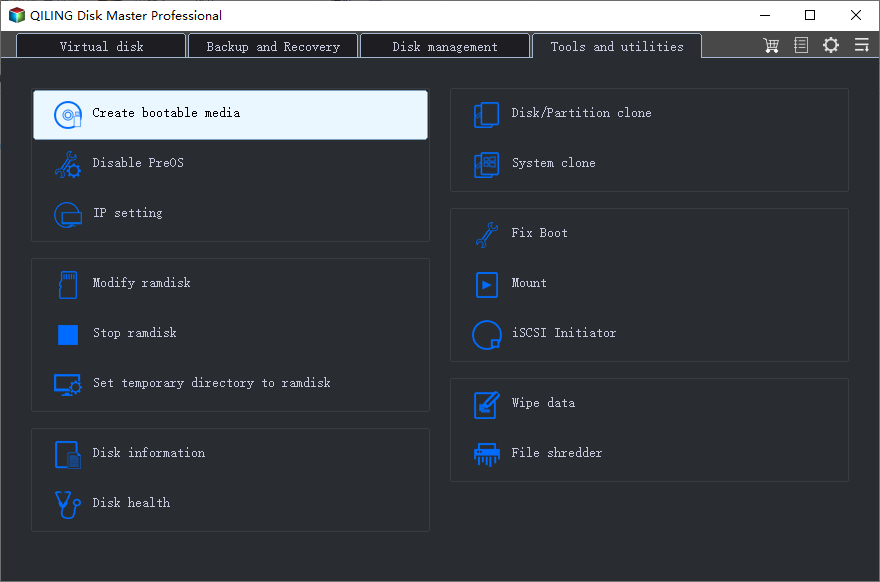
- Launch Qiling Disk Master, click "Bootable Media" on the toolbar, and select "Create bootable media".
- Click "Next" to finish the process.
Step 2. Boot Qiling Disk Master Bootable USB
- Connect the bootable USB or CD/DVD to your PC.
- To access the BIOS screen, press F2 or Del when restarting the computer. Once in the BIOS, set the computer to boot from the removable device or CD-ROM drive. This will allow Qiling Disk Master to run automatically.
Step 3. Rebuild MBR
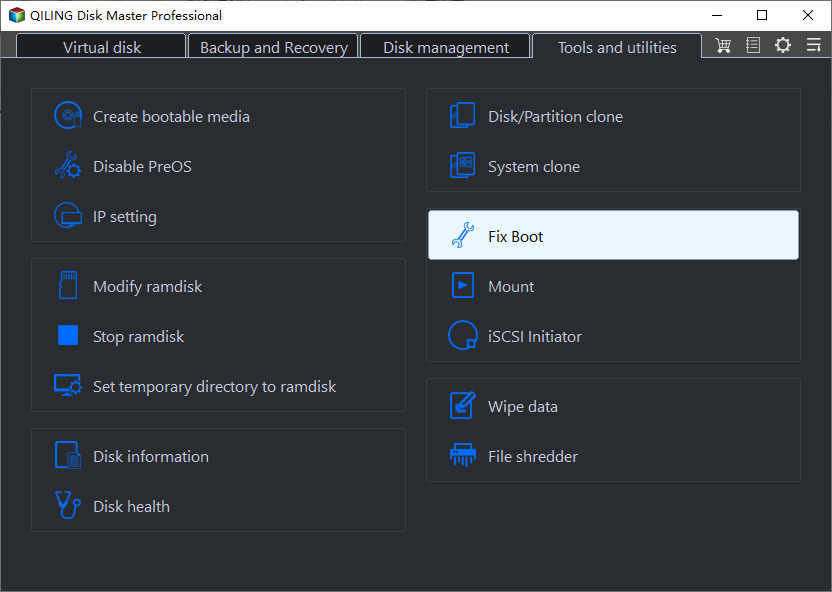
- Click "Tools and utilities" and choose "Fix Boot".
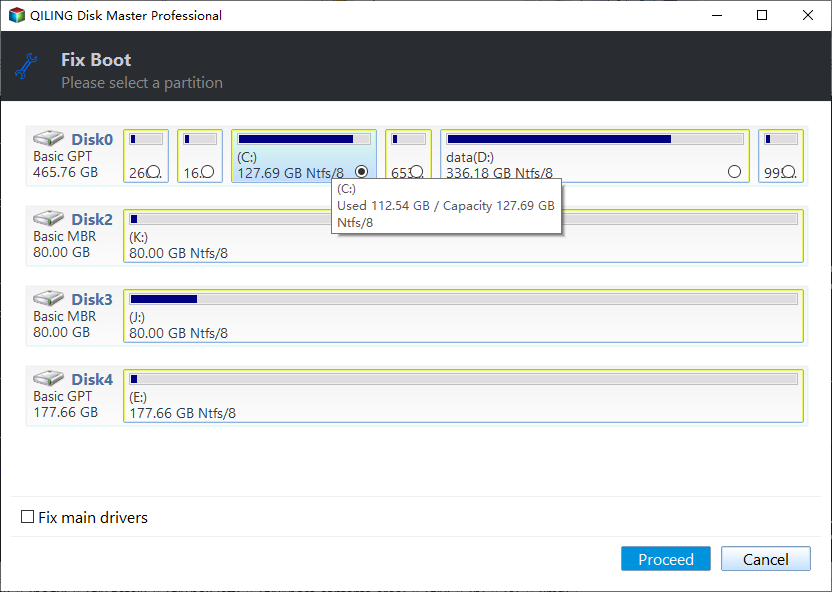
- To proceed, select the disk you want to install the operating system on and choose the type of Master Boot Record (MBR) you want to use. Click "Proceed" to continue with the installation.
- The message "MBR has been successfully rebuilt on Disk X" indicates that the Master Boot Record (MBR) of the specified disk has been successfully rebuilt. This means that any issues related to the boot process on that disk have been resolved, and the disk should now be able to boot normally.
The tool offers a straightforward solution to resolve MBR errors, and it also addresses any boot-related issues. Users often utilize this tool in situations where they need to repair the Master Boot Record or create a bootable USB to fix other boot errors.
- Boot drive not showing up in BIOS
- System cannot find any bootable devices
- The computer has rebooted from a bugcheck
This tool can help you quickly and easily fix various errors, including corrupted hard drives and file systems, and is available for free download.
Fix 3. Run SFC
To fix an unmountable boot volume error, you can try running the SFC tool, which is an inbuilt Windows tool that checks and repairs corrupted system files. If you're familiar with basic CMD commands, you can follow the steps to run SFC in Windows 11.
Step 1: Open the menu from the installation/recovery drive and click "Troubleshoot."
Step 2: Go to the "Advanced Options" and select "Command Prompt."
Step 3: Type the following command in the CMD window and hit the "Enter" key.
sfc /scannow
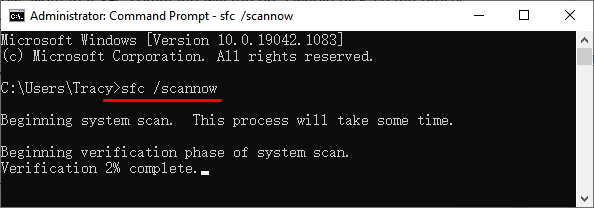
Step 4: Wait until you see the message "Verification 100% complete."
Step 5: Reboot your computer when the verification is finished.
If the unmountable boot volume problem is solved, check if the SFC SCANNOW is still stuck at verification. If so, you can use Qiling Disk Master to help resolve the issue.
Fix 4. Run the CHKDSK
To fix the hard drive error using this method, follow a procedure similar to the previous one. However, you'll need to run the CHKDSK command to troubleshoot and fix the issue. This CMD command is easier to use and can quickly identify and resolve disk problems. To run CHKDSK, you can follow the steps to troubleshoot hard drive errors.
Step 1: Reboot your computer with an installation USB drive.
Step 2: Select Troubleshoot < Advanced Options < Command Prompt.
Step 3: Type the following command and hit "Enter" in the Command Prompt window.
chkdsk /r c:
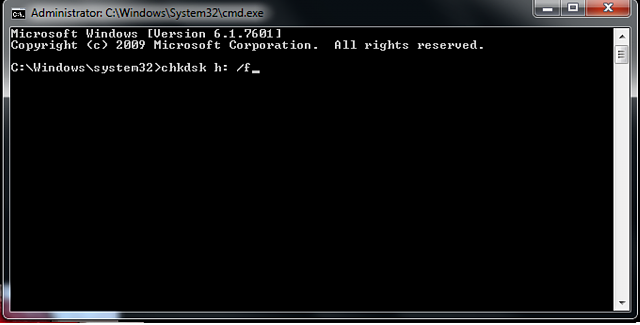
Step 4: You can schedule a check by typing "Y" and hitting Enter when prompted to schedule the check after a reboot.
Step 5: Restart the computer and wait for some time, as the operating system may take a while to recognize the boot volume.
Fix 5. Use Boot Repair Utility
If none of the techniques described above are successful, use a free Windows boot repair tool, Qiling Disk Master, which offers several useful functions to solve disk-related issues, including repairing the MBR and automatically fixing boot errors.
The software has been thoroughly developed through extensive research and development, with its algorithms perfected through examining numerous boot issues to address common boot problems and disk errors, making it a versatile disk solution with a user-friendly UI and easy functionality.
Qiling Disk Master offers a free version that allows users to experience its capabilities and benefits without any cost. This free version provides a taste of what the full-featured version has to offer, making it an attractive option for those who want to try before they buy.
Step 1. After connecting the external drive/USB to your computer, start Qiling Disk Master, go to "Bootable Media," and click "Create bootable media."
Step 2. To create a Windows installation media, select a USB drive or CD/DVD and click "Create". Alternatively, you can burn the Windows ISO file to the chosen storage media.
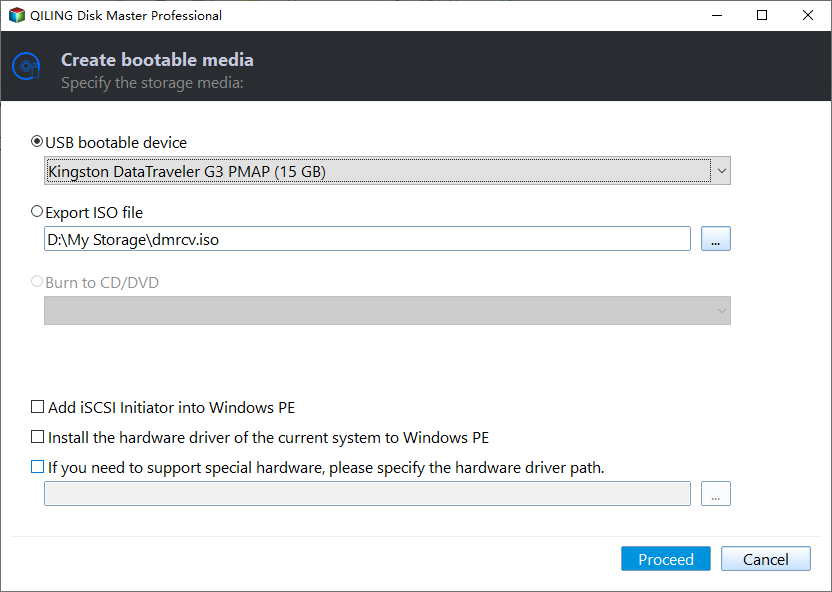
Step 3. Connect a bootable drive to a new computer, reboot by pressing F2/Del to enter the BIOS, set the bootable drive as the boot disk, exit the BIOS by pressing F10.
Step 4. Boot the computer again and enter the WinPE interface. In the WinPE interface, open Qiling Disk Master and click "Fix Boot" under the "Tools and utilities" tab page.
Step 5: Select the system you want to repair and click "Preceed".
Step 6. The system has been successfully repaired. Click "Finish" to complete the boot repair process.
Why Unmountable Boot Volume Windows 11
Unmountable Boot Volume Windows 11 is a critical error that can occur due to various underlying issues such as corrupted system files, disk errors, or firmware problems, among others.
- System file corruption: Corrupted system files can prevent the disk from being mounted and interfere with the boot process.
- Hard disk drive corruption: Physical damage to the hard drive or data corruption can cause the operating system to load incorrectly.
- Boot volume corruption: Corruption of the boot volume's file prevents the system from mounting the boot volume during startup, resulting in an unbootable system.
- Damaged RAM: Faulty RAM modules can cause data corruption, leading to a slow boot process.
- Improper BIOS configuration: Incorrect settings in the BIOS could hinder the boot process and result in errors.
- Windows update error: A faulty or incomplete Windows update can disrupt system files, leading to an unmountable boot drive.
Conclusion
The article provided a comprehensive guide to resolving the unmountable boot volume Windows 11 issue, covering both built-in and third-party tools, with Qiling Disk Master being the recommended option for its advanced features, allowing users to navigate and solve boot problems.
FAQs About Unmountable Boot Volume Windows 11
The FAQs section is a resource for users who want to learn more about a specific topic. It provides a collection of frequently asked questions and their corresponding answers, offering in-depth assistance and clarification on the subject matter. The comprehensive answers provided in the FAQs section aim to address users' queries and provide a deeper understanding of the topic, making it easier for them to navigate and comprehend the information presented.
1. How can I fix the reboot and select the proper boot device in Windows 11?
If you're encountering the "Unmountable Boot Volume" error, you can try the following processes to resolve the issue:
Step 1: To access advanced startup options, restart your computer and hold the Shift key while it's booting up. This will allow you to access the "Advanced Startup" options.
Step 2: Select "Troubleshoot," then "Advanced options," and open "Command Prompt."
Step 3: Type the following command and hit "Enter."
chkdsk /f /r
Restart your computer after the process is completed.
2. How to fix unmountable boot volume in BIOS?
To fix the system boot problem, follow these steps:
Step 1: To enter the BIOS configuration, restart your PC and press a specific key, usually F2, F10, F12, or Del, depending on your computer model, to access the BIOS settings.
Step 2: Navigate the "Boot" tab using arrow keys.
Step 3: To select your primary hard drive, first, ensure it's listed at the top of the drive list. If it's not, use the "+" or "-" keys to move it to the top position. This will ensure that the drive is recognized as the primary drive by your system.
Step 4: To exit the BIOS settings, select the "Save changes and exit" option. This will save the changes you made and restart your computer. If your computer boots properly, the changes you made should be successfully applied.
3. How to run an unmountable boot volume fix without a CD?
To install Windows 11 on a computer, you can use a USB drive instead of a CD. Create a bootable USB drive using the Windows Media Creation Tool on another Windows 11 computer, then connect it to your computer and set it as the first boot from the BIOS settings. This will allow you to run the installation files from the USB drive.
Related Articles
- How Do I Force Format SD Card on Windows 11/10? Your Guide Here
- Format/Reformat Seagate External Hard Drive on Windows or Mac
- How to Delete EFI (System) Partition in Windows 11/10/8/7 [2 Ways]
- How to Resize NTFS Partition in Windows 11/10 [Full Guide]
- How Do I Clear My Laptop Before Selling It on Windows 10
You are going to learn the full guide on how to clear my laptop before selling it. To stop data leakage, you need to wipe and reset your laptop's hard drive. Thus, you can sell it without leaking privacy. - Clear/Reformat/Erase/Wipe SD Card & USB Flash Drive
You can learn how to clear, erase, wipe or reformat various types of storage devices, including SD cards, USB flash drives, hard drives, and disk partitions, through a step-by-step tutorial that aims to resolve your issue in the easiest and most efficient way possible.
Products
Articles & Tutorials
- Data Recovery
- Data Backup
- File Recovery
- File Backup
- System Backup and Restore
- Disk and Partition Clone
- Technical articles
- Mobile articles
- Disk Master Help
- Windows Data Recovery Tutorials
- Windows Secure Delete Tutorials
- Windows Partition Management Tutorials
- Windows File Backup and Restore Tutorials
- Windows System Backup and Restore Tutorials
- Windows Disk Backup and Restore Tutorials
- Windows Clone Tutorials