How to Resize NTFS Partition in Windows 11/10 [Full Guide]
NTFS is the default file system of Windows, known for its excellent performance and reliability, and is widely used on various disks, including SSDs and HDDs. It's often used when a partition needs to be resized.
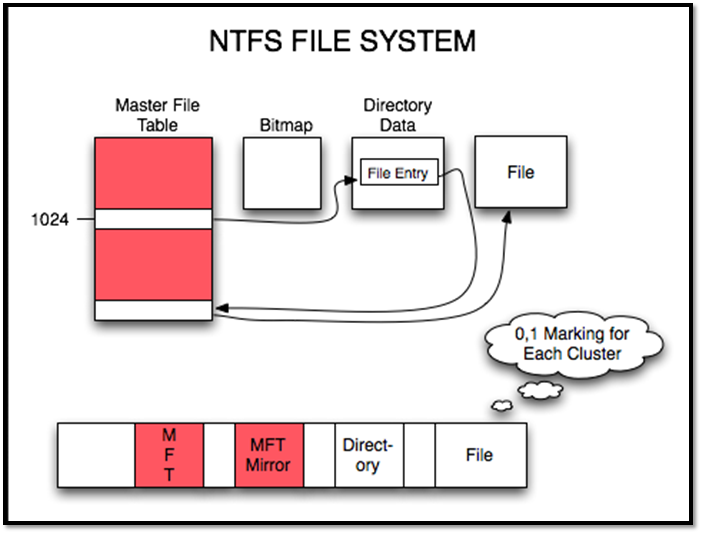
To get the most out of an NTFS partition, you may want to shrink other partitions to expand it or shrink the NTFS partition to make room for other system partitions. Fortunately, resizing NTFS partitions is not a hassle, and This guide shows you three ways to do so on Windows 11/10 without losing any data.
How to Resize NTFS Partition Without Losing Data – Three Ways
You can resize an NTFS partition in Windows 11/10 without losing data. There are three methods to do this: using Windows built-in disk tools, or a professional third-party software like Qiling Disk Master. The best method for you will depend on your specific needs, and can be determined by comparing the features and benefits of each option in the table provided.
| Comparison | |||
|---|---|---|---|
| Extend Partition | No limitation | Need unallocated space on the right side | Need unallocated space on the left side |
| Operation Difficulty | Easy - three steps | Medium - five steps | Complex – at least five steps |
| Suitable Users | For all | For experienced | For experts |
Qiling Disk Master has more powerful features compared to the other two tools, offering capabilities that surpass those of Windows built-in tools and can solve a wider range of NTFS partition resizing problems.
Next, we will start with the simplest way to show you how to resize NTFS partition.
Resize NTFS Partition via Qiling Disk Master
Qiling Disk Master is a professional disk partition assistant that allows users to resize NTFS partitions quickly and efficiently. It features a "Resize/Mover" function, enabling users to extend or shrink the size of NTFS partitions by simply dragging the mouse. This makes it easy for users, even those new to computers, to manage their partitions effectively.
Step 1: Locate and select the target drive/partition
Launch Qiling Disk Master, go to Partition Manager, select the target drive/partition, right-click and choose "Resize/Move" to adjust its size.

Step 2: Resize or move the partition
1. To shrink the partition, simply drag one of its ends to free up unallocated space.
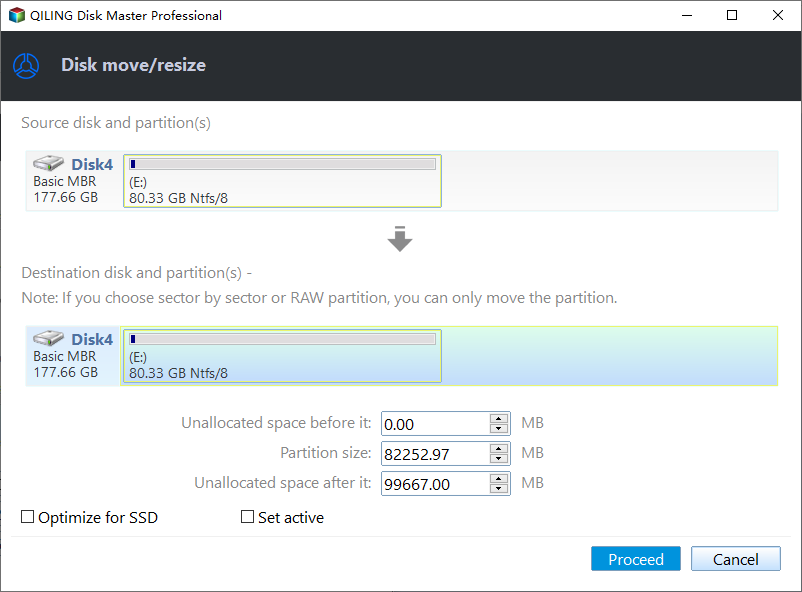
2. To extend the partition, ensure there's unallocated space available. If there isn't, create some. Then, drag the partition boundary into the unallocated space.

3. To move a partition, you need to have unallocated space next to the target partition. If there isn't any, free up some space first by deleting or resizing a partition.
Right-To resize the target partition, click on it, select "Resize/Move" from the context menu, and then drag the whole partition left or right to adjust its position.
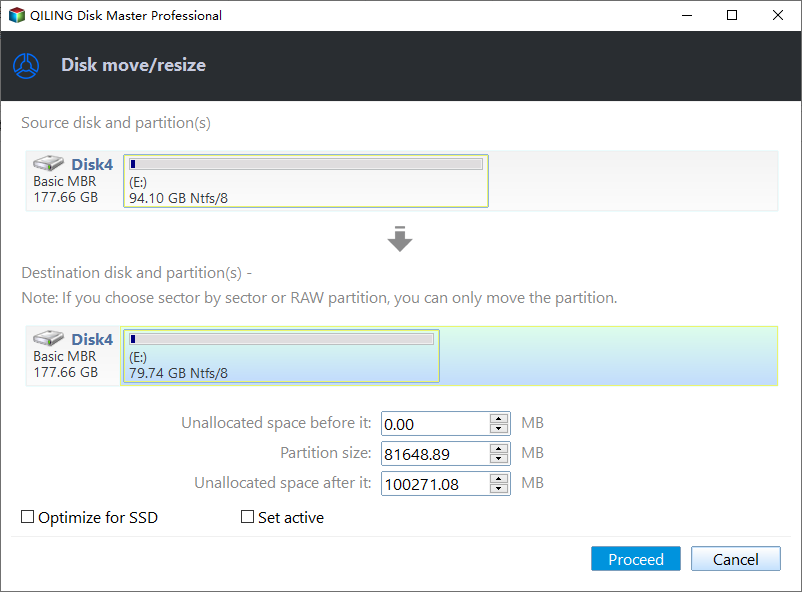
Step 3: Confirm the result and apply changes
The new disk partition information & diagram will be displayed, showing the updated disk configuration.
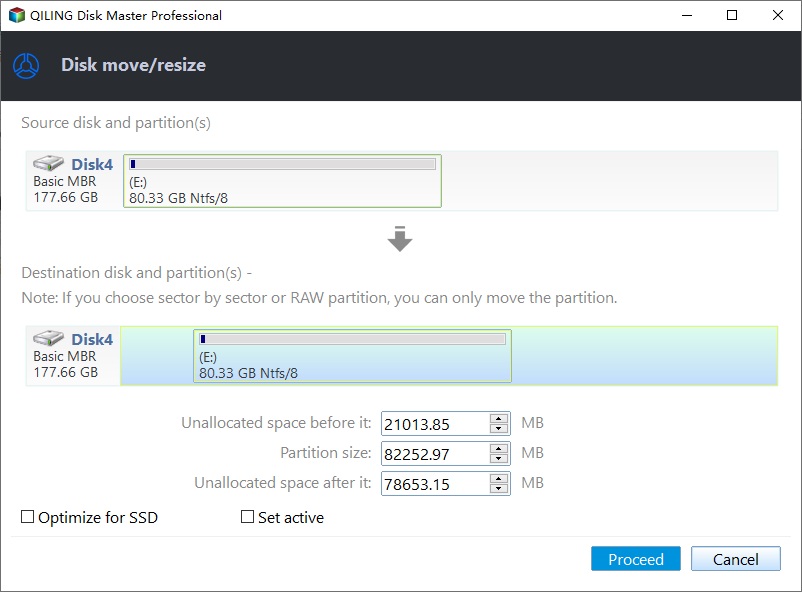
To save changes, click the "Proceed" button.

Qiling Disk Master simplifies the process of resizing NTFS partitions, allowing for quick resizing of partitions on SSDs and encrypted partitions with ease.
Resize NTFS Partition via Disk Management
Disk Management is a free utility provided by Windows that allows for managing disks and partitions. It enables users to resize NTFS partitions by using the "Extend Volume" or "Shrink Volume" options.
- Notice:
- Ensure there is unallocated space next to the partition you want to extend, otherwise the "Extend Volume" option will be greyed out.
Now, follow the steps below to complete the task of resizing the NTFS partition.
Extend NTFS Partition
Step 1. Right-click on the Windows button and select "Disk Management."
Step 2. Right-click on the NTFS partition you want to adjust and select "Extend Volume."
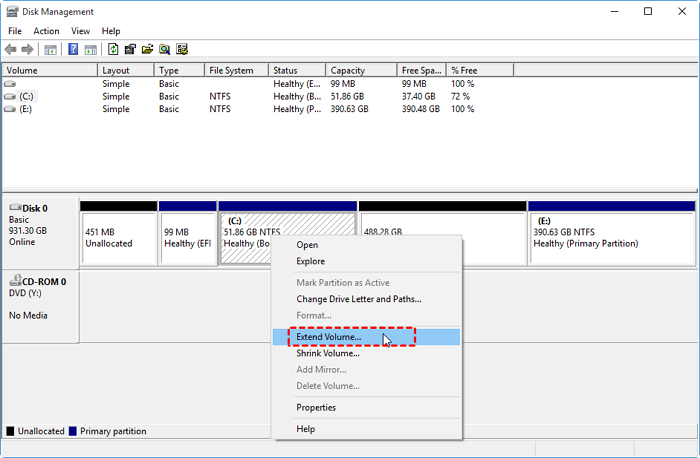
Step 3. Click "Next" in the "Extend Volume Wizard."
Step 4. Set the space size of the NTFS partition and click "Next."
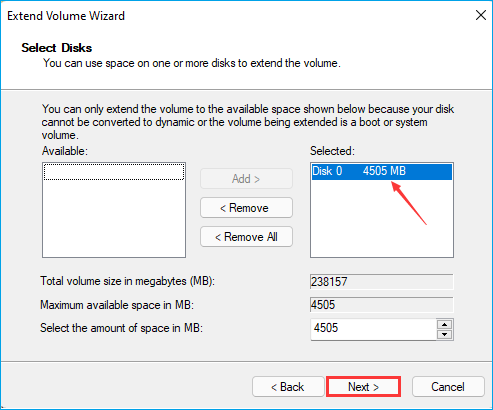
Step 5. Click "Finish" to finish extending the NTFS partition.
Shrink NTFS Partition
Step 1. To free up space on your NTFS partition, open Disk Management, right-click on the partition, and select "Shrink Volume."
Step 2. Select the space you want to shrink and click "Shrink. "
- Tip
- Windows Disk Management can't shrink a volume if the partition is in FAT32 format, so you need to use Qiling Disk Master to resize the FAT32 partition.
Resize NTFS Partition via Diskpart Command
Diskpart is a command line tool that comes with Windows, offering more functions than Disk Management. However, it's not suitable for users who are not computer savvy, as incorrect commands can lead to data loss. If you still want to resize an NTFS partition using Diskpart, follow these instructions carefully.
Step 1. Right-click on the Windows icon and select "Run."
Step 2. Type "diskpart" and press Enter.
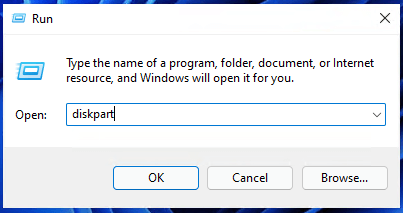
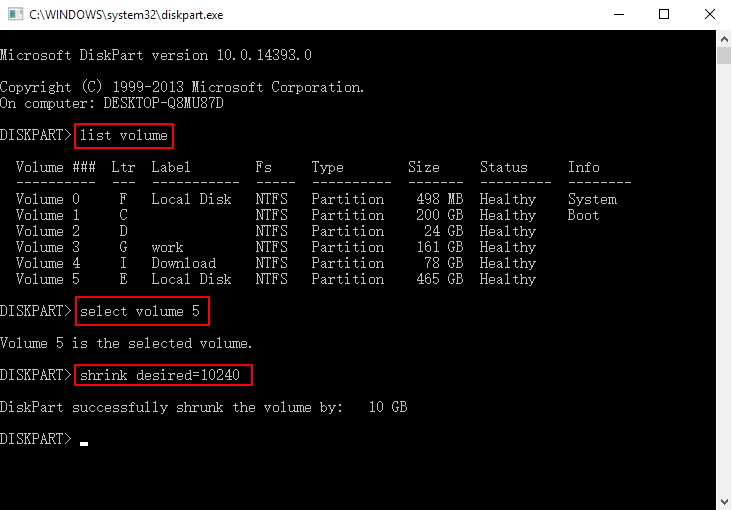
Step 3. Type the following commands in turn and press "Enter" after each command.
list volume
select volume 5
shrink desired=10240
To view all partitions on the computer, use the command "list volume" and replace the "5" with the target volume number, and change "10240" to a suitable size.
To extend the NTFS partition, you can type the following command: `resize2fs /dev/sda1` and then `resize2fs /dev/sda1` again to confirm the changes. This will extend the partition to the maximum available size.
list volume
select volume x
extend size
Step 4. Type "exit" to close the command window.
Diskpart is a useful tool for resizing NTFS partitions, but it is unable to resize FAT32 partitions. If it fails to extend the volume, you may need to use Qiling Disk Master instead.
Conclusion
Qiling Disk Master is the most comprehensive method to resize NTFS partition, breaking the limitations of Diskpart and Disk Management and offering more features. It not only allows resizing partitions but also enables merging non-adjacent partitions.
Disk Management and Diskpart can meet the basic partitioning needs. But you must be careful when using them. By the way, here are some frequently asked questions about NTFS partitions.
FAQs About How to Resize NTFS Partition
Resizing an NTFS partition in Windows 11/10 is a straightforward process that can be completed in a few simple steps.
1. Can NTFS be resized?
You can resize NTFS partitions within Windows using three methods, with Qiling Disk Master being the most recommended option. Alternatively, you can also use Disk Management and Diskpart, although be aware that these methods have limitations.
2. What is the max partition size for NTFS?
The maximum size for an NTFS partition is 16TB. If you're unable to create a volume larger than 2TB, check if your disk is in MBR format. If so, you'll need to convert it to GPT to create partitions larger than 2TB.
3. How do I resize an existing partition?
To resize an existing partition on Windows, you can use the built-in Disk Management tool or third-party software like Qiling Disk Master. If using Windows tools, open Disk Management, select the partition you want to resize, and click on the "Extend" or "Shrink" button depending on whether you want to increase or decrease the partition size. Be cautious when resizing partitions as it can lead to data loss if not done correctly.
Step 1. Open Disk Management.
Step 2. To resize a partition, right-click on the existing partition to be resized and select either "Extend Volume" to increase its size or "Shrink Volume" to decrease its size.
Step 3. Enter the size of the space to be resized.
Related Articles
- USB Partition Tool/Manager: Partition USB or Create Portable USB Drive
- 3 Ways to Fix Convert to Dynamic Disk Greyed Out
- How to Copy NTFS Partition [2024 Detailed Guide]
- How to Format SSD in Windows 11 (In-depth Tutorial)
- How to Fix USB Flash Drive Not Showing Up in Windows 11🔥
If your USB flash drive is not showing up in Windows 11, try troubleshooting solutions such as checking the USB port and cable, updating the drivers, and enabling the USB selective suspend setting. You can also try formatting the drive, checking for BIOS updates, and using a different USB port. - Your Easiest Guide for Running USB Flash Drive Speed Test Online
If you're eager to test the speed of your USB flash drive online, this article is for you. We'll guide you through the process, so keep reading to find out how.
Products
Articles & Tutorials
- Data Recovery
- Data Backup
- File Recovery
- File Backup
- System Backup and Restore
- Disk and Partition Clone
- Technical articles
- Mobile articles
- Disk Master Help
- Windows Data Recovery Tutorials
- Windows Secure Delete Tutorials
- Windows Partition Management Tutorials
- Windows File Backup and Restore Tutorials
- Windows System Backup and Restore Tutorials
- Windows Disk Backup and Restore Tutorials
- Windows Clone Tutorials