Format RAW SD Card/USB Drive in Windows 11/10/8/7
| Workable Solutions | Step-by-step Troubleshooting |
|---|---|
| Method 1. Format RAW SD Card/USB Drive Without Data Loss |
Recover Data from RAW SD Card First...Full steps Format RAW SD Card with RAW SD Card...Full steps |
| Method 2. Fix RAW SD Card/USB Drive Without Formatting | Here is the way out by turn to Qiling 1-on-1 remote manual assistance. The Qiling technical experts....Full steps |
SD Card Becomes RAW, How to Format RAW SD Card
You're experiencing issues formatting your 32GB Micro SD card, which has been converted to the RAW file system, and Windows is unable to format it. This is likely due to the card being corrupted or having issues with its file system. You may need to use a third-party software or a card reader to format the card. You can try using a tool like Qiling Partition Master or a card reader to access the card and format it manually. If the issue persists, it's possible that the card is faulty and may need to be replaced.How to format RAW SD cardYou can transfer the photos from the SD card to your computer or phone, which will free up space on the card. This way, you can keep the photos safe and still use the SD card for other purposes. You can also consider backing up the photos to an external hard drive or cloud storage for extra safety.format RAW SD card without losing data."
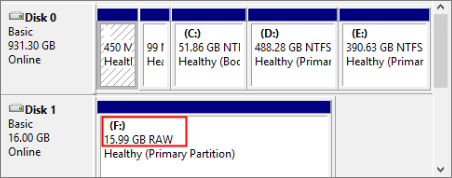
Overview of RAW SD card, USB drive or hard disk formatting issue
When you plug an SD card, USB flash drive, pen drive, or external hard drive into your PC, you might encounter the "disk not formatted" or "need to format the disk in drive" error. Trying to run CHKDSK to check and repair the issue can result in another message stating that the file system is RAW and CHKDSK is not available for RAW drives. As a result, the SD card or USB drive becomes RAW and inaccessible.
A common issue is when a data storage device's file system becomes corrupted, resulting in a RAW file system. This can occur on various devices such as Micro SD Cards, HDDs, SSDs, USB flash drives, and pen drives. The reasons for a RAW file system on an SD card may include physical damage, improper ejection, power outages, or software issues, among others.
- There are some bad sectors on the Micro SD card
- The partition table of the SD card gets corrupted
- Virus or malware attack
Formatting a RAW SD card or USB drive is a straightforward process, but the challenge lies in doing so without losing the data. To achieve this, you can use two easy methods to return the RAW file system to a usable format like FAT32 or NTFS. By formatting the RAW SD card, you can restore it for use with your device, and similarly, you can format a RAW USB drive without losing its contents. This process is not as complicated as it seems, and with the right approach, you can successfully format your RAW storage devices without compromising your data.
How to Format RAW SD Card/USB Drive Without Data Loss
Here are two methods to fix and format a RAW SD card:
Method 1. Format RAW SD Card/USB Drive Without Data Loss
If your SD card contains important files, you should recover them before formatting the RAW SD card using a professional data recovery program.
#1. Important: Recover Data from RAW SD Card First
If your SD card, pen drive, or USB drive suddenly turns RAW and contains important files, you can recover the data by restoring the files first. To do this, you can use Deep Data Recovery, a tool that specializes in RAW partition recovery and can recover your files with just a few clicks.
If your files are small than 2GB, you can use the free version of the software to recover files from a RAW SD card for free.
Step 1. Launch Deep Data Recovery on your PC, and click "Format Scan" to begin the process.
Launch Deep Data Recovery software on your PC, select the file types you want to recover, and then click "Format Scan" to begin the recovery process.

Note: You can choose different search modes based on where and why the data was lost.
Step 2. Select and scan the RAW partition
If the RAW partition has a label, you can select it from the drive list and click "Scan" to search for lost files. If it's lost its label, it will be listed as "Lost Partition" and you can select it and click "Scan" to initiate a full scan of the RAW drive.

Step 3. Preview found data from the scan result
After the scan is completed, all available files on the RAW hard drive will be displayed, allowing you to view and select the files you want to recover. You can sort the scanned data by file format or use the "Search files or folders" box to directly search for specific files.

Step 4. Recover data from RAW partition
To recover data from a RAW drive, select all files and click "Recover" to retrieve all data. Then, choose another internal or external hard drive to save the recovered data and click "OK" to initiate the recovery process.
#2. How to Format RAW SD Card with RAW SD Card Formatting Tool
The easiest way to format an SD card is to use a RAW SD card formatting tool, with Qiling Partition Master being a recommended option. This software can easily format a RAW SD card, as well as other devices like USB flash drives, pen drives, and external hard drives, from RAW to file systems like NTFS, FAT32, EXT2, and EXT3, and is compatible with Windows 11/10/8/7.
Qiling Partition Master offers a range of partition and disk management solutions for Windows computers, including formatting partition, in addition to its partition formatting feature.
- The Pro version allows for advanced partition management, including resizing and moving partitions, allowing for direct space transfer from the D drive to the C drive. Additionally, it enables the creation, formatting, deletion, and merging of partitions.
- Copy and clone an entire disk to another, even if the target partition is smaller than the source.
- Converting a partition involves changing its type or location on a disk. This can include converting a logical partition to a primary partition or vice versa, converting a FAT partition to an NTFS partition, or changing the disk type from MBR (Master Boot Record) to GPT (GUID Partition Table) or vice versa.
- Erase all data on the hard disk to prevent information from being leaked or recovered
- Upgrading to a solid-state drive (SSD) can significantly speed up your Windows computer. By migrating your operating system to an SSD, you can enjoy faster boot times, quicker application loading, and improved overall system performance.
Now, download and install this disk management program to format RAW SD card with a few clicks.
Step 1. Launch Qiling Partition Master.
To format a RAW partition or RAW external hard drive/USB/SD card, click on it and select the "Format" option.

Step 2. Format RAW Partition and reset the file system.
Assign a new partition label, set the file system to NTFS/FAT32/EXT2/EXT3/EXT4/exFAT, and cluster size to the selected partition, then click "Proceed".

Step 3. To start formatting your RAW partition/USB/SD/external hard drive, click "OK" on the Warning window.
Method 2. Fix RAW SD Card/USB Drive Without Formatting
If your SD card becomes RAW and you don't want to format it, you can seek help from Qiling for remote manual assistance. Their experts can repair the RAW SD card without formatting, ensuring that the repaired partition is the same as the original drive and no data is lost. They can also solve complex data loss problems.
- 1. Unformat the drive
- 2. Repair the RAID, RAW disk, or operating system
- 3. If a partition is completely lost and cannot be recovered by software, it may be possible to recover it through a more complex process involving hardware and manual data recovery techniques. This typically involves using specialized tools to read data directly from the disk, bypassing the operating system and file system, and then manually examining and extracting the data.
To Sum Up
Here are two ways to format a RAW SD card while reducing the risk of data loss:
1. Use Deep Data Recovery to restore SD card files at first, then format RAW SD card or USB drive with Qiling hard drive formatting tool. After formatting, copy the data back to the formatted memory card.
2. Use Qiling manual data recovery service, repair the RAW SD card in its original location without formatting. And the files on the SD card will be intact.
How to Format RAW SD Card FAQs
Here are four frequently asked questions on how to format a RAW SD card, pen drive, or USB flash drive:
How do I format a raw SD card?
Formatting a RAW SD card or USB drive can be done easily using a simple formatting tool. One such tool is available, which can format the device quickly and efficiently, returning it to a usable state.
Step 1. To format an SD card, pen drive, or USB flash drive, download and launch Qiling Partition Master, then right-click on the RAW device you need to format and choose the "Format" option.
Step 2. Assign a new partition label, set the file system to NTFS/FAT32/EXT2/EXT3, and cluster size to the selected partition.
Step 3. click the Proceed button to format a RAW USB/SD/external hard drive.
Step 4. On the pop-up Warning window, click Yes to start the formatting process.
How do you format SD card if it is not formatting?
To format an SD card, you can use either the Disk Management tool or File Explorer on your Windows computer. With Disk Management, you can access it by searching for it in the Start menu, right-clicking on the SD card drive, and selecting "Format.
1. Format SD card/USB/pen drive using File Explorer: In File Explorer, right-click on the RAW SD card. Select the Format option and choose the file system (NTFS or FAT32) you want to use. Click OK to confirm your selection.
2.Format SD card or USB flash drive using Disk Management: Right-click on This PC > Manage > Disk Management. Right-click on the RAW SD card, choose Format, select a file system (FAT, exFAT, FAT32, or NTFS), and click OK.
How do I format a raw SD card to fat32?
To format a RAW SD card to FAT32 using the Command Prompt, follow these steps:
Step 1. The instructions are to connect the RAW SD card to the PC, right-click on Win + X to select Command Prompt (Administrator), press Enter, type diskpart, and press Enter again.
Step 2. To fix a RAW SD card, select it in Disk and type "format fs=FAT32" (or exFAT, FAT, or NTFS) to format it. Replace "F" with the drive letter of your RAW SD card. Type Disk and hit Enter again, then select your RAW SD card and follow the above command. This will format the card and make it usable again.
Step 3. Press Enter to format RAW SD card using Diskpart. After formatting, safely unplug the SD card and install it again.
How do I force an SD card to format?
To force format SD card, follow the tips below.
Step 1. Place the SD card into a card reader. Slide the card reader into the computer's card reader slot.
Step 2. To format an SD card, go to My Computer/This PC and find the SD card drive under Devices and Drives. Right-click the SD card, then click the Format action in the drop-down menu, which will open the Option Setting box for the SD card.
Step 3. Click the drop-down bar next to Format Type and choose the Quick option.
Step 4. To format the SD card, select "Format" in the second drop-down menu and choose the "Format Size Adjustment" option. Click OK to manually start the formatting process. Once the SD card is formatted, a notification will appear, showing the available space on the memory card.
Related Articles
- [Guide] How to Permanently Delete Files from Recycle Bin in Windows 11/10/8/7
- [Fixed] Change Drive Letter and Paths Greyed Out in Windows 10
- How to Convert FAT32 to NTFS Windows 10 Without Losing Data in 3 Ways
- Top 9 Tips | How to Fix Steam Disk Write Error in Windows 10/8/7
- How to Wipe Partition and Erase Data Completely?
Wanna wipe partition to erase all data from a partition completely? The 'Wipe Partition' feature in Qiling Disk Master will help you. - Use DiskPart to Convert Disk from MBR to GPT in Windows 10, 8, and 7
In this post, you will learn how DiskPart convert to GPT from MBR disk in detailed steps. In addition, you can use a better tool to convert MBR to GPT without losing data in Windows 11, 10, 8, and 7.
Products
Articles & Tutorials
- Data Recovery
- Data Backup
- File Recovery
- File Backup
- System Backup and Restore
- Disk and Partition Clone
- Technical articles
- Mobile articles
- Disk Master Help
- Windows Data Recovery Tutorials
- Windows Secure Delete Tutorials
- Windows Partition Management Tutorials
- Windows File Backup and Restore Tutorials
- Windows System Backup and Restore Tutorials
- Windows Disk Backup and Restore Tutorials
- Windows Clone Tutorials