How to Partition C Drive [Step-by-Step Guide]
To partition the C drive into multiple drives on your Windows computer, follow these simple steps: first, shrink the C drive to create free space, and then use the Disk Management tool to create new partitions from the freed space. This will allow you to organize your files into separate drives.
If you've recently bought a new computer or laptop, you'll likely need to partition your C drive to separate your operating system from your programs and personal files. Alternatively, if your C drive is too large or small in volume size, partitioning it can help with better management. However, this process can be tricky for those without experience.
You can check a typical case example from Microsoft below to see if you are experiencing the same situation.
How to Partition C drive in Windows
Partitioning a hard drive is a strategy for separating different types of files and managing them better, allowing you to arrange all your files to make identification simple and clear, making it easy to organize and save your music, images, videos, and other important data.
While you can save data in separate partitions, they are still vulnerable to the same hard drive failure, making data backup crucial to avoid loss.
To achieve partitioning, you can either use a database management system that supports partitioning, such as MySQL, or implement a custom solution by dividing the data into smaller chunks based on a specific criteria, such as date or time range. This allows for efficient storage and retrieval of large datasets, making it easier to manage and analyze the data.
Way 1. Using Partition Software
To partition your hard drive, consider using third-party software like Qiling Disk Master Pro, which allows for fast resizing of partitions and easy creation of additional partitions, making the process straightforward.
Qiling Disk Master enables you to easily shrink, extend, split the C drive, and create more volumes from unallocated space without formatting the drive, thus preserving your data. However, when shrinking the C drive to free up space for other partitions, it's recommended to leave at least 1/3 of the total storage space on the C drive.
Step 1. Launch Qiling Disk Master and navigate to the Partition Manager section to check for free space.
- If your hard drive has unallocated space, jump to Step 3 to create partition.
- If the hard drive has no unallocated space, you can create a new partition to free up space. To do this, you'll need to boot from a live USB or CD, open a terminal, and run the command `sudo fdisk /dev/sda` (replace `/dev/sda` with the actual device name of your hard drive).
Step 2. Shrink a disk partition to create unallocated space.
Right-Click on the target drive partition with a lot of free space and select "Resize/Move".

Drag either end of the partition to the right or left to decrease its size, allowing for more unallocated space, and check the "Partition size" area to see how much space has been reduced.
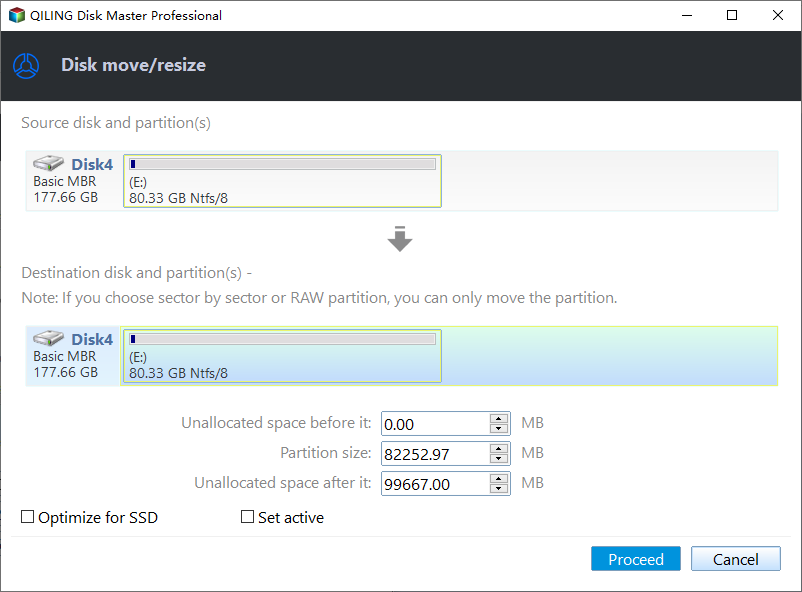
Click "Proceed" to save all the changes.

To continue, go back to Partition Manager, where you'll find unallocated space on the same disk. From there, you can proceed with creating a new partition on your hard drive.
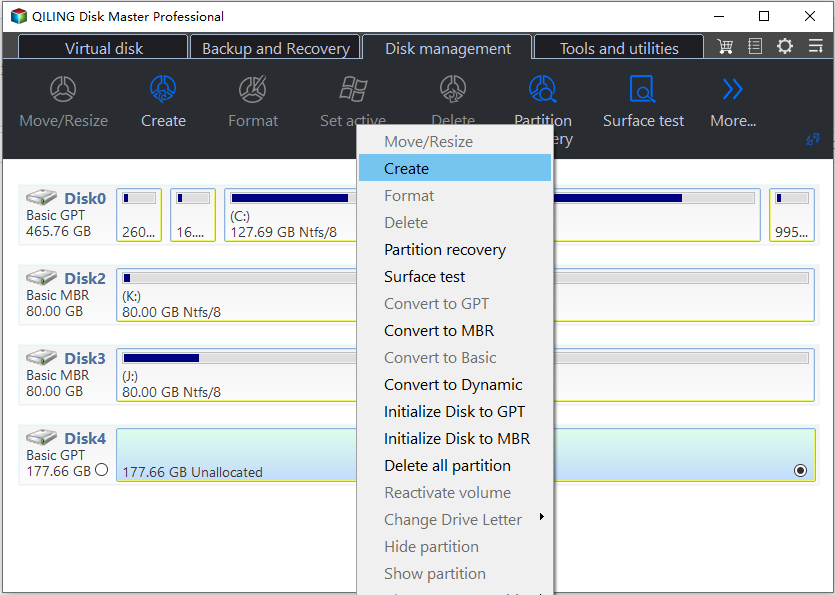
Step 3. Create a new partition with unallocated space on the target hard drive.
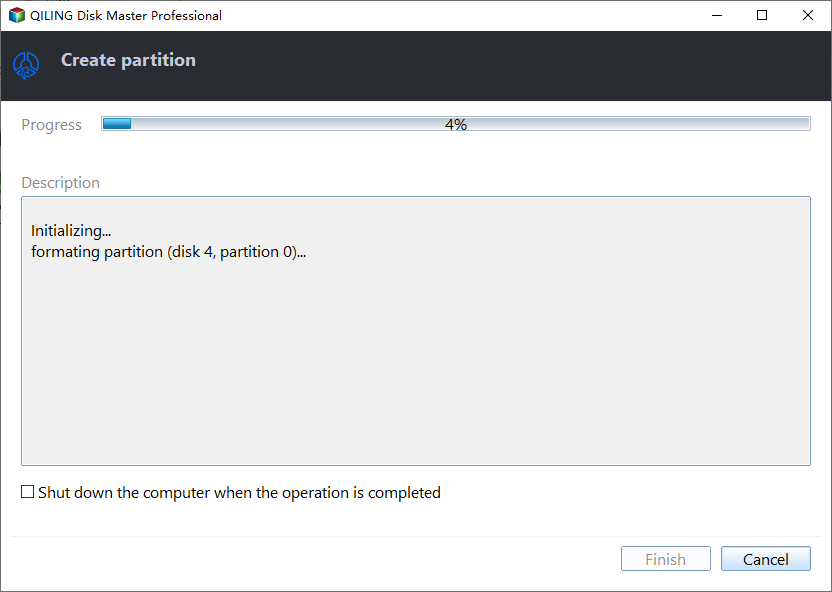
Right-click on the unallocated space and choose "Create".
The partition settings can be customized in the Advanced Settings, allowing users to adjust the partition size, assign a drive letter, change the partition label, select the file system (such as NTFS, FAT32, EXT2/3/4, or exFAT), and possibly other options.
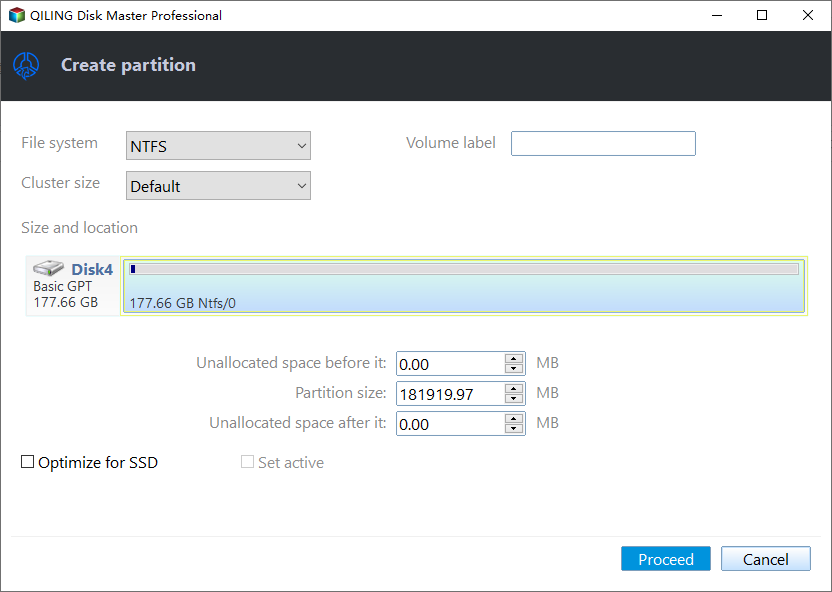
To create a new partition on your hard drive, first open the Disk Management tool and select the disk you want to partition. Then, right-click on the unallocated space and select "New Simple Volume" from the context menu. Follow the wizard to assign a drive letter and format the partition, and finally click "Proceed" to complete the process.
If you found this helpful, don't forget to share the post with others who may benefit from it. This will help spread the knowledge and make it more accessible to those who need it.
Now that you have learned how to shrink the C drive and create a partition from unallocated space, you may also be interested in knowing how to extend the C drive with Qiling Disk Master by reading the following article.
How to Extend C Drive in Windows 10 Without Formatting
To extend the C drive in Windows 10, follow this tutorial and use Qiling Disk Master to safely expand the system partition without deleting or formatting any data.
Way 2. Using Disk Management
You can use Windows' built-in Disk Management tool to partition and manage your disks, which can help you shrink the C drive and create new simple volumes from the unallocated space on your new hard drive.
Follow the guide to partition with Disk Management:
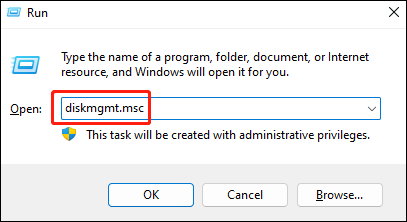
Step 1. To open the Disk Management tool, press the Windows button and the "R" key simultaneously to open the Run Command. Then, type "diskmgmt.msc" in the dialog box that appears, and press Enter. This will open the Disk Management tool, where you can manage your computer's disks and partitions.
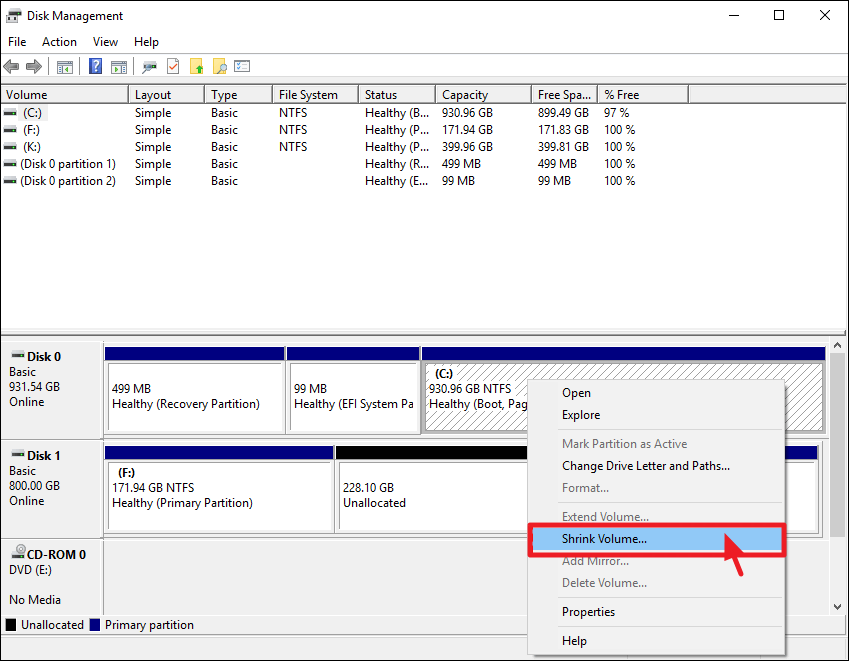
Step 2. To free up space on your C drive, open Disk Management, right-click on the C drive, and select "Shrink Volume".
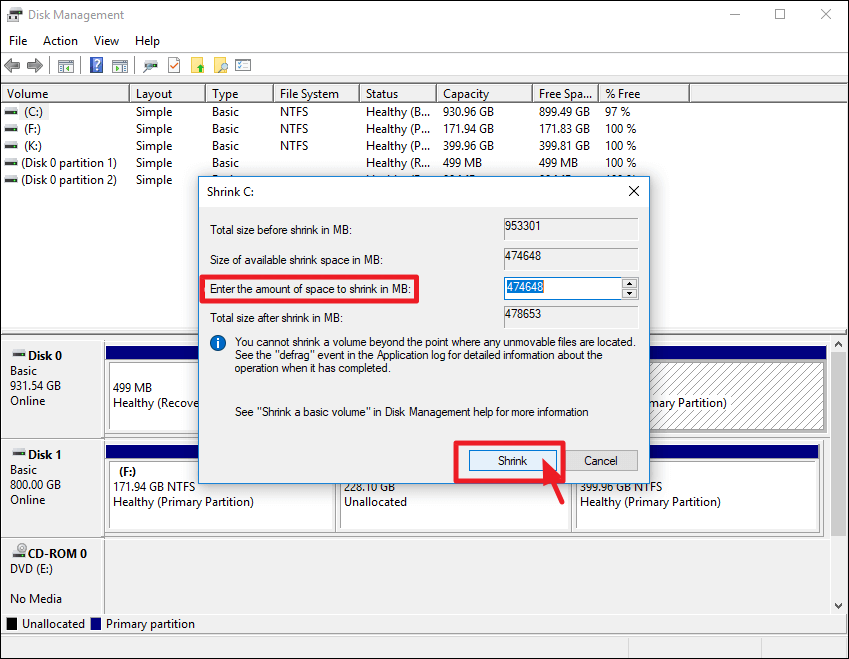
Step 3. Enter the amount of space in the box to shrink from C drive, and click "Shrink" to create unallocated space.
Step 4. Right-click the unallocated space and select "New Simple Volume".
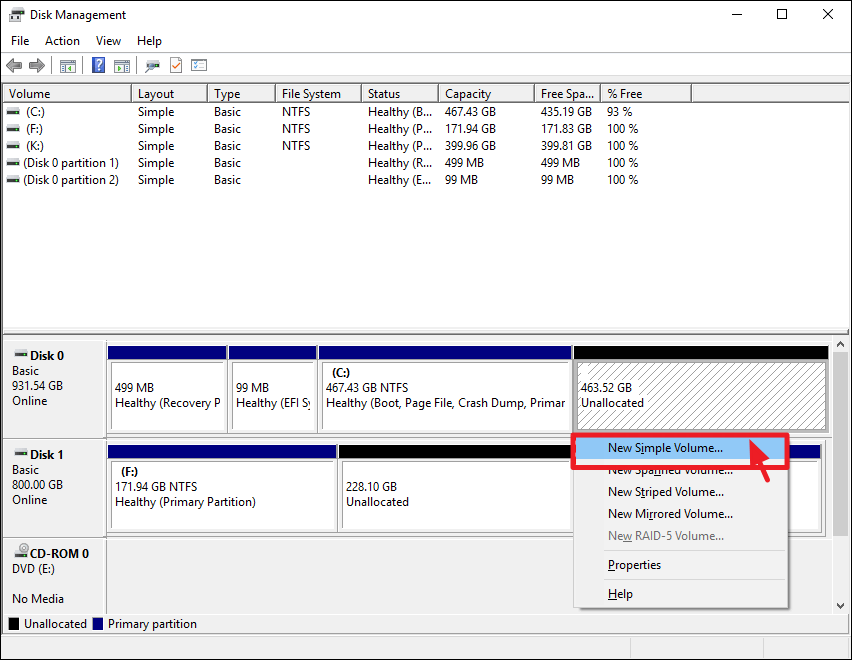
Step 5. To create a new partition, you will need to allocate a specific amount of space on your computer's hard drive. This can be done by going to the Disk Management tool, which is usually found in the Control Panel.
Note: The unallocated space can only be extended to the adjacent partition on the left, and the "Extend Volume" option is greyed out when trying to extend the volume with unallocated space on the left.
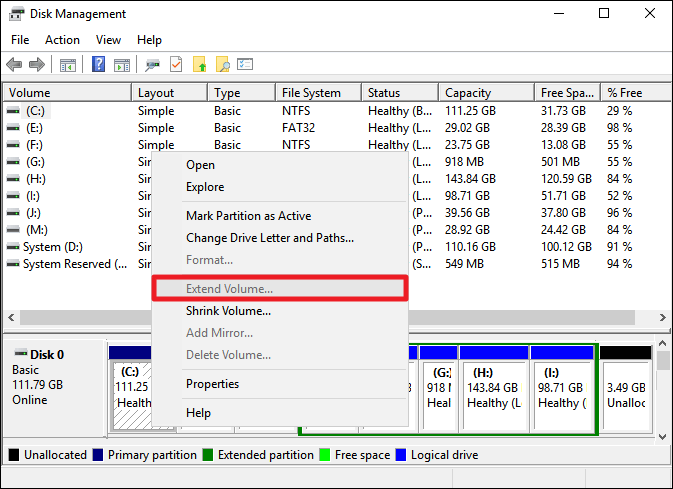
Partitioning with Disk Management often requires formatting, which can be inconvenient for users. In contrast, professional partition software like Qiling Disk Master allows for partitioning without formatting, and also enables extending the volume with unallocated space from anywhere.
Do remember to share this post on your social media to help more people!
Why Do You Need to Partition C Drive
Most computers come with a single partition on the hard drive, typically labeled as the C drive. However, you can partition the C drive and create a new volume using the unallocated space. Alternatively, if you're experiencing a low disk space error on the C drive, you may need to extend it by using unallocated space from another drive that has plenty of unused space. This can help free up space on the C drive and resolve the issue.
Partitioning C drive has several benefits for your computer, including improved organization, increased storage capacity, and enhanced system performance. By dividing the C drive into separate partitions, you can isolate specific files and programs, making it easier to manage and maintain your system.
- Better Data Organization: The software allows you to better organize your files by separating your Windows OS from other data and programs, making it easier to access frequently used items like films, games, and music, which can be saved on the D drive for quick access.
- Simpler Backups: When you have multiple volumes, you can choose which ones to back up, making backups more efficient and targeted. For instance, you can separate your operating system and important files onto different partitions, making backups more manageable and reducing file sizes and processing time. This approach streamlines the backup process.
- Data security: Using a separate partition for personal files can protect your data from malware attacks, as ransomware has a lower chance of encrypting files on a different partition than the OS drive.
- Multiple File Systems: You can partition the C drive to apply multiple file systems on different partitions, such as creating separate partitions with NTFS and FAT32 file systems.
- Multiple Operating Systems: You can install another operating system like Linux or an older version of Windows on a drive other than the C drive.
Conclusion
Partitioning C drive is essential for a new computer or laptop, allowing for better file management and safer storage of personal files. With the ability to create more volumes using unallocated space, you can further organize your files. To experience these features and more, download Qiling Disk Master, which also offers file system conversion, system or hard drive cloning, WinPE bootable disk creation, and partition merging capabilities.
FAQs on Partition C Drive
If you have more questions on partition C drive, below are three frequently asked questions and answers.
1. Is it okay to partition the C drive?
The C drive is a partition that can be resized if necessary, such as removing excess partitions or utilizing free space at the end. This can be done safely through the Disk Manager, assuming there's no corruption.
2. How do I increase space on my C drive?
To expand the C drive size, first, open Disk Management and right-click on the C drive. Select "Extend volume" and follow the on-screen instructions to complete the process, ensuring there is unallocated space next to the C drive.
3. How do I extend my C drive by shrinking my D drive?
- Right-To access the Disk Management module, click on the "Computer" icon, then select "Manage" from the context menu. From the available options, choose "Disk Management" to proceed.
- To free up space on your computer, right-click on the D drive, which is located next to the C drive, and select the option to shrink the volume. You will then be prompted to enter a number in the box that represents the amount of space you want to shrink the size of the D drive.
- After shrinking the D drive, there will be an unallocated space on the D drive, which can then be used to extend the size of the C drive.
Related Articles
- How to Fix IRQL_NOT_LESS_OR_EQUAL Blue Screen on Windows 11
- How to Partition A Hard Drive in Windows 11 [Create & Format Hard Disk]
- How to Burn Windows 11 23H2 ISO to USB | 2024 Latest🔥
- Selected Boot Device Failed - 6 Quick Fixes with Pictures
- Shrink Volume with Disk Management in Windows 11, 10, 8, 7
Many people may want to know how to use Disk Management to shrink volume. This article shows you how to do it and provide other solutions. - How to Wipe Partition and Erase Data Completely?
Wanna wipe partition to erase all data from a partition completely? The 'Wipe Partition' feature in Qiling Disk Master will help you.
Products
Articles & Tutorials
- Data Recovery
- Data Backup
- File Recovery
- File Backup
- System Backup and Restore
- Disk and Partition Clone
- Technical articles
- Mobile articles
- Disk Master Help
- Windows Data Recovery Tutorials
- Windows Secure Delete Tutorials
- Windows Partition Management Tutorials
- Windows File Backup and Restore Tutorials
- Windows System Backup and Restore Tutorials
- Windows Disk Backup and Restore Tutorials
- Windows Clone Tutorials