How to Start Mac in Recovery Mode [macOS Ventura/Monterey/Big Sur]
To start your Mac in recovery mode, follow these steps: Restart your Mac. Immediately hold down the "Command (⌘) + R" keys.
| Workable Solutions | Step-by-step Troubleshooting |
|---|---|
| Fix 1. Enter on Intel-based Mac | Go to the Apple logo. Choose Restart from the drop-down menu. Wait for the system...Full steps |
| Fix 2. Enter on Apple M1 chips | To enter Recovery Mode on Macs with Apple M1 chips, here are the steps you need to follow...Full steps |
| Fix 3. Internet Recovery Mode | Internet Recovery is an excellent option for failing to access the recovery partition...Full steps |
The Mac Recovery Mode is a built-in feature that allows access to macOS recovery tools, providing four main options: Get help online, reinstall macOS, disk utility, and restore from Time Machine Backup.
When you start Mac into Recovery Mode, the recovery tools get loaded from a specially designated disk partition, which contains a recovery picture and the macOS installer copy, and is often used to assess and resolve disk problems.
Here are the situations where you might need to start Mac in Recovery Mode: You need to reset your password, you want to reset your Mac to its factory settings, you're having trouble booting up your Mac, or you need to reinstall macOS. To start your Mac in Recovery Mode, simply hold down the power button until it turns on, then release it and immediately hold down the Command (⌘) + R keys until the Apple logo appears. This will take you to the Utilities window, where you can select Disk Utility, Reinstall macOS, or other options as needed.
- Troubleshooting: If you're experiencing any problems with your system, using the Recovery mode and exploring its various options can be a helpful troubleshooting step. This allows you to access and run specific commands or utilities that can aid in resolving the issue without affecting the overall system.
- Restore system: If you need to restore data from a Time Machine backup, you can do so easily using Recovery Mode. This feature allows you to recover your data with minimal hassle.
- Sell the system: To ensure your device is completely wiped before handing it over, you should boot it in Recovery mode and perform a factory reset. This will remove all data from the device, leaving it in a completely clean state.
- Hard drive issues: To resolve hard drive problems, you can use Recovery Mode to boot your Mac into Disk Utility, which can aid in resolving issues.
How to Start Mac in Recovery Mode
To start your Mac in Recovery Mode, press and hold the power button until the computer shuts down, then release the button and press it again to turn it back on. Immediately hold the Command (⌘) + R keys. This will boot your Mac into the Recovery Mode. If your Mac won't boot, you can also try booting from an external drive or USB drive that has the Recovery Mode on it.
Fix 1. Enter Recovery Mode on Mac [Intel-based Macs]
Here are the steps to enter Recovery Mode on an Intel-based Mac:
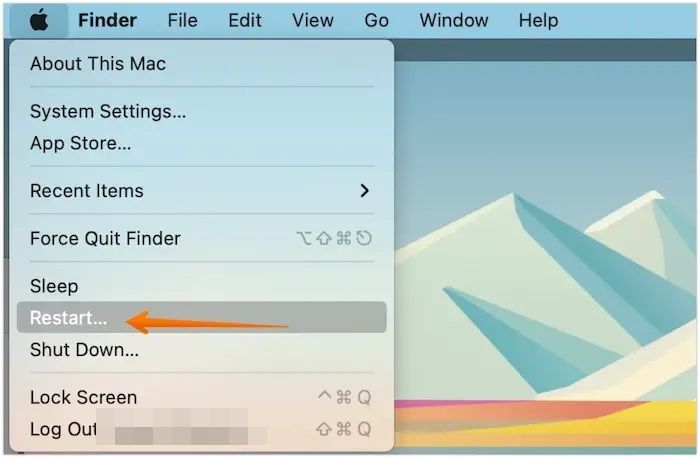
Step 1. To restart your Apple device, click on the Apple logo at the top left corner of the screen, select Restart from the dropdown menu, and wait for the system to shut down.
Step 2. To boot your Mac in recovery mode, press and hold the Command (⌘) and R keys simultaneously until you see the Apple logo. Release the keys, and the macOS Utilities window will appear.
Fix 2. Enter Recovery Mode on Mac [Apple M1 chips]
To enter Recovery Mode on Macs with Apple M1 chips, you need to press and hold the Power button until the startup options window appears, then select "Recovery" from the Utilities window that opens.
Step 1. To shut down the system, press the power button and hold it until you see the Loading startup options screen, then release it.
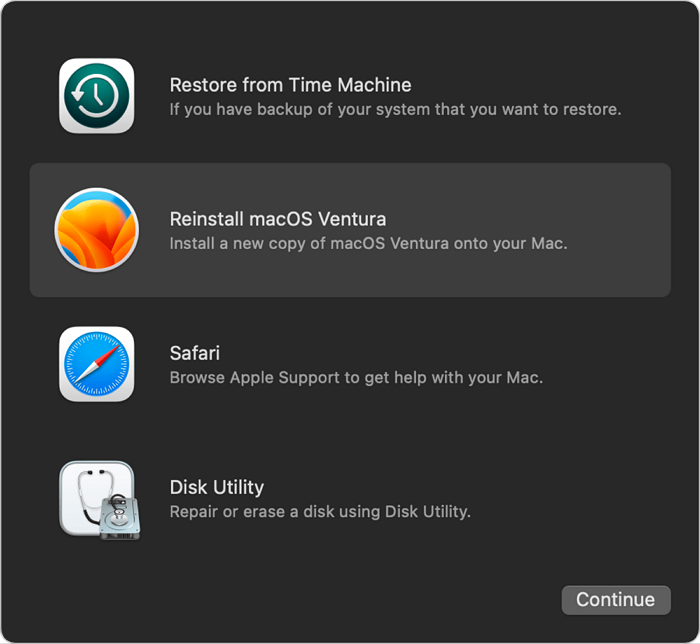
Step 2. Select Options from the new screen, then click on Continue. If prompted, enter the admin password.
Fix 3. Enter Internet Recovery Mode
Internet Recovery is a useful option for accessing a clean macOS installation when the recovery partition is inaccessible or there are hard drive issues, allowing you to download a clean OS version from the internet, provided you have stable internet and a charged device.
When your system can't enter Recovery Mode, it switches to Internet Recovery mode, but you can also manually switch to it.
Here are the steps –
Step 1. Press and hold the Command, Option, and R keys simultaneously to turn on the system.
Step 2. If you see the lock icon, enter the password.

Step 3. Wait for the Wi-Fi menu to come on the screen. Check the list of available Wi-Fi networks and select the one you want to connect to. Then, type in the password for the chosen network to complete the connection.

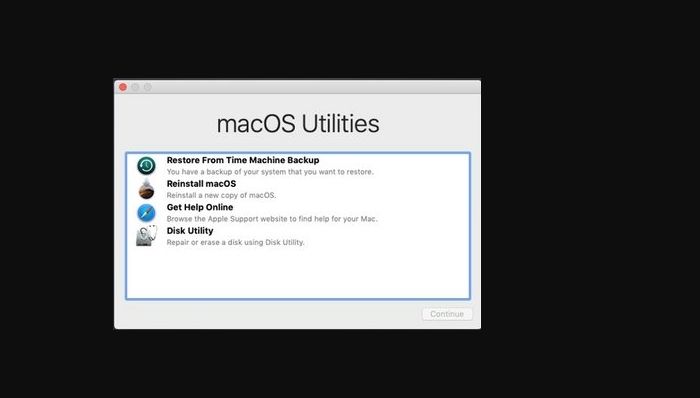
Step 4. Now, Mac will download the recovery system image, offering access to different recovery tools. This process will eventually lead to the macOS Utilities window.
- Notice:
- These steps are meant explicitly for Intel-based Macs. It may differ from other models.
How to Fix Mac Recovery Mode Not Working
If your Mac recovery is not working or you cannot access it, that is a cause for concern. In that case, you can try the solutions listed below, such as resetting the System Management Controller (SMC), resetting the Power Management Unit (PMU), or using the built-in Disk Utility to verify and repair the disk, or using an external drive to boot into the Recovery HD, or using a third-party tool like Disk Drill to recover lost data, or seeking professional help from an Apple Support representative.
- Fix 1. Determine your Mac's model and check how you access it
- Fix 2. Verify your Wi-Fi or Internet connection
- Fix 3. Examine and adjust your peripheral devices
- Fix 4. Install macOS from a USB
Fix 1. Determine your Mac's model and check how you access it
The simplest solution to the Mac recovery mode not working is to check the model you have, ensuring you use the correct keyboard combinations, such as Command and R for Intel-based Macs, or opt for Internet Recovery mode if that doesn't work.
On M1 Macs, there's a feature called Fallback Recovery Mode that allows you to access a second copy of the operating system.
Fix 2. Verify your Wi-Fi or Internet connection
A stable and fast internet connection is often overlooked but crucial for a smooth gaming experience. If you're using Wi-Fi, ensure it's stable and fast, and if still experiencing issues, consider switching to another internet provider.

Fix 3. Examine and adjust your peripheral devices
Check your keyboard and ensure it's working properly, and if the issue persists, try using a different keyboard.
Fix 4. Install macOS from a USB
You can try installing macOS from a USB drive by following specific steps, which include creating a bootable USB drive from a compatible macOS installer, ensuring the USB drive is properly formatted and has sufficient storage, and configuring the computer's boot settings to prioritize the USB drive over the internal drive. This method allows for a clean installation of macOS and can be a viable option for those who prefer not to use the Recovery Mode or have issues with their internal drive.
Step 1. Turn off the system, attach the bootable USB, and press and hold the Option/Alt key along with the power button.
Step 2. The above steps will lead you to the Recovery mode.
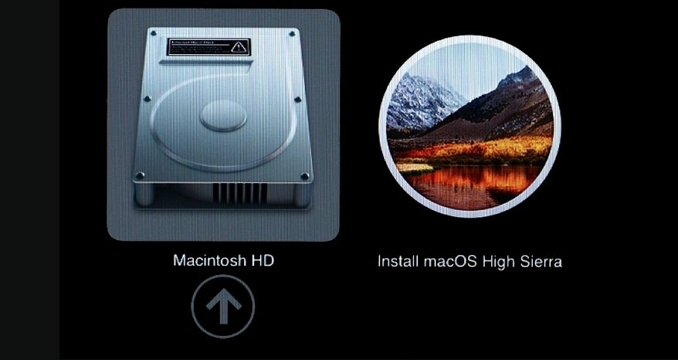
Step 3. When the Startup Manager appears, select the USB-connected external disc and choose Install macOS. Then, click Continue to proceed.
After some time, the Mac will reboot by itself.
Bonus Tip: How to Recover Data When Mac Recovery Mode Not Working
If you're experiencing issues with Mac Recovery Mode or have lost data, the Deep Data Recovery for Mac is a professional and reliable solution to consider. It can help recover lost data.
Deep Data Recovery for Mac can recover various types of lost data, including music files, emails, photos, documents, and videos, making the recovery process easy and hassle-free.
Deep Data Recovery for Mac
- You can also use the advanced filter to quickly find deleted files.
- Recover emptied Trash on Mac, hard drive, memory card, flash drive, digital camera, and camcorder by using data recovery software. This software can scan the device and recover deleted files, even if they have been emptied from the Trash.
- Recovering deleted files on a Mac can be a lifesaver in various situations, including sudden deletions, formatting errors, hard drive corruption, virus attacks, and system crashes. Whether you've lost important documents, photos, or other files, there are different methods and tools available to help you retrieve them.
To use Deep Data Recovery for Mac, follow these steps:
Step 1. Select the drive to be scanned
In the main Deep Data Recovery window, select the drive you need to recover lost/deleted files from and click the "Search for lost files" button.
Note: Before attempting data recovery, it's recommended to create a backup of your Mac by clicking "Disk Backup" from the left sidebar, which will safeguard against further data loss. Once the backup is created, the software can then recover data from the backup, and your computer will be ready to write new data again.

Step 2. Select your lost data/files
Deep Data Recovery for Mac scans the selected disk volume and displays the results, allowing users to sort and find specific files.

Step 3. Recover lost/deleted data
Once you have found the desired files, preview them and then click "Recover" to initiate the recovery process of your deleted/lost Mac files.

Summary
Mac Recovery Mode is a feature that allows users to troubleshoot and repair their Macs. To enter Recovery Mode, users can restart their Mac and immediately hold down the power button, then release it and hold the Command (⌘) + R keys. If this doesn't work, they can try using a different keyboard or installing macOS via USB. This feature provides a safe environment to resolve issues and restore their Mac to its original state.
In the event of data loss, you can recover your files using a specialized data recovery tool like Deep Data Recovery for Mac. This software is reliable, user-friendly, and doesn't require extensive technical expertise, making it accessible to anyone who needs to recover their lost data.
Haven't you tried Deep Data Recovery for Mac yet? Install this software today!
How to Start Mac in Recovery Mode FAQs
To start Mac in Recovery Mode, you can hold down the power button on your Mac until the login window appears, then release it. You can also restart your Mac and immediately hold down the Command (⌘) + R keys. Alternatively, you can boot from an external drive or USB stick that contains the Recovery Mode.
1. Why won't my Mac go into recovery mode?
Your Mac not going into recovery mode can be due to several reasons, including a faulty keyboard, incorrect keys combination, or a damaged recovery partition, among others.
2. How to Fix Mac Recovery Mode not working?
To fix Mac Recovery Mode not working, there are several solutions that can be adopted. One possible solution is to reset the System Management Controller (SMC), which can be done by shutting down the Mac, locating the power button, and pressing the power button, the command (⌘) + option (⌥) + P keys, and the power button again.
- Firstly, you need to use a different keyboard and check if the correct key combinations are used.
- To resolve the issue, you can try resetting the System Management Controller (SMC) and booting your Mac into safe mode. This can help resolve the problem by clearing out any corrupt system files and settings that may be causing the issue.
3. What can I do in Mac Recovery Mode?
In Mac Recovery Mode, you can reinstall macOS, set security options, repair internal storage devices, and restore files from a Time Machine backup.
4. What can I do via Internet Recovery Mode Mac?
You can install a new macOS version and troubleshoot issues using the Internet Recovery Mode Mac, which allows you to install a new version of macOS.
Related Articles
- [3 Ways] How to Backup Wireless Network Profile
- Linux Tips| E212 Can't Open File for Writing in Vim (3 Ways)
- How to Change Time and Date on Windows 10/11
- [5 Quick Fixes] Samsung Data Migration Not Working
- Fixed: The Office Open XML Cannot Be Opened [Full Guide]
What do you know about the Office Open XML file? This article features an overview of the file format and provides a guide on what to do if the Office Open XML cannot be opened. With the provided details, you can resolve the particular issue. - OneDrive Files Corrupted | How to Restore Them in 2024
Learn how to fix and recover corrupted OneDrive files, check sync issues, restore previous versions, and protect cloud files.
Products
Articles & Tutorials
- Data Recovery
- Data Backup
- File Recovery
- File Backup
- System Backup and Restore
- Disk and Partition Clone
- Technical articles
- Mobile articles
- Disk Master Help
- Windows Data Recovery Tutorials
- Windows Secure Delete Tutorials
- Windows Partition Management Tutorials
- Windows File Backup and Restore Tutorials
- Windows System Backup and Restore Tutorials
- Windows Disk Backup and Restore Tutorials
- Windows Clone Tutorials