[5 Quick Fixes] Samsung Data Migration Not Working
- 🙋♂️User Case
- "I bought a Samsung 100 GB SSD to transfer my old data into the new one. I thoroughly reviewed the instructions and started the data cloning process with Samsung Data Migration with proper setup. The data migration is not working; sometimes, the Samsung data migration stuck at 0 and sometimes at 99. How can I fix this Samsung Data Migration Not working issue and complete my disk cloning successfully?"
Samsung offers a data migration tool called Samsung Data Migration to quickly and efficiently clone Samsung SSD to a larger SSD. However, some users are encountering Samsung Data Migration stuck at 0 or 99 or not responding errors, which can be fixed with efficient solutions.
Potential Causes for Samsung Data Migration Not Working
The Samsung Data Migration tool may experience issues due to various problems, including software glitches, hardware incompatibilities, and user errors, leading to difficulties in transferring data from an old to a new Samsung device.
- Trying to transfer large files or partitions to Samsung SSD
- SATA port or SATA-to-USB adaptor faults.
- Not enough space on the target SSD to store data.
- If your Samsung Data Migration is not up to date.
- Source or target hard drive issues.
Fix Samsung Data Migration Not Working
We've compiled a list of 5 effective solutions and a better substitute to resolve the Samsung Data Migration Not Working Issue, providing a helpful resource for those experiencing difficulties with the process.
📖Further Reading: Samsung Data Migration Stuck at 0% While Cloning SSD
(1) Check the Source HDD/SSD and target SSD
If your Samsung Data Migration is stuck at 99 or 0, try running a health check on your source disk and target SSD to ensure they're working fine. You can do this by running the command prompt and using the "chkdsk" command on your SSD to check for any issues. This simple step can help resolve the problem and get your migration process back on track.
Step 1: To run a health check on your Samsung SSD, make sure to connect the drive while performing the check.
Step 2: Open the Command Prompt in Run as Administrator Mode.
Step 3: Run the following command, Press Enter, and follow the prompts on the screen to complete this operation.
chkdsk X: ( Replace the X with the letter of your drive).
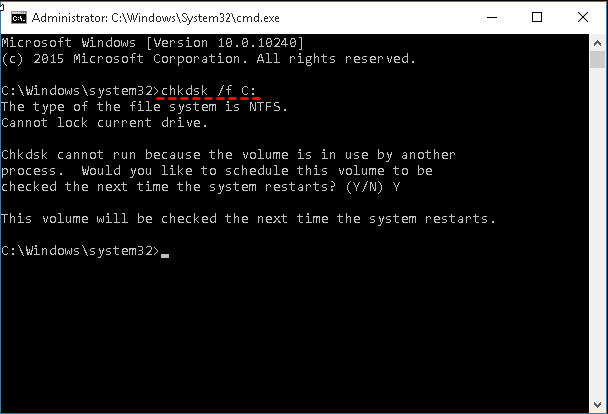
If there are any issues with the disk, the operating system will display it on the command prompt.
(2) Change the Connecting Cable/Port
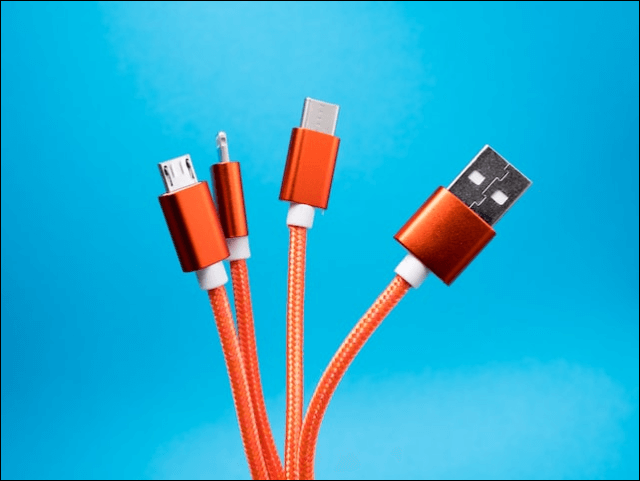
Samsung Data Migration Not Working may occur if there are issues with the SATA cable or if the SATA to USB connection is not done properly, causing the process to halt.
If the issue persists, verify the SATA/USB connection and try switching the SATA cable to another port on the motherboard or using a different SATA port to clone important data to the target disk. If the problem continues, it may be worth trying to clone the data to the target disk using a different method or device.
(3) Examine the Storage Space of the Target Disk
If the target disk has less storage space than the source disk, no migration software can transfer the data, resulting in a stuck or failed data migration cloning process, as seen when trying to transfer data from a 100GB disk to a smaller SSD.
To be on the safer side, it's recommended to transfer up to 75% of the target disk's total size, so consider buying a suitable disk according to your needs.
(4) Check the Hardware Condition of your Computer
Your computer's hardware condition plays a crucial role in managing software and functions. To avoid issues like data migration failure, it's essential that all hardware components coordinate and work together seamlessly. If any hardware issue arises, it can impact the overall performance and functionality of your system.
The PC's hardware consists of 6 main parts: hard disks, CPU, GPU, RAM, and battery. To check the overall performance of your computer, you can use the built-in utility called Performance Monitor in Windows OS. This utility allows you to run a performance check with a few simple steps.
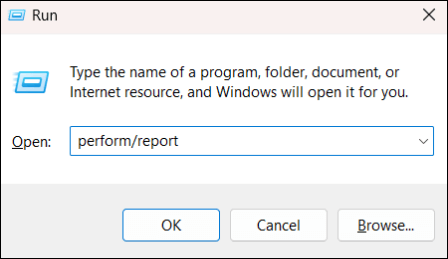
Step 1: Open the Run dialog box by pressing Windows + R, then type "Perform/report" and press Enter to run the utility.
Step 2: The software collects data for over 60 seconds and displays diagnostic results, which can be viewed in the Diagnostic Results section. This section provides detailed information on the condition of hardware components in various subsections.
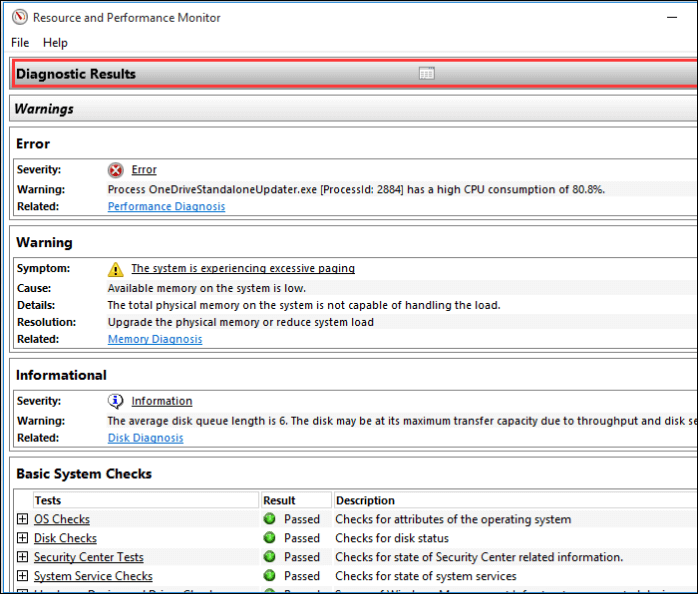
The system check displays various levels of errors, warnings, and informational messages, along with basic system checks. However, these are preliminary and may not solve the issue, so it's recommended to run specific hardware troubleshooters or diagnostic tools to troubleshoot the errors.
(5) Update Samsung Data Migration
If you're experiencing issues with Samsung's Data Migration tool, it might be due to an outdated version. To resolve the problem, visit Samsung's official website and update the software to the latest version, which may resolve the cloning issues and get the data migration process moving again.
Steps to get your data migration tool updated to the latest version:
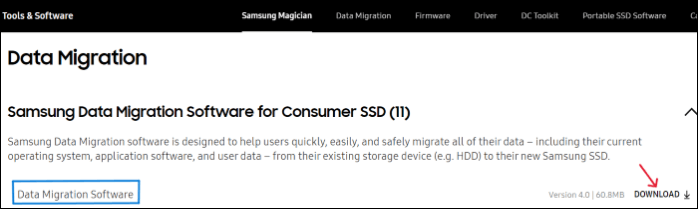
Step 1: Visit the Samsung Official website.
Step 2: Scroll down and under Data Migration, expand Samsung Data Migration software for consumer SSD.
Step 3: To redownload Samsung Data Migration for Windows with the latest version, click the Download button.
[Bonus] Qiling Disk Copy for Easier Disk Cloning
If you're struggling with the Data Migration tool and are fed up with troubleshooting it, consider an alternative solution. Instead, download the Qiling Disk Copy, set up the necessary requirements, and complete the task easily with just a few a few clicks.
Qiling Disk Copy is a super fast disk cloning software on Windows OS that offers fast cloning, flexible, and safe boot. It benefits users by cloning an old HDD/SSD to a new PC, upgrading their hard drive, migrating the operating system to a new hard drive, and recovering data from a failed hard drive. Additionally, it provides backup and restoration services with a simple UI and excellent functionality that can be completed in a few steps.
Key Features of Qiling Disk Copy:
- Best cloning software with great value for money.
- Supports disk clone, system clone, and partition clone.
- This tool enables users to create a local backup for their hard drives in parallel, allowing for efficient and simultaneous data duplication.
- The software has the capability to clone the bad sectors of the hard drives, allowing for data recovery and preservation.
- Supports Windows 11/10/8/7.
Follow the simple steps to clone to Samsung SSD:
To activate Qiling Disk Copy for a smooth disk copying or cloning process, follow these steps: First, download and install Qiling Disk Copy from the official website. Once installed, launch the program and select the source disk you want to copy or clone.
1. Download, install and run Qiling Disk Copy on your PC.
To copy or clone a disk, first click on Disk Mode and select the source disk that you want to copy or clone. Then, click Next to proceed with the process.
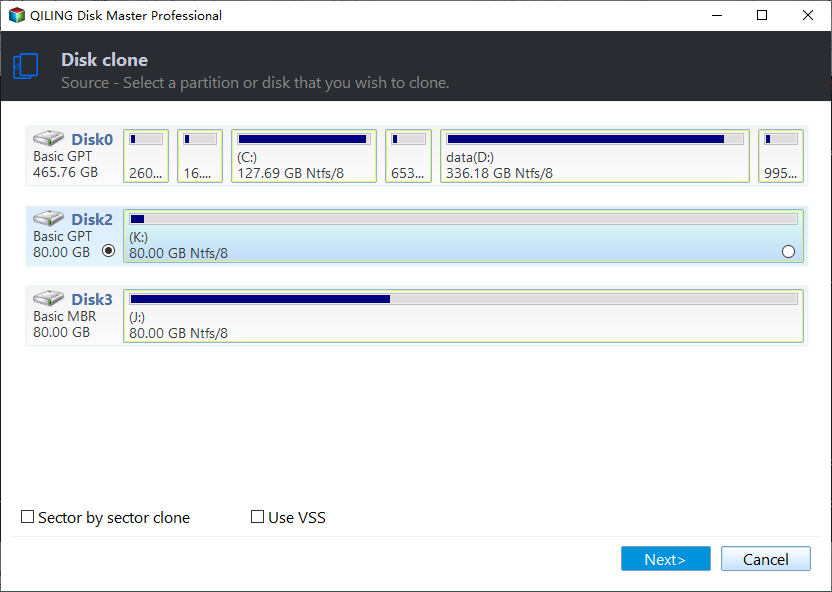
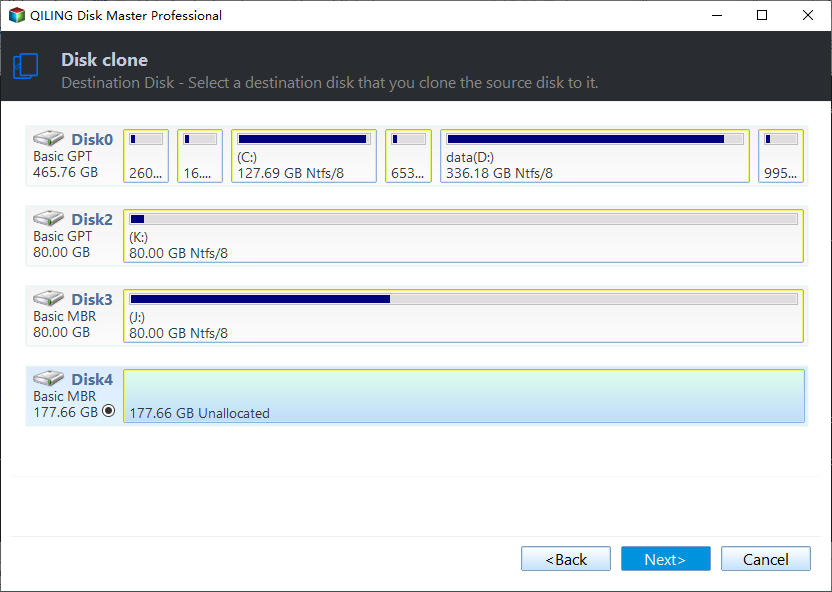
2. Select the destination disk where you want to clone/copy the old disk and click Next to proceed with the cloning/copying process.
To confirm the erasure of data on the destination disk, click OK in the program. This action will proceed with the data erasure process.
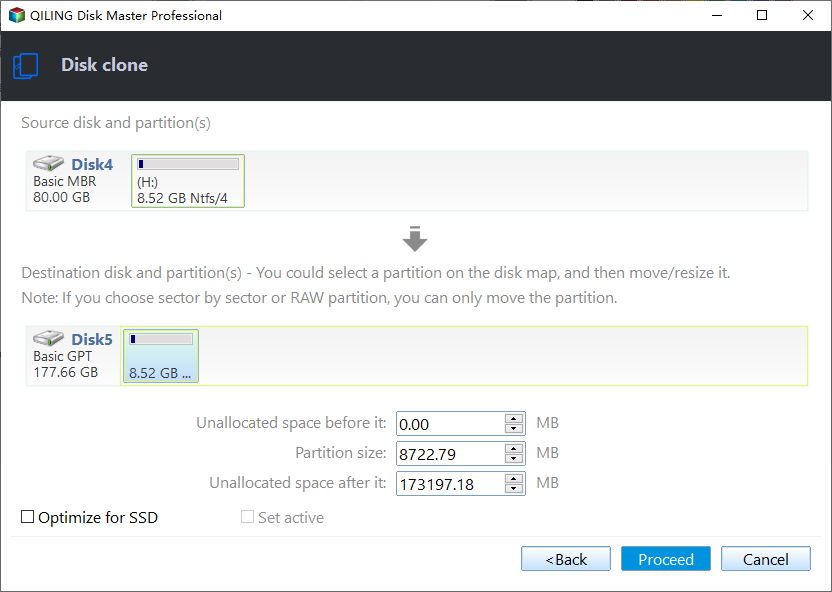
3. To adjust the disk layout, select "Check and edit the disk layout" and then choose one of the options: Autofit the disk, Copy as the source, or Edit disk layout.
Autofit the disk is recommended.
- The "Copy as the source" option is used to replicate the exact partition layout from the source disk to the destination disk, effectively cloning the same structure of partitions onto the target disk.
- Edit disk layout allows you to manually resize or move partitions on the destination disk.
- If your destination disk is an SSD drive, make sure to select the "Check the option if the target is SSD" box.
The process will begin immediately, and the cloned disk will be created on the destination drive. Please ensure that the destination drive has sufficient free space to accommodate the cloned disk.
The Final Verdict
If you're experiencing issues with Samsung data migration not working, you can try various fixes to resolve the problem. These solutions aim to address the potential causes and may solve the issue. If the data migration tool is malfunctioning, consider using Qiling Disk Copy, a simple and compact solution for disk cloning and data migration.
If you find this article helpful, share it with your friends and leave a comment about it. If you have any queries regarding the topic, feel free to ask them in the comment box, and do let me know of the future issues you wish to see articles from Qiling.
Samsung Data Migration Not Working FAQs
Here are some of the most frequent FAQs asked on the topic. If you have similar queries hope this will help you. You can also post your questions in the comment box.
1. How do I fix Samsung data migration?
If your Samsung Data Migration cloning failed, you can try the quick fixes below to resolve the issue. These may include checking the USB connection, restarting the cloning process, and ensuring the source and destination drives are not connected to the same PC.
- Check the Source and Samsung SSD.
- Try using a different SATA port and cable.
- Check the target disk space.
- Update the SDM to the latest version.
2. Why is my Samsung Drive not showing up on data migration?
If you connect an SSD to a computer using a SATA enclosure, the computer may not be able to recognize it. To fix this, you can try connecting the SSD using a SATA-to-USB cable instead. Alternatively, you can replace the old drive with a new Samsung SSD and connect the old hard drive using a SATA/USB cable.
3. How do I fix the Samsung Data Migration cloning failure?
To fix the Samsung Data Migration cloning failure, you can try various troubleshooting steps. Firstly, ensure that the source and destination drives are properly connected and recognized by the system.
- Defragment your Source Hard Drive
- Turn Off Hibernation Mode
- Disable Page files
- Turn off Restore Point Protection for the drive
- Reboot the system and resize the system partition.
4. How long does it take for Samsung Data Migration?
The time it takes to migrate data from an old Samsung device to a new one using the Samsung cloning program can vary, but it's typically between 30 minutes to 1 hour, depending on the size of the data and the speed of the cloning process.
Related Articles
- macOS Sonoma Upgrade Failed | 3 Tested Solutions in 2023
- Disk Boot Failure - Insert System Disk and Press Enter in Windows 10
- How Do SD Cards Work on Different Devices [Android/Camera/Switch/Laptop]
- How to Fix Apps Not Working on macOS Sonoma
If you're experiencing issues with apps not working on macOS Sonoma, this article provides the top reasons and 7 fixes to resolve the problem. However, be aware that trying these fixes may result in data loss, so it's recommended to install Deep Data Recovery for Mac Pro to protect your data. - How to Fix D3dcompiler_43.dll Not Found [Updated 2024]
Are you facing d3dcompiler_43.dll not found issue on your PC? Then follow this easy guide on how to Fix D3dcompiler_43.dll Not Found. - 5 Ways to Fix the 'Device Doesn't Support Miracast' Error in Windows 11
Fix the device does not support Miracast error in Windows 11 by checking wireless display support, drivers, and network settings.
Products
Articles & Tutorials
- Data Recovery
- Data Backup
- File Recovery
- File Backup
- System Backup and Restore
- Disk and Partition Clone
- Technical articles
- Mobile articles
- Disk Master Help
- Windows Data Recovery Tutorials
- Windows Secure Delete Tutorials
- Windows Partition Management Tutorials
- Windows File Backup and Restore Tutorials
- Windows System Backup and Restore Tutorials
- Windows Disk Backup and Restore Tutorials
- Windows Clone Tutorials