Samsung Data Migration Stuck at 0% While Cloning SSD [100% Working]
You're trying to clone a 250GB Samsung 850 EVO to a 2TB Samsung 870 EVO using Samsung Data Migration, but it's stuck at 0%. This could be due to various reasons, such as compatibility issues, incorrect settings, or faulty hardware. You may want to try restarting the cloning process, checking the cables and connections, or using a different cloning software to see if the issue persists. Additionally, ensure that the 2TB drive has enough free space to accommodate the 250GB data being cloned.
You've tried troubleshooting by changing the SATA cable, disabling device encryption, and running a health check on both disks, but the Samsung Data Migration is still stuck at 0. Given that it's been stuck for 40 minutes with a 0 transfer speed, it's likely that the issue is more serious and not just a simple technical glitch. You may want to consider restarting the process, but if that doesn't work, you might need to seek further assistance from Samsung support or a professional data recovery service to resolve the issue. Would that help?
Samsung's Data Migration tool is designed to transfer data from an existing storage device to a new Samsung SSD or clone a Samsung SSD to another SSD, doing so quickly and efficiently. However, this software is specifically for Samsung SSDs, and some users may experience issues like the tool getting stuck at 0 or 99, or not working at all, especially when cloning hard drives to SSDs.
Why Samsung Data Migration Stuck at 0 Occurs
The SDM may act up due to various reasons, but the exact cause of Samsung Data Migration not working or 0 Mb/s issues can't be pinpointed. Possible causes include software glitches, corrupted files, or hardware incompatibility, which can result in the data migration process being slow or not working at all.
- Issues with the SATA port or SATA-to-USB cables.
- Insufficient storage on the target SSD/ hard drive.
- An outdated Samsung Data Migration cloning tool.
- While transferring corrupt partitions or large files to SSD.
- Trying to transfer data from a failed drive can cause the Secure Data Management (SDM) system to malfunction.
How to Fix Samsung Data Migration Stuck at 0 Error - 5 Solutions
The post provides five practical solutions to resolve the issue of Samsung Data Migration getting stuck at 0, allowing users to resume the data transfer process.
A quick guide to the 5 solutions
- Check Your Cable Connections
- Run the Check Disk Tool
- Check the Target Disk Storage Space
- Disable Device Encryption
- Update Samsung Data Migration
(1) Check Your Cable Connections
If your Samsung Data Migration process is stuck at 0, it could be due to issues with your SATA cable or a faulty SATA to USB connection. To resolve this, ensure your cables are in good condition and properly connected. A simple check can make a big difference.
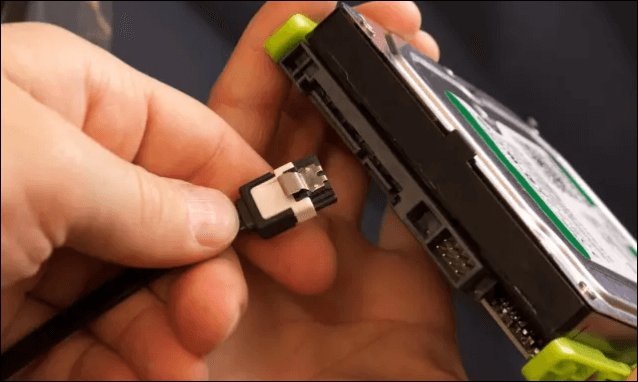
If you're experiencing issues transferring data from an external drive to a Samsung SSD, first verify that the SATA/USB cables are securely connected. If the problem persists, try using a different port with the SATA cable or obtain a new SATA/USB cable to transfer the data. This should resolve the issue and allow you to successfully transfer your data.
(2) Run the Check Disk Tool
If Samsung Data Migration gets stuck at 0, it may be due to a bad sector or incorrect partition on your source or target disk. To troubleshoot, run the Check Disk utility on your Windows using the `chkdsk` command, which scans the drives in a matter of seconds.
Step 1: To run the chkdsk tool on your Samsung SSD, ensure that the drive is connected to your system. This will allow the tool to access and scan the drive for any errors or issues.
Step 2: To access the Command Prompt, search for "Command Prompt" in the Start menu, right-click on the result, and select "Run as administrator". This will open the Command Prompt with elevated privileges, allowing you to run commands that require administrative access.
Step 3: Enter the following command and press Enter. Later, follow the prompts on the window to complete the check-up.
chkdsk X: To check the disk usage on a specific drive or partition, you can use the `du` command followed by the drive letter, for example, `du -h /dev/sdX`. This will show you the total size of the disk usage on that drive, including the size of all files and directories. If you want to see the disk usage for a specific directory, you can replace `/dev/sdX` with the path to that directory.
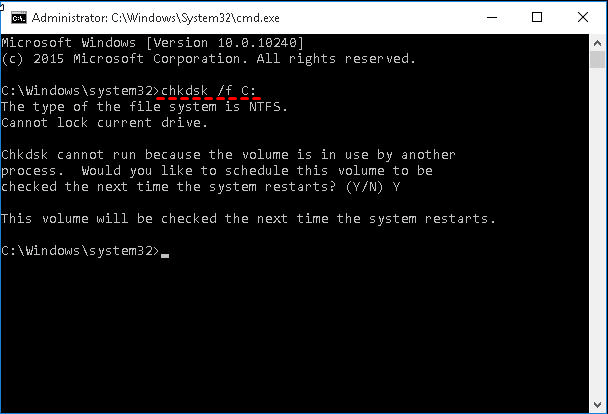
If you encounter issues with a drive, such as a bad sector, the command prompt can help you identify the problem. In this situation, it's a good idea to back up your data first, and then try transferring it again. This approach can help prevent data loss and ensure a smoother transfer process.
(3) Check the Target Disk Storage Space
If the target disk space is less than the source disk, it's impossible to transfer data, causing issues like Samsung Data Migration getting stuck at 0 or 99 when trying to clone a hard drive to a smaller SSD.
To avoid errors, ensure your target disk has at least 25% more storage space than your source disk. Consider purchasing a suitable disk based on your needs.
If your Samsung Data Migration process is stuck, don't worry! You're not alone. Many users have reported encountering issues while migrating data to their new Samsung device.
(4) Disable Device Encryption
When Windows OS detects an external drive, it may use device encryption to make the drive unreadable, causing data transfer to halt at 0. To resolve this, disable device encryption in a few clicks, then proceed with the transfer.
The instructions to disable device encryption:
Step 1: To access the Settings on Windows, click on the Windows key, search for "Settings", and open it.
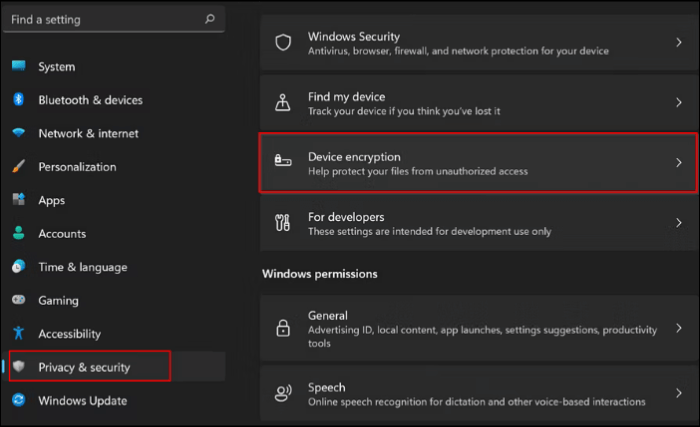
Step 2: To access device encryption settings, select Privacy & Security from the left pane and click on Device Encryption.
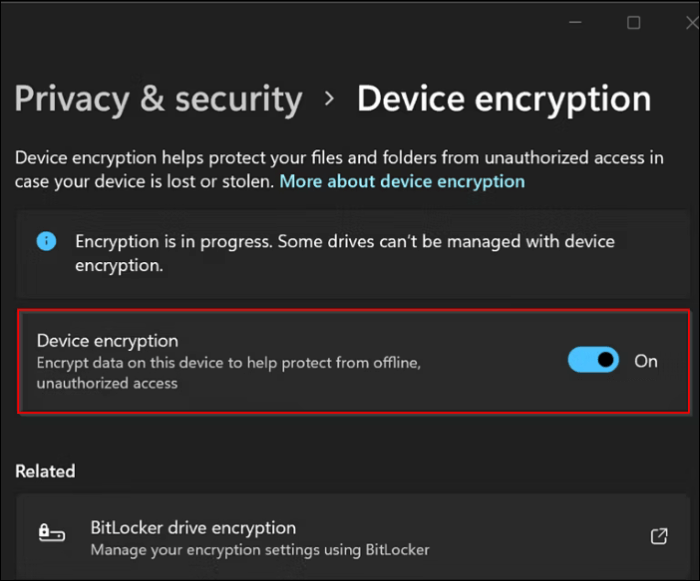
Step 3: To disable device encryption, toggle off the switch next to Device encryption, and then click on "Turn off" in the warning prompt that appears.
Step 4: Now, do a restart, and start the data transfer process now.
Now, see if the Samsung Data Migration works, it should now. If your PC has BitLocker, disable it temporarily as well. After completing the process, re-enable BitLocker, as it's a vital security feature on your Operating System.
(5) Update Samsung Data Migration
If your Samsung Data Migration tool is outdated, it will cause issues while disk cloning, so visit the official website to download the latest version to fix the Samsung data migration stuck at 0.
Steps to get your data migration tool updated to the latest version:
Step 1: Navigate to the Samsung Official website.
Step 2: Scroll down to find Data Migration, later expand Samsung Data Migration software for consumer SSD.
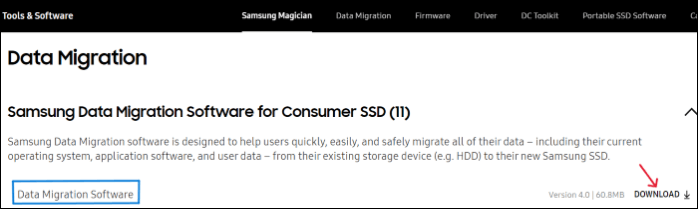
Step 3: To get the latest version of the Samsung Data Migration for Windows, click on Download, and the download speed will depend on your internet connection.
Alternative Solution for Samsung Data Migration Stuck Issue
If the Samsung Data Migration tool is not working out for you, you might want to consider using Qiling Disk Copy instead, as it's a much simpler alternative that can transfer your data with just a few clicks, and it's compatible with hard drives from any brand.
Qiling Disk Copy is a tool that quickly clones hard drives, updates disks, migrates data, and creates backups for Windows users, with a user-friendly interface that allows for efficient and straightforward work.
Key Features of Qiling Disk Copy:
- Supports system clone, disk clone, and partition cloning.
- Create a local backup for the hard drives parallelly.
- To upgrade or transfer copy data from one internal hard drive to another without losing data, you can use a cloning software. This software creates an exact replica of the source hard drive, including all files, folders, and operating system.
- This software supports various versions of Windows, including Windows 11, 10, 8, 7, and multiple versions of Windows Server, specifically 2008, 2012, 2016, 2019, and 2022.
- Offers sector-by-sector clone feature to copy only used partition.
To migrate or clone a Samsung SSD using Qiling Disk Copy, follow these simple steps:
To activate Qiling Disk Copy, simply launch the program, and follow the on-screen instructions to initiate the disk copying or cloning process. This will ensure a smooth and efficient transfer of data from one disk to another, minimizing the risk of data loss or corruption.
1. Download, install and run Qiling Disk Copy on your PC.
To begin the process of copying or cloning a disk, click on the "Disk Mode" option and select the source disk that you want to copy or clone. Once the source disk is selected, click the "Next" button to proceed with the operation.
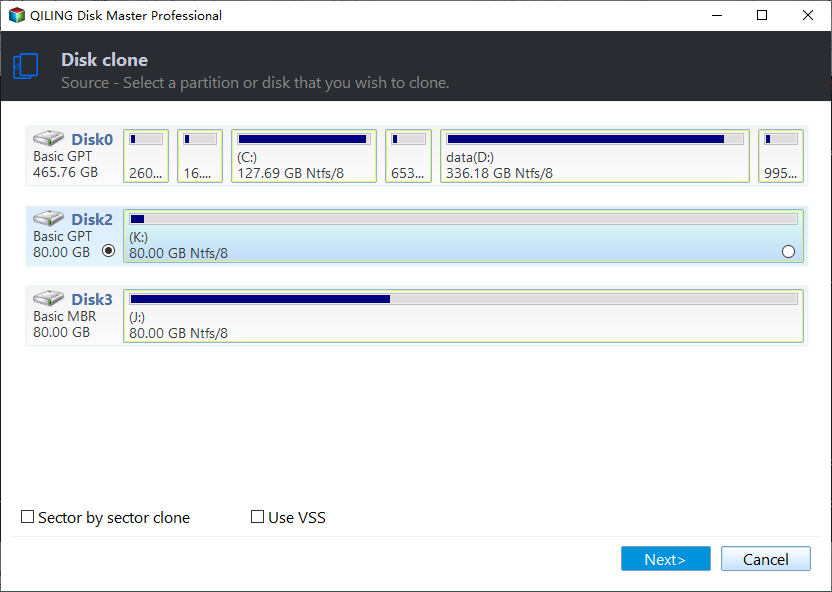
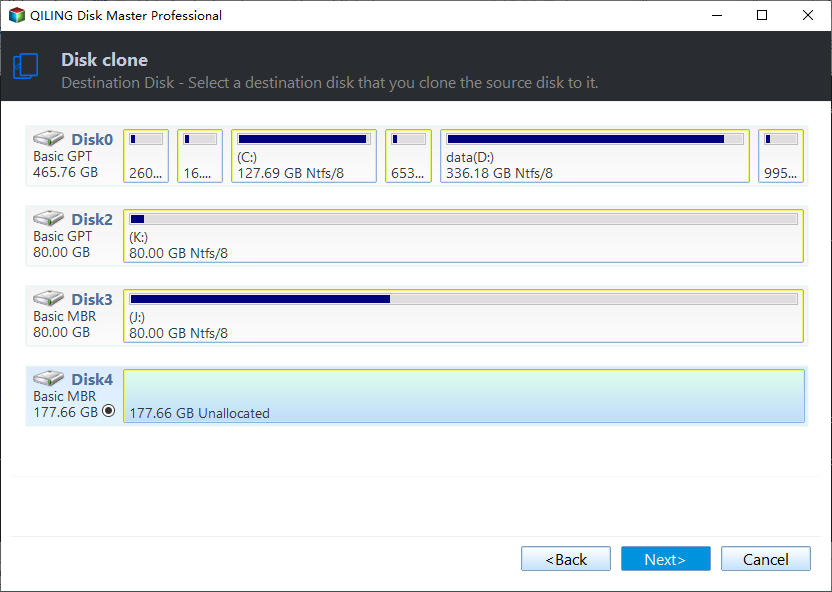
2. Select the destination disk where you want to clone/copy the old disk and click Next to proceed.
Click OK to confirm if the program asks to erase data on the destination disk, which will completely erase all data, including personal files, applications, and system files, from the disk. This action is irreversible, and all data will be lost.
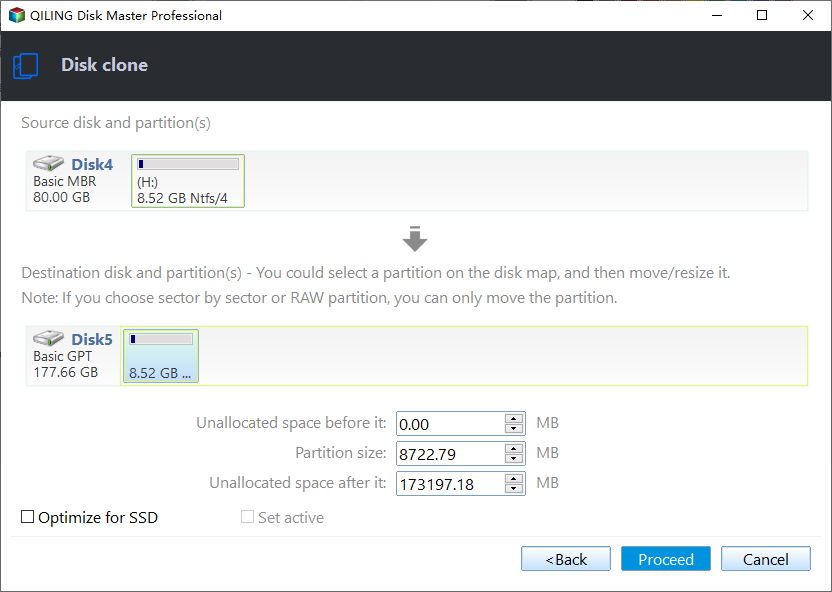
3. To modify the disk layout, select "Check and edit the disk layout" and then choose one of the options: Autofit the disk, Copy as the source, or Edit disk layout.
Autofit the disk is recommended.
- Copy as the source option clones the same layout of partitions on your source disk to the destination disk.
- Edit disk layout allows you to manually resize or move partition layout on the destination disk, giving you more control over the disk configuration.
- If your destination disk is an SSD drive, be sure to select the "Check the option if the target is SSD" option.
To start the disk cloning or disk copying process, click Proceed. This will initiate the process of copying the entire contents of the source disk to the target disk, including all files, folders, and operating system data.
If you're experiencing issues with Samsung's Data Migration tool, don't worry! You can try restarting your PC, checking for BIOS updates, and ensuring your Samsung drive is set as the primary drive. If these steps don't work, try reinstalling the Data Migration tool or seeking help from Samsung's customer support.
The Final Verdict
The Samsung Data Migration software may get stuck at 0 due to various reasons, but simple fixes like restarting the software, checking for updates, or using a different port can resolve the issue. However, errors like being stuck at 0 or 99 may be more complex and could be related to the specific SSD brand, making users consider alternative options.
Qiling Disk Copy The software applies advanced programs to clone disks and can operate on any hard drive irrespective of brand. It can be downloaded and used to find the process much easier.
Samsung Data Migration Stuck FAQs
Here are some possible reasons why Samsung Data Migration is stuck at 0: The source and destination disks are the same. The source disk is damaged or corrupted. The destination disk is not large enough to hold the data.
1. How do I fix Samsung Data Migration Not responding issue?
To fix the Samsung Data Migration Not responding issue, try restarting the migration process, checking for disk space and ensuring the source and destination drives are not in use, and running a disk check on the destination drive to ensure it's healthy and ready for use. Additionally, you can try disabling any unnecessary startup programs or services that might be interfering with the migration process, and if the issue persists, consider seeking further assistance from Samsung support or a professional data recovery service.
- Check the source and target disk using the chkdsk command.
- Verify the cable connections.
- Check the hardware condition of your computer.
- Disable device encryption.
- Update Samsung Data Migration.
2. Why is Samsung Data Migration not detecting Samsung SSD?
The Samsung Data Migration software is not detecting the Samsung SSD due to several reasons. Firstly, the software may not be compatible with the specific SSD model, leading to detection issues.
- If the SSD is faulty.
- Improper SATA/USB connections.
- Issues with the SATA?USB cables.
- Outdated SDM software.
3. How to know if my data migration was successful?
Check that all schema changes on the new system match the old system format to ensure data migration from legacy to the new application has retained its value, by comparing values between the old and new systems.
Was this page helpful? Your support is truly important to us!
Qiling Disk Copy
Qiling Disk Copy is a user-friendly tool that makes it easy to clone and migrate existing system disks to new disks or SSDs with minimal configuration required.
Related Articles
- Best Microsoft Cloning Software for Windows 11/10/8/7
- Samsung Data Migration Not Detecting SSD [Fixed]
- Clone hard drive with easy and simple steps - Qiling Disk Copy
- Intel Data Migration Software Not Working - How to Fix?🔥
- Best Way to Clone a Hard Drive with Multiple Partitions🔥
- Stepwise Guide | How to Clone 500GB HDD to 250GB SSD🔥
- Migrate Windows Server 2016 to SSD without Reinstalling
You will learn the best Windows Server migration software - Qiling Disk Master Server and how to migrate Windows Server 2016 to SSD by cloning. No need to reinstall system, programs and settings.
Products
Articles & Tutorials
- Data Recovery
- Data Backup
- File Recovery
- File Backup
- System Backup and Restore
- Disk and Partition Clone
- Technical articles
- Mobile articles
- Disk Master Help
- Windows Data Recovery Tutorials
- Windows Secure Delete Tutorials
- Windows Partition Management Tutorials
- Windows File Backup and Restore Tutorials
- Windows System Backup and Restore Tutorials
- Windows Disk Backup and Restore Tutorials
- Windows Clone Tutorials