Best Way to Clone a Hard Drive with Multiple Partitions🔥
Key Takeaways
- When your hard drive is full, you'll need to transfer all your data to another drive, which involves moving data from multiple partitions, including system and data partitions, to free up space on your original drive.
- Cloning is the best way to transfer data from all partitions to another drive without losing data or reinstalling Windows.
- Windows lacks built-in features for cloning disks, making it necessary to use third-party software like Qiling Disk Copy to clone all partitions to another drive. This software can help you create an exact copy of your existing drive, including all partitions, to another drive, which can be useful for backing up your data or upgrading to a larger drive.
Cloning a Hard Drive with Multiple Partitions - What You Need?
To ensure a smooth and successful cloning process, prepare by shutting down your computer, connecting the target hard drive alongside the source drive to your computer. Next, boot from a live USB or CD to access the target hard drive without overwriting the original data.
- To avoid data loss during the cloning process, create a backup of your data on the old drive using a free backup tool like Qiling Disk Master.
- You need to prepare a SATA-to-USB cable to connect the new drive to your computer. This will allow you to transfer the data from your old drive to the new one.
- You'll need to download a disk cloning tool, as Windows doesn't have built-in cloning features. Qiling Disk Copy is a compatible option that works with HDD or SSD from all manufacturers.
You may need to clone a hard disk with multiple partitions for various reasons. To help you quickly find a suitable solution, consider the following scenarios: you're looking to clone the entire disk, including all partitions; you want to clone a specific partition or set of partitions; you're trying to clone a disk with a mix of operating systems and data partitions; or you're attempting to clone a disk with a single partition that contains multiple operating systems. Each scenario has its own set of requirements and considerations, so it's essential to identify which one applies to your situation to choose the most effective cloning method.
| Scenarios | Solutions |
| ❓To clone your 500GB HDD to the new 2TB hard drive with 1 partition, you can use a cloning software such as Qiling Disk Copy. These tools will allow you to select the source drive, destination drive, and options for the destination drive, including the partition configuration. You can choose to clone the entire source drive, including all partitions, or select specific partitions to clone. Since you want the new drive to have 1 partition, you can select the option to merge the partitions or delete the unwanted partition during the cloning process. | Use Qiling Disk Copy to resize the disk partition layout on your destination disk and migrate data to it, helping you with the process of resizing the disk partition layout on your destination disk and migrating data to it. |
| ❓To transfer Windows 10 and 11 to your new SSD without losing data, you can use the built-in Windows feature called "Clone" or third-party software like Qiling. This will create an exact copy of your current hard drive, including all installed operating systems, settings, and data, on the SSD. Alternatively, you can also use the "System Image Backup" feature to create a backup of your current hard drive and then restore it to the SSD. Be sure to back up any important files and data before proceeding. | To transfer your Windows system to an SSD, use Qiling Disk Copy or Clonezilla to clone your existing Windows installation to the SSD, and then install it on your PC. |
| ❓To clone an HDD with multiple disk partitions to a new SSD, you'll need to use a cloning software that can handle multiple partitions, such as Qiling Disk Copy. These tools will allow you to select the source HDD and target SSD, and then clone all the partitions, including the operating system, programs, and data, to the new SSD. | You can use Qiling disk cloner or free disk cloning software to help you clone a disk. This will allow you to create an exact copy of your existing disk, including all data, operating system, and settings.clone hard drives with different sizes or partitions. |
Share this article on your social media to help more people.
Use Qiling Disk Copy to Clone PC Hard Drive with Multiple Partitions
If you want to copy data from one hard drive to another or clone a hard drive with many partitions on your computer, you'll need to use third-party hard drive cloning software. Qiling Disk Copy is a top-notch option that can cater to your needs in every aspect, making it a name that stands out in the cloning field.
It is a practical and easy-to-use disk cloning software. Here are some highlights of Qiling disk cloning software: It is a powerful disk cloning tool for Windows PCs that can clone systems, disks, and partitions. It can clone a boot drive to a new SSD and even clone a disk with bad sectors using its advanced sector-by-sector cloning technology. This makes it a reliable option for users who want to upgrade their storage or replace a faulty disk.
Qiling Disk Copy
- Resize the disk's layout/partition when completing the cloning task
- Replace a laptop hard drive without losing data or reinstalling the OS
- To upgrade a disk to a larger one and perform a hot cloning, you would first need to ensure that the new disk is compatible with your system and that it is properly connected. Next, you would need to prepare the system for the cloning process by booting from a live CD or USB drive, or by using a cloning software that can perform the operation without requiring a reboot.
- Transfer Windows SSD to a new PC and migrate data to another PC
- Create a complete hard drive backup for instant restore
Qiling Disk Copy is a multi-functional disk cloning utility that can help you cope with hard drive-related issues. To do this, download the utility on your computer to clone a hard drive or migrate data from one drive to another.
Prior Notice:
- The "Sector by sector copy" feature requires the destination disk to be at least as large as the source disk, allowing the cloning of a larger hard disk to a smaller one if unchecked.
- All data on the destination disk will be completely erased, so take care.
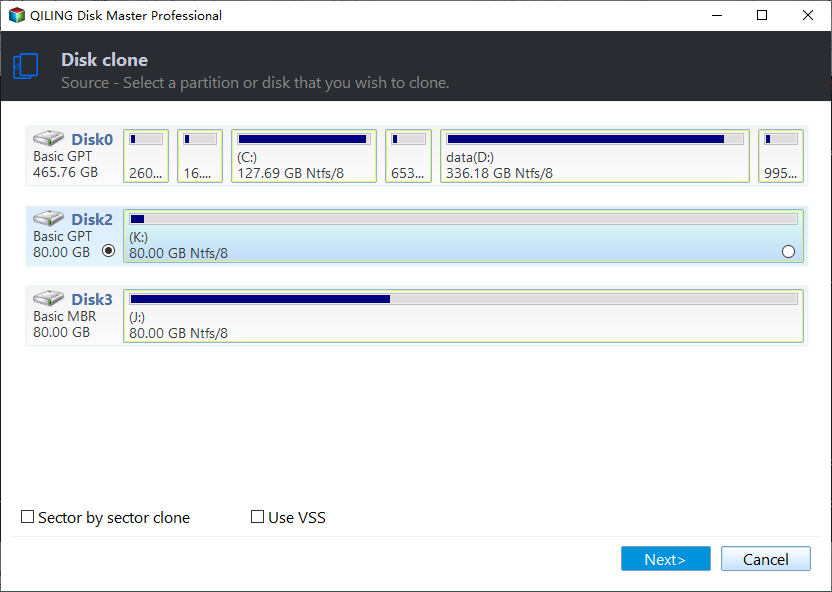
Step 1. To start copying/cloning an entire disk to another, choose the source disk under "Disk Mode" and click "Next".
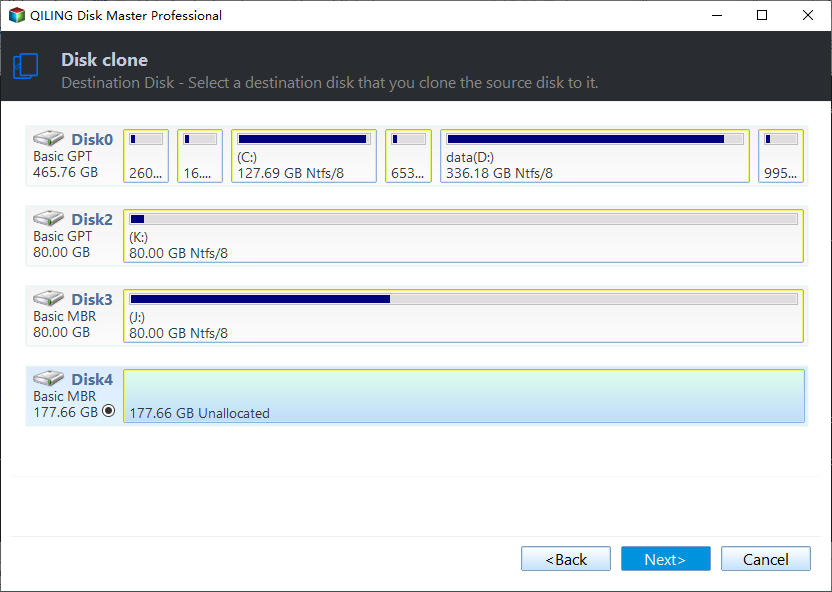
Step 2. Choose the other disk as the destination disk.
Step 3. You can manage the disk layout of the destination disk by dragging the disk or edit the position or size of disk.
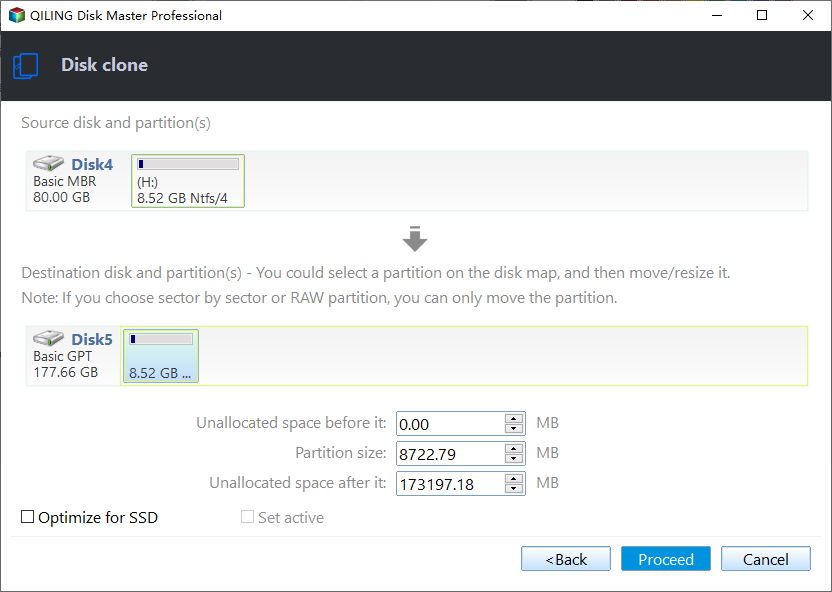
- "Autofit the disk" makes some changes to the destination disk layout by default to optimize its performance.
- "Copy as the source" does not change anything on the destination disk, and the layout remains the same as the source disk.
- "Edit disk layout" enables manual resizing and repositioning of partitions on the target disk.
Enabling the "Check the option if the target is SSD" option allows your solid-state drive (SSD) to run at its optimal performance. This is because the option optimizes the drive's performance by allowing it to prioritize sequential writes, which is beneficial for SSDs.
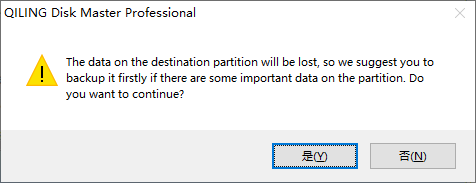
A message now appears, warning you that data will be lost. Please confirm this message by clicking "OK" and then click "Next".
Step 4. Click "Proceed" to officially execute the task.
Can I Clone a Hard Drive with Multiple Disk Partitions?
Over time, your hard drive, which contains multiple partitions, including the system partition (usually the C drive) and data partitions, will accumulate a significant amount of data. This accumulation can lead to a decline in disk performance, causing write and read speeds to slow down. As a result, tasks such as loading games or programs may take longer, ultimately affecting your overall PC user experience.
You can clone a hard drive with multiple partitions using software such as Qiling Disk Copy. These tools allow you to clone the entire hard drive, including all partitions, to a larger HDD or SSD. They also support cloning individual partitions or specific files and folders. So, you can clone a hard drive with two partitions, or any number of partitions, using these software solutions.
You can clone a drive with multiple partitions, but you'll need to use a third-party cloning tool like Qiling Disk Copy to help you.
To Wrap Things Up
To clone a hard drive with multiple disk partitions, use a disk cloning software like Qiling Disk Copy. This tool can help you clone a disk with many partitions to a larger or smaller HDD/SSD, allowing you to transfer your operating system, programs, and data to a new drive with all the original partitions intact.
Qiling Disk Copy is a professional disk clone software that makes it easy to clone a hard drive or partition with just a few clicks. It also allows you to resize the layout of the destination disk, making it possible to clone two partitions into one.
FAQs on Clone a Hard Drive with Multiple Partitions
1. Do I need to clone all partitions to SSD?
Cloning all partitions is necessary for a full hard drive transfer, including the OS and all data, but if you only want to transfer specific data, like just the OS, you can choose to clone a selected partition.
2. How do I clone multiple hard drives at once?
Cloning tools allow you to clone a hard drive with multiple disk partitions, but cloning many hard drives simultaneously is not possible.
3. Do I need to partition my SSD before cloning?
You typically need to initialize and partition your SSD before cloning, as your PC won't recognize a new SSD without this step. However, Qiling Disk Copy can recognize your SSD even if it's not initialized, making the cloning process easier.
Was this page helpful? Your support is truly important to us!
Qiling Disk Copy
Qiling Disk Copy is a user-friendly tool for cloning and migrating HDD/SSD drives, ideal for quickly and easily transferring an existing system disk to a new drive with minimal setup.
If the source includes EFI, recovery, and data partitions, follow How to Clone a Hard Drive with Multiple Partitions to select the entire disk and verify the result.
Related Articles
- How to Recover Data from Hard Drive with Bad Sectors
- Free Copy SD Card to SD Card in Windows PC [Full Tutorial]
This article will show you how to copy an SD card to another SD card on Windows using a free and powerful tool called Qiling Disk Master Standard, which is a reliable SD card to SD card copier. - How to Migrate Hard Drive to SSD without Reinstalling OS?
You can migrate your hard drive to an SSD without reinstalling your operating system using Qiling Disk Master Professional, which makes the process easy and safe. - Five Effective Ways to Improve Windows 11 Performance
To improve Windows 11 performance, there are several effective solutions that can be implemented. First, disabling unnecessary startup programs can help reduce system load and free up resources. - Hard Drive Making Noise When Not In Use - How to Fix?🔥
If your hard drive is making noise when not in use, it may be a sign that it needs attention. In this case, it's essential to investigate the issue to prevent potential data loss. - Stepwise Guide | How to Clone 500GB HDD to 250GB SSD🔥
Learn how to clone a 500GB HDD to a 250GB SSD with our step-by-step guide. Discover the perfect tool to easily migrate your data and operating system to the new SSD, maximizing its performance despite the smaller size.
Products
Articles & Tutorials
- Data Recovery
- Data Backup
- File Recovery
- File Backup
- System Backup and Restore
- Disk and Partition Clone
- Technical articles
- Mobile articles
- Disk Master Help
- Windows Data Recovery Tutorials
- Windows Secure Delete Tutorials
- Windows Partition Management Tutorials
- Windows File Backup and Restore Tutorials
- Windows System Backup and Restore Tutorials
- Windows Disk Backup and Restore Tutorials
- Windows Clone Tutorials