How to Fix D3dcompiler_43.dll Not Found [Updated 2024]
Microsoft DirectX issues can cause D3dcompiler 43.dll errors, which often occur when using Windows-based games or high-end graphics programs that rely on DirectX. This is because the d3dcompiler_43.dll file is part of the DirectX software collection, which includes numerous files. Issues with this file are usually specific to the use of these programs.
If you encounter the error "d3dcompiler_43.dll is missing" or "d3dcompiler_43.dll was not found" when your games or graphics apps crash, you can try reinstalling the Microsoft Visual C++ Redistributable package, which includes the d3dcompiler_43.dll file. This should resolve the issue and allow your games or graphics apps to run smoothly.
What Is D3dcompiler_43.dll?
The d3dcompiler_43.dll file is a part of the Microsoft DirectX technology, providing support for programming and rendering tasks related to DirectX, and is typically located in the System32 folder on a Microsoft Windows PC.
How to Fix D3dcompiler_43.dll Not Found?
If you're experiencing the d3dcompiler 43.dll error in programs using DirectX, such as MonoGame or AutoDesk 3ds Max, don't worry - there are solutions. The error can occur when the d3dcompiler 43.dll file is missing, and you can try reinstalling the program, updating DirectX, or installing the Visual C++ Redistributable Package to resolve the issue. Additionally, you can also try running the program as an administrator or checking for any malware that might be interfering with the program's functionality. By trying these solutions, you should be able to get rid of the d3dcompiler 43.dll error and enjoy using your favorite programs without any issues.
- Fix 1. Download d3dcompiler_43.Dll and Copy It to the System Directory
- Fix 2. Use DirectX End-User Runtime
- Fix 3. Reinstall The System
Fix 1. Download d3dcompiler_43.Dll and Copy It to the System Directory
To check if your PC is a 32 or 64-bit operating system, right-click on your taskbar and choose System. In the system window, look for the System type, which will indicate whether your computer is a 32 or 64-bit operating system. Then, download the d3dcompiler_43.Dll file and copy it to the System Directory. This should resolve the issue.
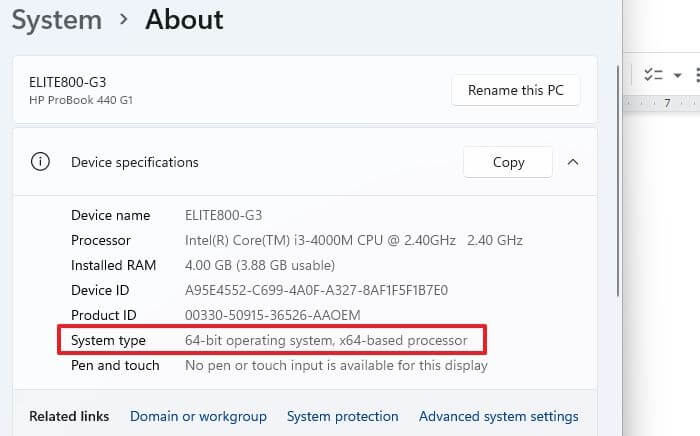
Step 1. To download the d3dcompiler_43.dll file, click on the provided link to open the DLL-files.com page. Scroll down and click on the "Download" button beside the 64-bit or 32-bit version of the d3dcompiler_43.dll file.
Step 2. To save the file as a ZIP file, open the file and click on "File" then "Save As". Select the file type as "Zip" and click "Save". The file will then be saved as a ZIP file, which can be opened in File Explorer and extracted. To extract the file, open the ZIP file and click on "Extract To" to select the location to extract the file to.
Step 3. In the Extraction path and options window, choose the Destination path where you want to save the d3dcompiler_43.dll file and click "OK".
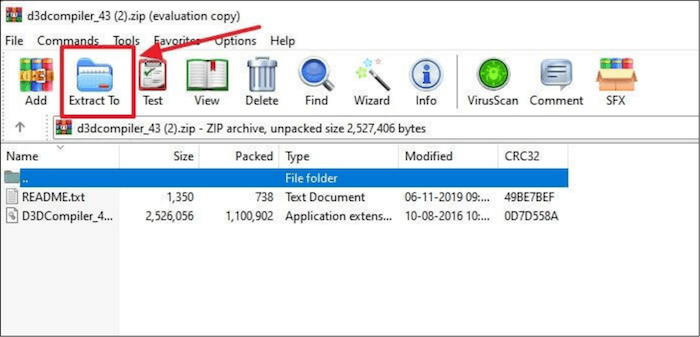
Step 4. To resolve the issue, copy the d3dcompiler_43.dll file to the system directory, which is typically located at C:\Windows\System32, after saving it to a location on your computer.
Note: 64-bit systems will put 64-bit files in the System32 folder and 32-bit files in the SysWOW64 folder, while 32-bit systems will put both types of files in the System32 folder.
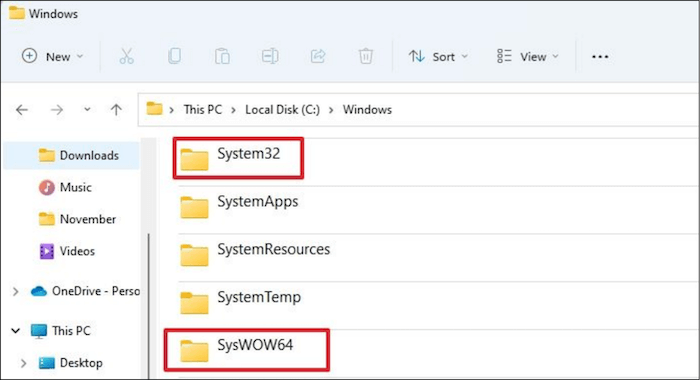
Step 5. Restart your PC.
Step 6. Right-click the "Start" button and choose "Windows Terminal" (Admin).
Step 7. Copy and paste the following command on the Windows Powershell window and press Enter.
regsvr32 d3dcompiler_43.dll
If you're not comfortable downloading a DLL file from a website, you can try copying it from a working PC, bringing it back to the non-working PC, and registering it again. This can be a viable alternative.
Fix 2. Use DirectX End-User Runtime
If you don't want to use someone else's PC or a website, you can reinstall DirectX on your own PC, which should replace and register any missing DLL files from the library.
To resolve the error, install DirectX End-User Runtime, which can be downloaded from the official Microsoft website. Follow the installation instructions to ensure a successful installation. This should resolve the error and allow you to continue with your intended task.
Step 1. To download DirectX End-User Runtime, go to the Microsoft Download Center.
Step 2. To install the Direct X file, click on the downloaded file, select the "I accept the agreement" option, and then click the Next button.
Step 3. If you don't need the Bing Bar browser toolbar, uncheck the Install the Bing Bar box and click Next to install DirectX components, then follow the on-screen instructions to finish the download.
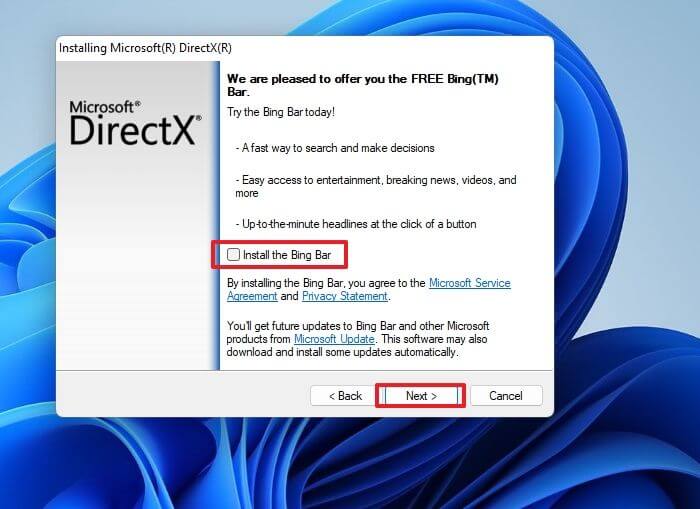
Upgrading or reinstalling DirectX may resolve the d3dcompiler 43.dll missing error, as Microsoft DirectX includes the d3dcompiler_43.dll file. The DirectX End-User Runtime Web Installer can replace out-of-date DirectX versions and recover lost DX files if necessary.
Fix 3. Reinstall The System
To reinstall Windows on your PC without losing any data, go to Windows Settings, click on "Update & Security," and then select "Recovery" from the left menu. Next, click on "Reset this PC" and choose the "Keep my files" option to preserve your personal data. Follow the on-screen instructions to complete the process. This method may resolve the D3dcompiler_43.dll not found error. If you have any issues or concerns, feel free to ask.
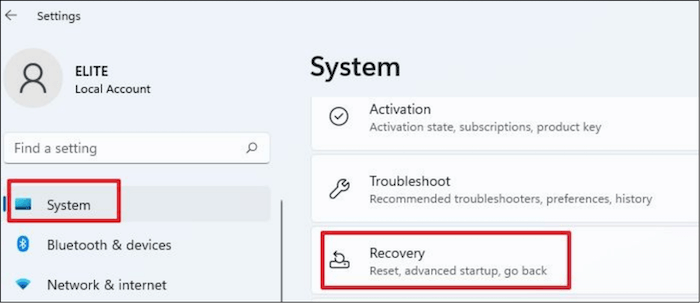
Step 1. To access the recovery settings in Windows, press the Windows key + I to open the Settings app. From there, navigate to the "Systems" tab, scroll down, and select the "Recovery" option from the right side of the screen. This will allow you to manage various recovery options, including resetting your PC, creating a recovery drive, and more.
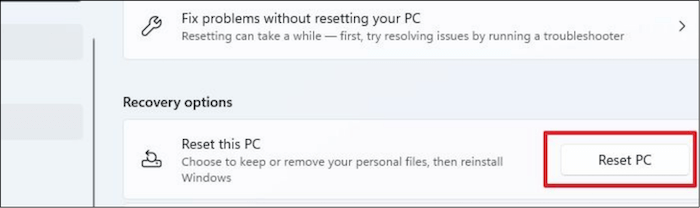
Step 2. Click on the "Reset this PC" button.
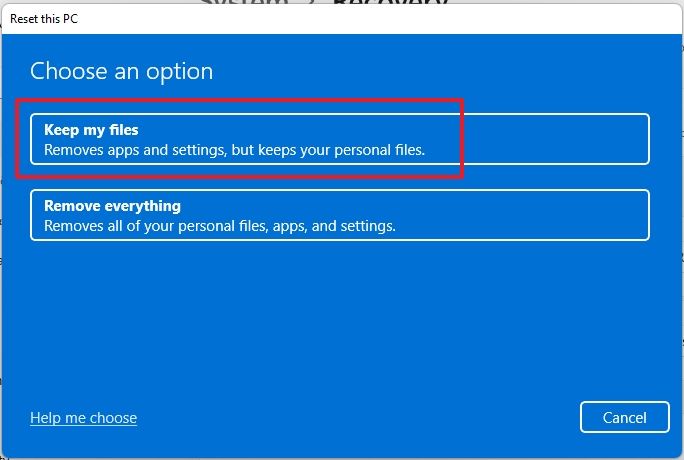
Step 3. To reset your PC, click the "Keep my files" option on the Reset this PC window. This will allow you to keep your personal files and settings, but will remove all other data, including apps and drivers.
Step 4. Follow the screen instructions to reinstall your system.
If you're unable to troubleshoot and need to resort to reinstalling Windows, be aware that this is a last resort. You'll need to create new user accounts and reinstall all your programs, which can be a time-consuming process. To minimize the disruption, make sure to keep a backup of all your essential files before proceeding. This way, you can restore them once Windows is reinstalled and you're back up and running.
To reinstall Windows 11, you can use the built-in feature called "Reset this PC" which will restore your computer to its original settings, or you can use a USB drive with a Windows 11 installation media to perform a clean installation. Alternatively, you can use a third-party tool like Qiling Backup to create a system image and then use it to restore your computer to its previous state.
Conclusion
If the d3dcompiler 43.dll file is missing or corrupted, Windows programs and apps may not work properly due to its crucial role in DirectX, potentially causing strange behavior when trying to execute them.
To resolve the error, you can try downloading the d3dcompiler_43.Dll file and copying it to the System Directory, using the DirectX End-User Runtime, or reinstalling your system. Choose the method that best suits your needs. This should help fix the issue.
Related Articles
- 5 Ways to Fix a Corrupted User Profile in Windows 10/8/7
- Samsung 990 Pro vs WD Black SN850X: How to Choose?
- Disk Cleanup Not Working Windows 10/8/7? Here Are the Free and Easy Fixes!
- [Solved] Your Computer Is Low on Memory Windows 7/8/10 in 8 Ways
- What Is Rsync Windows And How to Use It? [Quick Tips]
Don't know what is Rsync and how to use it on Windows? Read this article as we tell you everything about Rsync and how to install and use it on Windows - What Is Rufus? Your Best Answers in 2024
Do you need to install Windows on your system, and someone recommended Rufus? If you are wondering what is Rufus, it is a free tool to create bootable USB drives. Learn more about Rufus and its features in this article.
Products
Articles & Tutorials
- Data Recovery
- Data Backup
- File Recovery
- File Backup
- System Backup and Restore
- Disk and Partition Clone
- Technical articles
- Mobile articles
- Disk Master Help
- Windows Data Recovery Tutorials
- Windows Secure Delete Tutorials
- Windows Partition Management Tutorials
- Windows File Backup and Restore Tutorials
- Windows System Backup and Restore Tutorials
- Windows Disk Backup and Restore Tutorials
- Windows Clone Tutorials