5 Ways to Fix a Corrupted User Profile in Windows 10/8/7
The User Profile Service failed the logon.
User profile cannot be loaded.
When you encounter the error "The user profile service failed the login/the sign-in and user profile cannot be loaded," it's likely due to a corrupted user profile in Windows. This can cause various issues, including a locked-out profile, disappearance, or inability to access the account. The problem is not with the user, but rather with the corrupted user profile, which can be resolved by following a series of troubleshooting steps to recover or recreate the user profile.
Top 5 Ways to Repair User Profile in Windows 10/8/7
An empty desktop can also mean Windows signed you in with a temporary profile, not that the original files were deleted. Check where to find files after a temporary-profile sign-in before repairing or replacing the account.
If you received the error message that your user profile is corrupted, you can follow these solutions to fix a corrupted user profile in Windows 10, which can also be applied to Windows 8.1, 8, and 7.
| Workable Solutions | Step-by-step Troubleshooting |
|---|---|
| 1. Create a new user profile | Activate the hidden admin account in the Command Prompt by entering the command...Full steps |
| 2. Repair with Windows Registry | Open the Windows 10 Registry Editor by typing regedit in the Search box...Full steps |
| 3. Run DISM and SFC commands | Press Windows + X keys at the same time to bring up the Command Prompt option...Full steps |
| 4. Repair user data in the folder | Select a disk location where the corrupt files are saved. Click "Scan" to start finding the corrupt files...Full steps |
| 5. Install the latest updates | Open the Settings app by pressing Windows + I keys at the same time...Full steps |
Back Up Your Files Before You Repair Corrupted User Profile
To avoid data loss and ensure a worry-free repair of a corrupted user profile in Windows 10, we recommend creating a full backup of your computer before attempting to repair the issue. This can be done using the built-in backup features in Windows 10 or by using a third-party backup software. Once a backup is created, you can then proceed with the methods provided to repair the corrupted user profile. These methods may cause data loss, but with a backup in place, you can restore your data if anything goes wrong.
If you can boot into Windows, you can manually copy your user profile. If not, you can use Qiling backup and recovery software to back up files without Windows, or use it to migrate OS to SSD, clone a hard drive, or back up files to a cloud drive.
To back up files without booting into your operating system, download and install Qiling Backup professional backup software on your PC, and follow the steps to complete the backup process.
The backup procedure requires another working computer to create an emergency disk of Qiling Backup. This disk is used to boot an unbootable computer and make a full backup.
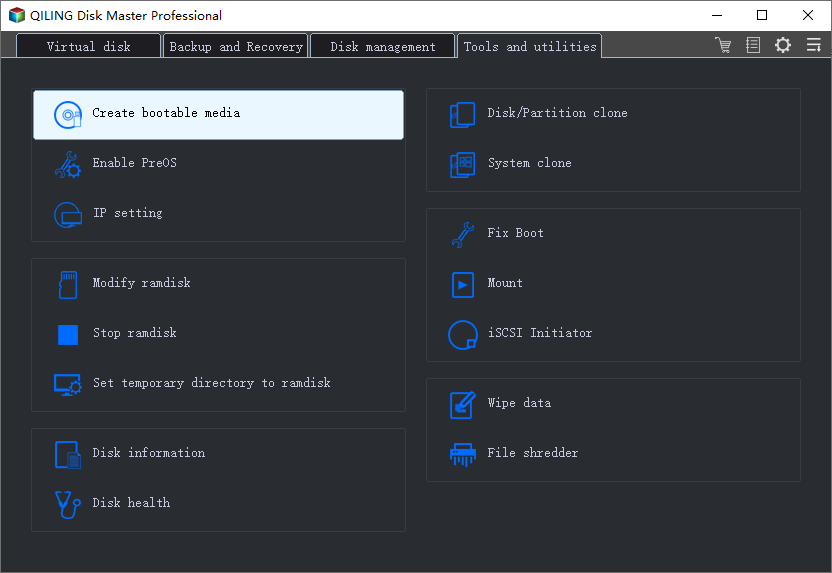
Step 1. To create a Qiling Backup emergency disk, connect a USB flash drive to a working computer, then launch Qiling Backup and navigate to the "Tools" section, where you can click "Create bootable media" to initiate the process.
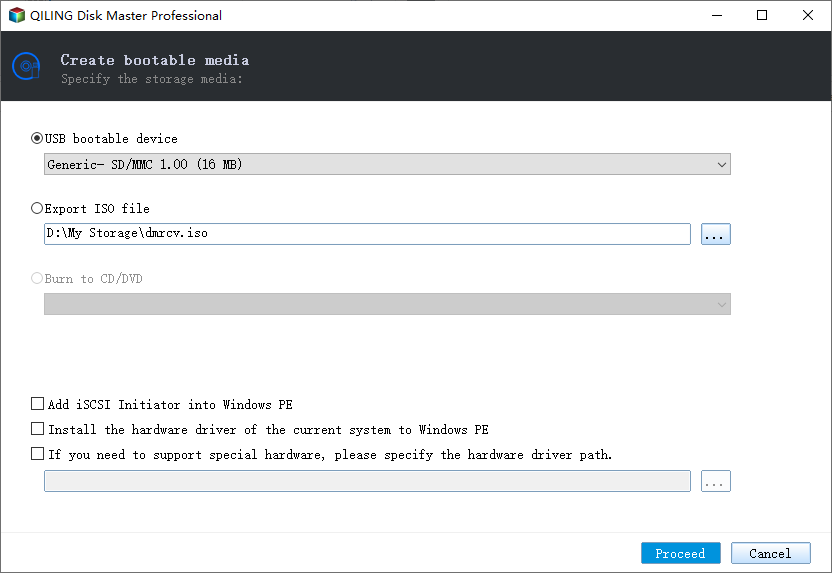
Step 2. When choosing a boot disk location, select the USB option and click "Proceed".
Step 3. When the backup is complete, insert the emergency disk into the computer that needs backing up, restart the PC, and press F2/DEL to enter the BIOS. From there, change the boot sequence to prioritize the bootable disk, and then start the computer and run the Qiling backup software from the disk.
Step 4. To create a full backup of your computer hard drive(s), navigate to the Backup and Recovery page and select the Disk backup mode. From there, choose the computer hard drive(s) you want to back up.

Step 5. Save the backup file to an external storage device, such as an external hard drive or USB drive.

Step 5. Click "Proceed" to execute your operation.
Fix 1. Recreate/Create a New Windows User Profile for Existing User
If you received a Windows 10 profile repair error message, the solution is to create a new user and copy files from your current user to the new account.
Follow the steps below to create a new profile for an existing user in Windows 10.
To create a new Windows 10 user profile:
Step 1. To create a new fully-functional user profile as an administrator, activate the hidden admin account in the Command Prompt by running the command "net user administrator /active:yes" and pressing enter. This will enable the administrator account.
Step 2. To access the Accounts settings, open the Settings app by simultaneously pressing the Windows and I keys, and then click on the "Accounts" option on the Settings panel.
Step 3. To create a local user profile in Windows 10, click "Family & other people" and select "Add someone else to this PC".
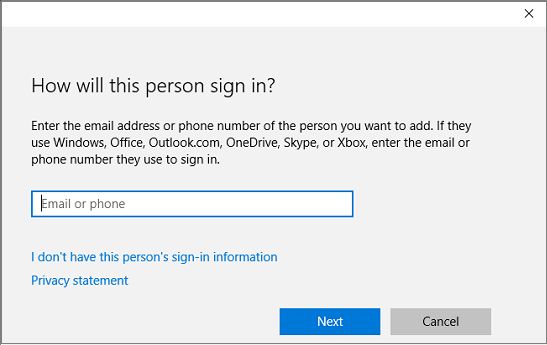
Step 4. A prompt will ask you to provide information to sign in, simply click the on the link at the bottom that says "I don't have this person's sign-in information".
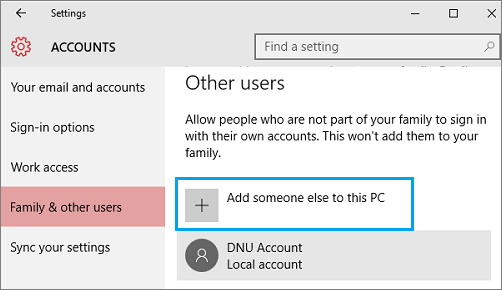
Step 5. Ignore the email part and click the link at the bottom that says "Add a user without a Microsoft account" to create your account.
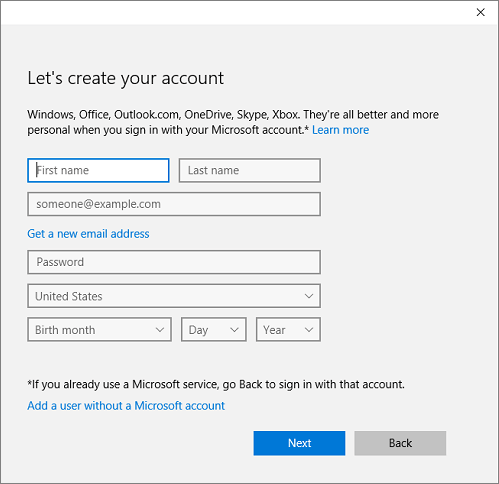
Step 6. Enter the username, password and click "Next" on the Windows account creation screen.
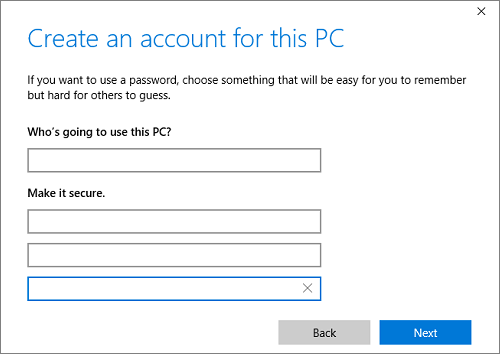
Step 7. Files and personal settings etc. will stay in the old user account. You should now follow the detailed guide to transfer data from one user account to another on the same computer.
To copy files to the new user profile:
Once you've created a new profile and signed in, you can copy files from your previous profile by following these steps:
Step 1. To open your User folder, you can follow these steps: Select the "Start" button on your computer, type "file explorer" in the Search box, and then select "File Explorer" from the list of results. This will open the File Explorer window, where you can navigate to your User folder by clicking on "This PC" or "Computer" in the left-hand menu, and then selecting your username from the list of user accounts.
Step 2. To access the Users folder, select This PC, then select the hard drive that Windows is installed on (usually the C: drive), then the Users folder, and finally the folder with your account name.
Step 3. To copy files from an old Windows user profile, locate the C:\Users folder, where C is the drive that Windows is installed on, and Old_Username is the name of the profile you want to copy files from.
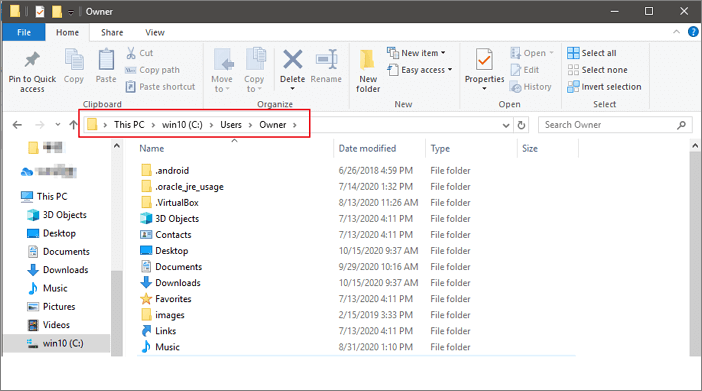
Step 4. To copy all files and folders in a folder, select all of them, then go to the Edit menu and choose Copy.
Step 5. To locate the C:\Users folder, find the drive where Windows is installed (usually C), then navigate to the folder named after the new user profile you created (e.g.
Step 6. Select the Edit menu and click on Paste. Restart the PC, then log back in as the new user.
Fix 2. Repair Corrupted User Profile with Windows Registry
If you can boot into Windows 10, you can repair the user profile with Windows Registry. Here are the steps to fix a corrupt user profile via the Registry Editor.
Step 1. To open the Windows 10 Registry Editor, type "regedit" in the Search box.
Step 2. When Registry Editor launches, navigate to the following key:
HKEY_LOCAL_MACHINE\SOFTWARE\Microsoft\Windows NT\CurrentVersion\ProfileList.
Step 3. To identify the user account associated with each S-1-5 folder, double-click on the "ProfileImagePath" entry within each folder (S-1-5-xx), and rename any folders ending with ".bak" or ".ba" to their original names, following Microsoft's instructions.
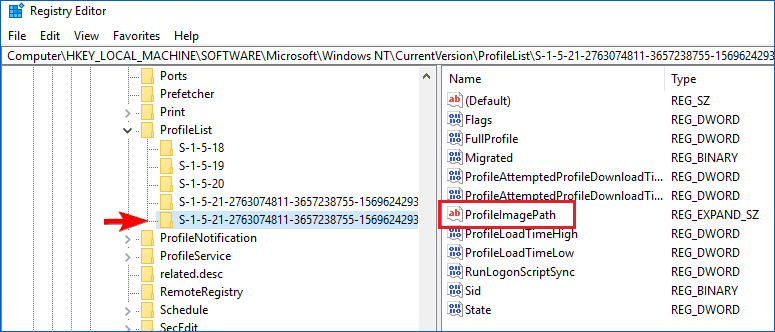
Step 4. To resolve the issue, locate the corrupt user profile (without a .bak extension), double-click on "RefCount" in the registry and set its Value data to 0, then click "OK". If "RefCount" is not available, create it manually.
Step 5. Double-click on "State", change the Value data to 0, and click "OK".
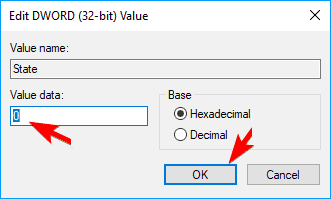
Step 6. Close Registry Editor and restart your PC.
Fix 3. Run Windows 10 Profile Repair with SFC Scan and DISM
Running an SFC scan can resolve issues with corrupted files, including those affecting a user profile. Some users claim that performing an SFC scan alone can fix a corrupt user profile, and it can be run in conjunction with DISM to further diagnose and repair the issue.
Step 1. Press the Windows key + X keys at the same time to bring up the Command Prompt option, then click on "Command Prompt (Admin)" on the list.
Step 2. On the Command Prompt window, type the command sfc /scannow and press "enter".
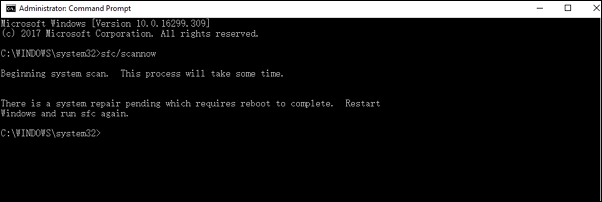
To resolve the Command Prompt issue, run the DISM (Deployment Image Servicing and Management) tool instead of SFC (System File Checker). DISM is a more comprehensive tool that can repair corrupted system files, check for missing files, and restore corrupted system files from a Windows image.
Step 3. Start Command Prompt as an administrator in the same way.
Step 4. Type the command: DISM /Online /Cleanup-Image /RestoreHealth and press "enter".
Then, you can restart your PC, to see if you have solved your problem.
Also read: The System File Checker (SFC) tool scans and fixes corrupted system files in Windows, but sometimes it may find corrupted files but be unable to fix them, resulting in an error. This can occur due to various reasons such as corrupted system files, malware, or system file inconsistencies.
Fix 4. Repair Windows 10/8/7 User Data in the User Profile
To repair a Windows 10 profile, you can use data repair software, which can restore some data, but not the complete profile. For a more comprehensive solution, consider using Deep Data Recovery, a disk data recovery tool and file repair application that can restore lost data and repair corrupted files, including MP4/MOV, photos, Word, and Excel files, with a simple download and use process.
Step 1. Launch Qiling data recovery software and select the file type you want to recover, then click "Fast Scan" to proceed.

Note: You can choose different search modes based on where and why the data was lost.
Step 2. Scan the hard drive for broken photos files, which may take a few minutes to complete.

Step 3. To locate corrupted photos, select the "Pictures" option, which can display images in various formats, including JPEG, JPG, PNG, and BMP. Alternatively, you can use the search icon in the upper right corner to search for files.

Step 4. Double-click on a damaged picture to repair and preview the file, and then click "Recover" to save the images to a different location.
Also read: To recover a deleted user profile and files in Windows 10, first, restart the computer and sign in as the administrator. Then, go to the "System" section in the Settings app, click on "About" and select "System Properties" from the dropdown menu.
Fix 5. Install the Latest Windows 10 Updates to Repair User Profile
Step 1. Press the Windows key and the "I" key at the same time to open the Settings app. In the Settings app, click on the "Update & Security" option.
Step 2. Click "Update & security".
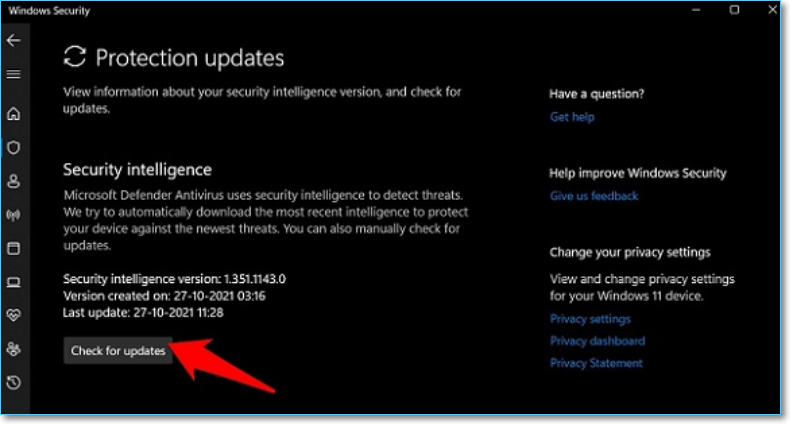
Step 3. Under the "Update" status, you can check if your device is up to date by clicking "Check for updates". If an update is available, Windows will automatically install it for you.
Extra Tips: Reset Windows 10 to Fix Corrupted User Profile
Before attempting to fix any issues with your Windows 10, make sure to backup your data using Qiling Backup, as resetting Windows 10 will remove any installed applications. This will ensure that you do not lose any important files.
Step 1. To access the Update & security settings, press the Windows + I keys simultaneously to open the Settings app. Then, click on the "Update & security" option.
Step 2. On the left pane, click "Recovery" and select "Reset this PC" from the three options.
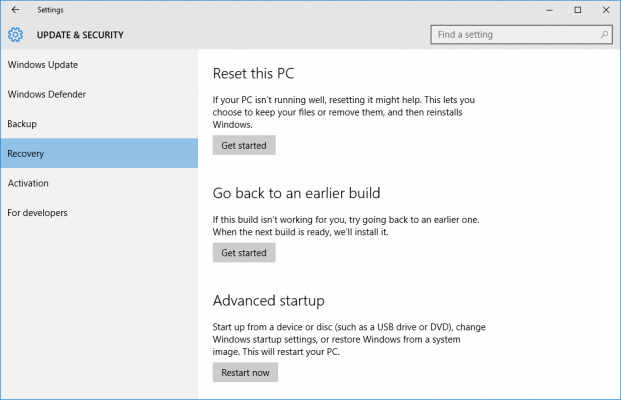
Step 3. Click "Get started" under "Reset this PC".
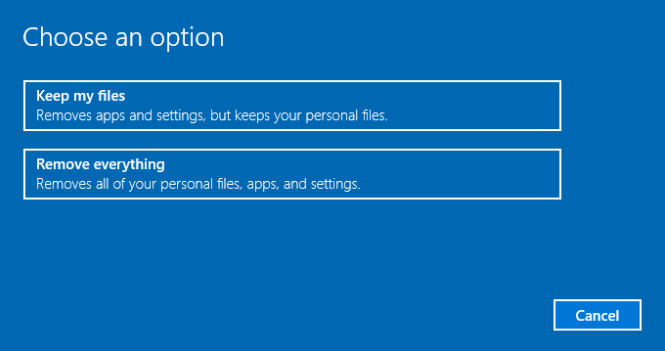
Step 4. Click on either "Keep my files" or "Remove everything" to either keep your data files intact or remove all files, settings, and apps, respectively. This will reset your device to its factory settings.
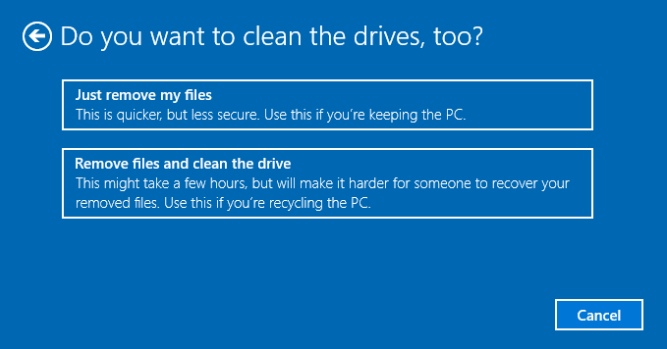
Step 5. If you're erasing everything, choose "Just remove my files" or "Remove files and clean the drive." The former is faster but leaves a small chance of recovering deleted files, while the latter takes longer but makes it virtually impossible to recover them. If you're keeping the computer, go with the former, but if you're giving it away, choose the latter.
Step 6. To install Windows 11, click on the "Download Now" button on the Microsoft website. Then, select the correct version of Windows 11 for your system and click on the "Download" button.
Step 7. Click "Reset" if prompted.
Conclusion
A corrupt user profile in Windows 10 can prevent you from using your PC. You can fix it by using the Registry Editor to repair the account, creating a new profile, running SFC to scan and replace corrupted system files, or using software to repair user data. If you don't want to lose data, running a backup tool like Qiling Backup can protect your data by making a backup.
Repair User Profile Windows 10 FAQs
If you're experiencing a Corrupt user profile error on Windows XP, Vista, 7, 8, or 10, you can try the fix. If you have other issues, you can read the following questions and answers.
What causes a corrupt user profile?
This error has been known to occur as a result of one of the following causes:
- The user profile is corrupt or missing
- File system integrity is compromised due to disk write errors, power outages, or virus attacks, leading to potential data loss.
- Hardware problem caused by bad memory or hard drive failure
How do I fix a corrupted profile?
To fix corrupt user profile in Windows 10/8/7:
- Create a new user profile
- Repair with Windows Registry
- Run DISM and SFC commands
- Repair user data in the folder
- Install the latest updates
How do I rebuild a Windows 10 profile?
- To open the Microsoft Management Console, start by selecting the Start button, then type "mmc" into the search box and press Enter. If prompted, enter an administrator password or confirm to proceed.
- In the left pane of Microsoft Management Console, select Local Users and Groups.
- Select the Users folder.
- Select the Action menu, and then select New User.
- To create a new item, type the appropriate information in the dialog box, and then select Create. This will generate the item as per the details provided.
- After creating user accounts, close the User Accounts window by selecting Close, then restart your PC.
How do I load Safe Mode in Windows 10?
In Windows:
To start your PC in Safe Mode, go to Advanced Startup, select Restart Now, and then restart your PC to the Choose an Option screen. From there, select Troubleshoot, then Advanced Options, Startup Settings, and finally Restart. Once your PC restarts, a list of options will appear, and selecting 4 or F4 will start your PC in Safe Mode.
Related Articles
- How to Restore Missing Downloaded Files Steam
- Fix 'DCIM Folder Shows Empty But Not' Error on PC/Android/iPhone
- Fix 'Windows Can't Find A System Image on This Computer' Error
- How to Fix SD Card Unexpectedly Removed Error on Your Phone
- Norton vs McAfee: Ultimate Comparison to Decide Which to Use
If you are looking to find out what's better between Norton 360 and McAfee Total Protection, check it in our review. Take a look at out comprehensive review to find out who comes out as a winner in the Norton vs McAfee battle. - OneDrive Files Not Showing on Another Computer - 7 Simple Solutions
OneDrive by Microsoft is used globally for file hosting services. However, it may show errors like OneDrive files not showing on another computer. Learn the reasons for this problem, followed by the top seven solutions to use OneDrive easily.
Products
Articles & Tutorials
- Data Recovery
- Data Backup
- File Recovery
- File Backup
- System Backup and Restore
- Disk and Partition Clone
- Technical articles
- Mobile articles
- Disk Master Help
- Windows Data Recovery Tutorials
- Windows Secure Delete Tutorials
- Windows Partition Management Tutorials
- Windows File Backup and Restore Tutorials
- Windows System Backup and Restore Tutorials
- Windows Disk Backup and Restore Tutorials
- Windows Clone Tutorials