Linux Tips| E212 Can't Open File for Writing in Vim (3 Ways)
The error you're encountering while editing the `sources.list` file using `vi` editor likely stems from a permission issue. To resolve this, you can try running `sudo` with `vi` to edit the file, like so: `sudo vi /etc/apt/sources.
The error "E212: Can't open file for writing" occurs when you try to edit the file "/etc/apt/sources.list" but it's not writable. This can be due to various reasons such as the file being read-only, the directory being read-only, or the file being locked by another process.

If you're a Linux user using Vim, you may encounter the error "E212 can't open file for writing" while trying to write to a file. This error can be fixed in three ways, which work in Ubuntu and other Debian-based distributions.
| Workable Solutions | Step-by-step Troubleshooting |
|---|---|
| 1. Check File Permissions | Edit the "sources.list" file using a non-root-user with the following command...Full steps |
| 2. Check the File Lock | Find the file with this command: lsattr /home/admin/$filename...Full steps |
| 3. Fix Read-only File System | Check the disk space with this command. $ df -h. Then, make space by deleting...Full steps |
Reasons - E212 Can't Open File for Writing
This problem can be caused by a variety of factors, including permissions issues, low disk space, and other system-related problems.
When using the vi command to modify the content of a Linux file, it's found that it cannot be saved using the ":wq!" command to save and exit, instead prompting error messages. However, the ":q!" command can be used to exit normally.
- Vim Can't Save File (E212)
- Vim can't open file for writing
- Root user can't open file for writing
- /etc/apt/sources.list" E212: Can't open file for writing
- E212: Can't open file for writing. Press ENTER or type command to continue
You receive this error for two main reasons:
- The current user has insufficient permissions.
- This file may be in use by other programs or users.
Solutions - 3 Ways to Fix Can't Open File for Writing in Vim
The error 'can't open file for writing' in Vim can occur when trying to save a file due to various reasons. This error can be resolved by checking the file permissions, ensuring the file path is correct, or by running the Vim command ':w!' which forces the write operation. If none of these solutions work, it may be helpful to try running Vim with the '-v' option to see if the issue is related to the Vim version.
Method 1. Validate User and Check File Permissions
The error can be resolved by adding "sudo" before the vi command to temporarily grant administrator privileges, allowing the file to be opened and edited with the command "sudo vi hosts".
Step 1. The "sources.list" file can be edited using a non-root user with the command `sudo nano /etc/apt/sources.list`.
$ vim /etc/apt/sources.list
Step 2. Get "/etc/apt/sources.list" E212: Can't open file for writing" error.
Step 3. Run sudo permissions to fix the error.
$ sudo vim /etc/apt/sources.list

Method 2. Check If the File Is Locked to Fix Can't Open File for Writing
If you're a root or sudo user but still can't open a file for writing, try exiting the file and check if the "I" command locks it.

Step 1. Find the file with this command:
lsattr /home/admin/$filename
Step 2. Check the I lock.
If the "I" is displayed on your file, it means the file is currently locked. To unlock it, you can use the command `unlock` followed by the file name. For example, `unlock filename.
chattr -i $filename
After executing the command, the file is modified and saved with the new content. To exit the file, execute the command q! which saves the changes and closes the file. When viewing the file again, the updated content is displayed.
Method 3. Check for Read-only File System or Capacity Issue
You're still encountering the error even after using the sudo command with proper permissions. This suggests that the issue might not be related to permissions, but rather a read-only file system or a capacity problem.
Step 1. Check the disk space with this command.
$ df -h
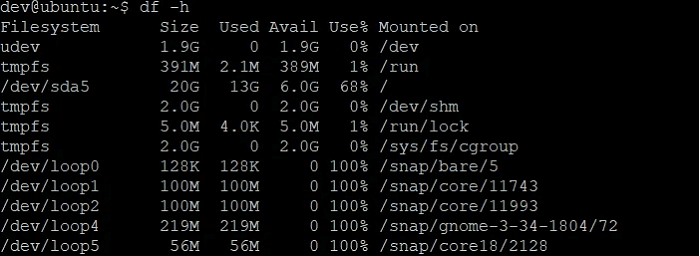
Step 2. To free up space on your Linux system, you can use the rm command to delete unnecessary files. This command allows you to remove files and directories, and can be used in various ways to suit your needs.
Step 3. Run the mount command to check if your device is mounted as read-write (rw), not read-only (ro).
$ mount
Step 4. To resolve file system errors and re-mount it to a read-write file system, you can follow these steps: First, unplug the power cord and any other cables connected to the device. Then, press and hold the power button for 30 seconds to discharge any residual power.
|
$ sudo mount -o remount,rw /partition/identifier /mount/point or $ sudo mount -o remount,rw / |
To resolve the "E212: Vim can't open file for writing" error, you can try saving the file with a different extension using the ":w!" command, or using the ":wq" command to save and close the file. If you still encounter issues, you can refer to the provided video for further assistance.
- 0:17 fix can't open file for writing while using Vim
- 0:50 make sure the path
- 2:57 check the file permission
How to Recover Lost Linux Files with Software
If you lost data after fixing the "E212: Vim can't open file for writing" error, don't worry, Deep Data Recovery is a helpful tool for recovering lost data on Linux systems, with a simple interface that's easy to use.
- Deep Data Recovery can recover deleted files from any storage device, including hard drives, USB flash drives, and memory cards.
- This software allows users to upload and access various file types, including photos, videos, documents, and emails, making it a versatile tool for managing digital content.
- Deep Data Recovery is a user-friendly tool that makes it easy for anyone to recover lost data on a Linux system.
Download this software and find files in Linux.
Step 1. Install and Launch Deep Data Recovery on your Windows PC. Choose "Linux Recovery" on the left panel.

Note: You can choose different search modes based on where and why the data was lost.
Step 2. This software automatically detects your IP and Port, and prompts you to input your username and password. If the IP or Port is incorrect, you can manually correct it, then click "Connect Now" to proceed.

Step 3. After successfully connecting to your Linux device, Qiling recovery software will start scanning the disk to find all lost and deleted files. Upon completion of the scan, you can refine the search by clicking "Filter" > "Type" to specify the types of lost files you're interested in recovering.

Step 4. You can preview scanned files first, then select the target data and click the "Recover" button to restore lost files in Linux.
Conclusion
If you're experiencing the "can't open file for writing" error in Vim, follow the solutions above to resolve the issue without losing any data. If you have any questions or need assistance, don't hesitate to reach out and contact us - we're here to help!
Can't Open File for Writing FAQs
Read the questions and answers below to get additional help.
1. What to do if you are faced with the action can't be completed error?
To resolve the issue of "the action can't be completed because the file is open," you can try closing the file in the application you're currently using it in, or try to access the file from a different application. If the issue persists, restarting your computer may resolve the problem.
- Run File Locksmith
- Stop Processes with Task Manager
- Empty the Recycle Bin and Restart
- Restart Windows Explorer
- Delete Temp Files
2. How do you fix cannot open file for writing in Vim?
To resolve the "can't open file for writing" issue, you can try three different approaches. First, ensure that the file path you're trying to write to is correct and that the file does not already exist.
- Check File Permissions
- Check If the File Is Locked
- Check for Read-only Memory
3. How to exit Vim in the terminal without saving?
To exit Vim without saving changes:
- Switch to command mode by pressing the Esc key.
- Press : (colon) to open the prompt bar in the bottom left corner of the window.
- Type q! after the colon and hit Enter to exit without saving the changes.
4. What is Vim used for?
Vim is a highly configurable text editor built to enable efficient text editing, being an improved version of the vi editor distributed with most UNIX systems.
Related Articles
- How to Backup Sticky Notes Windows 11 [Step-by-Step Guide]
- How to Erase All Content and Settings on Mac [macOS Ventura/Monterey]
- How to Fix the Sound Not Working on MacBook Pro and Air
- 5 Best Free Adobe CC alternatives You Don't Want to Miss
- Windows Update Troubleshooter Not Working in Windows 10/11 [Fixed Quickly]
Windows Update Troubleshooter is one of the most intriguing utilities in a Windows PC. But, when that stops working, users face extra issues. This article will explain why it happens and also tell you six possible fixes that you can apply if your Windows Update Troubleshooter isn't working. - 5 Proven Ways to Fix Zsh Command Not Found Error on macOS [Bash & Zsh]
This article addresses the zsh command not found error on Mac or Linux, outlining the causes and providing 5 solutions to resolve the issue. It offers step-by-step tutorials to fix the problem of Mac's terminal zsh command not found, making it easier for users to troubleshoot and resolve the error.
Products
Articles & Tutorials
- Data Recovery
- Data Backup
- File Recovery
- File Backup
- System Backup and Restore
- Disk and Partition Clone
- Technical articles
- Mobile articles
- Disk Master Help
- Windows Data Recovery Tutorials
- Windows Secure Delete Tutorials
- Windows Partition Management Tutorials
- Windows File Backup and Restore Tutorials
- Windows System Backup and Restore Tutorials
- Windows Disk Backup and Restore Tutorials
- Windows Clone Tutorials