How to Solve Windows Can't Convert MBR to GPT [2024 100% Working Solution]
The Master Boot Record (MBR) and GUID Partition Table (GPT) are two different partition styles in Windows systems. While MBR supports up to 2TB volumes and 4GB file sizes, GPT supports significantly larger volumes (9.4 ZB) and partitions (128 primary partitions). Additionally, MBR is compatible with BIOS, whereas GPT is compatible with UEFI. However, many users face the issue of being unable to convert MBR to GPT, which may be a problem for those who need to upgrade their partition style.
Switching from BIOS to UEFI firmware or upgrading from Windows 10 to Windows 11 requires converting the Master Boot Record (MBR) to a GUID Partition Table (GPT). However, this process can be hindered by the error "can't convert MBR to GPT." This article delves into the top reasons behind this issue and provides the top three methods to resolve it, allowing for a successful conversion.
Why Can't Convert MBR to GPT
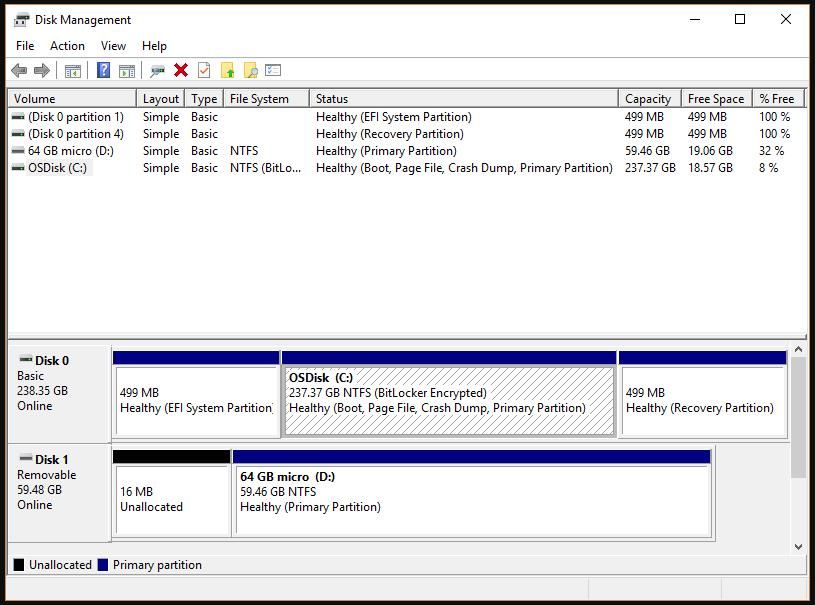
The top reasons causing the issue of can't convert MBR to GPT are existing partitions on the disk, which may prevent the conversion process in Disk Management, especially when the disk is not empty or is a system disk.
The process of converting a disk from MBR to GPT involves deleting all partitions, then initiating the conversion. It's crucial to back up critical data before proceeding, as this process will erase all existing partitions. Once the partitions are deleted, the MBR to GPT conversion option will be available, allowing the conversion to proceed.
How to Fix Windows Can't Convert MBR to GPT
After going through the top reasons why disk management can't convert MBR to GPT, it's clear that there are top methods to fix this problem. The top three methods to fix this issue are:
- Method 1. Convert MBR to GPT with Qiling Disk Master (without Data Loss)
- Method 2. Convert to GPT with Disk Management (with Deleting All Partitions)
- Method 3. Convert MBR to GPT with Diskpart (with Losing Data)
The first method of converting MBR to GPT without data loss is recommended. Users who prefer the second method, which involves deleting all partitions, or the third method, which results in data loss, should take a backup of their essential data to avoid unexpected data loss situations. This ensures that users are prepared for any potential consequences.
Method 1. Convert MBR to GPT without Data Loss
Qiling Disk Master is a tool that enables users to convert MBR to GPT without data loss, clone system partitions, and convert NTFS to FAT32 quickly. It also allows users to convert GPT to MBR. This tool is perfect for those looking to switch from MBR to GPT or vice versa.
Steps to use Qiling Disk Master:
Step 1. Download and launch Qiling Disk Master on your computer.
Step 2. Go to Disk Converter, right-click the target MBR disk, select "Convert MBR to GPT".
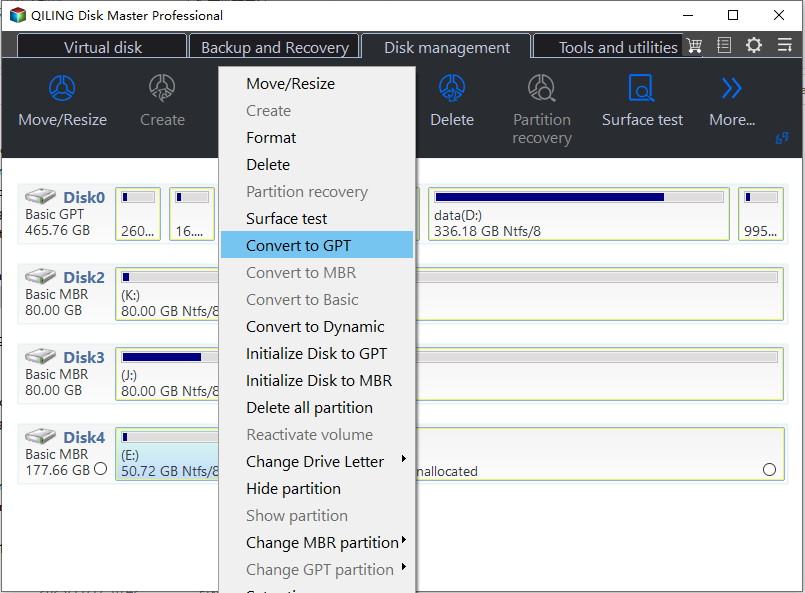
Step 3. Wait a moment, and it convert it to GPT.
Method 2. Convert to GPT with Deleting All Partitions
To convert a disk to GPT, you can delete the different partitions and use the Disk Management option to change the Master Boot Record (MBR) to GPT. Disk management tools, dedicated utility software, can help manage disk data with various functions, including partitioning devices, managing drives, and formatting disks, as well as checking disk health.
To convert a computer to use GPT by deleting all partitions using Disk Management, follow these quick steps: Open Disk Management, select the disk you want to convert, right-click and select "Delete all partitions" or "Full disk wipe", confirm the deletion, then right-click and select "Convert to GPT" to change the disk's partition style. This process will erase all data on the selected disk.
Step 1. To access Disk Management, go to "This PC" and select the "Manage" option. From there, you can select "Disk Management" to view and manage your computer's storage devices.
Step 2. Open the target MBR disk and select each partition, then choose the option to delete the volume, which will remove the partition from the disk.
Step 3. Click "OK" to confirm the volume deletion.
Step 4. Repeat steps 2 and 3 until all the different disk volumes are deleted properly.
Step 5. After deleting different disk volumes, the entire disk should be displayed as unallocated. To fix this, right-click on the MBR disk and select "Convert to a GPT disk."
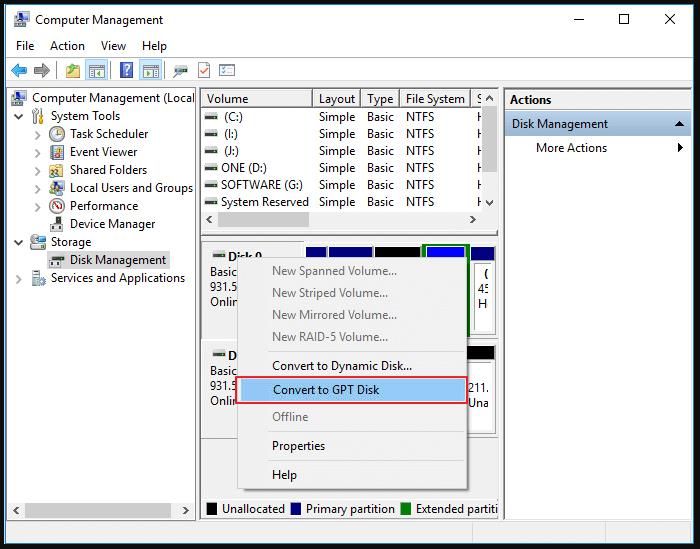
Step 6. Once the disk conversion process is complete, close the Disk Management option.
Method 3. Convert MBR to GPT with Losing Data
The Diskpart utility is a command-line tool used for managing computer drives, including disk partitions, volumes, and virtual hard disks. It can be accessed by typing "diskpart" in the command prompt menu and allows users to perform various tasks such as creating, deleting, and formatting partitions, as well as assigning or removing drive letters. Notably, Diskpart can also be used to convert a Master Boot Record (MBR) to a Globally Unique Identifier Partition Table (GPT) disk, which can be a useful feature for users who need to make this type of conversion. However, it's worth noting that using Diskpart to convert an MBR to GPT can result in data loss if not done properly.
Here are the steps to convert MBR to GPT with data loss using the DiskPart utility:
Step 1. Before running DiskPart, it's crucial to back up the entire disk to prevent data loss, as using DiskPart will erase all data on the partition.
Step 2. Go to the "Start" menu and type "cmd."
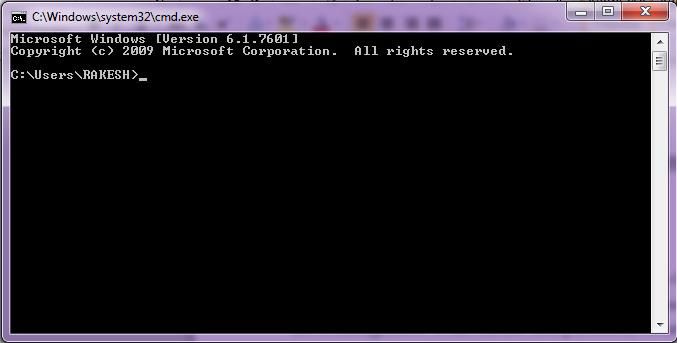
Step 3. Right-click on "Command Prompt" and select "Run as administrator."
Step 4. To access the command line interface for disk management, type "diskpart" and press enter. If prompted, confirm the action by clicking "Yes".
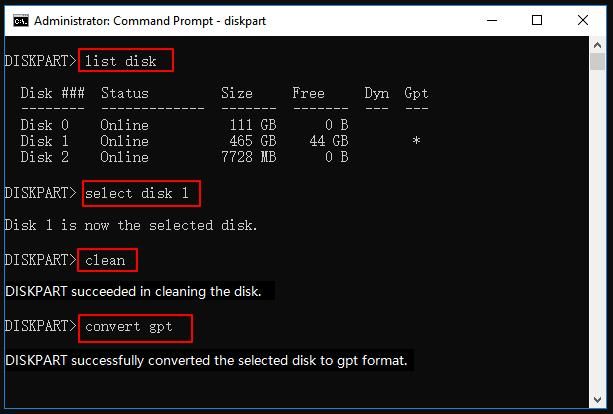
Step 5. Enter the following commands and press enter one by one:
- list disk
- select disk 2 (It is easy to replace 2 with the disk number of MBR disk)
- clean
- convert gpt
Step 6. The command will delete all partitions on the disk and then convert them to GPT, effectively erasing all data on the disk.
Step 7. Type "exit" when the conversion process is complete.
Conclusion
The issue of not being able to convert MBR to GPT is easily understandable for both beginners and professionals, as it's mainly due to disk partition issues. Disk management can only convert MBR to GPT when the disk is empty, which is why the conversion is greyed out in most cases. This makes it clear that the problem is not with the conversion process itself, but rather with the disk's current state.
The problem of Windows not being able to convert MBR to GPT can be solved using various methods, including converting MBR to GPT without data loss, deleting all partitions to convert to GPT, and converting MBR to GPT with data loss. However, the recommended approach is to convert MBR to GPT without data loss.
FAQ of Can't Convert MBR to GPT
After reading the detailed article on converting MBR to GPT, users may still have questions. Here are the top and most frequently asked questions that can help users better understand the topic:
1. How do I enable convert to GPT?
The quick steps to enable conversion to GPT are:
Step 1. Prepare GPT disk.
Step 2. To get started, download the Windows 10 ISO file and create a Windows installation media on a USB drive. This will allow you to install Windows 10 on your computer.
Step 3. Configure PC Boot Mode to UEFI and boot from USB.
Step 4. To start and finish installing Windows 10 on a GPT disk partition, begin by creating a bootable installation media and booting from it. Then, select the language, time, and keyboard layout you prefer, and click Next.
Step 5. To resolve the issue, simply reboot your PC and set Windows to boot from the new GPT partition. This will allow the system to recognize and utilize the new partition scheme.
Step 6. Activate Windows 10.
2. Why is convert to MBR greyed out?
The conversation with MBR may be greyed out if the disk has multiple partitions, and the disk management tool can only convert GPT to MBR for an empty disk.
3. Why can't I convert my hard drive to GPT?
The issues with converting the hard drive to GPT are due to existing partitions on the disk, making it difficult to convert using disk management, which can only convert empty non-system disks from MBR to GPT or GPT to MBR.
Related Articles
- What Is an Active Partition in 2024, Everything You Need to Know
- [8 Fixes] How to Fix Windows 10 File Sharing Not Working After Update 1803/1809/1903
- How to Fix Atomic Heart Not Saving Issue on PC, PS4/5, Xbox [7 Tested Methods]
- 2 Ways to Log in as Administrator in Windows 10
An administrator account in Windows 10 possesses all the privileges.The are two primary ways to log in as an administrator in Windows 10. This article will share how to log in as an administrator in Windows 10 using Microsoft or a local account. - How to Remove Bing from Chrome
If you keep having Bing hijack your browser and want to remove Bing from Chrome, read this article. Learn all the methods to remove bing from Chrome, such as removing Bing from a search engine, uninstalling suspicious extensions, etc. - How to Repair Install Windows 10 in 3 Different Ways
Repairing Windows 10 installation involves reinstalling the operating system while keeping your programs, settings, and files intact. There are three common methods to do a repair install of Windows 10, which can be used to resolve various issues with the operating system.
Products
Articles & Tutorials
- Data Recovery
- Data Backup
- File Recovery
- File Backup
- System Backup and Restore
- Disk and Partition Clone
- Technical articles
- Mobile articles
- Disk Master Help
- Windows Data Recovery Tutorials
- Windows Secure Delete Tutorials
- Windows Partition Management Tutorials
- Windows File Backup and Restore Tutorials
- Windows System Backup and Restore Tutorials
- Windows Disk Backup and Restore Tutorials
- Windows Clone Tutorials