What Is Kernel Panic on Mac and How to Fix It?
There are two major system errors that users fear: System Failure and Kernel Panic. When using a Mac, you might encounter the Kernel Panic error, which occurs when a fatal system issue forces the system to reboot, and if unresolved, causes the Mac to continuously restart.
The Kernel Panic Mac is a critical system failure that can occur on Mac computers, causing the system to freeze and display a blue screen with an error message. This issue can be caused by various factors, including software conflicts, hardware problems, or corrupted system files. To resolve this issue, users can try restarting their Mac in safe mode, running a diagnostic test, or using the built-in Disk Utility to repair corrupted system files.
What Is Kernel Panic Mac
Kernel Panic is a system measure that protects the operating system's Kernel by implementing a fatal error detection mechanism. When a severe system issue is detected, the Kernel decides that continuing to run the system will result in significant damage or data loss, prompting a system reboot to prevent further harm.
During a Kernel Panic on a Mac, the screen will go black and display a warning message in multiple languages, typically starting with "You need to restart your computer." The system will then wait for the user to manually restart it or automatically reboot, potentially entering a loop of continuous reboots if the issue persists, which can be a serious problem.
Causes behind Kernel Panic Mac
Kernel Panic on a Mac can occur due to a variety of reasons, with software being the primary cause in over 90% of cases. Several common causes include software glitches, outdated drivers, and corrupted system files, among others.
1. macOS Issues: If your Mac's operating system is outdated or not updated properly, it may cause Kernel Panic. To resolve this issue, you can either update your macOS or reinstall it. This should resolve any problems caused by an outdated or improperly updated operating system.
2. Outdated Apps: If specific apps are causing a Kernel Panic, it's likely they're outdated and need to be updated. If the problem persists, you may need to reinstall them.
3. External Devices: Kernel Panic on a Mac can be caused by various factors, including incompatible external devices, corrupted or damaged external devices, and other system issues. If you're experiencing Kernel Panic, try disconnecting any external devices and restarting your Mac to see if the issue resolves itself. If the problem persists, there may be a more complex system issue at play that requires further troubleshooting or professional assistance.
4. RAM and Storage Issues: A Kernel Panic on your Mac can be caused by a lack of storage space or RAM issues, especially if you're running older versions and RAM becomes cluttered over time.
5. Defective Drivers: Outdated or defective drivers on your Mac can also cause Kernel Panic, as drivers run directly on the Kernel and an outdated or defective driver can lead to system instability.
Operating System Where Kernel Panic Occurs
The term Kernel Panic refers to a system error in Unix and Unix-like operating systems, which can occur in various platforms such as Linux, macOS, and others.
- Mac or macOS
- Linux and other Linux-based systems like Ubuntu
- Notice:
- The same error can also occur in Windows OS, where it is more commonly known as Stop Error or Blue Screen of Death.
Here are some articles related to some issues and fixes of the Kernel on Windows, you can read them and get more details.
How to Fix Kernel Panic Mac
The Kernel Panic error on Mac can occur due to various reasons, making it challenging to resolve with a single solution. Nevertheless, there are a few methods that can help fix the issue. Three useful methods for resolving the Kernel Panic error on Mac have been identified, which can be used to troubleshoot and resolve the problem.
Method 1. Run Disk Utility
The Kernel Panic on a Mac can be caused by corrupted files or issues with the hard disk. To diagnose and potentially fix the problem, you can use the Disk Utility tool's First Aid function to check for any issues with your hard disks. To run the Disk Utility on your Mac, follow these steps.
Step 1. To access the Disk Utility tool on your Mac, start by clicking on "Launchpad" to view the list of system tools and apps. From there, click on "Other Tools" to launch the Disk Utility tool.

Step 2. To run First Aid on a Mac, open Disk Utility, select the hard drive you want to run First Aid on from the left panel, and click the "First Aid" button at the top of the window. (glossary) First Aid: A utility in macOS that checks and repairs disk errors, permissions, and other issues.
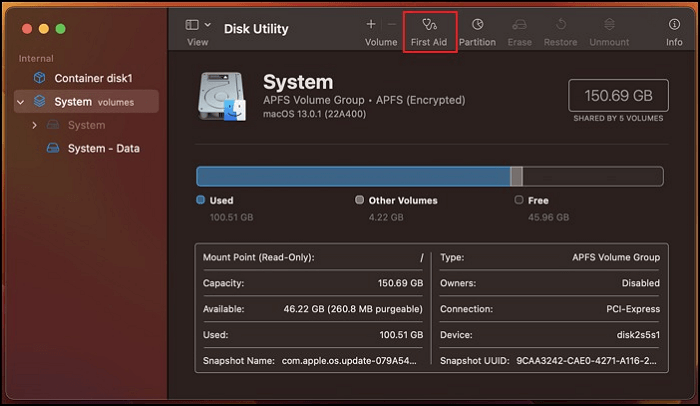
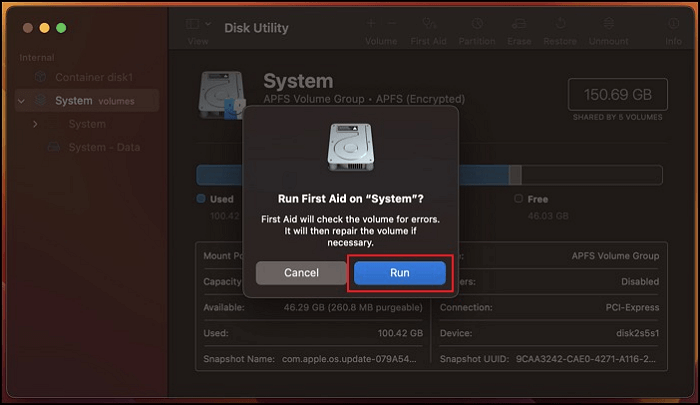
Step 3. Tapping "First Aid" will initiate a system scan to find and repair any disk issues, prompting a confirmation window where you press "Run" to begin the process, and then wait for the system to complete the repair.
Method 2. Boot into Safe Mode
If your Mac keeps restarting due to Kernel Panic and you can't find the exact cause, try booting it in Safe Mode. To do this, you can follow the steps for your specific Mac model: Silicon Mac or Intel Mac. The process for initiating Safe Mode is slightly different for each type of Mac. By booting in Safe Mode, you may be able to identify and resolve the issue causing the Kernel Panic.
Boot into Safe Mode in Apple Silicon
Step 1. To start your Mac, press and hold the Power button until you see a "Loading Startup Option" screen, then select the volume that is used as the startup disk.
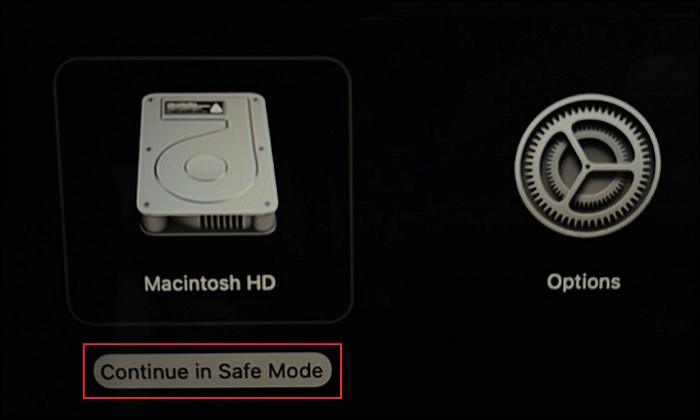
Step 2. To enter Safe Mode on your Mac, hold down the "Shift" key on your keyboard until "Continue in Safe Mode" appears on the screen. Select it, and your Mac will restart in Safe Mode.
Boot into Safe Mode in Intel Mac
Step 1. To restart your Mac and enter the Safe Boot mode, you can follow these steps: Restart your Mac and immediately hold down the Shift key on your keyboard. Continue holding the Shift key until the Login Window appears. This will initiate the Safe Boot process, which will load only the necessary system files and prevent any third-party apps from loading.

Step 2. To log in to your Mac, use your credentials, and you may need to log in again. The "Safe Mode" option should be visible in the menu bar of the first or second login window.

Method 3. Update Your Apps
To resolve the Kernel Panic Mac error caused by outdated apps, update your apps and check if it resolves the issue. You can do this by following these steps: update your apps, restart your Mac, and see if the issue persists. If it does, try resetting the System Management Controller (SMC) or the Power Management Unit (PMU), or running a System Restore point to revert to a previous version of your operating system. If none of these steps work, consider reinstalling your operating system or seeking professional help.
Step 1. To update your Mac, open the App Store, select "Updates" from the left sidebar, and you will see a list of available app updates.

Step 2. To update all apps, click the "Update All" button at the top right corner. Alternatively, select specific apps to update by tapping the "Update" button next to each one. This will allow you to choose which apps to update.

Final Verdict
A Kernel Panic on Mac is a severe system issue that requires immediate attention. Even if the error occurs occasionally, it's essential to identify and resolve the underlying problem to prevent further complications. The methods discussed in this article can help you pinpoint the issue and find a solution to get your Mac up and running smoothly again.
FAQs about Kernel Panic
If you have questions regarding Kernel Panic Mac that still need answering, you can check the FAQs mentioned below:
1. How do I find kernel panic on Mac?
When the Kernel Panic occurs on your Mac, the screen will go black and a warning window will appear, displaying a message in multiple languages that prompts you to restart your computer, either by the system rebooting automatically or by you manually pressing the Power button.
2. Does the Mac kernel panic erase data?
The Kernel Panic Mac does not directly cause data loss, but its causes or solutions might lead to it, such as corrupted files or a hard disk format, which could result in lost data.
3. Is kernel panic the same as BSOD?
The error is similar to Windows' Blue Screen of Death (BSOD), where the system encounters a fatal error it can't resolve, forcing it to reboot. Similarly, a Kernel Panic occurs when a system encounters a fatal error that it can't resolve, prompting it to reboot in an attempt to fix the issue.
Related Articles
- How to Stop Apps from Opening on Startup Mac | Detailed Tutorial and Tips
- How to Fix a Media Driver Your Computer Needs Is Missing in Windows
- Dish Hopper External Hard Drive Format: What Is the Best & How to Set [Ultimate Guide]
- Fix 0x80070780: The File Cannot Be Accessed by the System Error in Windows 10/8/7 [10 Fixes]
- 2022 Quick Format Recovery: Recover Data/Files from Hard Drive after Quick Format
To recover files after a quick format, stop using the disk immediately and use a recovery tool like Qiling Data Recovery Wizard, which can recover data from quickly formatted disks, USB drives, SD cards, and memory cards in just 3 steps. - R-Studio Review (A Comprehensive Data Recovery Solution)
R-Studio is is a family of powerful, cost-effective disk recovery software, which delivers professional solutions for recovering deleted files. In order to help you solve data loss problems using R-Studio, this post provides an in-depth R-Studio review.
Products
Articles & Tutorials
- Data Recovery
- Data Backup
- File Recovery
- File Backup
- System Backup and Restore
- Disk and Partition Clone
- Technical articles
- Mobile articles
- Disk Master Help
- Windows Data Recovery Tutorials
- Windows Secure Delete Tutorials
- Windows Partition Management Tutorials
- Windows File Backup and Restore Tutorials
- Windows System Backup and Restore Tutorials
- Windows Disk Backup and Restore Tutorials
- Windows Clone Tutorials