Windows 11 Black Screen No Cursor
The quick navigation feature enables users to quickly access various fixes, streamlining the process of learning and resolving issues. This convenient tool allows users to easily find and apply the necessary solutions, making it a valuable resource for those seeking to resolve problems efficiently.
—Hello, my computer is turned on, but the screen is black. There is nothing on it, and I can't see my cursor. I have tried many ways, but none of them can solve this problem. Can you help me?
A black screen with no mouse cursor is a frustrating computer issue. Various factors can cause Windows 11 to display a blank screen without a cursor, and the solutions vary accordingly, making it a time-consuming process to try new methods to resolve the problem.

Don't worry, repairing a Windows 11 black screen without a cursor is not complicated. Various solutions exist, and we'll provide detailed instructions to help you repair your computer smoothly. Simply follow the inspection sequence and methods we provide to get your computer up and running again.
What Causes Windows 11 No Display on Monitor
To identify the possible causes of the Windows 11 black screen and no cursor, we should consider the following factors: 1) a faulty or loose connection between the graphics card and the motherboard, 2) a malfunctioning graphics card, 3) a corrupted or outdated display driver, 4) a faulty or loose connection between the monitor and the computer, 5) a problem with the computer's power supply, 6) a virus or malware infection, 7) a corrupted or damaged system file, 8) a hardware failure, such as a faulty RAM or CPU, and 9) a software issue, such as a corrupted registry or a conflict with another program. We should also check the computer's Event Viewer to see if there are any error messages related to the graphics card or display driver.
- Hardware Failure: A computer hardware issue can cause a black screen, such as a faulty display, loose cable interface, or problems with external equipment. To troubleshoot, first check the monitor and cable condition, especially if the screen is black with or without a cursor.
- Driver Failure: If your computer displays a problem, it may be caused by an error in your graphics card driver.
- Corrupt Boot File: If you're unable to find the Windows logo or see any display before logging in, it might be due to a corrupted boot file.
- Virus Intrusion: A computer virus or malicious software intrusion can also cause errors such as a black screen.
After understanding the reasons behind Windows 11's black screen with no cursor, you can troubleshoot your computer more smoothly based on the factors mentioned. To repair your Windows 11 immediately, please follow the steps below: check the hardware connections, uninstall the graphics driver, and reset the BIOS.
How to Fix Windows 11 Black Screen Without Cursor
Restart Computer
To resolve the issue of Windows 11 displaying a black screen after or before login with no cursor, restart the computer by pressing and holding the power button to shut it down, then restart it. This should resolve the issue if the screen displays contents normally and the mouse cursor appears.

If a computer is not displaying any content after a system restart, it may be due to a software or hardware issue. A simple operation like restarting the system may resolve the issue, but if it persists, further troubleshooting is necessary. The next step would be to check the computer's display settings, cables, and monitor for any issues.
Examine the Hardware Devices
If your Windows 11 still has a black screen with no cursor after restarting the computer, you should check the hardware device and connection of the computer next.
Unplug the cables, check for dirt or moisture in the socket, and plug the cables back in after cleaning the socket.
If you're using a desktop computer, check if your hardware is properly seated in the slot. If it's loose, you may need to manually reseat it.
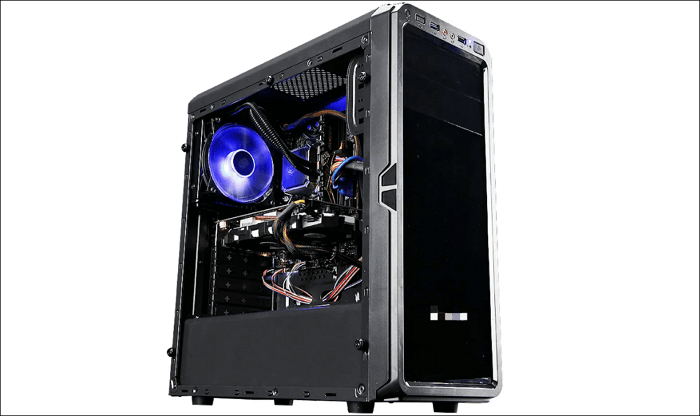
If your computer is still showing a black screen after booting up and running the System File Checker tool, you may need to further diagnose the issue by checking if it's a problem with your monitor. Try connecting the host to another monitor and see if the new monitor displays any content.
If none of the above operations can fix the black screen without cursor problem, the graphics card driver may be the cause of this failure.
Uninstall Graphic Driver
When Windows 11 displays a black screen with no cursor, you can access the Windows Recovery Environment (WinRE) to enter safe mode, open the device manager, and uninstall the graphics card driver to restore the system to normal.
Enable Safe Mode
Step 1. To shut down your PC, press and hold the power button until it turns off. Repeat this process 3 times, and your computer will eventually show the Windows Recovery Environment (WinRE) page.
If you're unable to enter WinRE, and Windows 11 still displays a black screen with no cursor, try the next method, which involves using the Windows 11 installation media to boot into WinRE. To do this, insert the installation media (USB drive or CD/DVD) and restart your computer.
Step 2. Navigate to Troubleshoot> Advanced options> Startup Settings options.
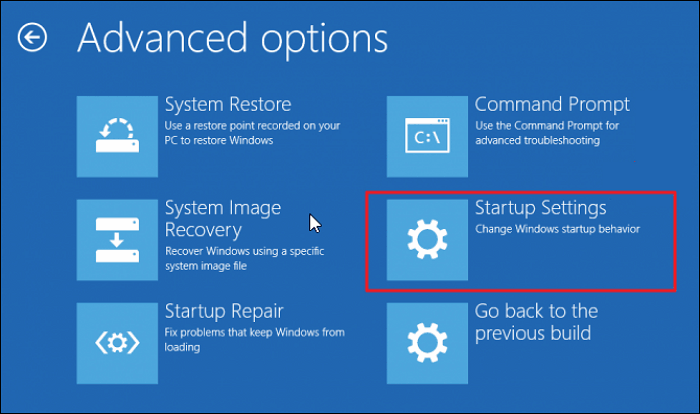
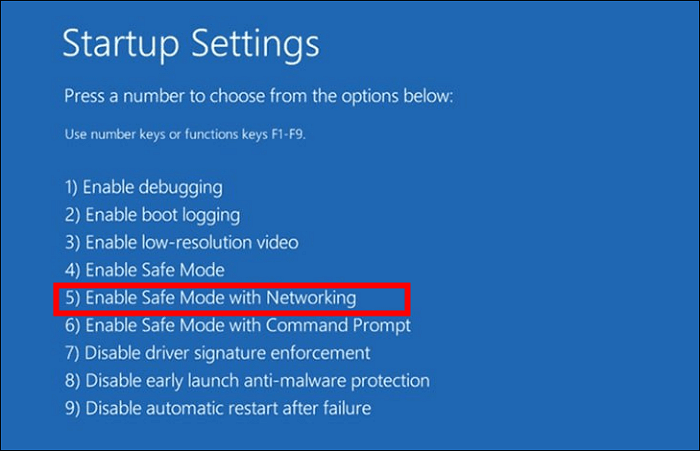
Step 3. Press the Restart option and press F5 to choose Enable Safe Mode with Networking.
Uninstall Device
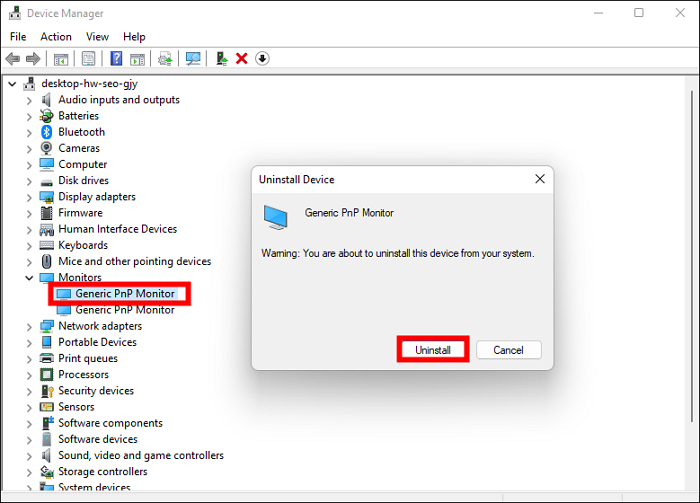
Step 1. Press the Windows + X keys to open the Device Manager after entering safe mode.
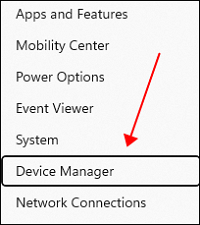
Step 2. On the pop-up tool window, navigate to Monitors> Generic PnP Monitor, right-click it, and choose to Uninstall device> Uninstall.
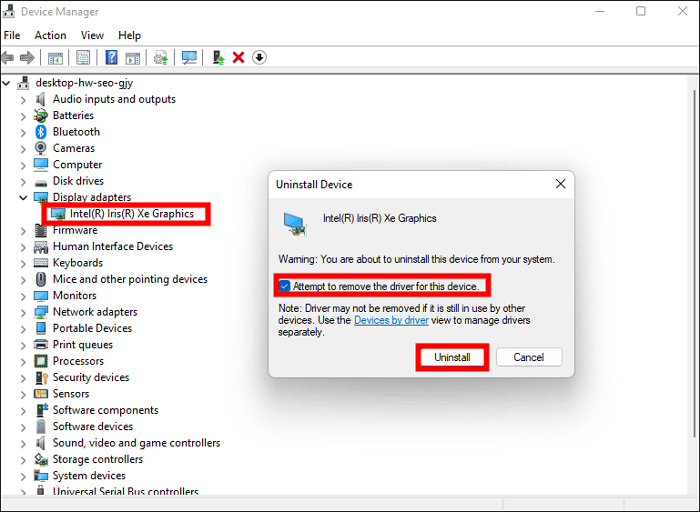
Step 3. Go to Device Manager, navigate to Display adapters, uninstall drivers, and check the box to attempt to remove the driver for this device.
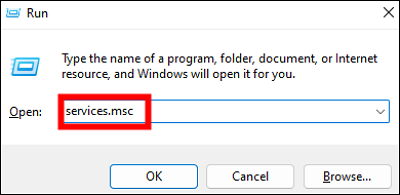
Step 4. Press the Windows + R keys, then type services.msc into the Run box and hit OK.
Step 5. To access the Windows Update option, navigate to the Service window and open it.
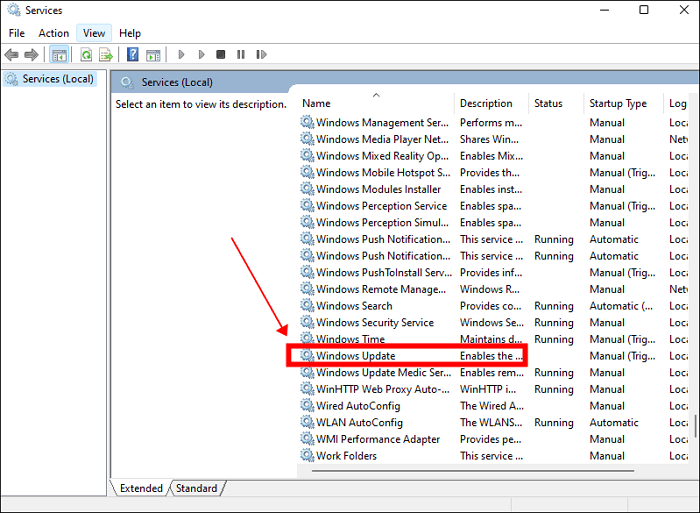
Step 6. To disable the Windows Search service, change the Startup type to Disabled, Service status to Stopped, and click OK. This will prevent the service from running at startup and stop it if it's currently running.
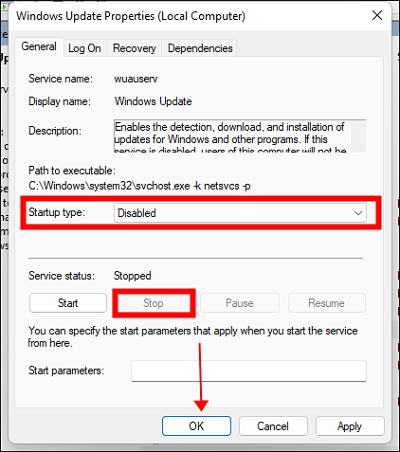
Step 7. To resolve the black screen issue, try booting your PC in safe mode, disable any recently installed drivers or software, and run a system file checker to identify and fix corrupted system files. If the problem persists, consider resetting your PC to its original settings or seeking professional help from a technician.
After uninstalling the graphic driver, you must disable Windows Update to prevent it from reinstalling the driver, which can cause the Windows 11 screen to black again.
Reset BIOS
If your computer can't enter safe mode or still can't display anything after uninstalling the graphics card driver, you may need to reset the BIOS to resolve the issue.
The BIOS is a program stored on the computer's ROM chip that reads and writes system settings from the CMOS, ensuring the computer's normal operation. Resetting the BIOS can be a solution to resolve black screen issues.
If your Windows 11 has a black screen with no cursor, you can try resetting the BIOS by manually cleaning the CMOS battery. To do this, you'll need to take out the CMOS battery, which is usually located on the motherboard. This process can help resolve the issue with your Windows 11.
Step 1. Unplug all devices from your PC and remove the power cord from the power source. This will ensure that your PC is completely powered off and you can safely perform any maintenance or upgrades.
Step 2. Remove the battery from its connector on the board, making sure the anode (the side with the "+" sign) is facing upwards.
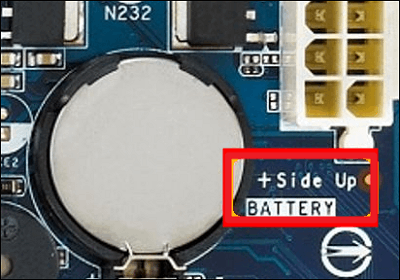
Step 3. Wait 30 minutes after removing the battery, then reconnect the battery and all previously disconnected devices.
Step 4. Now, restart the computer and enter the BIOS settings to see if the system returns to normal.
Reinstall Windows 11
If none of the above methods can help you recover Windows 11, you can only take the last step - reinstall Windows 11.
Windows Reinstall is an advanced solution that can solve system problems by restoring your computer to a clean state, even if your Windows screen is black with no cursor.
Although reinstalling the computer will cause you to lose your stored personal data, losing data is a small price to pay compared to losing the computer's functionality. It's a good idea to form the habit of backing up data to avoid this issue in the future.
To reinstall a computer, you'll need a boot USB drive, which can be created using a tool like Qiling Disk Master, a powerful Windows To Go creator, allowing you to create a bootable USB drive for Windows 11.
To copy installed Windows 11 to a USB drive, you can use Qiling Disk Master on another Windows 11 computer. This will allow you to create a bootable USB with your installed Windows 11. Once the USB is created, you can insert it into your computer and start the system reinstallation process.
Conclusion
If your Windows 11 screen turns black with no cursor, you can try to repair it due to various reasons such as hardware device failure, drive error, system file damage, or virus invasion.
Before resorting to the ultimate solution of reinstalling the system, you can use Qiling Disk Master to create a bootable USB drive for Windows 11, making it easier and more efficient to complete tasks and saving you maintenance costs.
FAQs
1. How do I get my cursor back on Windows 11?
Here 5 ways to get your cursor back on Windows 11.
Method 1. Restart your PC.
Method 2. Enable the mouse cursor in Device Manager by expanding the Mice and other pointing devices section, right-clicking your mouse, and selecting Enable device.
Method 3. Change the mouse USB slot.
Method 4. Update the mouse driver.
To turn off the "Hide mouse pointer while typing" option on your Windows 11, go to Settings, then click on "Accessibility", followed by "Mouse pointer options", and finally toggle off the switch next to "Hide pointer while typing" to disable this feature. This will allow the mouse pointer to remain visible on the screen while you are typing, making it easier to navigate and use your computer.
2. Why is my Windows 11 stuck on a black screen after the update?
After updating your system to Windows 11, the most likely cause of the black screen is a graphics card driver issue. If the driver is no longer compatible with the new system, it can cause the computer to display a black screen.
To resolve the issue, enter the security mode provided by WinRE, open the Device Manager, and uninstall the graphics card driver.
Related Articles
- What Is Bootable USB Drive? All You Should Know About Bootable USB Drive
- How To - How to Install and Run Windows 11 on USB
- How to Play Windows Games on Chromebook [Latest Guide]
- [Tutorial] How to Install Windows 11 without Secure Boot and TPM
Although you are not allowed to install Windows 11 on devices that don't enable Secure Boot or TPM 2.0, you can still find some workarounds to get it done. This article will show you the detailed steps to install Windows 11 without Secure Boot/TPM and a way to work Windows 11 on any unsupported PC. - How to Rebuild RAID Without Losing Data [for RAID 0/1/5]
Can I rebuild RAID without losing data? You can follow our organized tips to avoid data loss during the RAID rebuild. Don't forget to recover data from RAID with Qiling Data Recovery Software before starting to rebuild the RAID. - Recover Deleted Files from SanDisk Extreme Pro | 3 Ways
The SanDisk Extreme Pro series is popular, and it is not impossible to recover deleted files from your SanDisk Extreme Pro devices. Keep reading this guide, and you'll find three effective methods.
Products
Articles & Tutorials
- Data Recovery
- Data Backup
- File Recovery
- File Backup
- System Backup and Restore
- Disk and Partition Clone
- Technical articles
- Mobile articles
- Disk Master Help
- Windows Data Recovery Tutorials
- Windows Secure Delete Tutorials
- Windows Partition Management Tutorials
- Windows File Backup and Restore Tutorials
- Windows System Backup and Restore Tutorials
- Windows Disk Backup and Restore Tutorials
- Windows Clone Tutorials