How to Fix Hogwarts Legacy Blue Screen [Step-by-Steo Guide]
Hogwarts Legacy, a recent hit game, offers an immersive experience, allowing players to live out their dreams in the magical world of Harry Potter.
If you're experiencing issues with Hogwarts Legacy on your PC, such as a blue screen of death or a frozen computer, don't panic. The game is also compatible with portable game consoles, so you may want to consider switching to one of those options. However, if you're determined to play on your PC, the article provides a step-by-step guide to help you troubleshoot and resolve the issues you're facing, including the blue character error. By following these instructions, you should be able to get back to enjoying the game on your PC.
Why Hogwarts Legacy Blue Screen Error Happens
If you're experiencing a Blue Screen of Death while playing Hogwarts Legacy, it's not a sign that the game is malfunctioning, but rather a symptom of a hardware issue. Possible causes of the Hogwarts Legacy Blue screen error include outdated or corrupted drivers, overheating or faulty hardware components, and other system-related problems. These issues can cause the game to crash and display the Blue Screen of Death, so it's essential to investigate and resolve the underlying hardware problem to get back to playing the game.
- Corrupt drivers
- Corrupt registry
- Malware interference
- Damaged motherboard slots
- Bad sectors of hard drive
Hogwarts Legacy blue screen errors can be frustrating, but many of them can be fixed without expensive repair or replacement. Fortunately, this article provides various solutions to help you troubleshoot and resolve the issue, even if you're new to computers. By following the step-by-step guide, you can quickly identify and fix the problem, getting your gaming experience back on track.
For a specific look at the health of your hard drive, you can click on the "Disk Management" button.
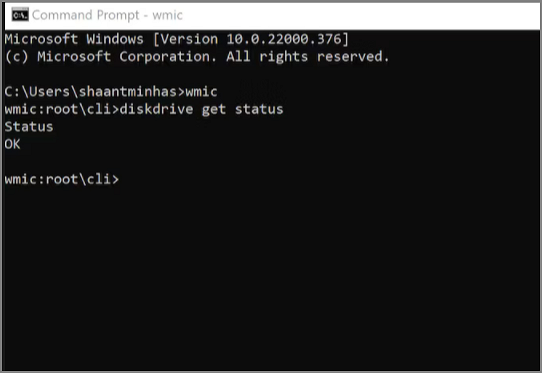
How to Check Hard Drive Health in Windows
To check hard drive health, you can use the built-in tools in your operating system, such as the Event Viewer in Windows or the Console in macOS. You can also use third-party software like CrystalDiskInfo or HD Tune to scan your hard drive for errors and check its SMART data. Additionally, you can run a disk check using the built-in Check Disk utility in Windows or the fsck command in macOS to identify and fix any file system errors.
How to Fix Hogwarts Legacy Blue Screen
To fix the Hogwarts Legacy blue screen error, try restarting your computer in safe mode, updating your graphics drivers, checking for any software conflicts, and verifying the integrity of your game files through the Steam client or Epic Games Launcher, depending on where you purchased the game. If the issue persists, consider reinstalling the game or seeking further assistance from the game's support team.
- Check and Fix File System
- Update to the Latest Driver
- Fix Corrupted Registry
- Close Unnecessary Third-Party Applications
- Change Another Hard Drive
Check and Fix File System
Checking file systems or bad sectors can help find and fix the cause of the Hogwarts Legacy blue screen error. Qiling Disk Master can provide an easy solution to optimize computer performance by checking for partition errors in Windows with one click.
The following is a step-by-step guide to fixing Hogwarts Legacy blue screen.
Step 1. Right-click the target partition that has a problem.
Step 2. Choose "Advanced" > "Check File System".
Step 3. Confirm if you want to hide the partition or not.
Step 4. To fix the error on the disk, select the "Fix the error on the disk" option in the Check File System window.
Step 5. Click "Proceed" to check errors on your partition.
If you encounter other Windows errors, you can also use Qiling Disk Master to resolve them.
You May Also Like:
Update to the Latest Driver
To fix Hogwarts Legacy crashing or freezing, ensure you have the latest GPU drivers installed. You can download them from the official website or use a driver updater tool like Qiling DriverHandy, which can automatically scan and update your drivers to improve game performance.
To update the Hogwarts Legacy driver, follow these steps: Download the Hogwarts Legacy game from the official website or store. Once downloaded, open the game and navigate to the settings menu.
Step 1. Open Qiling DriverHandy and click "Scan."
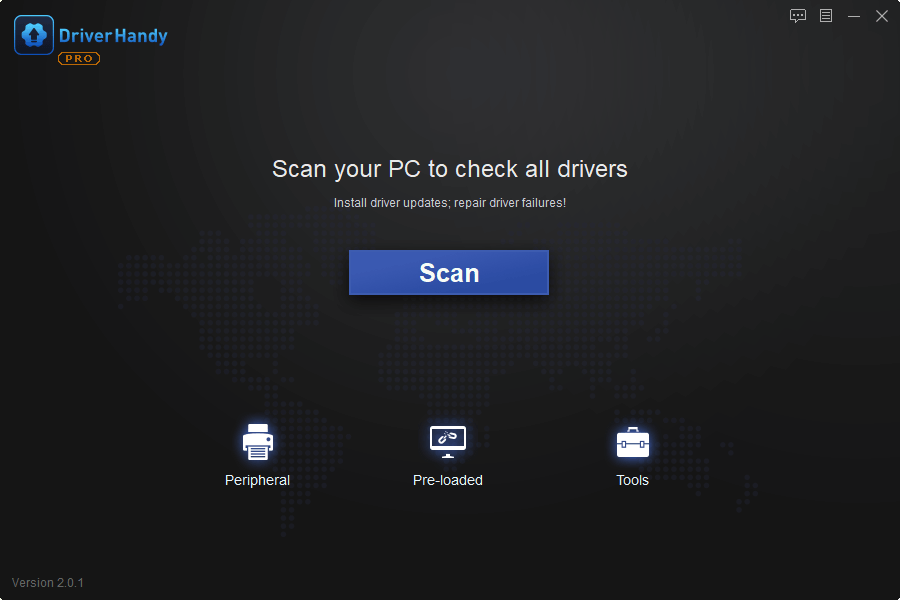
Step 2. Find the outdated drivers and click "Update."
Fix Corrupted Registry
Malware and viruses may both attack and modify the Windows registry, leading to registry corruption, which is closely related to unexpected PC shutdowns and crashes. To resolve this issue, you can run Windows Startup Repair, which involves following a series of steps to repair the corrupt registry.
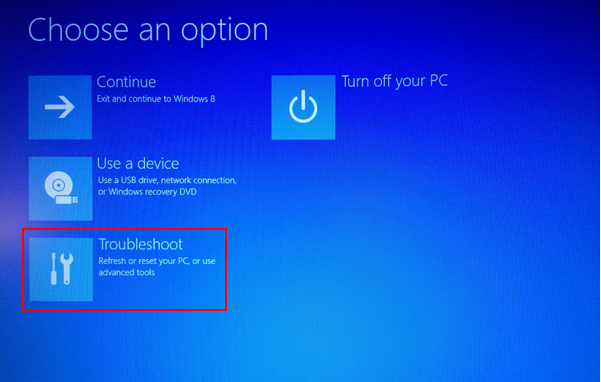
Step 1. To restart your computer in safe mode, right-click the Start button and select "Settings > System > Recovery." Click on "Restart now" in the "Advanced startup" section. This will initiate a restart in safe mode.
Step 2. Enter the Windows recovery environment. Click on Troubleshoot.
Step 3. Select Advanced option > Startup Repair.
To fix broken registry items, you can use the built-in Windows Registry Checker, which is a tool that scans the registry for errors and allows you to fix them. You can also use third-party registry cleaners, such as CCleaner, to scan and fix registry errors.
Close Unnecessary Third-Party Applications
Third-3rd party apps can cause Hogwarts Legacy to crash and freeze on PC, so close unnecessary apps while playing to avoid issues.
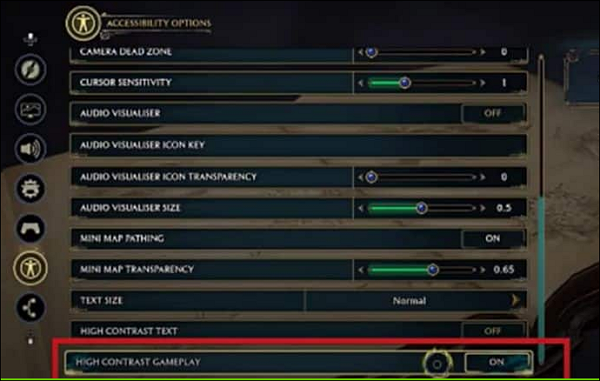
Switch Off the High Contrast Gameplay
The blue character error in Hogwarts Legacy can be resolved by disabling High Contrast in the game's settings menu, which can help distinguish between characters and environmental factors.
Step 1. Pause the game to go to Settings.
Step 2. Scroll down to the Accessibility menu on the right
Step 3. To turn off High Contrast Games, go to the bottom of your screen and click on the "High Contrast Games" option. This will disable the feature and restore your screen to its normal appearance.
Change Another Hard Drive
If none of the above methods resolve the error, there may be too many unrecoverable bad sectors on the drive, and you can clone your data to another disk first and then replace the hard drive used by Hogwarts Legacy.
Qiling Disk Master enables you to bypass bad sectors when cloning, allowing you to successfully duplicate a damaged hard drive. For more information and steps on how to do this, refer to the link: Clone a Damaged Hard Drive.
Conclusion
Hogwarts Legacy's blue screen or blue character error can be frustrating, but it's easily solvable. With the help of this guide, you can fix the issue by trying out the six suggested solutions, making it easy to overcome this problem and get back to exploring the wizarding world.
Qiling Disk Master is a powerful tool that can help fix the blue screen issue in Hogwarts Legacy by checking the health of your hard drive, fixing errors, and providing a smoother gaming experience. With its help, you can enjoy uninterrupted hours of fun gaming without any interruptions.
FAQs About Hogwarts Legacy Blue Screen
This section will provide some additional questions about the Hogwarts Legacy theme. We hope you will find it more helpful.
1. Will Hogwarts Legacy work on my PC?
Hogwarts Legacy is a game that can be played on PC, PS5, PS4, Xbox, and Nintendo Switch.
2. Why does my screen turn blue when I play games?
A blue screen crash while playing a game can be caused by a serious system error, possibly due to a failing hard drive or problematic driver. Updating the driver may resolve the issue.
3. Why do I get the blue screen when playing games on PS4?
The blue light of death is a common issue that PS4 owners face, usually indicating a software bug or a damaged power or HDMI cable.
Related Articles
- How to Remove Password in Windows 10 Without Login
- Get Qiling Disk Master Key (v16.0) in 2026 | No Cracking
- Windows 11 Boot Repair [Step by Step Guide with Pictures]
- How to Extend Partition Using Diskpart [Step-by-Step Guide]
- Can I Make a System Clone on Windows 11? Yes, Sure! Your Guide Is Here
Learn how to need a full guide of the system clone on Windows 11 so to help yourself and your friends and families to upgrade the OS disk all by yourselves completely. - Best System Clone Software Free Download 2024 [Your Checklist]
If you're looking for a reliable system clone software to download for free, this page recommends a trustworthy tool that allows you to clone your operating system to a new drive or disk on Windows computers, making it easy to upgrade your OS to a new disk with success.
Products
Articles & Tutorials
- Data Recovery
- Data Backup
- File Recovery
- File Backup
- System Backup and Restore
- Disk and Partition Clone
- Technical articles
- Mobile articles
- Disk Master Help
- Windows Data Recovery Tutorials
- Windows Secure Delete Tutorials
- Windows Partition Management Tutorials
- Windows File Backup and Restore Tutorials
- Windows System Backup and Restore Tutorials
- Windows Disk Backup and Restore Tutorials
- Windows Clone Tutorials