How to Remove Password in Windows 10 Without Login
If you're stuck on the Windows 10 login screen and unable to proceed, don't worry - this article will provide you with four ways to remove Windows 10 passwords without logging in. Have you tried every possible Windows 10 password, but nothing works? This article from Qiling will help you get past the login screen and regain access to your computer. Just follow the steps outlined in the article to find a solution that works for you.
- Way 1. Use Qiling Disk Master
- Way 2. Use Windows 10 Password Reset Disk
- Way 3. Remove Password From Windows 10 Online Without Logging In
- Way 4. Factory Reset Windows 10 to Remove Password
Among the four ways, Qiling Disk Master is the most user-friendly option, making it ideal for those with less experience. I've placed it first, and I recommend learning how to use this tool.
Way 1. Use Qiling Disk Master
To remove a Windows 10 password without logging in, use Qiling Disk Master Professional to create a password reset USB on another computer, which can erase the password on the current computer when it's stuck on the login page.
The software can automate the process of creating a password reset USB, making it easy to use for beginners, and can create a password reset USB with just one click, greatly improving efficiency.
To wipe Windows 10 passwords even when you're logged out, follow this guide. First, make sure you're logged out of your Windows 10 account.
Step 1. To reset the password on a USB disk, insert the target USB disk into the computer, download and run Qiling Disk Master, and click on "Tools" followed by "Password Reset."

Step 2. A small window will pop up after clicking "Create bootable media". After reading it carefully, click "Create bootable media".

Step 3. Select the correct USB flash drive or external mobile hard disk, click "Proceed" again, and wait patiently. After the password reset USB flash drive is created, click "Finish."

Step 4. Remove the password reset USB, insert it into the locked PC, restart the PC, and you'll be prompted to change the boot drive to boot from USB. The system will then automatically boot from USB.
Step 5. After restarting, find Qiling Disk Master again and go to "Password Reset". This will display all accounts on the PC, allowing you to select the target account and click "Reset" to change its password.

Step 6. When you receive this prompt, click "Confirm" to continue. Your password will be erased.

Video Tutorial on Resetting Password in Windows 10 Without Login
Here in this video, we uncovered 2 methods to guide you resetting a Windows 10 password without logging in, providing a solution for those who have forgotten their password and are unable to access their computer.
In addition to creating a bootable USB to wipe the password and crack Windows password of a current computer, Qiling Disk Master can also perform various tasks such as creating a bootable USB on another computer to wipe the password and crack Windows password of the current computer.
- Reset Windows 10 password with USB
- Unlock Surface without a password
- Create a Windows 10 password reset USB for another PC
- Bypass Windows 10 password
- Unlock Lenovo/Dell/ASUS laptop
To delete your Windows 10 password, install the PCUnlocker tool and create a password reset USB. This tool will allow you to boot into a Windows PE environment and reset your password without losing any data.
You May Like:

3 Ways to Crack Windows 10 Password | Full Guide
This guideline provides safe and effective methods to crack your Windows 10 password.

Way 2. Use Windows 10 Password Reset Disk
Windows comes with a tool to create a password reset disk, but it must be created before the computer locks, making it unusable if the computer is already locked. This method also only allows the password reset disk to be used on the current computer.
If you have a password reset disk, you can skip to step 5 to reset the password on a locked PC.
Step 1. Plug a USB flash drive into your Windows 10 PC.
Step 2. Type Create Password Reset Disk in the search box on the toolbar, and then select Create Password Reset Disk to pop up the Forgot Password Wizard.
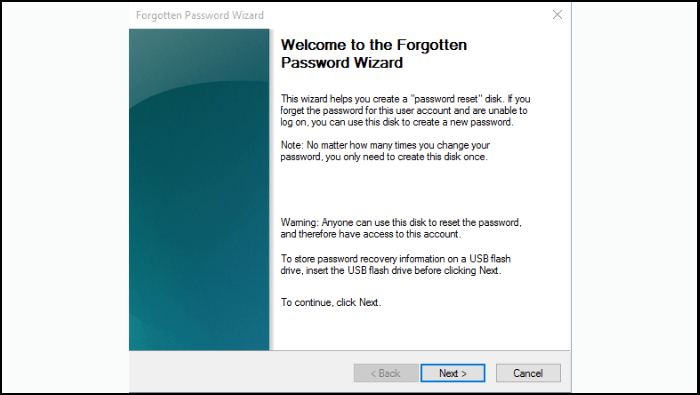
Step 3. In the "Forgot Password" wizard window, select "Next." Select your USB flash drive and select Next.
Step 4. Enter your current password and select Next. When the wizard completes, click Finish.
Step 5. Connect the bootable password reset USB drive to your PC.
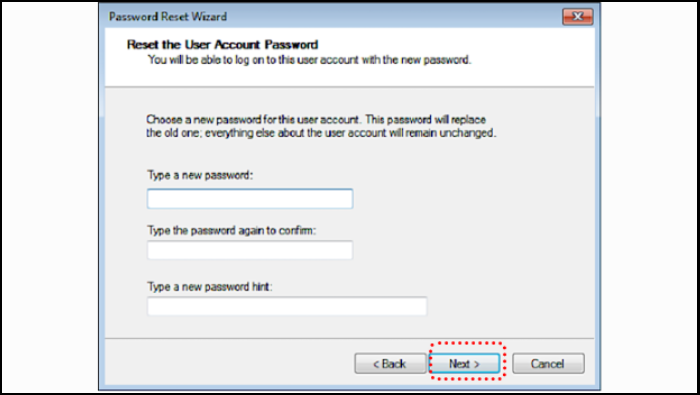
Step 6. On the Windows 10 login screen, enter a wrong password and then click on "Reset Password" to open the password reset wizard.
Step 7. To set a new password on Windows 10, enter the new password and click Next, then log into your computer using the new password.
You May Also Like:
Way 3. Remove Password From Windows 10 Online Without Logging In
Here are the steps to reset your Windows 10 password online using the Microsoft reset password page:
Step 1. To reset your Windows 10 password, go to the Microsoft account password reset page at https://account.live.com/password/reset, select the reason why you're unable to log in, and follow the prompts to reset your password.
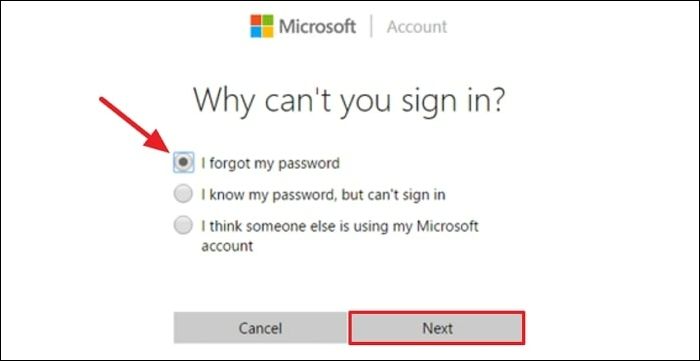
Step 2. To reset your password, enter your email address to receive a verification code, then enter the code in the space provided and you will receive a new password.
Read Also:
4 Tips to Reset Windows 7 Password without Disk
If you're locked out of your Windows 7 account due to a forgotten password, don't worry - there are still four feasible options to reset it without a disk. You can use a professional password tool or one of three Windows built-in tools to regain access to your account.
Way 4. Factory Reset Windows 10 to Remove Password
If you've lost or forgotten your Windows 10 administrator password, don't worry - we can reset your computer to the login screen.
🔎Also Read: If you're unable to access your Windows 11 or Windows 7 computer due to a forgotten password, you can perform a factory reset without a password using the Windows Recovery Environment (WinRE). To do this, you'll need to create a bootable USB drive or CD/DVD with the Windows installation media and boot from it.
Step 1: To restart Windows 10 in Safe Mode, click the power icon in the lower right corner of the screen, then hold down the Shift key while choosing Restart.
Step 2: The computer will restart and take you to the troubleshooting options screen, where you can select the Troubleshoot option.
Step 3: You will see the option to reset or refresh your computer. Click "Reset this PC".
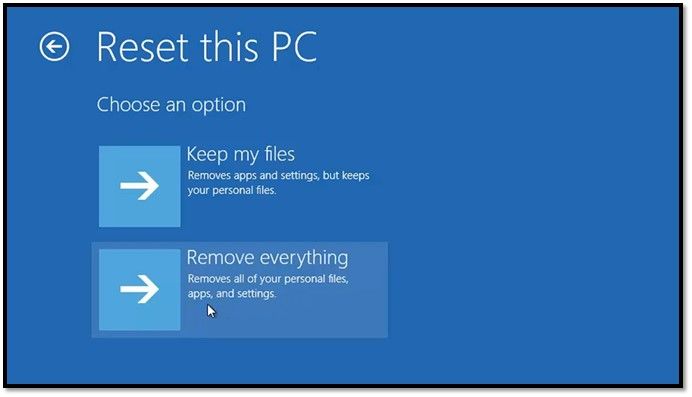
Step 4: The system will restart and prepare to reset the computer.
Step 5: On the Reset PC screen, click Remove everything and then click Continue.
If you've forgotten your Windows 10 password, don't worry! You can easily reset it using the built-in features.
Conclusion
To disable Windows passwords without logging in, you can try using the built-in methods such as using a password reset disk, booting from a USB drive, or using a third-party tool like Qiling Disk Master. However, for novice users, Qiling Disk Master is recommended as it's a more user-friendly option. As a last resort, resetting your computer will erase all data on the device.
You can bypass the Windows 10 password when locked out of a PC by using the built-in administrator account or by resetting the password using the built-in Administrator account. Alternatively, you can use a third-party tool like Ophcrack or Hiren's BootCD to reset the password. If you're unable to access the built-in Administrator account, you can try using a Windows 10 installation media to reset the password.
Remove Password in Windows 10 Without Login FAQs
To disable the password in Windows 10 without logging in, you can use the built-in Windows feature called "Net User" command. This command allows you to modify user accounts without needing to log in. To do this, open the Command Prompt as an administrator, type "net user * /active:no" (without quotes), and press Enter. This will disable the password for all users, effectively making it so that no password is required to log in.
1. How do I permanently remove the password from Windows 10 while logging in?
To remove the Windows 10 password using "netplwiz" commands, follow these simple steps:
Step 1: To open the Network and Sharing Center, type "netplwiz" in the Windows 10 search box and choose it when it appears in the results.
Step 2: Uncheck the box marked "Users must enter User name and password to use this computer" and click "OK."
Step 3: To remove the password from your Windows 10 laptop, go to the login screen, click on the "Ease of Access" button, select "Change what's on your screen," and then click on the "Change password" button. When prompted, type and confirm the current password, and then click "OK." Restart your Windows 10 laptop, and you will be able to access it without the password.
2. How do I reset my Windows 10 password without logging in?
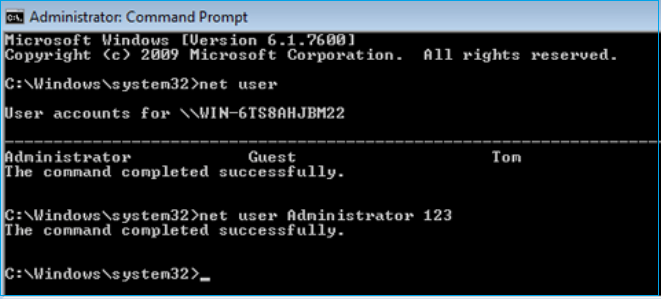
To reset a Windows 10 user account password, you can reboot the system and access the command prompt in administrator mode by hitting the Shift key at the login screen. Then, enter the command "net user USER-NAME NEW-PASSWORD" to change the password for the specified user account.
3. Can you unlock a laptop if you forgot the password?
Insert the password reset USB or disk into your computer. Then, restart your computer and enter the BIOS settings. In the BIOS settings, look for the boot order and change it to boot from the USB or disk. Save the changes and exit the BIOS settings.
Step 1. Connect the password reset USB drive to the locked PC.
Step 2. On the Windows login screen, enter and confirm an incorrect password, then click "Reset Password" to initiate the password reset process, which will then guide you through the password reset wizard.
Step 3. To set a new password on Windows 10, enter your new password and click Next, then log in to your Windows 10 computer using your new password.
Related Articles
- Getting Windows 11 Boot Loop? Troubleshoot This Error Now - Qiling
- Delete or Format? How to Clear An SD Card on Windows
- Deep PC Cleaning: Make the Computer Run Faster!
No one wants to use a slow computer. If you're looking for a deep PC cleaning service, this guide can help, This article shows you how to clean your PC from the outside and inside. - How to Delete Large Files Command Line Windows 10?
If you need to delete large files, you can follow the methods outlined in this post, which includes deleting large files command line in Windows 10 and using a professional file delete program. - Guide on How to Partition a Hard Drive
How to partition a hard drive in Windows 8/7/XP/Vista/2000 and Server 2012/2003/2008 easily? This time, you'll find the best Windows partition manager. - Learn How to Repartition Hard Drive in Windows 10, 8, 7
The right way to repartition a hard drive is to use Qiling Partition Asssitant to repartition a hard drive.
Products
Articles & Tutorials
- Data Recovery
- Data Backup
- File Recovery
- File Backup
- System Backup and Restore
- Disk and Partition Clone
- Technical articles
- Mobile articles
- Disk Master Help
- Windows Data Recovery Tutorials
- Windows Secure Delete Tutorials
- Windows Partition Management Tutorials
- Windows File Backup and Restore Tutorials
- Windows System Backup and Restore Tutorials
- Windows Disk Backup and Restore Tutorials
- Windows Clone Tutorials