How to Reset a Windows 10 Password Safely - 3 Ways
When dealing with digital security, safeguarding personal data and securing device access is essential. However, if you forget your Windows 10 password, you'll need a swift and secure solution to regain access. Qiling provides a tutorial on resetting Windows 10 passwords with built-in Windows features and reliable third-party software.
Qiling Disk Master - Best Windows Password Reset Tool
When faced with a locked-out Windows 10 system without a password, using a reliable and secure solution like Qiling Disk Master Professional can be an effective approach to unlock the system.
A Windows password unlocker offers a user-friendly interface and a range of functions beyond simple partition management, including a dedicated "Password Reset" feature that helps users remove Windows passwords efficiently.
Here are the steps you need to follow to unlock your Windows 10 using Qiling Disk Master:
Step 1. To reset the password on a USB disk, insert the target USB disk into the computer, download and run Qiling Disk Master, and click on the "Tools" menu followed by "Password Reset".

Step 2. Select the correct USB flash drive or external mobile hard disk and click "Create" again. Wait patiently for the password reset USB flash drive to be created. Once it's done, click "Finish."

Step 3. To reset a password on a locked PC, insert a password reset USB into the locked PC and restart it. The PC will prompt you to change the boot drive to boot from the USB, and once completed, the system will automatically boot from the USB and allow you to reset the password.
Step 4. After restarting your computer, go to the Qiling Disk Master again and navigate to the "Password Reset" section. In the interface that appears, select the target account you want to reset and click on "Reset & Unlock" to proceed.

Step 5. When you receive this prompt, click "Confirm" to continue. Your password will be erased.

Related Post You May Like:
Qiling Disk Master is a reliable solution for regaining access to a Windows 10 system after a password lockout, offering a secure and streamlined approach with minimal risks or complications.
How to Reset a Windows 10 Password - 2 Ways
Besides Qiling Disk Master, there are other manual methods to reset Windows 10 passwords. Two common methods include using password recovery tools or manually resetting the password through the built-in Administrator account. These steps can be complex, so follow them carefully.
Way 1. Recover Windows 10 Password via CMD
Recovering a Windows 10 password via Command Prompt (CMD) is an option if you're comfortable running commands. This method uses the Command Prompt in the Windows Recovery Environment to reset the password and regain access to your Windows 10 account without reinstalling the operating system.
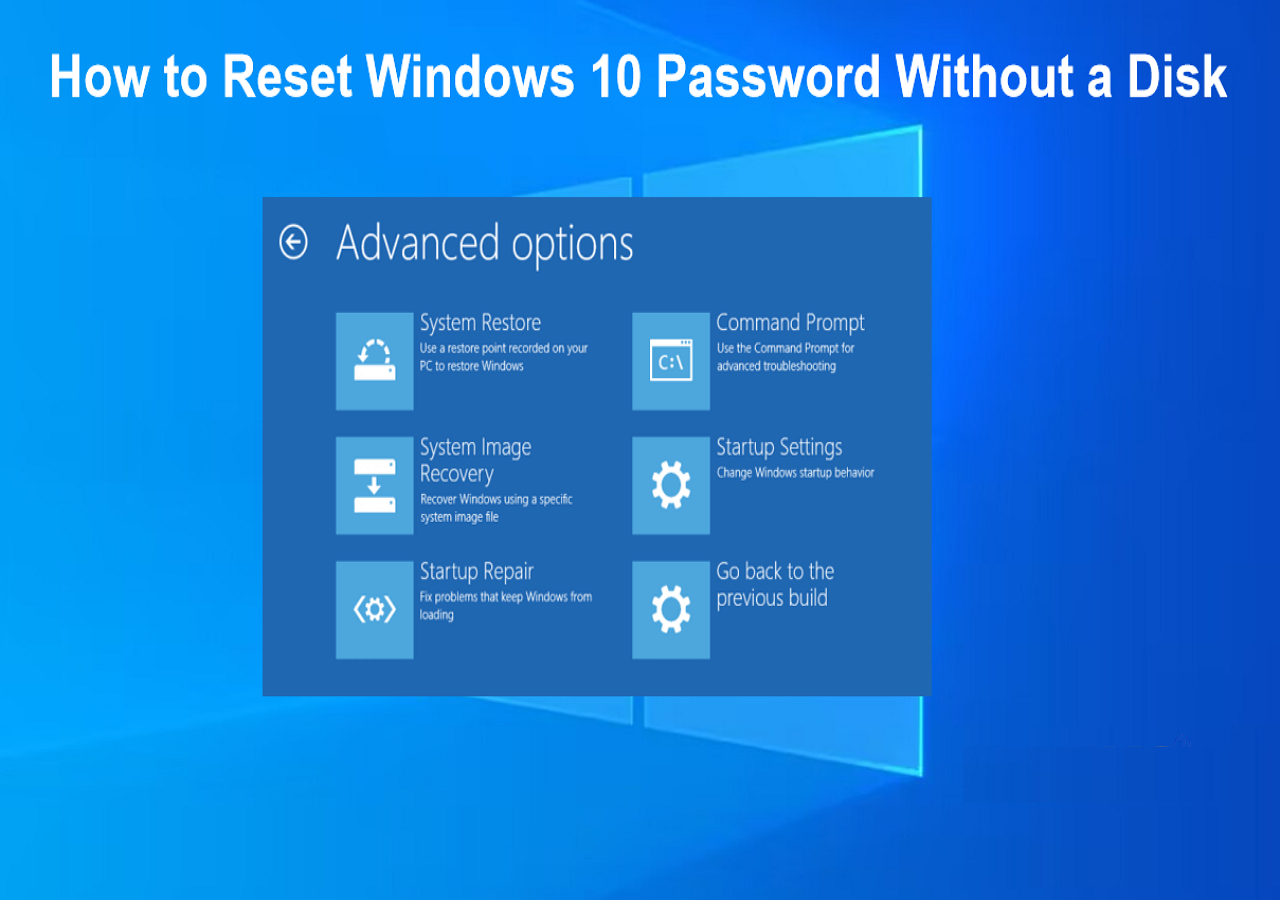
Step 1. Restart your computer and access WinRE by repeatedly pressing the F8 key or through another method specific to your computer model. After entering WinRE, choose "Troubleshoot" and proceed to click on "Advanced options." In the subsequent window, select "Command Prompt" to initiate it.

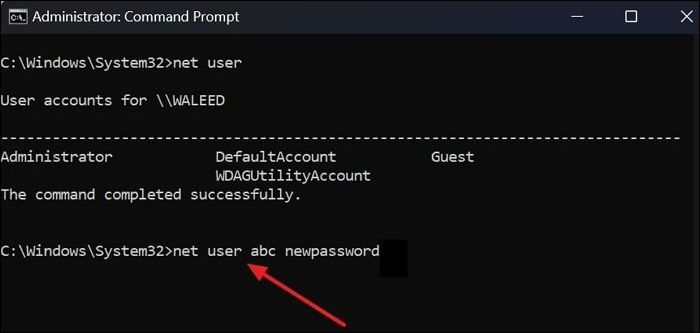
Step 2: To display a list of accessible user accounts, open the Command Prompt and type "net user". To reset a user's password, type "net user username newpassword" and replace "username" with the target account's name and "newpassword" with the desired password, then follow the prompts to confirm the change.
If you're unable to access your Windows 10 computer without a password, you can try using the built-in Guest Account feature to access your computer without entering a password. If this feature is not available, you can try booting your computer in Safe Mode, which allows you to access your computer without a password.
Way 2. Reset Windows 10 Password by Super Administrator Account
Using the Super Administrator Account is an alternative way to regain access to your system without relying on external software.
This method uses the hidden Super Administrator Account present in Windows systems, allowing you to reset a Windows 10 password. To do this, follow these steps:
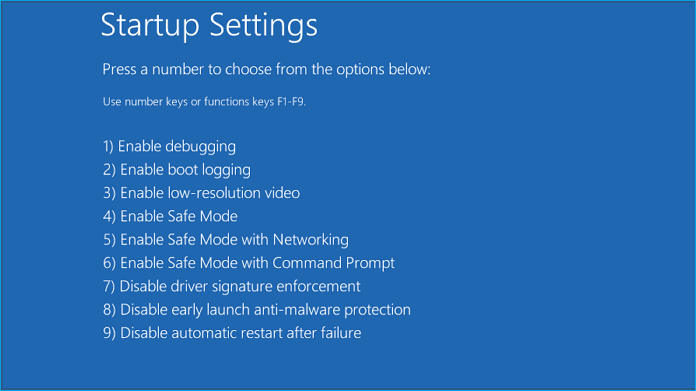
Step 1. To access the Advanced Boot Options, restart your computer and long-press the F8 key. Then, select the "Enable Safe Mode with Command Prompt" option.
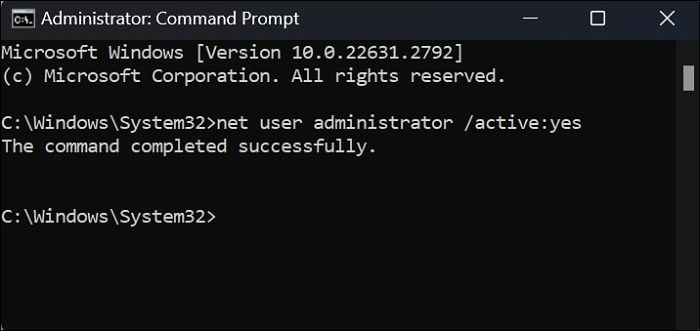
Step 2. In Safe Mode with Command Prompt, copy and paste the command "net user administrator /active: yes" and hit Enter to enable the Super Administrator Account.
Step 3. Log out of the current account, switch to the newly activated Super Administrator Account, navigate the Control Panel, select User Accounts twice, choose Manage another account, and pick the specific account for which you want to change the password.
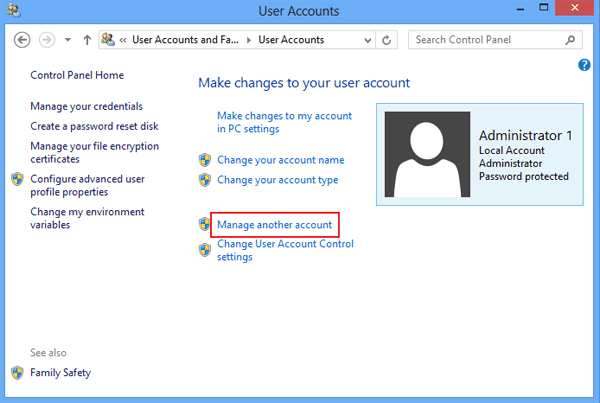
Step 4. To change a computer password, select the "Change Password" option, enter the new desired password, and then click the "Create Password" button. Once done, restart the computer and log back in with the newly updated password.
To reset your Windows password without a disk, follow these steps:

5 Ways | Reset Windows 10 Password Without a Disk
You can reset your Windows password without a disk by following five methods outlined in this guideline.
Conclusion
Unlocking a Windows 10 password when locked out can be frustrating, but two effective methods are available: using Command Prompt and using the Super Administrator Account. These techniques can help reset a Windows 10 password and regain access to your system, but each has its own limitations.
Qiling Disk Master provides a reliable solution for password recovery, offering a safe and efficient way to access Windows 10 systems without compromising data integrity, especially when other methods are not feasible or convenient.
FAQs About How to Reset a Windows 10 Password
For those seeking further clarity on resetting Windows 10 passwords or handling similar sign-in issues, the following FAQs provide concise answers.
1. How do you recover a Windows 11 password when locked out?
If you use your Microsoft account to log in to Windows 11, you can recover your password by following these steps. Firstly, go to the Microsoft account sign-in page and click on "Forgot password.
Step 1. To access your Windows computer, start it up and go to the sign-in screen. If your Microsoft account name isn't displayed, click the option that says "I forgot my password."
Step 2. Type your Microsoft account email address on the next screen and press Enter. Then, choose how you'd like to receive a security code for identity verification, such as via phone number. Enter the last four digits of your phone number and request a code.
Step 3. To reset your Windows 11 local account password, enter the security code you received after clicking on "Forgot password" during the login process. Once verified, you will be prompted to set a new password for your local account. This process allows you to regain access to your Windows 11 system with a new password.
🚩Extended Reading: How to Bypass Windows 11 Password | 2026 New
2. What is the software to remove Windows login passwords?
Qiling Disk Master is a reliable software that simplifies the process of removing Windows login passwords with its user-friendly interface, ensuring data safety. By creating a bootable disk, you can efficiently reset or remove Windows login passwords using this tool.
3. How can I unlock a computer if I forgot the password?
To unlock a computer if you've forgotten the password, follow these steps: If you're still able to access the computer, go to the login screen and click on your username, then click on "Settings" or "Options" and look for a "Reset password" or "Forgot password" option. If you're unable to access the computer, you may need to use a USB drive or a CD/DVD to boot into a recovery environment, such as the Windows Recovery Environment (WinRE) or a Linux live CD.
Step 1: To start in Safe Mode, power on or restart your computer and press and hold the F8 key until the Advanced Boot Options menu appears, then select Safe Mode to initiate.
Step 2: To access the system, log in using the Administrator account credentials. Then, go to the Control Panel settings to modify or delete your forgotten password.
Related Articles
- 6 Ways to Reset Forgotten Windows 10 Password 🥇
- FREE MBR Repair Tool: How to Fix MBR on Internal and External Hard Disk
- Is Your PC Slow to Shut Down? Try These Tips!
- Clean VS Formatting a Hard Drive, Can You Tell Me Their Difference
Is cleaning a hard drive the same as formatting a hard drive? Of course not. This article focuses on this question and tells you how to format a hard drive instead of cleaning a hard drive. - D Drive Not Showing Up in Windows 10/11 | 4 Methods to Fix
If your D drive is missing or disappeared in Windows 10/11, it's an easy fix! The reasons for this issue can vary, but common causes include disk errors, corrupted system files, or incorrect drive letter assignments. - How to Delete All Partitions on Windows 11
To delete all partitions from your hard drive in Windows 11, you can use the built-in Disk Management tool. First, open the Disk Management tool by pressing the Windows key + R, typing “diskmgmt.
Products
Articles & Tutorials
- Data Recovery
- Data Backup
- File Recovery
- File Backup
- System Backup and Restore
- Disk and Partition Clone
- Technical articles
- Mobile articles
- Disk Master Help
- Windows Data Recovery Tutorials
- Windows Secure Delete Tutorials
- Windows Partition Management Tutorials
- Windows File Backup and Restore Tutorials
- Windows System Backup and Restore Tutorials
- Windows Disk Backup and Restore Tutorials
- Windows Clone Tutorials