How to Bypass Admin Password Windows 10 | 2024 Guideline
Windows 10 is a reliable operating system with robust security features, but occasional issues may arise where you're locked out of your administrator account. In such cases, you'll need a solution to regain access and restore system integrity, ensuring your data remains secure.
Qiling offers a detailed guide on how to bypass the admin password in Windows 10, whether it's due to a forgotten password or a legitimate need to access an administrator account.
| ⏱️Duration | 3-6 minutes of reading |
| 💻Supported Systems | Windows 10 and also suitable for Windows 11/7/8 |
| ✂️Tools | Password Reset Disk, Windows Installation Media, Command Prompt, Third-party Software |
| 🧑💻Cases | Forgotten Password, Inherited Computer, Lost Admin Privileges, Locked Out Due to Security Settings |
If you're struggling with a forgotten administrator password, we've got a solution for you. Qiling Disk Master is a reliable password reset tool that can help you bypass the admin password. If you're not familiar with Windows built-in tools, download Qiling Disk Master in advance to get started.
How to Bypass Admin Password Windows 10
Let's dive into the details of bypassing the admin password in Windows 10 and unlocking a computer without a password. We'll tackle this challenge by addressing two distinct scenarios: how to bypass the admin password in Windows 10 and unlock computer without password.
Case 1. Bypass Admin Password Windows 10 If You Forgot the Password
Case 2. Bypass Admin Password Windows 10 If You Know the Old Password
To help you bypass the Windows 10 admin password, we'll delve into the intricacies of this process and provide you with a thorough understanding of the steps involved. This will equip you with the necessary insights to overcome this obstacle, and you can also share this information with friends who may be facing the same issue.
Case 1. Bypass Admin Password Windows 10 If You Forgot the Password
When you've forgotten your Windows 10 administrator password, it can understandably cause frustration. To recover access to your system, we'll guide you through a systematic procedure using three methods and utilities to bypass the forgotten administrator password. This process will cover a step-by-step approach to regain control of your Windows 10 system.
- Method 1. Bypass Admin Password Windows 10 with Password Removal Tool
- Method 2. Bypass Admin Password Windows 10 with Windows Installation Disk
- Method 3. Bypass Admin Password Windows 10 with Reset Disk
Here are three ways to bypass the admin password on Windows 10:
Method 1. Bypass Admin Password Windows 10 with Password Removal Tool
When bypassing a forgotten Windows 10 admin password, a user-friendly and effective solution is to utilize a trusted software tool, such as Qiling Disk Master, which boasts robust disk management capabilities and provides extensive features to aid users in efficiently overseeing their storage devices and resolving myriad disk-related challenges.
Qiling Disk Master is a tool that can help users unlock their Windows passwords, making it a useful solution for those who have forgotten their Windows 10 admin password. It is a straightforward and user-friendly tool that can save time and frustration.
Qiling Disk Master makes it easy to bypass the admin password on Windows 10, allowing you to fix errors and issues with a simple download and installation.
Step 1. Connect a USB drive or external drive to a functioning computer, then open Qiling Disk Master (RE) and click "Create Bootable Media".

Step 2. Connect your movable device to your computer, select it and click "Proceed" to create an image on your USB drive/external drive.

Step 3. Connect a bootable drive to a faulty computer, reboot by pressing F2/Del, enter BIOS, set the bootable drive as the boot disk, and exit with F10.
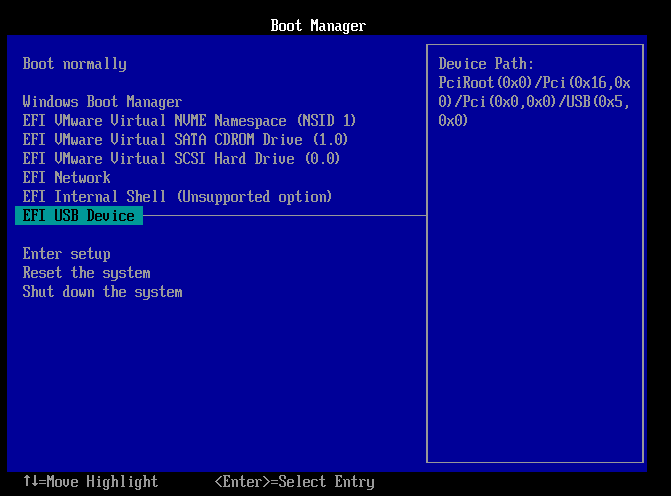
Step 4. The computer will enter WinPE desktop, where you can find and launch Password Reset.

Step 5. To reset your Windows, select your version of Windows and choose the account you want to reset.

Step 6. When prompted to reset your Windows password, click "Reset" to continue the process.
Step 7. After changing your password, you'll receive a message confirming that the process was successful. Click "OK" to finalize the change.

Qiling Disk Master can also perform more problems related to forgotten passwords, such as cracking Windows passwords, and can be downloaded to enjoy its features.
Read Also:

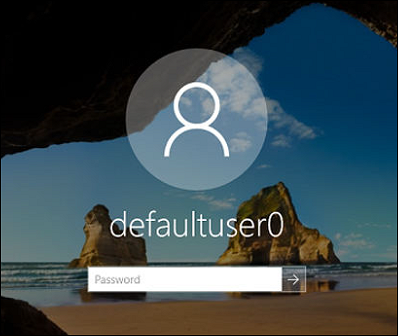
Defaultuser0 Password? Fix It Now! [5 Efficient Ways]
When defaultuser0 appears on your computer screen, don't worry! This article offers three solutions to resolve password issues for HP, Lenovo, and Dell users. #defaultuser0 #passwordissues #computersolutions
Method 2. Bypass Admin Password Windows 10 with Windows Installation Disk
To bypass a forgotten Windows 10 admin password using a Windows installation disk, start by creating a Windows installation disk. Insert the disk and restart your computer. As soon as the computer boots from the disk, you will be prompted to select your language preferences. Choose your preferred language and click Next.
Step 1. To start the Windows installation, prepare a Windows installation disk and connect it to your computer. Restart your computer and when you reach the Windows installation screen, press the "Shift + F10" keys.
Step 2. To launch the Command Prompt, press the "Shift + F10" keys. Then, enter and execute the following commands:
- "C:" (Change to the letter of the disk where your Windows is installed)
- "cd Windows\System32"
- "ren sethc.exe sethc.exe.bak"
- "copy cmd.exe sethc.exe"
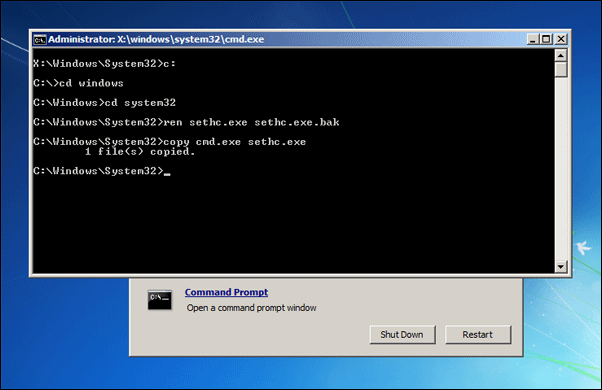
Step 3. After exiting the CMD and rebooting your PC without the Windows installation disk, tap the "Shift" key five times at the login screen to open the Command Prompt (CMD) as an administrator.
Step 4. To bypass the admin password on your PC, start by running the "net user" command to get a list of all created accounts. Then, run the "net user username password" command, replacing "username" with your account name and "password" with your desired new password. This will change and bypass the admin password, allowing you to create a new password and modify the username to your account name.
To reset Windows password, you'll need to create a Windows installation disk in advance, which can be done using Qiling Disk Master if you're not familiar with the process. Alternatively, you can use a faster method to directly reset your Windows password.
See also:
Method 3. Bypass Admin Password Windows 10 with Reset Disk
To bypass your Windows 10 admin password using a password reset disk, follow these steps: First, ensure you have a password reset disk created for your account. Next, boot your computer from the disk, and then follow the on-screen instructions to reset your password. You will need to enter a new password for your account, and then you can log back in with your new password.
Step 1. Connect the reset disk to your locked Windows 10 PC, power it on, and repeatedly input incorrect passwords at the login screen to trigger the "Reset Password" option.
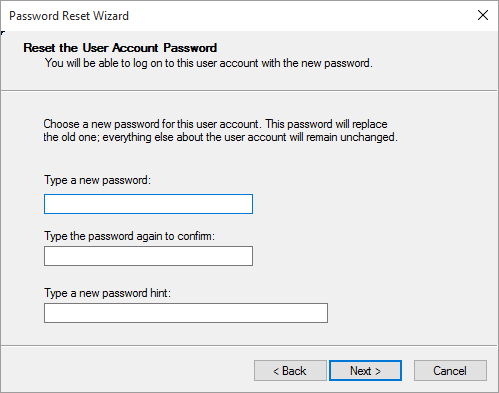
Step 2. To reset a password, select "Reset Password" and initiate the Password Reset Wizard. Then, choose the drive with the reset disk and click "Next".
Step 3. On the next screen, leave the fields for the new password blank, then tap "Next" and finally click "Finish" to complete the password reset process.
Read Also: HP Default Admin Password, Dell Default Admin Password
Case 2. Bypass Admin Password Windows 10 If You Know the Old Password
To update or reset your Windows 10 admin password when you already know the old one, you can follow these steps:
- Method 1. Bypass Admin Password Windows 10 via "netplwiz"
- Method 2. Bypass Admin Password Windows 10 While Logging in
- Method 3. Bypass Admin Password Windows 10 with Windows Settings
- Method 4. Bypass Admin Password Windows 10 with CMD
Note: If you've forgotten your Windows password, don't worry, you can use Qiling Disk Master to reset it without needing to log in.
Method 1. Bypass Admin Password Windows 10 via "netplwiz"
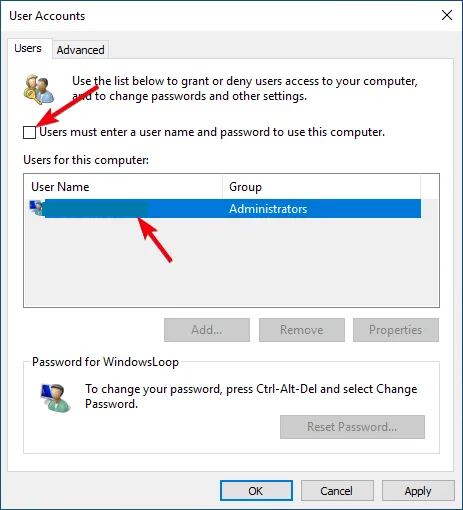
To bypass the Windows 10 administrator password, use the 'netplwiz' utility to configure automatic login. This allows you to start your computer without entering a password, eliminating the need for administrator login credentials. To do this, open the Command Prompt as an administrator, type 'netplwiz', and press Enter. In the resulting window, uncheck the box next to 'Users must enter a username and password to use this computer,' and enter the username for the administrator account. Then, click 'OK' to apply the changes.
Step 1. To launch the Run operation on your Windows 10 computer, press the "Win + R" keys simultaneously. This will bring up a window where you can type a command. Type "netplwiz" and click "OK" to open the User Accounts window.
Step 2. To change the Windows 10 login settings, uncheck the box that says "Users must enter a username and password to use this computer" on the "User Accounts" tab, then click "Apply." Confirm the change by entering your current password.
Method 2. Bypass Admin Password Windows 10 While Logging in
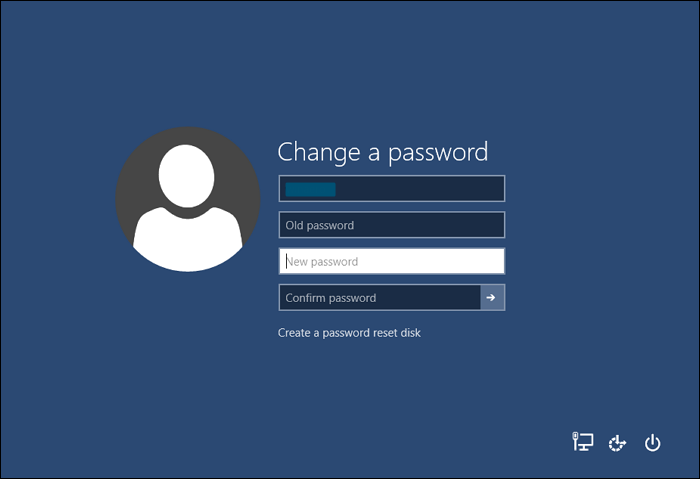
To bypass the Windows 10 admin password temporarily during the login process, follow these steps:
Step 1. To reset your password, reboot your computer, log in with your old password, and simultaneously press the "Ctrl + Alt + Del" keys and select "Change a Password."
Step 2. Enter your old password, leaving the fields for "New Password" and "Confirm Password" empty, then press Enter to confirm your choice.
Method 3. Bypass Admin Password Windows 10 with Windows Settings
In Windows 10, you can temporarily bypass the admin password by opening the Windows Settings app, navigating to Accounts, clicking on your profile, and selecting "Change account type." Here, you can toggle the account type from Administrator to Standard, effectively bypassing the admin password for the current session. Once you're done, simply toggle it back to Administrator to reinstate the password requirement. This method allows for quick access without making permanent changes to your account settings.
Step 1. To access Settings on your Windows 10 PC, use the "Win + I" keys, then tap "Accounts" and select the "Sign-in Options" tab from the left side panel.
Step 2. To change your password, tap "Password" and click "Change" while logged in with a local account.
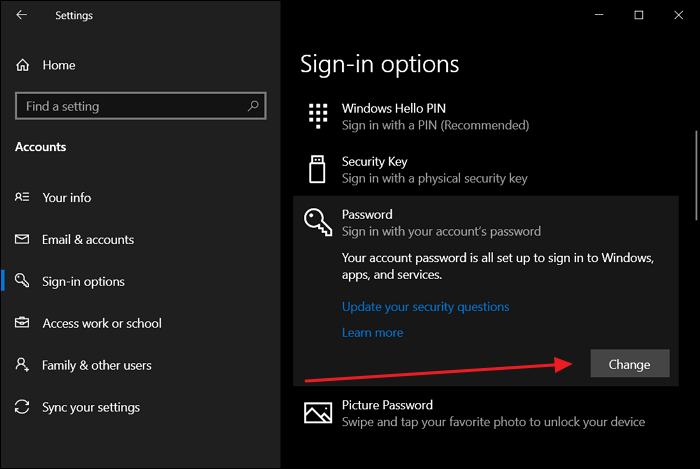
Step 3. After logging in with your local account, set your password and click "Next." You will then be asked to provide a "New Password," "Reenter Password," and "Password hint" to complete the process.
Step 4. Leave all the fields empty and click "Next" and then click "Finish" to finalize the process, allowing you to sign in without needing an administrator password.
Method 4. Bypass Admin Password Windows 10 with CMD
To bypass the Windows 10 administrator password using the Command Prompt (CMD), you can utilize its command-like interface. This method is recommended for users with a basic understanding of CMD. To do so, follow a guide that outlines the steps to access CMD and execute specific commands to bypass the admin password. This approach is suitable for users who are familiar with CMD and want to take advantage of its capabilities to access the administrator account without entering the password.
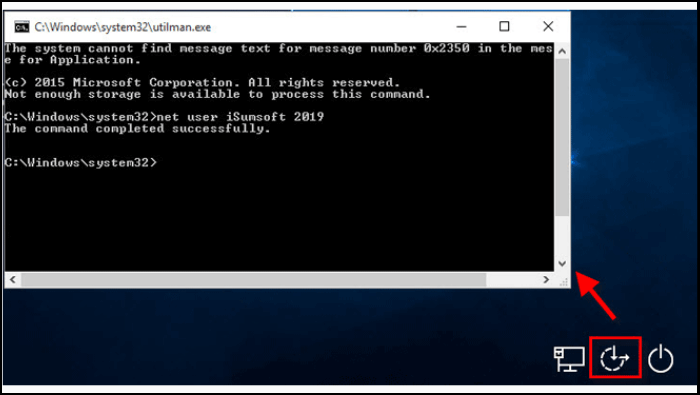
Step 1. To open the Command Prompt as an administrator, press the "Win + S" keys to access the Windows search bar, search for "Command Prompt", and select "Run as administrator" from the results.
Step 2. To remove a password from an admin user, run the command "net user" to see the current users on your device, select the admin user, and then run the command "net user (username)" to remove the password.
Conclusion
We've explored various methods to bypass the admin password in Windows 10, addressing two scenarios: when you've forgotten your old password but still know it, and need to make changes. These techniques allow you to regain access to your Windows 10 system.
Our strong recommendation for the best solution to reset Windows 10 password is to use Qiling Disk Master, which offers a user-friendly and practical Windows Password Reset feature. This feature simplifies the password recovery process, allowing you to easily remove Windows 10 password and regain access to your Windows 10 admin account.
FAQs About How to Bypass Admin Password Windows 10
Do you want more information regarding bypassing Windows 10 admin passwords? You've come to the right source. Below, you'll find responses to some frequently asked questions by several people:
Q1. How do you bypass the Windows 10 password without CMD?
If you know the old password, you can bypass the Windows 10 password without using the Command Prompt by following these steps: First, click on the Start menu and select Settings. In the Settings window, click on Accounts and then select Sign-in options.
Step 1. To launch the Run operation, press the Windows key + R on your keyboard. Then, type "netplwiz" in the Run dialog box that appears, and press Enter to open the User Accounts window.
Step 2. Select the option that says "Require users to input a username and password to access this computer" from the appearing window and click "Apply."
Q2. How to bypass the administrator password Windows 11 to install software?
Here are the steps to bypass the administrator password in Windows 11 to install the software:
Step 1. To access the Windows Search feature, look for "Control Panel" and open it, then tap "System and Security."
Step 2. To change User Account Control settings, click "Change User Account Control settings" from the "Security and Maintenance" section. Slide the slider downward to "Never Notify" and click "OK" to confirm.
Q3. How do you unlock without an administrator password?
Use the following steps to unlock without an administrator password:
Step 1. To install Windows, connect the installation media to your computer and start the boot process. Once you reach the Windows installation screen, press the keys "Shift + F10" to access the Command Prompt.
Step 2. Execute the subsequent commands in the specified order:
- "C:
- cd Windows\System32
- ren sethc.exe, etc.exe.bak
- copy cmd.exe sethc.exe"
Step 3. After removing the Windows installation DVD, restart your computer and on the login screen, tap the "Shift" key 5 times to access the Command Prompt. From there, you can run the command "net user [username] [new_password]" to change the admin password to the new one you've specified.
Related Articles
- Resolve 100% Disk Usage in Windows 11
- Shred vs. Delete. What is the Difference?
- Top 5 Best HDD S.M.A.R.T Monitor Software Free Download 2024
- How Do I Force Format SD Card on Windows 11/10? Your Guide Here
- System Clone VS System Migration, What's the Differences and How to Use?
System cloning and migration are two distinct processes. System cloning creates exact copies of a system, while system migration moves data to a new system. To efficiently perform these tasks on Windows computers, specialized software like Qiling Disk Master can be used. - Guide to Test Seagate Expansion Speed with Pictures in 2024
If you're looking for a Seagate Expansion hard drive and want to know which one is best for you, this blog post is for you. It provides the information you need to make an informed decision and also offers tips on how to test the speed of the drive.
Products
Articles & Tutorials
- Data Recovery
- Data Backup
- File Recovery
- File Backup
- System Backup and Restore
- Disk and Partition Clone
- Technical articles
- Mobile articles
- Disk Master Help
- Windows Data Recovery Tutorials
- Windows Secure Delete Tutorials
- Windows Partition Management Tutorials
- Windows File Backup and Restore Tutorials
- Windows System Backup and Restore Tutorials
- Windows Disk Backup and Restore Tutorials
- Windows Clone Tutorials