5 Ways to Reset Windows 11 Password without Logging in🔥
Forgetting your Windows 11 password can be a frustrating experience, but don't worry, you can easily reset it without logging in. To regain access to your Windows 11 account, follow these simple and effective methods, and you'll be back to normal in no time.
With this guide, anyone can reset their Windows 11 password on their own without logging in, making it accessible to both beginners and experienced users.
How to Reset Windows 11 Password Without Logging in?
To reset your Windows 11 password without logging in, you can use the built-in Windows 10/11 installation media to access the recovery environment, or use a third-party Windows password unlocker tool. Alternatively, you can try the Windows 10/11 installation media method, which involves creating a bootable USB drive, booting from it, and following the on-screen instructions to reset your password. If you're not comfortable with these methods, you can also use a third-party tool like PassFab 4WinKey to reset your password.
Before diving into the step-To choose the best method for solving your problem, let's compare these approaches comprehensively through the following table. This table will enable you to select the most suitable approach for your specific situation, considering factors such as complexity, time, and accuracy.
| Workable Solutions | Effectiveness | Difficulty |
|---|---|---|
| Password Reset Expert | High The most efficient solution, Qiling Disk Master, is notable for its simplicity and high success rate. | Easy |
| Security Questions | Low - Useful if configured beforehand, but not always an option. | Complex |
| Password Reset Disk | Medium - Requires prior setup and isn't as user-friendly as some alternatives. | Medium |
| Command Prompt | Medium - Recommended for advanced users comfortable with command-line operations. | Complex |
| Microsoft Account | Medium Microsoft's account recovery policies may apply when relying on this method. | Complex |
Qiling Disk Master is a tool that excels in efficiency and simplicity, particularly in managing partitions. It also features a user-friendly "Windows Password Reset" tool.
Read Also:

4 Tips to Reset Windows 7 Password without Disk
To reset a Windows 7 password without a disk, you have four feasible options: using a professional password tool, or one of the three Windows built-in tools, such as the built-in Administrator account, the built-in Command Prompt, or the built-in System Restore feature.
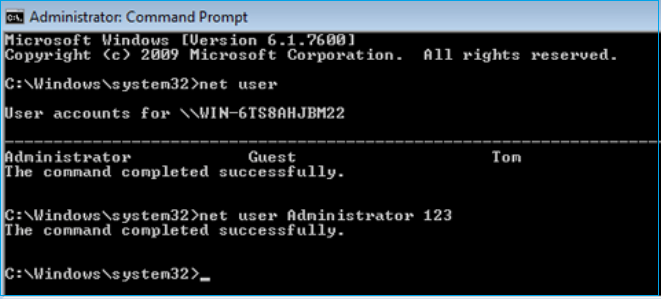
Via Password Reset Expert
Qiling Disk Master Professional is an all-in-one partition management tool that offers a unique feature - "Windows Password Reset". This feature allows users to reset their Windows 11 password efficiently, eliminating the need for a reset disk. The tool streamlines the password reset process, making it simpler and more effective than traditional methods, and provides a quick solution for regaining access to a locked Windows 11 computer.
To reset your Windows 11 password using Qiling Disk Master, follow the steps below.
Step 1. Insert the target USB disk into the computer, download and run Qiling Disk Master, and click "Tools" > "Create bootable media" to proceed.

Step 2. After selecting the correct USB flash drive or external mobile hard disk, click "Proceed" again. Wait patiently for the password reset USB flash drive to be created. Once it's done, click "Finish."

Step 3. To reset a password on a locked PC, remove the password reset USB, insert it into the locked PC, and restart. The PC will then ask you to change the boot drive to boot from the USB, and once done, the system will automatically boot from the USB.

Step 4. After restarting your computer, find Qiling Disk Master again and go to the "Password Reset" section. In the interface, you will see a list of all accounts on the PC; click on the target account and select "Reset" to proceed.

Step 5. When you receive this prompt, click "yes" to continue. Your password will be erased.

In my opinion, Qiling Disk Master is a must-have tool for every computer user, allowing you to streamline different tasks and fix problems easily.
- Reset Windows Vista Password
- Bypass admin password Windows 7
- Remove the Windows 10 password
Download Qiling Disk Master to experience a seamless and efficient computing experience, free from the hassle of disk management issues.
Via Security Questions
If you initially set security questions while creating a local account and password on your Windows 11, and still remember those questions, you can quickly reset your password. This is because Windows 11 prompts you to set security questions during account creation, allowing you to use them to reset your password if you forget it.
If you created security questions and still remember the answers, you can reset your Windows 11 password by following the steps to recover your account. This will allow you to regain access to your computer without needing to reset your entire system.
Step 1. At the Windows 11 login screen, enter the wrong password, click "OK" when it says it's incorrect, and then click "Reset password" to proceed.
Step 2. Click "Reset password".
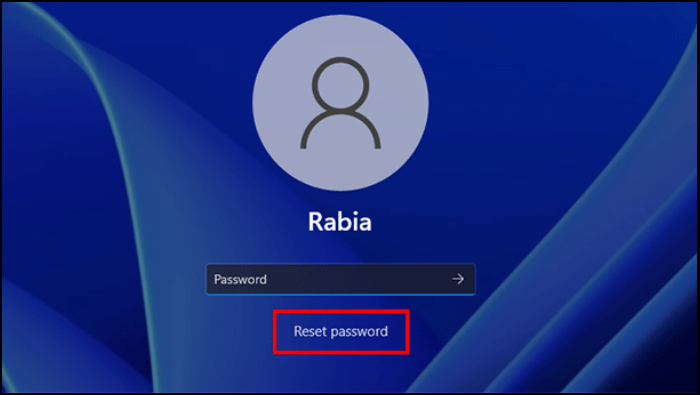
Step 3. You must type the correct answers and click the Submit (arrow) option.
Step 4. If your answers are correct, you can reset your password. Enter a new password and confirm it.
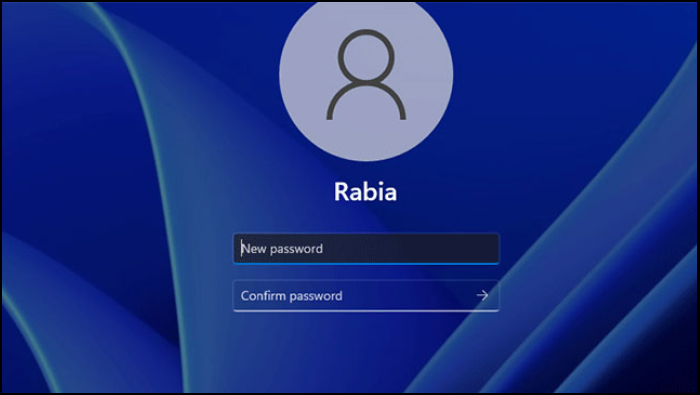
After setting a new password, Windows 11 will automatically take you to your desktop.
You May Also Like: How to Reset Windows 10 Password Without Logging in
Via Password Reset Disk
Windows versions, including Windows 11, provide a "Forgotten Password Wizard" feature to create a password reset disk in advance, allowing for easy password reset with a USB drive when forgotten.
The article explains how to create a Windows 11 password reset disk, which is similar to the process for Windows 10. To create a password reset disk, you'll need a blank CD, DVD, or USB drive and a Windows 11 computer.
Note: To create a password reset disk for Windows, a USB drive is required, and the process is the same for both Windows 11 and 10.
To reset your Windows 11 password using a password reset disk, follow these steps: Insert the password reset disk into your computer, and then follow the on-screen instructions to reset your password. If you have not created a password reset disk, you can try using other methods to reset your password, such as using a Windows installation media or a third-party password recovery tool.
Step 1. To initiate the password reset process, insert the password reset disk into your PC. Then, attempt to log in with an incorrect password.
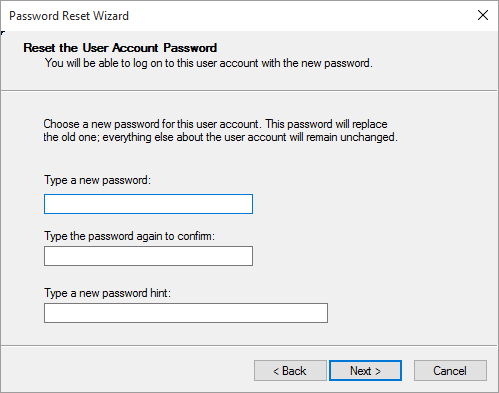
Step 2. To reset your password, click the "Reset password" option to open the Password Reset Wizard.
Step 3. Type and confirm your new password and the password hint, and click "Next" to create the new password in the Password Reset Wizard.
Read Also:
Via Command Prompt
Resetting the Windows 11 password via Command Prompt requires attention to detail and is a complex process. It involves using the built-in utility to create a new admin account, which can then be used to reset the password without needing to log in. This method requires careful execution of each step to avoid any issues or complications.
Don't miss any step and follow these steps carefully:
Step 1. At the Windows 11 login screen, click the Power button from the bottom-right corner, click "Restart" and hold the Shift key on your keyboard.
Step 2. Now, your PC will boot into the Windows recovery mode and click "Troubleshoot."
Step 3. To open Command Prompt, click on the Advanced options menu and select Command Prompt.

Step 4. In the Command Prompt, type 'diskpart' and press Enter to open the DiskPart tool.
Step 5. To display a list of all volumes on your computer, enter "list volume" and press the Enter key. Then, identify the drive letter of the OS drive containing your Windows 11 installation by referencing the volume size or volume label.
Step 6. After identifying the drive letter for your OS, input "exit" and press Enter to exit the DiskPart tool.
Step 7. Enter the command "move E:\windows\system32\utilman.exe E:\" and press Enter to relocate the utilman.exe file to the root directory of your OS drive, creating a backup.
Step 8. Enter the command "copy E:\windows\system32\cmd.exe E:\windows\system32\utilman.exe" and press Enter. This will duplicate the cmd.exe file, renaming it as utilman.exe in the E:\windows\system32 directory.
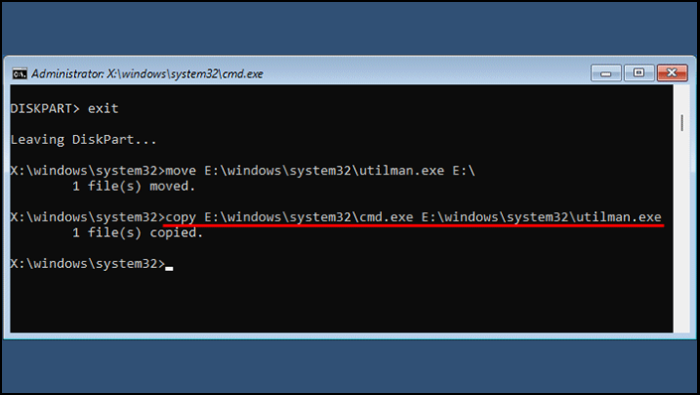
Step 9. To restart your computer, input the command "wpeutil reboot" and press Enter. This will initiate a restart, bringing you back to Windows 11.
Step 10. Upon reaching the Windows 11 login screen, select the "Accessibility" button, indicated by the human icon in the lower right corner, which will open a Command Prompt window.
Step 11. To reset your Windows 11 password, open the Command Prompt window and enter the command "net user 'username' password," replacing 'username' with your actual username and 'password' with the new password you want to set. For example, you can use "net user 'Jess' 123456" to reset the password for the user "Jess" to "123456". Then, press Enter to apply the changes.
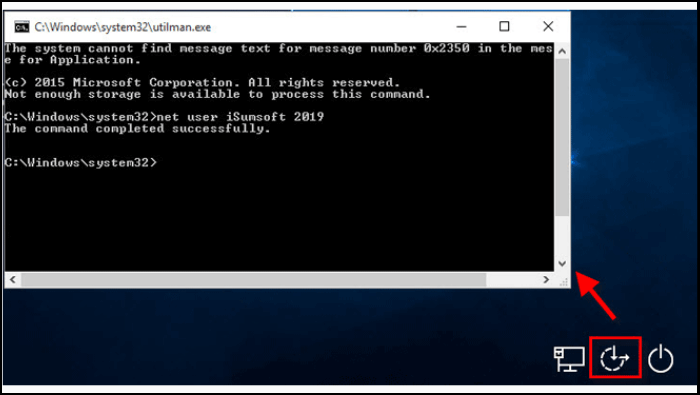
After resetting your password, close the Command Prompt. You can now sign in to Windows 11 with the new password. To restore the Accessibility utility and mitigate security risks, run the command "copy C:\utilman.exe C:\windows\system32\utilman.exe" in Command Prompt, confirm by typing "Yes" and pressing Enter.
Via Microsoft Account
If you're having trouble remembering your Microsoft account password for your Windows 11, you can easily reset it from any device, including your cell phone or the same Windows 11 computer, using your Microsoft account.
Follow the steps:
Step 1. To reset your Windows 11 login, click on the "I forgot my password" or "I forgot my PIN" option on the login screen, and select the correct option based on what you use, whether it's a password or a PIN.
Step 2. Microsoft will send you verification codes on your recovery email or phone number. Follow their instructions to verify your account.

Step 3. After verifying your account, you'll be taken to a screen where you can reset your password, so create a new one right away.
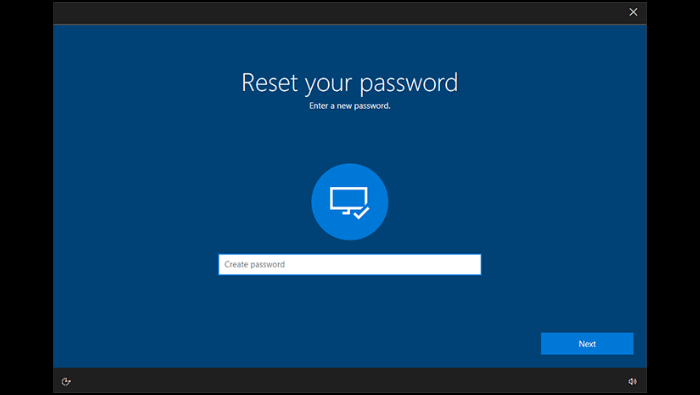
If you're struggling to follow the step-by-step guide, you can watch a video that provides a comprehensive tutorial on resetting your Windows password using the Command Prompt (CMD) and Qiling Disk Master Pro. This video will walk you through the entire process, making it easier to understand and complete the task.
We hope your issue has been resolved and you have successfully reset your Windows 11 password without logging in. Please don't forget to share this tutorial with others to help them.
Conclusion
This tutorial provides comprehensive solutions for resetting Windows 11 passwords without logging in, empowering users to bypass password issues. For the most efficient and user-friendly solution, we recommend utilizing Qiling Disk Master, which offers advanced features for a seamless and secure password reset experience. Its user-friendly interface ensures a swift and effortless process, allowing users to regain control of their Windows 11 system quickly.
How to Reset Windows 11 Password Without Logging in FAQs
If you have more queries or questions, these FAQs may help you to learn more.
1. How do I get into Windows 11 if I forget my password?
You can regain access to your Windows 11 account if you've forgotten your password by resetting it. This guide provides various methods to reset the Windows 11 password, allowing you to choose the one that suits you best.
2. How do I reset my Windows 10 password without logging in?
With a password reset disk or USB installation disk, you can reset your Windows 10 password without logging in, allowing you to regain access to your computer.
3. How can I reset my Windows password when locked out?
If you're locked out of Windows and can't remember your password, you can try resetting it using a password reset tool like Qiling Disk Master or a password reset disk. Alternatively, you can use a USB installation disk or the Command Prompt to reset your password.
Related Articles
- How to Fix Error No Such Partition Grub Rescue in Windows 11/10
- How to Fix 3DS Could Not Detect SD Card in 6 Ways
- What to Do If PC Keeps Freezing | How to Fix PC Keeps Freezing
- Lenovo VS Dell: Which Is Better [New Details]
- How to Rebuild and Repair Partition Table
When a hard drive's partition table becomes corrupted, it may appear as unallocated or not initialized in Disk Management if the computer can still boot. - How to Recover Data/Partition After Power Outage
In the event of a power outage or power surge, data loss or partition loss on a computer can occur. Depending on the situation, various methods can be used to retrieve files or partitions and restore normal disk functionality.
Products
Articles & Tutorials
- Data Recovery
- Data Backup
- File Recovery
- File Backup
- System Backup and Restore
- Disk and Partition Clone
- Technical articles
- Mobile articles
- Disk Master Help
- Windows Data Recovery Tutorials
- Windows Secure Delete Tutorials
- Windows Partition Management Tutorials
- Windows File Backup and Restore Tutorials
- Windows System Backup and Restore Tutorials
- Windows Disk Backup and Restore Tutorials
- Windows Clone Tutorials