5 Ways to Reset Windows 7 Password | Quick & Easy
To reset your Windows 7 password, you can follow these steps: 1) Insert your Windows 7 installation disc or USB drive, 2) Restart your laptop and boot from the disc or USB drive, 3) Select your language and click "Next", 4) Click "Repair your computer", 5) Select "Troubleshoot" and then "Reset password", 6) Follow the prompts to reset your password. Alternatively, you can also use a password reset tool like Ophcrack or Hiren's BootCD. If you're not comfortable with these steps, you can also contact a professional for assistance.
If you've lost or forgotten your Windows 7 password, don't panic! This guide will walk you through the process of resetting your password without logging in, saving you the hassle of wiping your hard drive and reinstalling the operating system. Qiling will be with you every step of the way, making the process as smooth and time-efficient as possible.
How to Reset Windows 7 Password
Resetting a Windows 7 password can be done using a third-party program like Qiling Disk Master, which offers a reliable and efficient solution. Its powerful features and user-friendly interface make it a dependable option to automatically reset any password.
Let's reset your Windows 7 password:
| Workable Solutions | Effectiveness | Difficulty Level |
|---|---|---|
| Password Reset Expert | High - Efficiently reset your password in simple steps. | Low - Requires a software download. |
| Password Reset Disk | Medium- Need a reset disk password. | Medium - Requires Disk preparation. |
| Command Prompt | Medium - Need command understanding. | High - Requires some technical skills. |
| Install Disk | High - A guaranteed reset, but data loss. | High - Complex and data backup required. |
| Administrator Account | Medium - Default Admin account required. | Medium - Basic computer skills. |
Read Also:

4 Tips to Reset Windows 7 Password without Disk
If you're unable to access your Windows 7 account due to a forgotten password, don't worry - there are several feasible options to reset your password without a disk. You can use a professional password tool, such as a password reset software, to create a new password.
Via Qiling Password Reset Tool
Resetting a Windows 7 password can be a challenging task, but automated tools like Qiling Disk Master Pro make the process seamless. This tool stands out as it offers easy functionality with efficient results, especially its "Windows Password Reset" feature, which uses advanced algorithms. With computer skills, users can reset their password in just a few clicks.
This tool is designed for users who may not be tech-savvy, allowing all Windows users to reset their Windows 7 password without the need for a disk installation.
Download the Qiling Disk Master, a tool that allows you to unlock your computer with ease, making it hassle-free.
Step 1. To create a bootable USB disk, insert the target USB disk into the computer, download and run Qiling Disk Master, and click on the "Tools" menu followed by "Create bootable media".

Step 2. After selecting the correct USB flash drive or external mobile hard disk, click "Proceed" again. Wait patiently for the password reset USB flash drive to be created. Once completed, click "Finish."

Step 4. To reset the password on a locked PC, remove the password reset USB, insert it into the locked PC, and restart. This will prompt a request to change the boot drive to boot the PC from USB, and once completed, the system will automatically boot from USB.

Step 4. After restarting, find Qiling Disk Master again, go to "Password Reset", select the target account, and check "Reset".

Step 5. When you receive this prompt, click "Yes" to continue. Your password will be erased.

Other Functions of Qiling Disk Master:
Via Password Reset Disk
It is a handy method if you have created a reset disk earlier. Follow these steps if you have a password reset disk and unlock computer without password:
Step 1: Turn on your computer and input a flash drive with your reset disk.
Step 2: Click the "Reset Password" option.
Note* If you enter the wrong password, you will see a message saying "Password is incorrect" and a "Reset password" option will appear. If you don't see this option, it means you have entered the correct password.
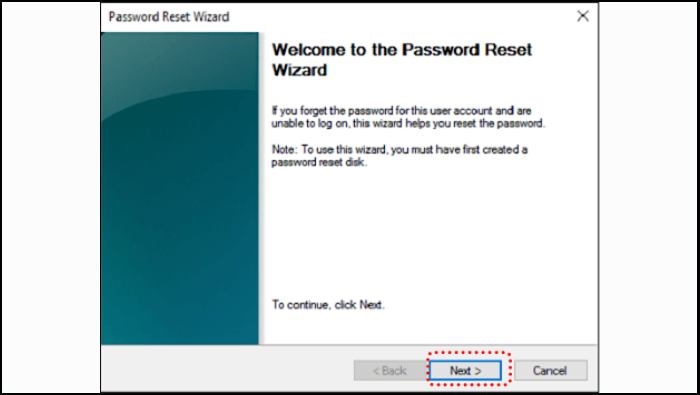
Step 3: Now, you will encounter the Password Reset Wizard.
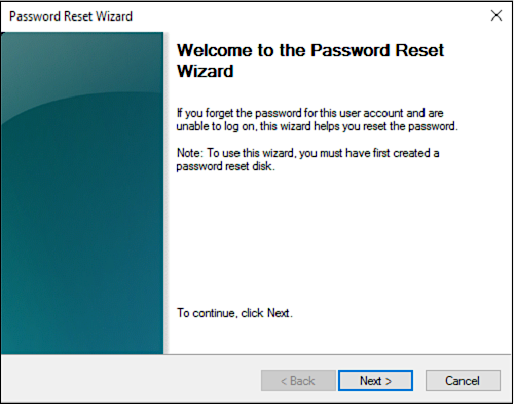
Step 4: To reset your password, click on "Next" and select "password reset disk" from the drop-down menu.
Step 5: To set a new password, click the "Next" button and enter a strong password. You will also be asked to create a hint for your new password, which can be a phrase or a word that will help you remember your password. This hint should be something that is easy for you to remember, but difficult for others to guess.
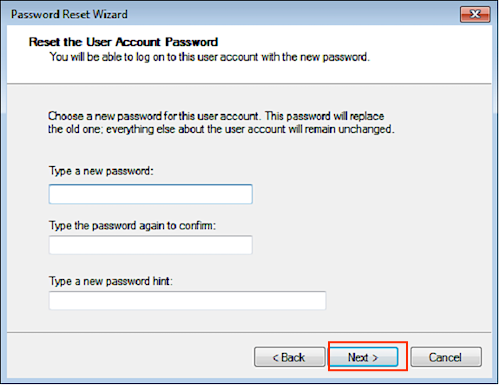
Step 6: Select the "Next" then "Finish."
Step 7: Log in with your new password.
To get more details, click the following link.
Password Reset Disk Windows 7: How to Create and Use
To create a password reset disk for Windows 7, follow these steps: first, ensure you have a blank floppy disk or a USB drive; then, go to the Control Panel, click on User Accounts, and select "Create a password reset disk"; next, insert the blank floppy disk or USB drive and follow the prompts to complete the process. Once you have the password reset disk, you can use it to reset the password for a Windows 7 PC by booting from the disk, selecting your user account, and entering a new password. This article provides detailed guides on these issues.
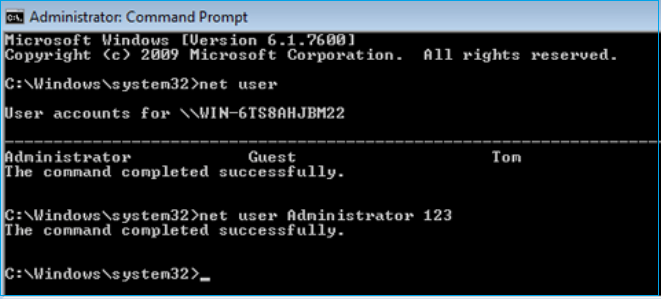
Via Command Prompt
If you have an alternative admin account, you can try resetting the password from that account. This method may not work in all cases, but it's worth a try. Go to the alternative admin account, navigate to the user account you're trying to reset the password for, and follow the prompts to reset the password. This method should only be attempted if you have another administrator account available.
To reset the computer password using Command Prompt, you'll need to access the Command Prompt as an administrator. This can be done by searching for "cmd" in the Start menu, right-clicking on the Command Prompt result, and selecting "Run as administrator." Once you have Command Prompt open, you can use the net user command to reset the password for the account you want to reset.
Step 1: Press the "Windows" key and choose "All programs."
Step 2: Select the "Accessories" and navigate "Command Prompt" from the list.
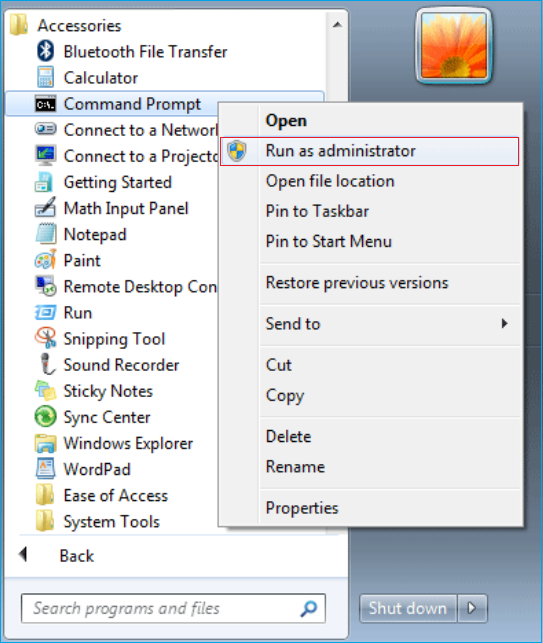
Step 3: Right-click on it and choose "Run as administrator."
Step 4: Type "net user" and hit the "Enter" key.
This command will display a list of all user accounts.
Step 5: Input the password reset command and hit "Enter."
net user username password
Note* To reset the password for a user, you can use the following command: `az ad user update --id username --set accountEnabled=true --output json --query userAccountInformationResult` and then `az ad user update --id username --set passwordPolicySettings=password` and finally `az ad user update --id username --set passwordPolicies=passwordPolicies` and `az ad user update --id username --set passwordPolicies=passwordPolicies --password password`.
Via Install Disk
For Windows 7 users with advanced computer skills, resetting via install disk is an option. To do this, you'll need a USB disk with Windows 7 installation media. Assuming you have an installation disk, you can follow these steps to reset your computer.
Step 1: Restart the computer and boot up from the installation disk.
Step 2: When Windows installs, choose the "Repair your computer" option at the bottom.
Step 3: To access the Command Prompt from the Windows Recovery Environment, you can either click on the "Command Prompt" option from the recovery options menu or press the key combination "Shift + F10" on your keyboard. This will directly open the Command Prompt, allowing you to execute commands and troubleshoot your system.
Step 4: Insert the following commands individually and hit "Enter" after each command.
- c:
- cd windows
- cd system32
- ren sethc.exe sethc.exe.bak
- copy cmd.exe sethc.exe
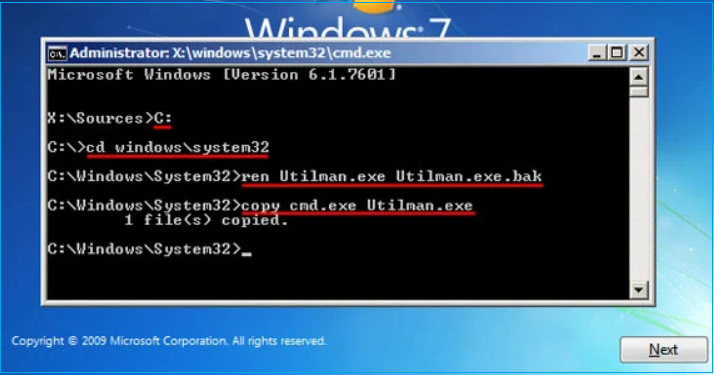
To safely remove the installation disk, you can press the Windows key + X and select Shut down or sign out. Then, click on Restart. This will allow your computer to automatically restart and remove the installation disk.
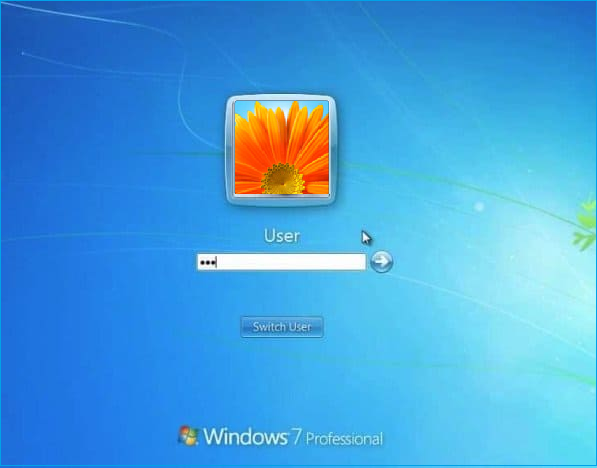
Step 5: To access the Command Prompt, press the "Shift" button 5 times on the login screen to open it again.
Step 6: Insert the following command to reset the forgotten password.
net user user_name new_password
Replace the "user_name" and "new_password" with new credentials.
To change your login password, you need to shut down the Command Prompt, restart your computer, and then log in with the new password.
Read Also:
Via Administrator Account
It is easy to reset passwords using a built-in admin account in Windows 7. Follow these steps to reset Windows 7 password via the administrator account.
Step 1: To access the local user group window on your computer, type "lusrmgr.msc" in the search box and press the "Enter" key. This will open the Local Users and Groups window, where you can view and manage the users and groups on your computer.
Step 2: Double-click the user folder to expand the list of all user accounts in your Windows 7 computer.
Step 3: Choose the account whose password you want to reset.
Step 4: Click on the proceed option.
Step 5: Insert a new password and re-type it.
Step 6: Click "OK" and reboot the computer.
You can now access the computer using the new password.
Read Also: HP Default Admin Password, Dell Default Admin Password
If you're having trouble following the text guide, we also have a video tutorial on how to reset your Windows password using CMD and Qiling Disk Master Pro.
To reset Windows 7 passwords without logging in or a disk, follow these steps: First, you'll need to boot your computer from a Windows 7 installation disc or a USB drive with the Windows 7 installation media. If you don't have a disc, you can create a bootable USB drive.
Conclusion
The methods outlined in the article can help reset a lost Windows 7 password, but some may cause potential data loss. To ensure a smooth and safe reset procedure, it's recommended to use a specialized tool like Qiling Disk Master, which is easy to install and can reset a password quickly.
FAQs About How to Reset Windows 7 Password
The FAQs section is designed to provide answers to frequently asked questions about the topic. If you have any further questions, please refer to this section for clarification.
1. What do I do if I forget my Windows 7 password?
If you've forgotten your Windows 7 password, you can reset it using a password reset tool like Qiling Disk Master, which is a suitable option for beginners who don't have a password reset disk.
2. How to reset a PC if I forget the administrator password?
If you've forgotten the administrator password for your PC, you can regain access using various methods. Third-party tools like Qiling Disk Master can reset the password, or you can use the "lusrmgr.msc" command for a manual approach. This allows you to regain admin access without having to reinstall the operating system.
3. Can you unlock a laptop if you forgot the password?
You can easily unlock a laptop if you've forgotten the password by using a password reset tool, a reset disk, an install disk, or the command prompt.
Related Articles
- How to Burn Windows 7 ISO to USB [Step-by-Step Tutorial]
- How to Repair and Restore Not Working/Failed/Dead SSD 🔥
- What to Do with Corrupted Operating System
- Everything to Learn About SD Card Copier Software
- How to Recover Accidentally Deleted Operating System in Windows 11/10
If you accidentally deleted Windows on your computer, you can recover it by following a guide to restore your operating system and make your computer boot again. - Accidentally Formatted/Deleted HP Recovery Partition, How to Recover
What to do if you accidentally deleted or formatted HP recovery partition? Qiling partition recovery software can recover deleted and lost partitions easily and quickly.
Products
Articles & Tutorials
- Data Recovery
- Data Backup
- File Recovery
- File Backup
- System Backup and Restore
- Disk and Partition Clone
- Technical articles
- Mobile articles
- Disk Master Help
- Windows Data Recovery Tutorials
- Windows Secure Delete Tutorials
- Windows Partition Management Tutorials
- Windows File Backup and Restore Tutorials
- Windows System Backup and Restore Tutorials
- Windows Disk Backup and Restore Tutorials
- Windows Clone Tutorials