How to Recover Data/Partition After Power Outage
Overview of Data/Partition Loss After Power Failure
"Partition disappears after a power failure, now shows 'Unallocated'."
Power outages or surges can be frustrating, especially when they occur while you're working on your computer. In such cases, you may lose access to your data or partitions, making it difficult to recover your work. A power outage or surge can lead to data loss or corruption, making it essential to have a backup plan in place to prevent such incidents.
- Files are lost on your computer or external hard drive
- Disk Partition becomes unallocated
- A disk partition becomes inaccessible when it still exists but you can't open or access the files on it.
Luckily, recoverable files or partitions can be salvaged with the right tools. Depending on your specific situation, the following fixes can help you retrieve your lost content with ease.
How to Recover Data/Partition After Power Outage
When data loss occurs, avoid storing new files on the affected hard drive or partition to prevent overwriting of the lost data. Instead, initiate data or partition recovery as soon as possible to maximize chances of successful recovery.
Solution 1. Recover Lost Data
If you lost some of your files due to a power outage, you can use free data recovery software like Deep Data Recovery to retrieve them. For a step-by-step guide, refer to the article on how to recover lost files in Windows.
Solution 2. Recover Lost Partition
If your partition disappears after a power failure and becomes unallocated space, you can recover it and its files using Qiling Partition Recovery software. This tool helps recover partitions lost due to power failure, incorrect operation, corrupted partition table, bad sectors, repartitioning, and other issues.
To recover your partition after a power outage:
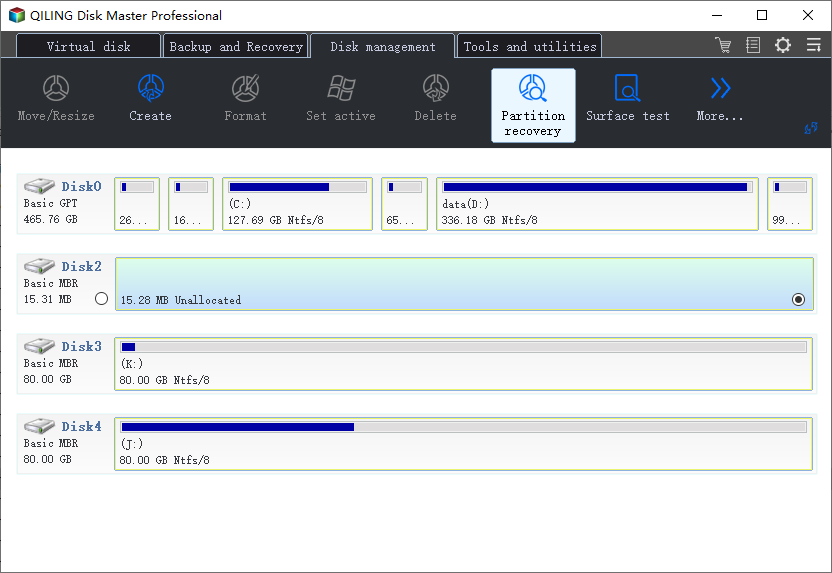
Step 1. Run Qiling Partition Recovery on your PC.
Select the disk or device where you lost partition(s), and click "Proceed" to continue.
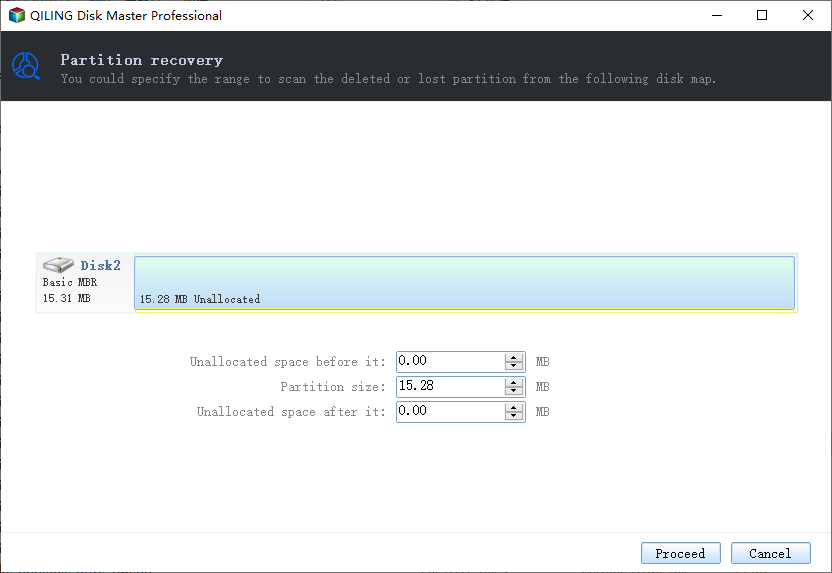
Step 2. Wait for the scanning process to complete.
Let the program scan the selected disk and find the lost partition(s).
Step 3. Preview and restore the lost partition(s).
Double-click on the partition which is marked as "Lost" with "Good" recoverability.
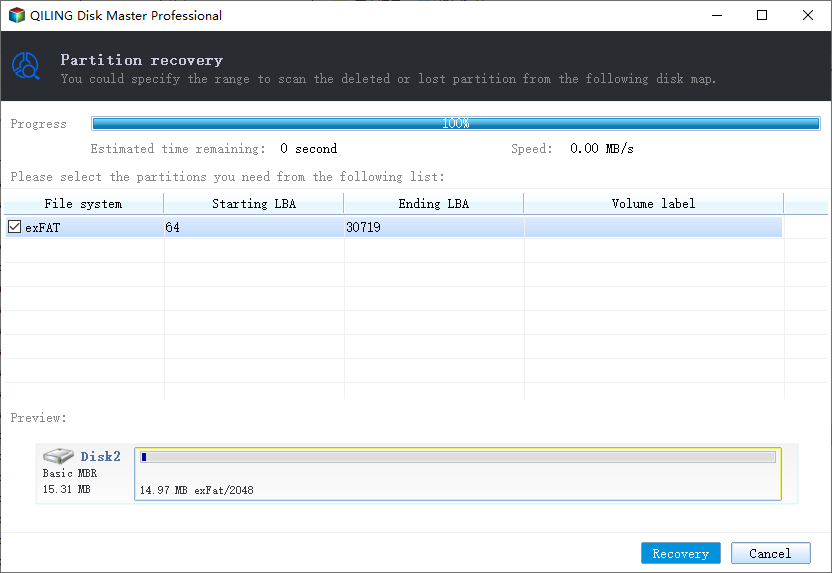
To preview the lost partition, simply select it from the list and tick it. This will allow you to view the contents of the previously inaccessible partition.
Step 4. Click "Recover" to finish the partition recovery process.
To resolve the conflict between the original and restored partitions, first back up any essential data from the listed partition to an external hard drive. Once the data is safely backed up, execute the final operation to restore the lost partition, effectively resolving the conflict. (Note: The exact steps may vary depending on the specific software or tool being used.
Solution 3. Restore Inaccessible Partition
If a partition becomes inaccessible due to a power failure or power surge, it will still appear on your computer, but you won't be able to open it. Instead, you'll see a prompt saying "you need to format the disk in drive before you can use it" when you try to open it.
If Windows asks you to format your drive, don't do it immediately. Formatting will erase all your files. Instead, try to recover your data first. If your partition is inaccessible and Windows asks you to format it, it might be in a RAW file system state. You can recover data from a RAW drive with data recovery software like Qiling.
Briefly speaking, the steps to restore an inaccessible partition are:
Step 1. Recover data from your RAW partition to somewhere else.
Step 2. Format the drive to make it usable.
Step 3. Copy the recovered files back to the partition.
The Bottom Line
When a power outage occurs, you may lose your unsaved work and experience issues with external storage devices, such as not being able to access your external hard drive or pen drive. To minimize data loss, it's essential to develop a habit of regularly backing up your files. This can help prevent complete data loss in case of a power failure.
Hope this guide can help you retrieve what you have lost.
Related Articles
- 3 Tips to Recover Lost Partition on Windows 10
- FAT Recovery | Recover Data from FAT Hard Drive
- Professional Software to Partition Hard drive in Windows 7/8/10/11
This tutorial will introduce you the professional partitioning software to help you Partition/Create/Delete/Format/Resize hard drive before installing Windows. - Best Dynamic Disk Manager for Windows 10, 8, 7, You Can Try
Looking for a powerful dynamic disk manager for Windows 10, 8, 7? Here we bring a great dynamic disk and partition manager for Windows PC users. - How to Format An Internal Hard Drive Windows 10? [Latest Tip]
Wondering how to format an internal hard drive Windows 10? Through this post, you can learn a guide to format an internal hard drive in Windows 10. - How to Format Maxtor External Hard Drive [2024 Guide]
If you're experiencing issues with formatting your Maxtor External Hard Drive, - this guide can help. To resolve the problem, follow the steps outlined in the detailed guide, which provides a comprehensive solution to get your Maxtor External Hard Drive up and running smoothly.
Products
Articles & Tutorials
- Data Recovery
- Data Backup
- File Recovery
- File Backup
- System Backup and Restore
- Disk and Partition Clone
- Technical articles
- Mobile articles
- Disk Master Help
- Windows Data Recovery Tutorials
- Windows Secure Delete Tutorials
- Windows Partition Management Tutorials
- Windows File Backup and Restore Tutorials
- Windows System Backup and Restore Tutorials
- Windows Disk Backup and Restore Tutorials
- Windows Clone Tutorials