How to Format An Internal Hard Drive Windows 10? [Latest Tip]
Key Takeaways:
- 1st. Back up your important files before formatting the internal hard drive on Windows 10.
- 2nd. Run the free CNET-You can use software like Qiling Partition Master to format an internal HDD or SSD. Alternatively, you can also use built-in Windows tools like Disk Management (built-in) or Command Prompt (built-in) to format the drive.
Quick Navigation
Option 1. How to Format Internal Hard Drive by Free Partition Manager
Option 2. Format Internal Hard Drive with Command Prompt
Option 3. Format Hard Disk by Disk Management
Try to Format Internal Hard Drive on Windows 10?
Formatting an internal hard drive in Windows 10 is a straightforward process that can be completed in a few steps. Regardless of your specific needs, whether you're looking to free up space, prepare a drive for use, or troubleshoot issues, formatting a hard drive can be a helpful solution. To start, open the File Explorer and right-click on the drive you want to format, then select "Format" from the context menu.
Scene 1 When you get a new hard drive, you'll need to format it before you can use it to store data. This process will erase any existing data on the drive and prepare it for use with your computer.
Scene 2 Formatting a drive can help free up space and improve performance by clearing out clutter and making room for new files, especially when the drive becomes full and disorganized.
Scene 3 Formatting a drive infected with malware or other malicious software will remove the infection, allowing the user to start with a clean slate.
Scene 4 Formatting the hard drive will erase all personal data, making it impossible for others to access it if the computer is sold or disposed of.
If you are encountering one of the scenes, keep reading!
Choose Your Format for Internal Hard Drive
When selecting a file system format for an internal hard drive, several factors come into play. The choice between formats like NTFS, HFS+, and exFAT depends on the operating system being used, as well as personal preferences and specific use cases.
The choice of file system depends on the operating system being used, with Windows using NTFS and macOS using HFS+, as well as the size of files being stored, with NTFS or exFAT being better for large files, and compatibility with other devices.
The best file system format for an internal hard drive depends on the specific needs and requirements of the user, with common options including NTFS for Windows, HFS+ for Mac, and ext4 for Linux.
How to Format An Internal Hard Drive Windows 10 [3 Instructions]
To format a new internal hard drive, you can use either Qiling Disk Master (recommended) or Disk Management.
To format an existing internal hard drive, you can use a free formatting software such as DBAN (Darik's Boot and Nuke) or a command line tool like Diskpart in Windows. With Diskpart, you can open the Command Prompt as an administrator, type "Diskpart", and then use the "clean" and "format" commands to erase and reformat the drive.
Option 1. How to Format Internal Hard Drive by Free Partition Manager
Qiling Disk Master is a user-friendly partition manager that allows users to format an internal hard drive, create, resize, and merge partitions, and supports both MBR and GPT disk formats.
Start with this excellent choice:
Step 1. Run Qiling Disk Master, right-click the hard drive partition you intend to format and choose "Format".

Step 2. In the new window, set the Partition label, File system, and Cluster size for the partition to be formatted.

Step 3. To proceed with formatting the partition on your hard drive, click the "Proceed" button. This will initiate the formatting process, which will overwrite all data on the selected partition.

Step 4. Then you will see a warning window, click "Yes" in it to continue.
Option 2. Format Internal Hard Drive with Command Prompt
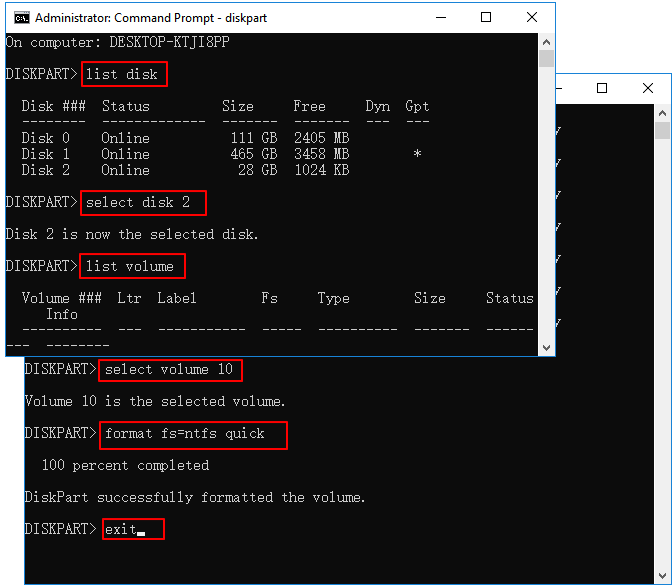
To format the internal disk using Command Prompt, open Command Prompt as Administrator, type `diskpart`, and press Enter. Then, type `list disk` and press Enter to list all disks, including the internal one.
Step 1. To open the Command Prompt with administrator privileges, click the Start icon, type "Command Prompt" in the search box, and select the option to Run As Administrator.
Want more options? Command Prompt Shortcut
Step 2. Type the command line and hit Enter - diskpart.
Step 3. Continue to type command lines and hit Enter.
- list disk
- select disk X (Change X with your drive number.)
- list volume
- select volume Y (Change Y with your partition number.)
- To format a drive in NTFS file format quickly, you can use the command "format fs=ntfs quick." This command will quickly format the drive, making it ready for use, while preserving the NTFS file system and its features. This is particularly useful for drives that need to be formatted for use with Windows operating systems. You can replace "ntfs" with other file formats such as "exFAT" or "FAT32" to format the drive in those formats instead.
Option 3. Format Hard Disk by Disk Management
To format new hard drive (Internal HDD or SSD):
Video Tutorial - How to Initialize and Format Hard Drive:
- Use Disk Management from 0:41.
Step 1. To access Windows 10 Disk Management, press the "Windows + R" shortcut on your keyboard, which will open the Run dialog box. Type "diskmgmt.msc" into the box and click OK. This will open the Disk Management utility, where you can manage and configure your computer's storage devices.
Step 2. Right-click the internal disk and select Initialize Disk.
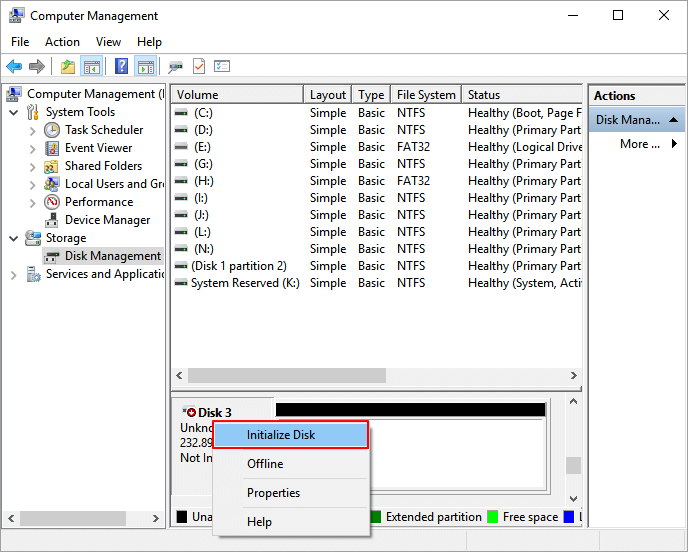
- Initialize your disk as MBR or GPT partition style.
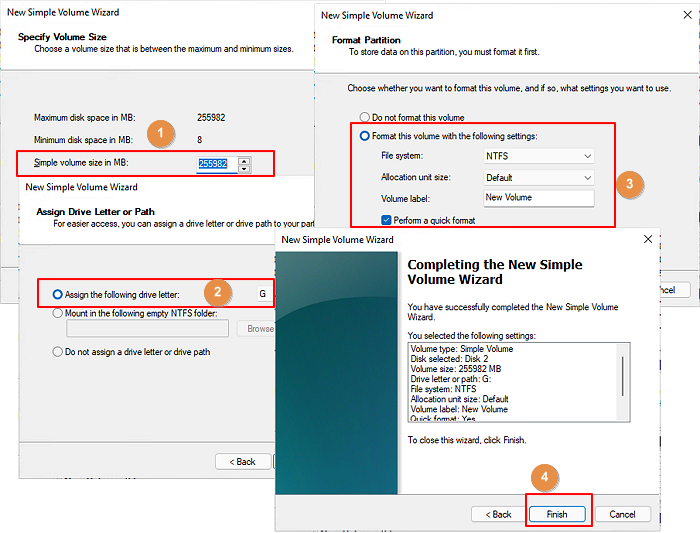
Step 3. Right-click the unallocated space and select New Simple Volume. Click Next.
- See the default simple volume size and click Next.
- Check to assign the drive letter and click Next.
- To format this volume, select the file system, allocation unit size, and volume label, then check the box for "Perform a quick format" and click "Next".
Step 4. Click Finish.
Bottom Line
Formatting an internal hard drive on Windows 10 can be done using three straightforward methods, but it's recommended to use Qiling Disk Master Free to safely format the device.
Format Internal Hard Drive FAQs
Here are some short answers to the frequently asked questions.
How do I format a hard drive in Windows 10?
1. Right-click on the drive you want to format and select the Format button.
2. Enter the name of the new volume, select the file system type, and set the allocation unit size.
3. Click OK to continue.
Why can't I format my internal HDD?
If the drive is in use, try restarting your computer and then formatting it. If that doesn't work, use a third-party disk management tool or replace the hard drive if it's failing.
Another "Format" error you may be interested in:
How do I format my internal SSD Windows 10?
You can use Disk Management to initialize and format partitions for a new internal SSD.
For an existing internal SSD, you can use a third-party partition manager and built-in utilities (Diskpart and Disk Management) to resize or reformat the drive.
Related Articles
- How to Use and Allocate Unallocated Space in Windows 11/10 [6+ Ways]
- How to Delete Partitions on SSD in Windows 11/10 [Step-by-Step Guide]
- How to Fix 'SD Card Is Blank or Has Unsupported File System' [100% Working Solutions]
- PC Slow Down? How to Remove Bloatware on Windows 10/11
Want to remove bloatware on a new computer by the manufacturer? This post comes to help you trim off this unwanted software pre-installed on Windows 11 and Windows 10. - Download Partition Magic Server Software for Windows Server 2012/2012 R2
This page provides reliable partition magic software that allows you to easily partition and manage disk space on Windows Server 2012 or 2012 R2 with just a few clicks. - Top 5 Best Partition Magic Server Software Recommend in 2024
Looking for reliable partition magic server software to efficiently manage and partition disk drives on Windows Servers? this guide can help!
Products
Articles & Tutorials
- Data Recovery
- Data Backup
- File Recovery
- File Backup
- System Backup and Restore
- Disk and Partition Clone
- Technical articles
- Mobile articles
- Disk Master Help
- Windows Data Recovery Tutorials
- Windows Secure Delete Tutorials
- Windows Partition Management Tutorials
- Windows File Backup and Restore Tutorials
- Windows System Backup and Restore Tutorials
- Windows Disk Backup and Restore Tutorials
- Windows Clone Tutorials