PC Slow Down? How to Remove Bloatware on Windows 10/11
Page Navigation about Remove Bloatware:
| Workable Solutions | Step-by-step Troubleshooting |
|---|---|
| What Is Bloatware? Which Apps Are Bloatware? | Unwanted, pre-installed apps; See common bloatware...Full steps |
| How to Remove Bloatware from Windows 10/11? |
1. Uninstall Pre-installed Apps from Start Menu...Full steps 2. Remove Bloatware with Powershell...Full steps 3. Remove Unwanted Apps from Control Panel...Full steps 4. Uninstall Bloatware from Settings...Full steps |
| Speed Up Windows System, and Free Space Without Remove Bloatware | No need to remove bloatware, use a third-party software to free up disk space...Full steps |
| More Tips: Remove Bloatware from Android | Step 1. Tab Settings on Android phone...Full steps |
What Is Bloatware? Which Apps Are Bloatware on Windows 10/11?
Bloatware refers to unwanted software included on a new computer or mobile device by the manufacturer, but it is not harmful, rather a marketing technique to promote their software before users download other competitors' software.
The trial version of software can be problematic when it expires, potentially causing issues on Windows 11 or Windows 10. Additionally, manually installing apps can slow down your computer. Considering you don't need bloatware, it's a good idea to remove them.
Common Bloatware Apps:
- OneNote
- Xbox Game Bar
- Windows Terminal
- Get Help
- Microsoft People
- Movie & TV
....
If you're looking to debloat Windows, the next part shows you how to remove bloatware on Windows 11/10, helping you get rid of unwanted pre-installed apps and free up space on your computer.
How to Remove Bloatware from Windows 10/11?
1. Uninstall Pre-installed Apps from Start Menu
On a Windows 11 computer, all apps are automatically placed on the Start Menu, making it easy to uninstall programs.
Step 1. Click the Start icon, which displays some apps that are pinned on the panel.
Step 2. Right-click the app and choose "Uninstall" from the list.
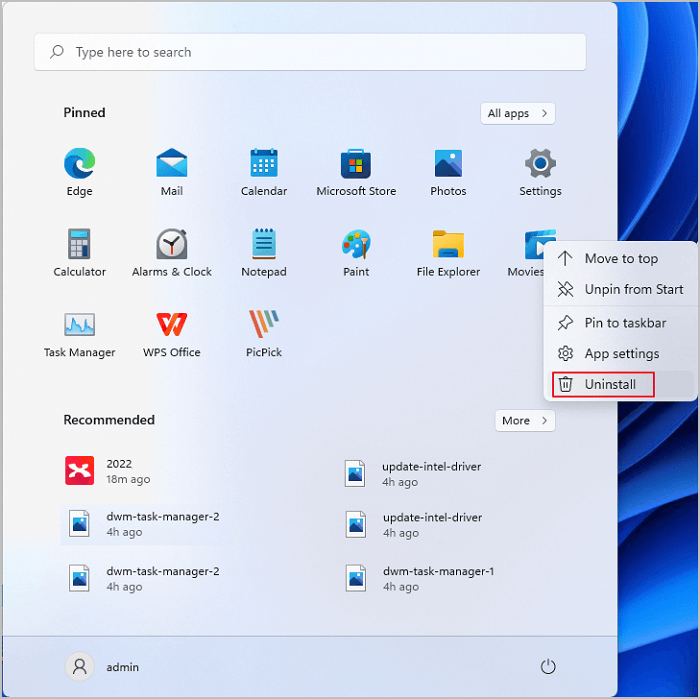
Step 3. To uninstall an app, go to the "All apps" list, scroll down to locate the app you want to remove, right-click it, and select the "Uninstall" option.
2. Remove Bloatware with Powershell
Step 1. To open Windows Powershell as administrator, search for "Windows Powershell" in the Start menu, and then click "Run as administrator."
Step 2. To confirm, click Yes. This will open a Powershell window. Once open, type "command" and press Enter.
Get-AppxPackage *appName* | Remove-AppxPackage
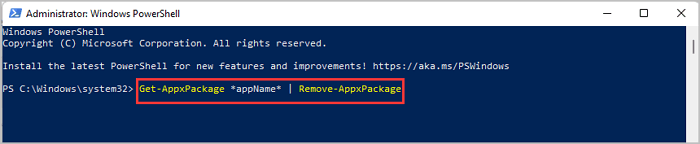
Replace appName with bloatware you want to uninstall.
| Apps | Commands |
|---|---|
|
Microsoft People Xbox Weather Photos Sports Movies & TV OneNote Mail & Calendar |
|
Step 3. To remove more apps, repeat the steps of going to the Start menu, clicking on the Settings icon, selecting System, clicking on Apps & features, and then clicking on the "Remove" button next to the app you want to delete. Do this for each app you want to remove.
3. Remove Unwanted Apps from Control Panel
Step 1. Type Control Panel on the search box.
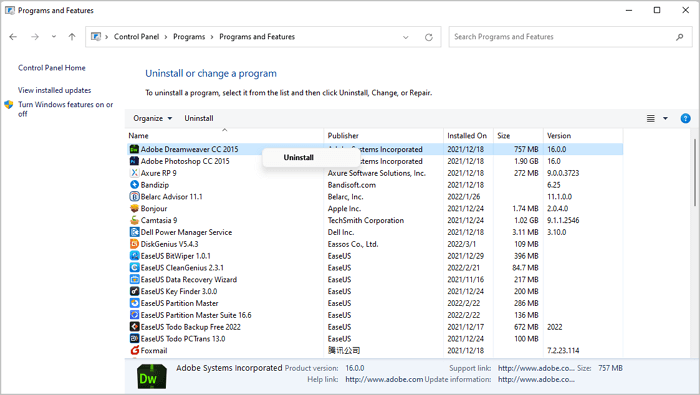
Step 2. To access the Programs and Features window, navigate to the Control Panel, then click on the "Programs" category, and finally select "Programs and Features" from the options within it.
Step 3. To remove software, locate the software you want to uninstall, right-click it, and select the "Uninstall" option.
4. Uninstall Bloatware from Settings
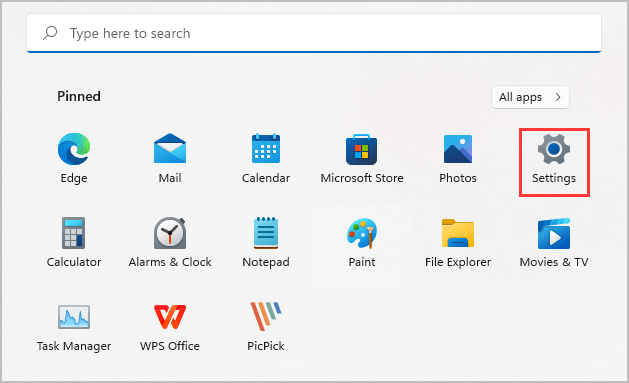
Step 1. Click Settings from the Start menu.
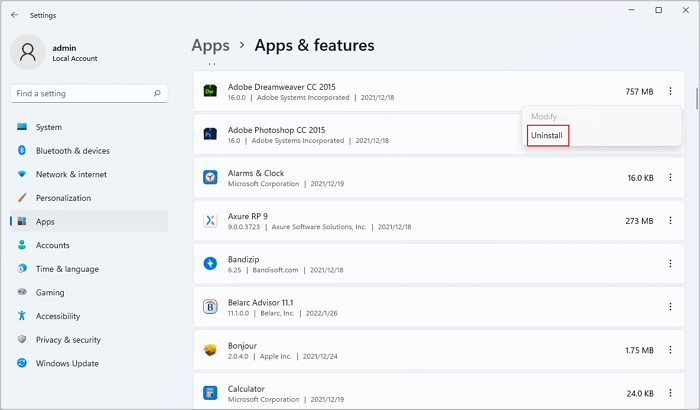
Step 2. To remove an app from your Windows device, follow these steps: Click on the "Apps" button on the left side of the screen, then select "Apps & features" on the right side. Scroll down to find the app you want to remove and click on it.
Or you can search the app on the box.

Step 3. Click on the three dots and choose "Uninstall."
Speed Up Windows System, and Free Space Without Remove Bloatware
Windows 11 comes with less bloatware than Windows 10, making it a more streamlined option. However, if you still want to free up C drive space, consider using Qiling Disk Master instead of deleting pre-installed software. This alternative can help improve Windows 11 performance and manage your disk space more efficiently.
Qiling Disk Master is a powerful software that helps manage disk space, offering features such as resizing and moving disks, migrating an operating system from a hard drive to a solid-state drive, and cloning disks.
Download Software to clean up space:
Steps to Free Up Disk Space:
Step 1: Free up unallocated space for C drive.
If there's no free space on the system disk, go to Partition Manager, right-click on a partition next to the C: drive, and choose "Resize/Move" to free up space.
Drag the left panel of the partition to shrink and leave unallocated space behind the system C: drive, then click "OK".
Step 2: Increase C drive space.
1. Right-click on C: drive and select "Resize/Move".

2. To add space to the C: drive, you would drag the system partition end into the unallocated space, effectively expanding the C: drive's capacity.

Step 3: Keep all changes to extend C: drive.
Click the "Proceed" to keep all changes so to extend the system C: drive.

Want to Remove Bloatware from Android? Stay Here
Bloatware on SmartPhone:
- Weather apps
- Sport apps
- Financial apps
- Music apps
- Video apps
- Messaging apps
How to Remove Bloatware from Android
Some Android apps are pre-loaded on phones from the store, and as manufacturers seek more profit, these apps can be enabled to run automatically. It's recommended to disable these unwanted programs.
Step 1. Tab Settings on Android phone.
Step 2. To access the Apps section, go to Settings > Apps & Notifications > See all apps.
Step 3. Select the app you want to remove and click "Uninstall" or "Disable" to remove unwanted apps from the Android phone.
To Sum Up
To remove bloatware from Windows 11 and Windows 10, you can use various methods such as the Start menu, Settings, Powershell, or Control Panel. Alternatively, if you're unable to remove bloatware, you can download and run Qiling Disk Master to free up drive space.
Related Articles
- M.2 VS SATA, What's The Differerence and How to Install [2024 Guide]
- How to Clone Windows 7 to USB [Full Guide]
- How to Format USB/External Hard Drive to ExFAT [Windows & Mac]
- How Do I Format SD Card for Galaxy S7/S5? 2024 Step-by-Step Tutorial
- Top 5 Best USB FAT32 Formatter [Free Download]
If you're a USB user, this page is for you. It recommends the best USB FAT32 Formatter to help you format your USB drives to any file system format for different purposes, making it a useful guide for those who need to format their USB drives. - USB Flash Benchmark Download with Complete Review in 2024
Briefly introduce the goal of this page, and call people to follow this guide to get official and secure USB flash benchmark download access, learn its pros and cons, and how to make use of this software for benchmarking USB flash drive.
Products
Articles & Tutorials
- Data Recovery
- Data Backup
- File Recovery
- File Backup
- System Backup and Restore
- Disk and Partition Clone
- Technical articles
- Mobile articles
- Disk Master Help
- Windows Data Recovery Tutorials
- Windows Secure Delete Tutorials
- Windows Partition Management Tutorials
- Windows File Backup and Restore Tutorials
- Windows System Backup and Restore Tutorials
- Windows Disk Backup and Restore Tutorials
- Windows Clone Tutorials